Rewards, Referrals, and Leaderboard
This section explains how Acusolo handles reward points, referrals, and leaderboard ranking from a business and user-flow perspective.
- Admin reward list:
https://admin.acusolo.net/admin/rewards?translated=true - Admin reward settings:
https://admin.acusolo.net/admin/app-settings/site-setting - Web referral page:
https://web.acusolo.net/settings/refer-a-friend - Web leaderboard page:
https://web.acusolo.net/leaderboard
Web leaderboard
The leaderboard page shows users ranked by their earned reward points.
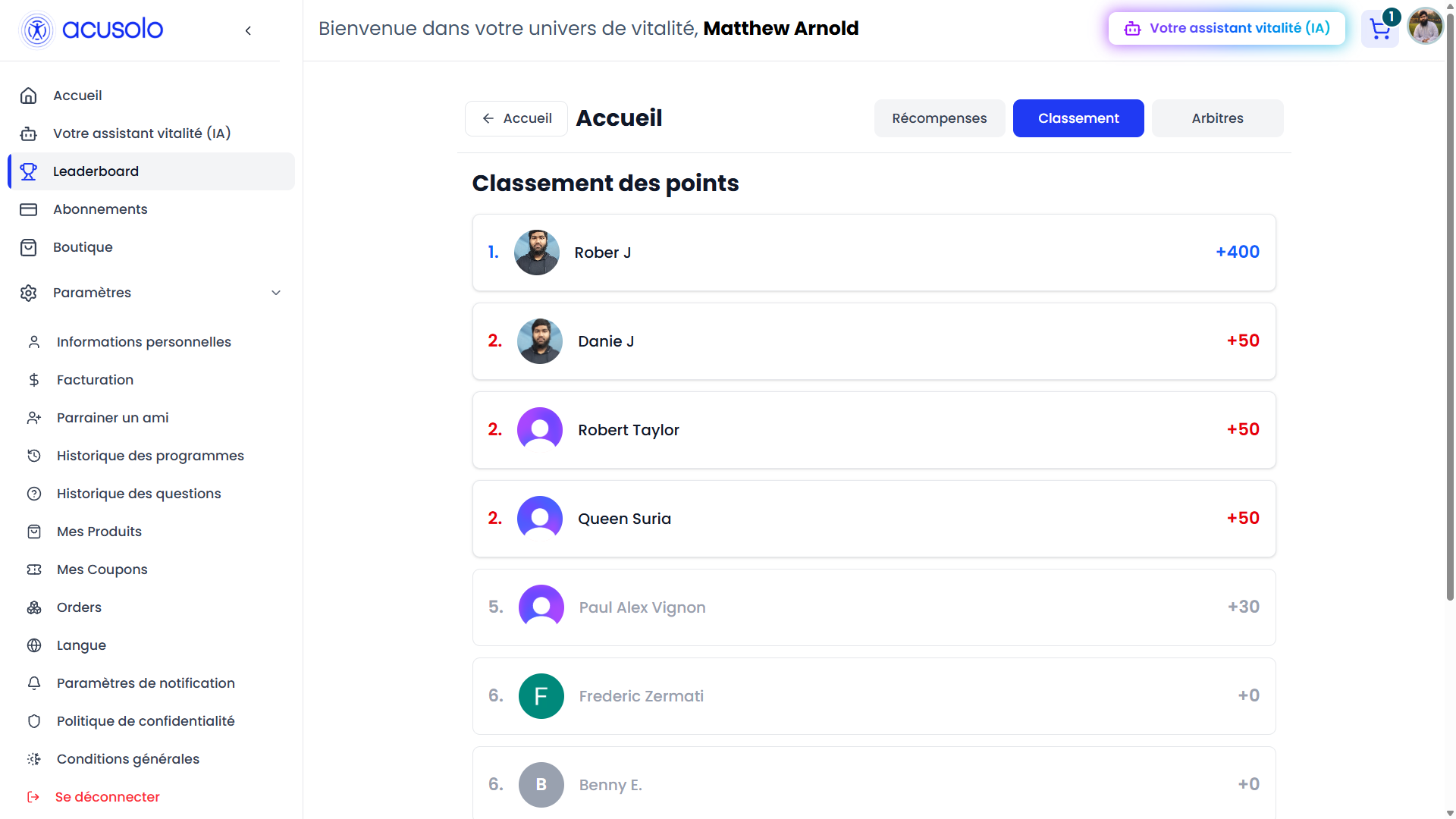
Users appear on the leaderboard after they earn points through referral or other reward-based activities. The user with the highest eligible point balance appears at the top.
If two or more users have the same point score, they share the same ranking position. The following rank continues after those tied users.
Admin reward list
The reward list page allows admins to manage the reward items used across the system.
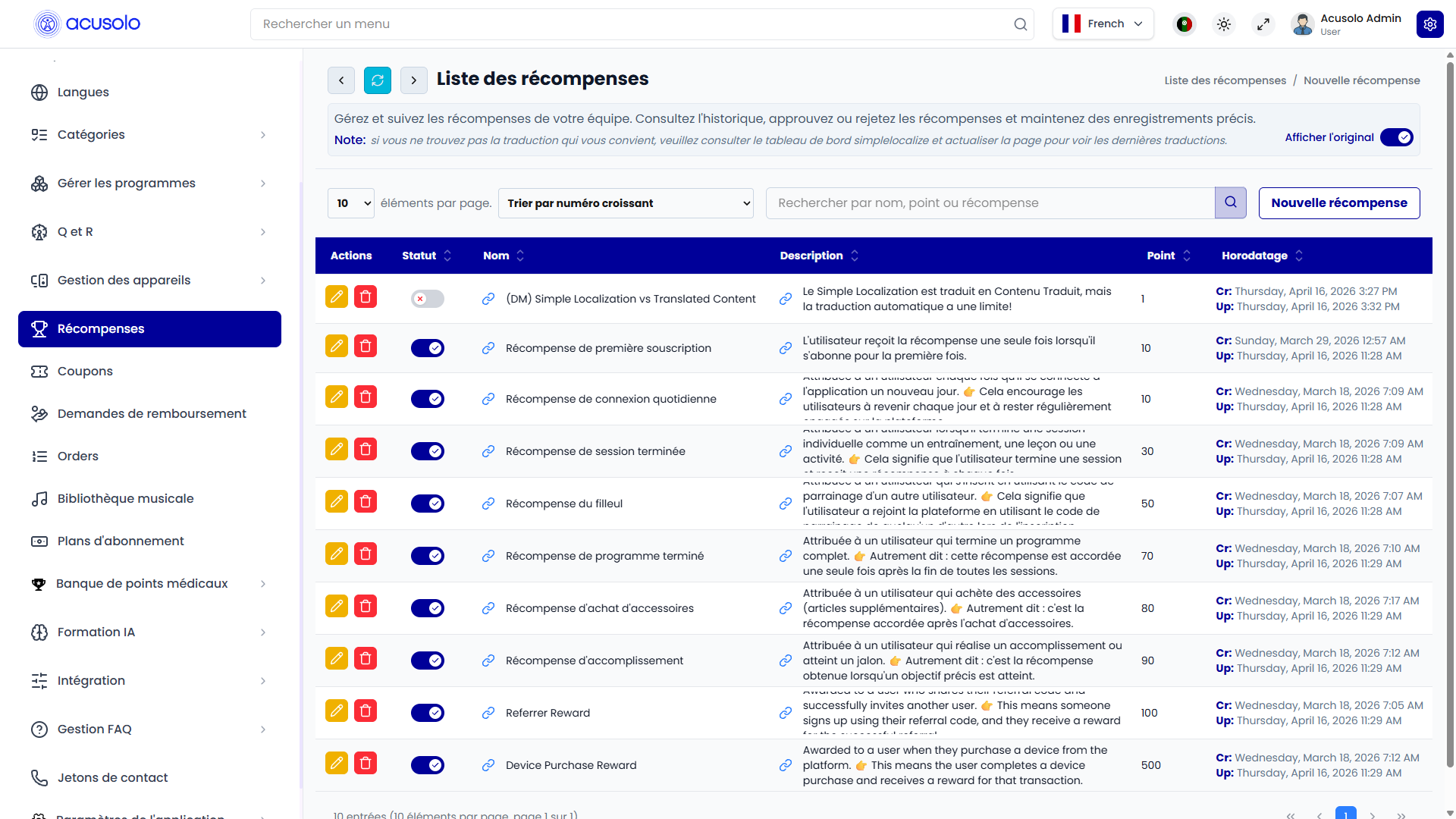
From this page, admins can:
- View all rewards.
- Search and sort reward records.
- Create a new reward.
- Edit an existing reward.
- Delete a reward.
- Enable or disable a reward using the status toggle.
Table columns
| Column | Meaning |
|---|---|
| Actions | Edit or delete the reward. |
| Status | Shows whether the reward is active or inactive. Inactive rewards should not be selected for new reward rules. |
| Name | The reward name shown to admins. |
| Description | A short explanation of what the reward is for. |
| Point | The number of points connected to this reward. |
| Timestamp | When the reward was created or last updated. |
Create reward
Click New Reward to open the create modal.
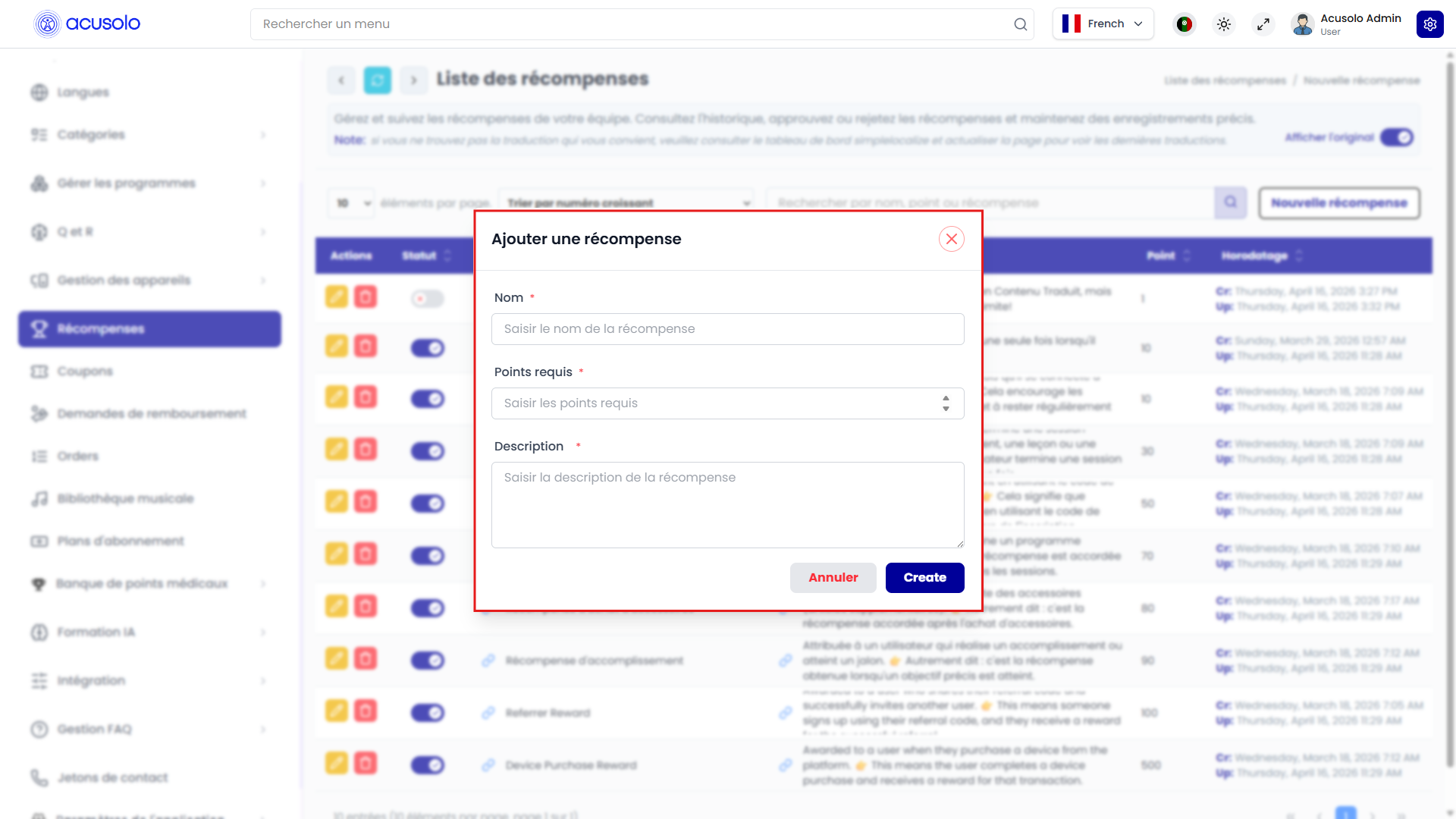
Create fields
| Field | Meaning |
|---|---|
| Name | Required. The admin-facing reward name. It must be unique. |
| Required Points / Point | Required. The number of points this reward gives when it is assigned to an activity. The value cannot be negative. |
| Description | Required. Explains what this reward is used for. |
There is no visible reward type or category dropdown in the current modal. The reward only defines a reusable point value. The reward is connected to a specific activity later from the reward settings page.
There is also no status field in the create modal. New rewards are created as active by default, and admins can later change the status from the reward list.
After creation:
- The reward becomes available in the reward list.
- Active rewards can be selected from the reward settings page.
- The reward can be used for referral, session, program, login, purchase, subscription, or other configured earning rules.
Edit reward
Click the edit action from a reward row to open the edit modal.

The edit modal is pre-filled with the selected reward's existing information.
Admins can update:
- Name
- Required Points / Point
- Description
If the point value is changed, future rewards that use this reward record will use the updated point value. Previously earned point records remain as historical records.
Status is not edited inside this modal. Admins should use the status toggle from the reward list table.
Delete and status behavior
When an admin clicks delete, the standard delete confirmation modal appears. After confirmation, the reward is removed from the reward list.
Before deleting a reward, admins should check whether it is currently assigned in the reward settings page. If a deleted reward was assigned to an earning rule, that rule should be updated with another active reward.
The status toggle controls whether the reward is active or inactive:
- Active: the reward can be used for reward assignment.
- Inactive: the reward should not be used for new reward assignments.
Reward assignment settings
The reward settings page controls which reward point value is used for each earning activity.
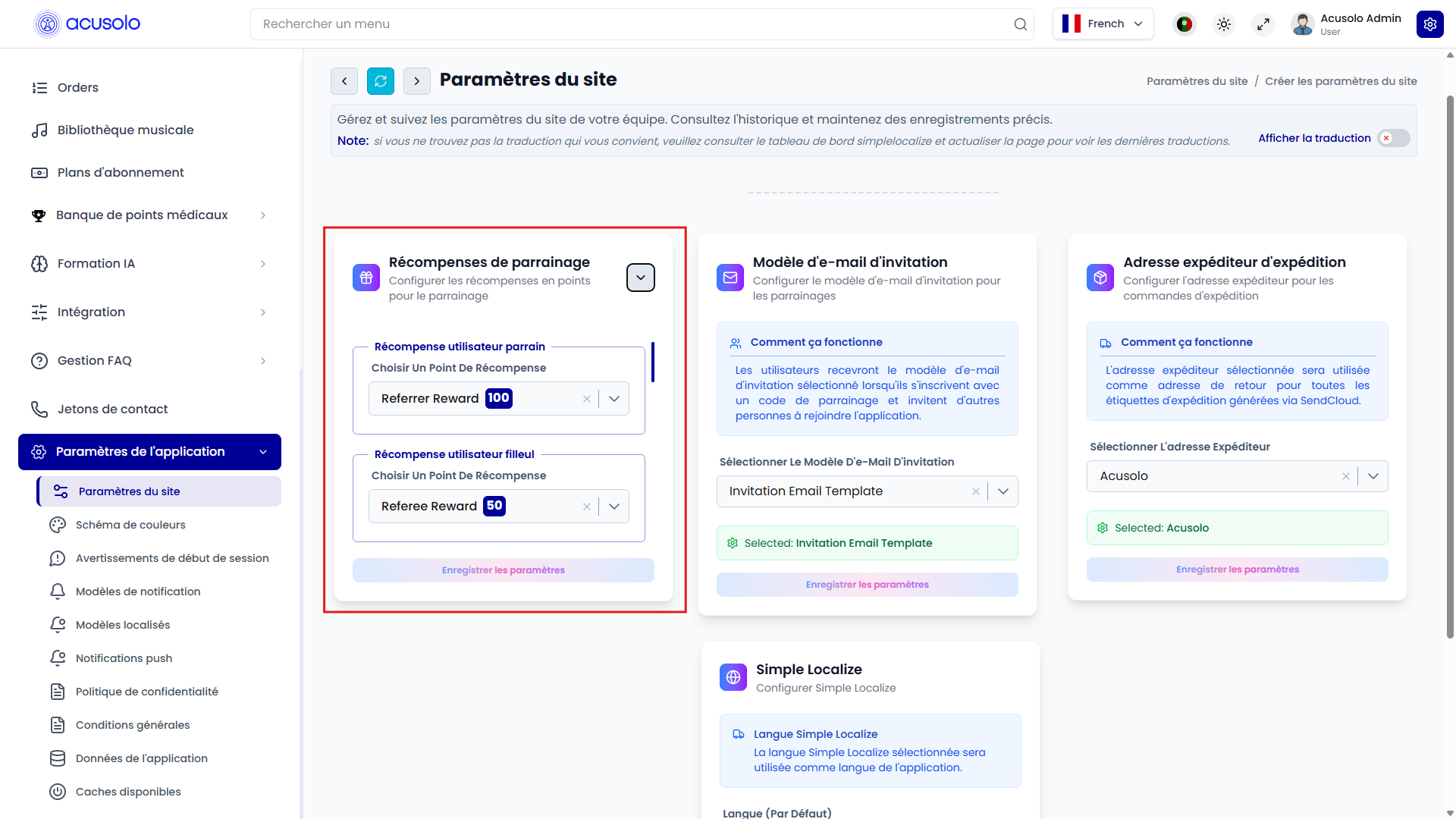
This page does not ask the admin to type point numbers directly. Instead, each field lets the admin select an existing reward. The selected reward's point value becomes the point amount for that activity.
This keeps the point system centralized. Admins first create reward records, then assign those reward records to specific user actions.
Configurable reward actions
| Setting field | Meaning |
|---|---|
| User Referrer Reward | Points awarded to the existing user who referred someone. |
| User Referee Reward | Points awarded to the new user who used another user's referral code. |
| Session Completed Reward | Points awarded when a user completes a session, if this earning rule is active in the product flow. |
| Program Completed Reward | Points awarded when a user completes a program, if this earning rule is active in the product flow. |
| Daily Login Reward | Points awarded for daily login activity, if this rule is active. |
| Device Purchase Reward | Points awarded when a user purchases a device, if this rule is connected to the purchase flow. |
| Achievement Reward | Points awarded when a user completes an achievement. |
| Accessories Purchase Reward | Points awarded when a user purchases accessories. |
| Subscription Reward | Points awarded for subscription purchase activity. |
| First Subscription Reward | Points awarded when a user purchases their first subscription. |
If a setting is left empty, that earning activity will not have a reward selected. When a required reward is missing, the system cannot award points for that activity until an admin assigns a valid reward.
After the admin saves the settings:
- The selected reward rules are stored for the system.
- Future eligible activities use the selected reward values.
- Referral point calculation uses the selected referrer and referee rewards.
- Leaderboard ranking changes over time as users earn points from those activities.
Web referral page
The referral page allows users to invite friends using a referral code or referral link.
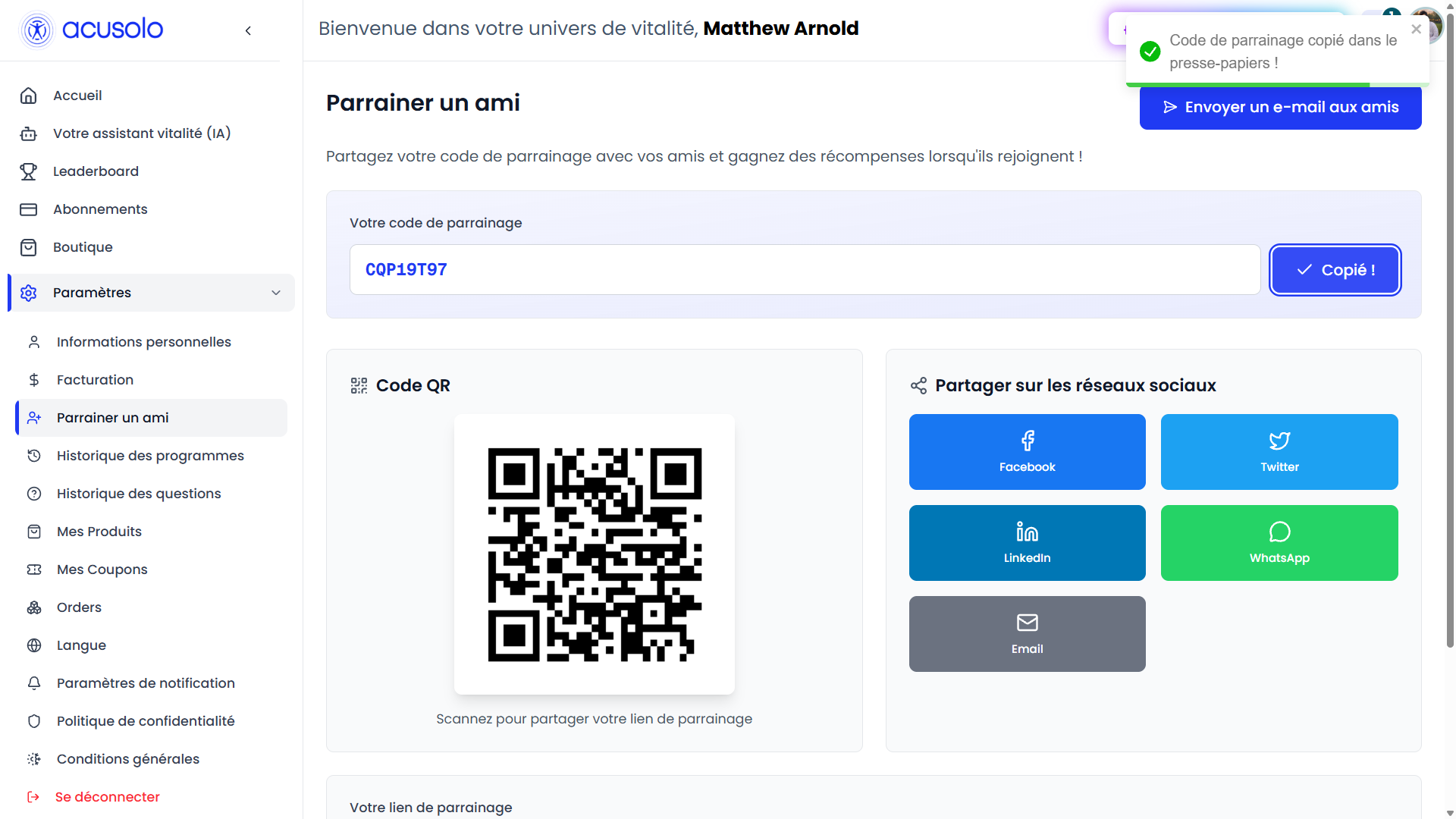
From this page, the user can:
- View their referral code.
- Copy the referral code.
- Copy the referral link.
- Share the referral link through supported social channels.
- Use the QR code for sharing.
- Invite someone by email.
The referral link sends the invited person to the sign-up flow with the referral code included.
Referral earning logic
Referral points are awarded when a referred user completes the required referral step. In the current user flow, the referral code can be carried from the sign-up link and submitted during profile completion.
When the referral is accepted:
- The system checks that the referral code belongs to a real user.
- The system checks that the referred user has not already used another referral code.
- The system prevents a user from referring themselves.
- The existing user receives the configured User Referrer Reward points.
- The new user receives the configured User Referee Reward points.
- Both users' point balances are updated.
- The point earning is recorded for tracking and audit purposes.
If any required condition fails, points are not awarded.
Leaderboard ranking logic
The leaderboard ranks users using earned reward points.
For the all-time leaderboard, users are ranked by their current reward point balance. For time-based views, the ranking is based on points earned during that selected time period.
Referral leaderboard data is based on successful referral activity. Referral-related points and referral counts can be shown separately from the general point leaderboard.
The current user's referral dashboard can show:
- Total points.
- Referral points.
- Referral history.
- Referred users.
- Point history.
Important rules
- Reward names should be clear and unique.
- Reward points cannot be negative.
- A reward should be active before admins assign it to a new earning rule.
- Referral rewards require both the referrer and referee rewards to be configured.
- A user cannot refer themselves.
- A user should not receive referral rewards more than once for the same referral flow.
- Changing a reward point value affects future earning calculations, not old historical point records.
- Empty reward settings can stop point awarding for the related action.
Common error cases
Admins or users may face these issues:
- A reward name already exists.
- A point value is missing, invalid, or negative.
- A required reward setting is not selected.
- The referral code is missing or invalid.
- The referred user has already used another referral code.
- The user tries to refer themselves.
- No users have earned points yet, so the leaderboard appears empty.
Overall flow
- Admin creates reward records from the reward list page.
- Admin assigns rewards to activities from the reward settings page.
- A user shares their referral code or referral link.
- Another user signs up or completes the referral step using that code.
- The system awards points based on the configured reward rules.
- User point balances are updated.
- Users appear on the leaderboard according to their earned points.