Onboarding
This page documents the Onboarding module in admin and how onboarding slides are rendered in the web app sign-in flow.
- Admin route:
https://admin.acusolo.net/admin/onboarding - Web app sign-in:
https://web.acusolo.net/auth/signin
Admin: onboarding list page
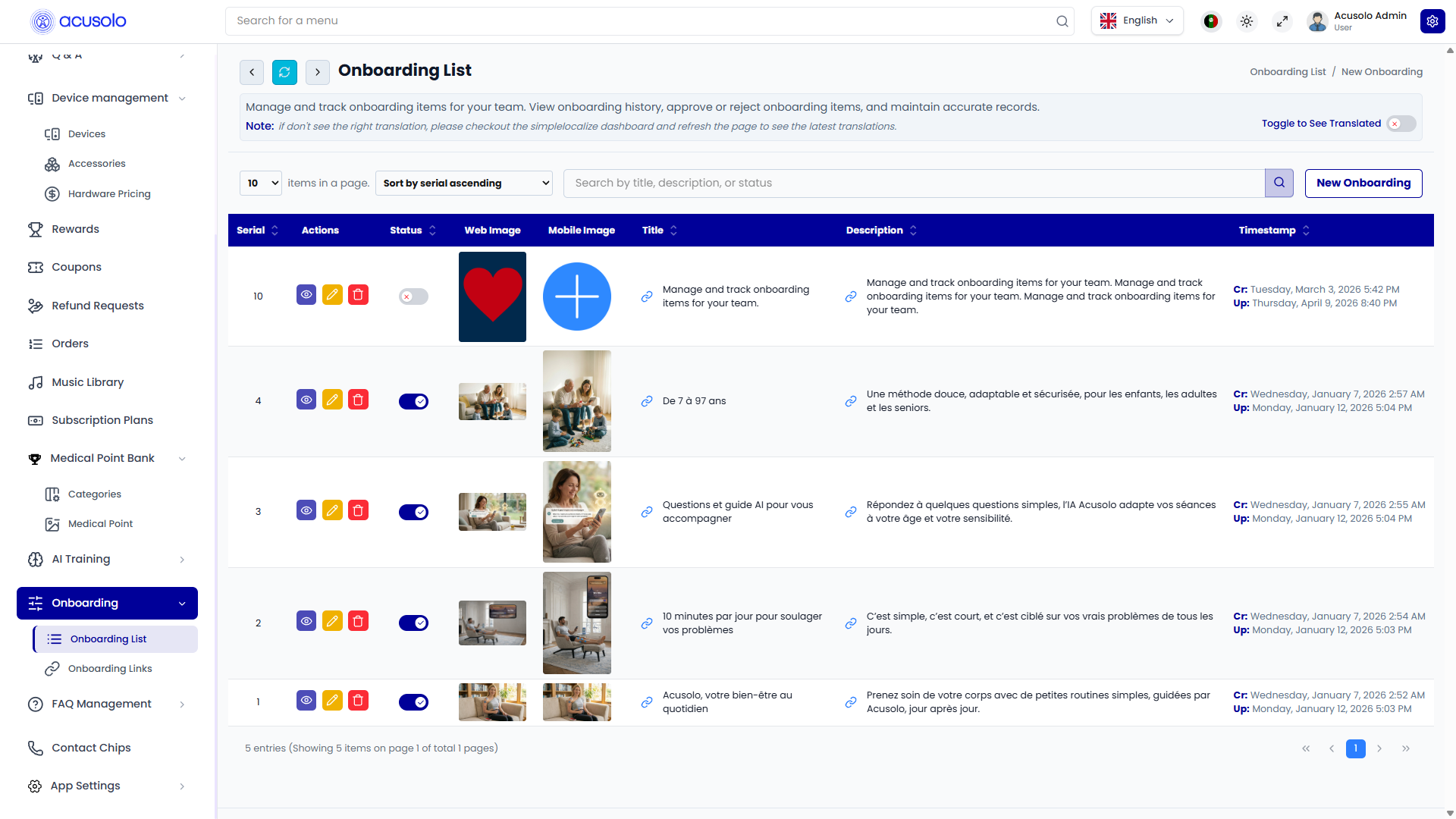
The page uses the same table layout pattern as other modules: search, sort, pagination, row actions, and status toggle.
List behavior
- Edit action opens the update modal.
- Links preview action opens linked onboarding preview.
- Delete action opens delete confirmation modal.
- Status toggle enables/disables onboarding temporarily.
Typical columns
From the UI pattern and flow, onboarding records are managed with serial/order and content metadata, where serial is important for front-end rendering order.
Links preview action
Clicking the links preview action opens a preview page showing related linked entries.
This helps verify linked onboarding items before publishing.
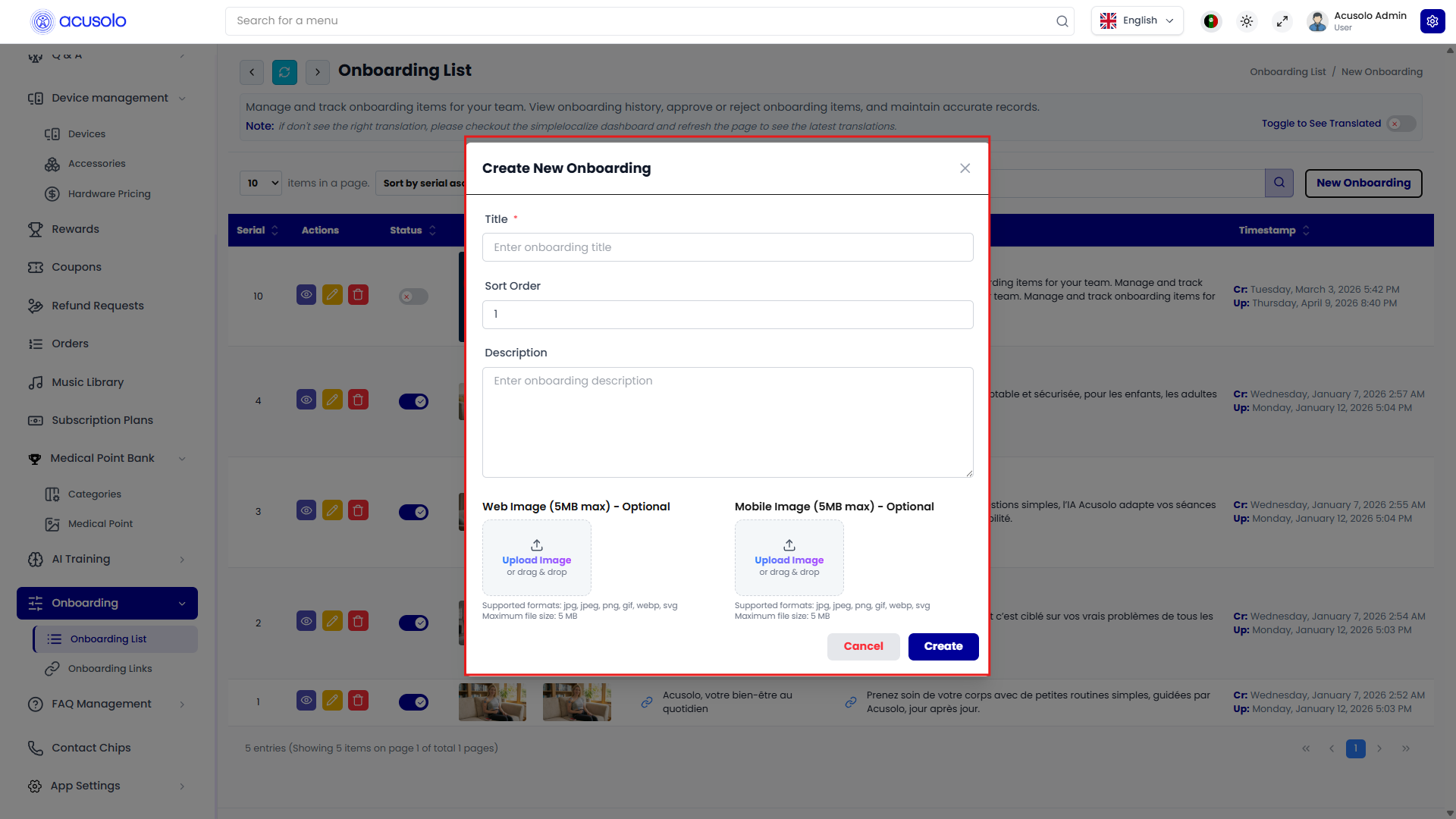
Create onboarding modal
Clicking Create opens the new onboarding modal.
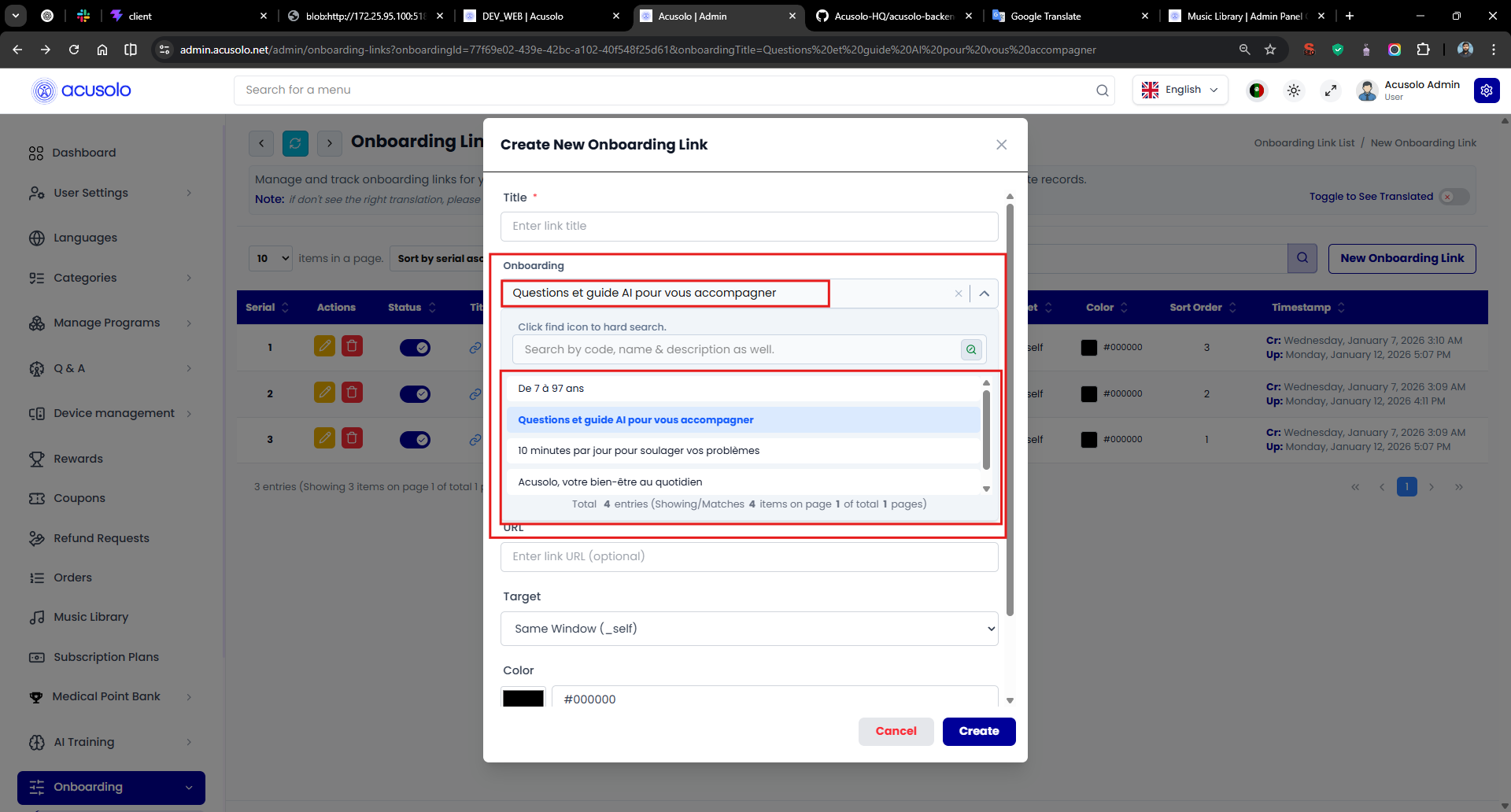
Important field rule
- Onboarding select field is mandatory when creating linked onboarding entries.
Referenced combobox UI:
Form behavior
The create modal follows the same admin form conventions:
- required fields must be completed before submit,
- media/content values are entered in modal inputs,
- save action creates the onboarding record,
- cancel closes without saving.
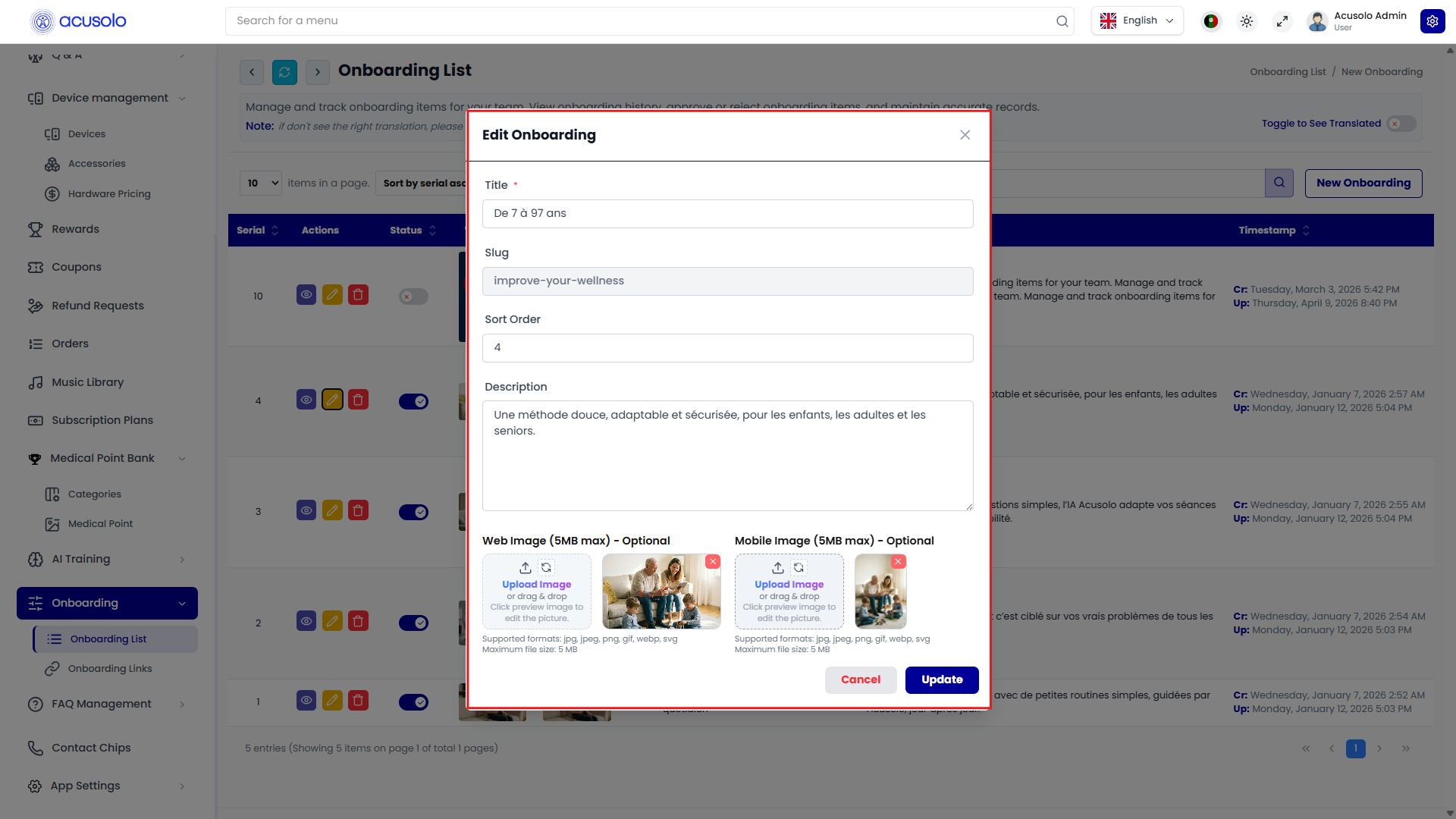
Edit onboarding modal
Clicking Edit opens the update modal with existing values pre-filled.
Edit flow:
- current values are loaded for quick modification,
- updates are saved via submit/update action,
- status can be used to enable/disable without deleting.
Delete and status behavior
- Status toggle is for temporary availability control.
- Delete opens confirmation modal; confirming removes the record.
Web app onboarding display
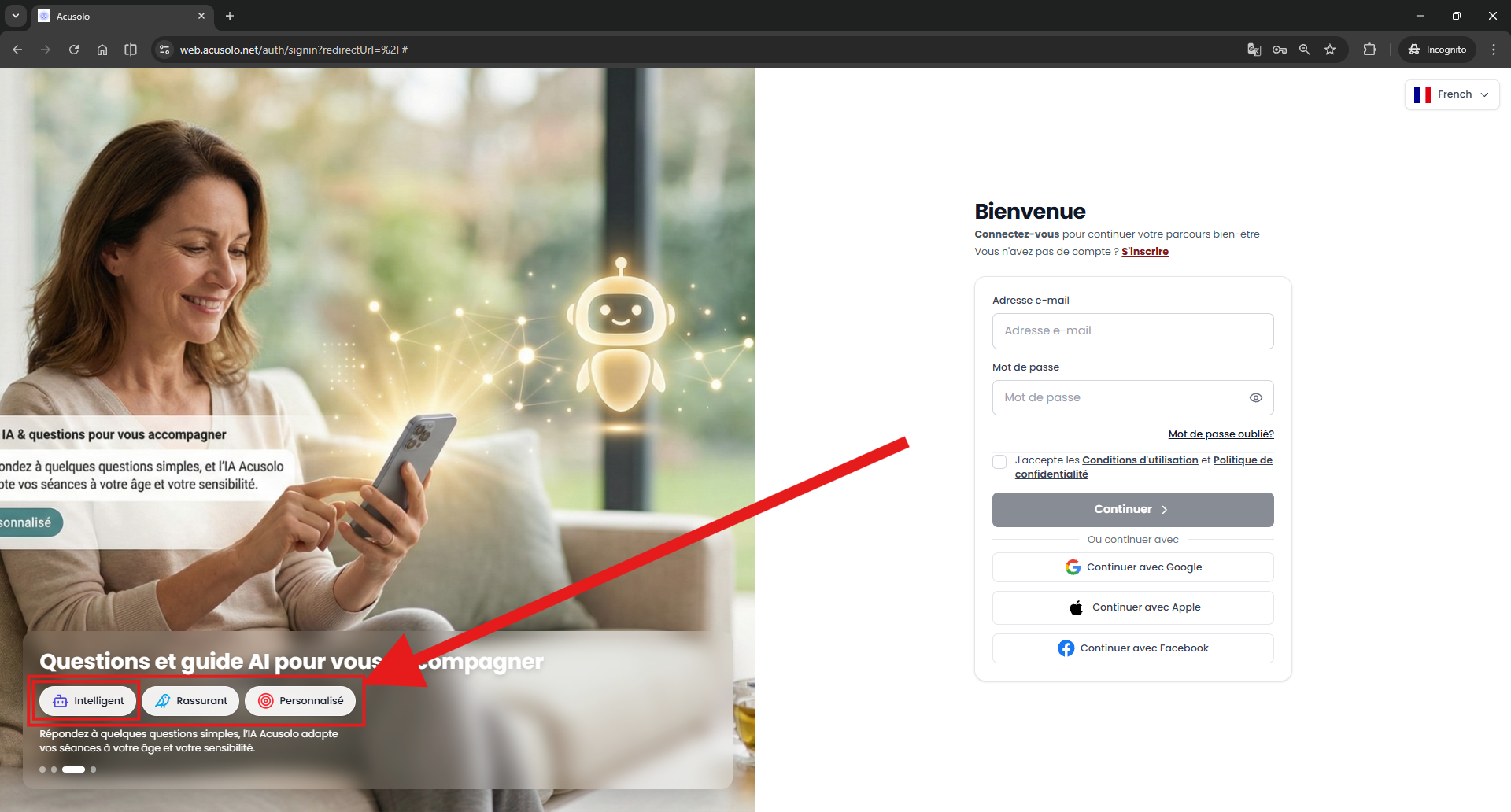
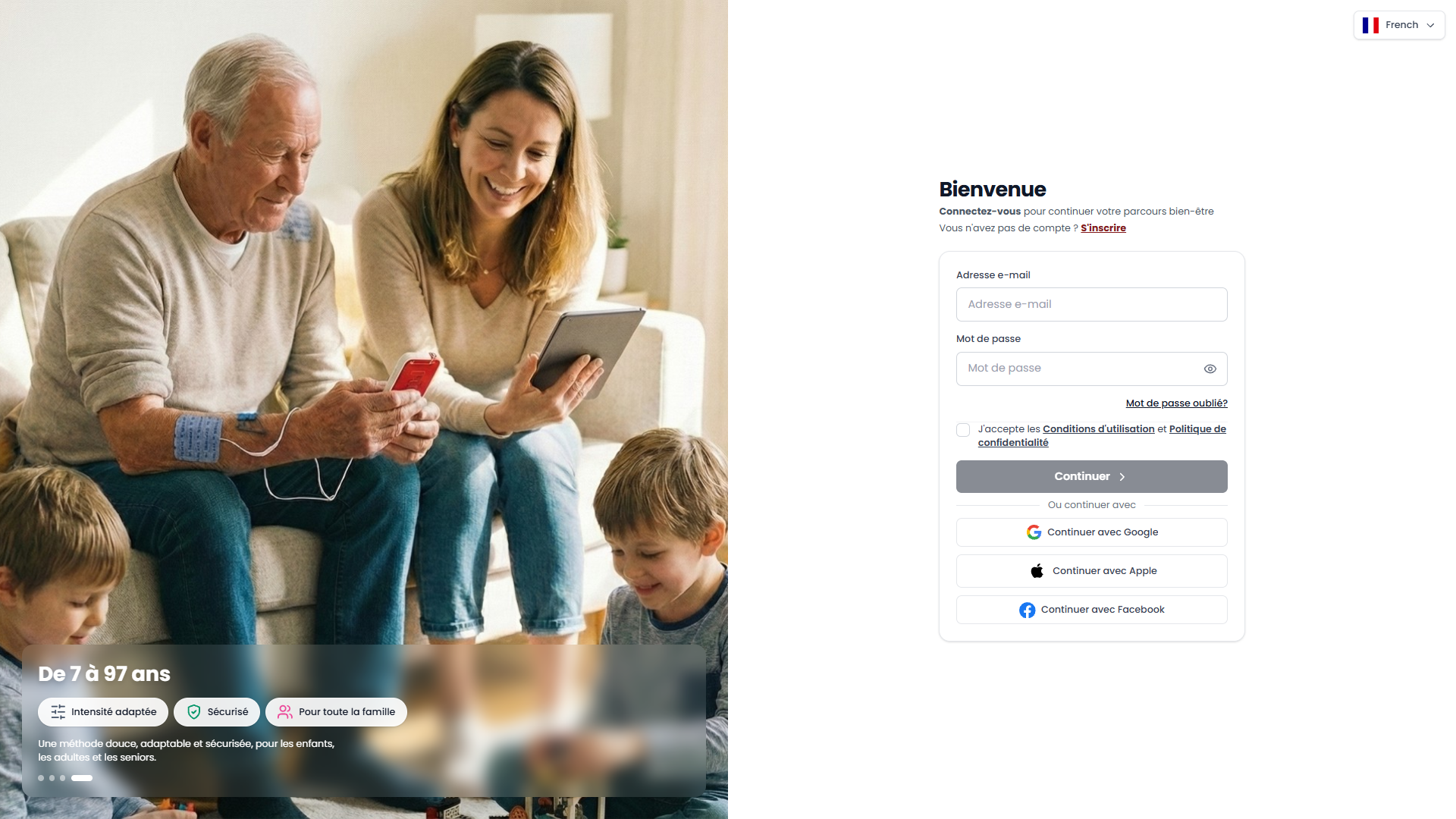
On the web app sign-in entry (/auth/signin), onboarding slides are displayed and auto-slide.
Ordering rule
- Slides are sorted by the Serial column configured in admin.
- Lower serial entries appear first in the web app onboarding sequence.