Notification Templates
Notification templates are reusable message designs used for email, push, SMS, in-app, web, and other notification flows. They help keep system messages consistent, easier to maintain, and ready for multilingual delivery.
- Notification template list:
https://admin.acusolo.net/admin/notification-templates - Localized notification template list:
https://admin.acusolo.net/admin/app-settings/localized-notification-templates
Template list
The notification template list shows all base notification templates.
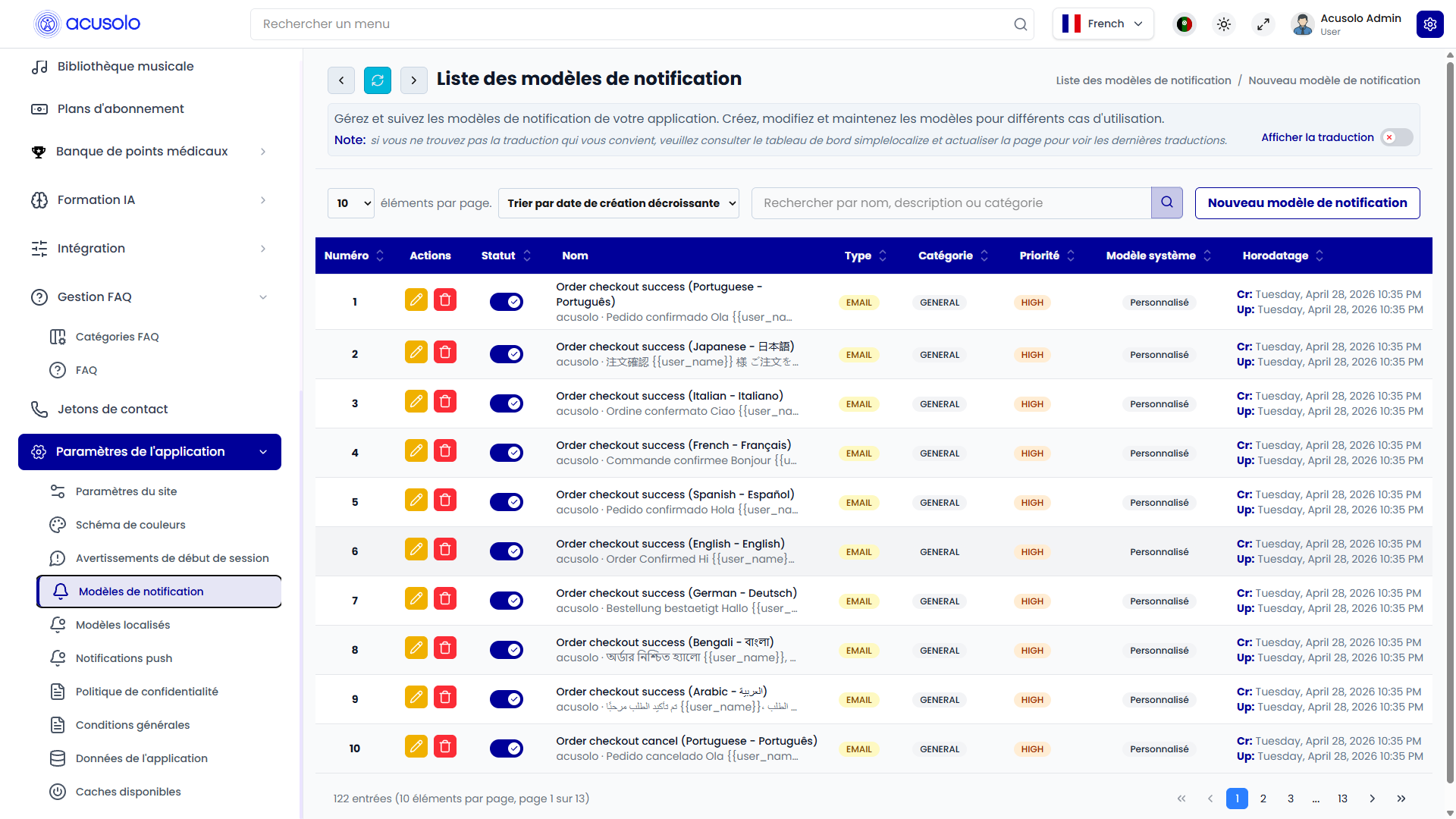
Admins can:
- View all base notification templates.
- Search templates.
- Create a new template.
- Edit an existing template.
- Delete a template.
- Enable or disable a template.
- Mark a template as a system template.
- Review the template type, category, and priority.
Table columns
| Column | Meaning |
|---|---|
| No. | Row number. |
| Actions | Edit or delete the template. |
| Status | Shows whether the template is active or inactive. |
| Name | Internal admin name and optional description. |
| Type | Delivery type, such as push, in-app, email, or SMS. |
| Category | Business category, such as general, payment, support, security alert, promotional, health tip, or motivational. |
| Priority | Priority level, such as low, normal, high, or urgent. |
| System Template | Shows whether the template is a system-level template or a custom template. |
| Timestamp | Created and updated time. |
Create notification template
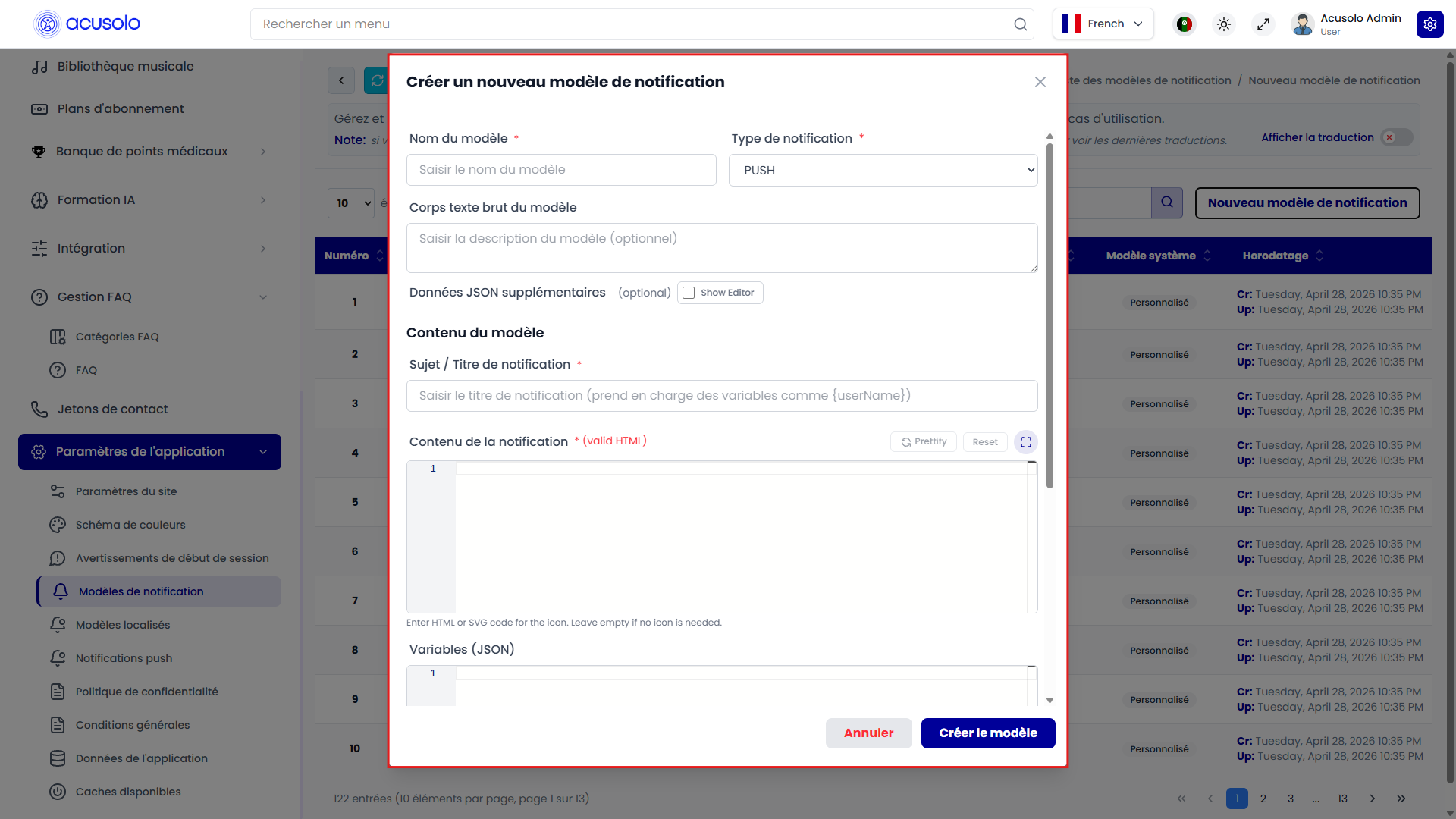
Click New Notification Template to open the create modal.
Create fields
| Field | Meaning |
|---|---|
| Template Name | Required. Admin-facing name used to identify the template. |
| Notification Type | Required. Defines the delivery channel, such as push, in-app, email, or SMS. |
| Template Plain Text Body | Optional admin description or plain-text summary of the template. |
| Additional Data | Optional extra structured values for advanced notification behavior. Most admins should only edit this when they know the expected format. |
| Notification Subject / Title | Required. The title or subject shown to the user. |
| Notification Body | Required. The main message content. Visual email formatting can be used for email-style templates. |
| Variables | Optional list of placeholder values used inside the title or body. |
| Category | Required. Groups the template by business purpose. |
| Priority | Required. Controls the importance level of the message. |
| Active | Allows the template to be used. |
| System Template | Marks the template as a system-level template. |
Visual email template example
Some templates can contain full visual email content.

Visual templates are useful for payment messages, order messages, account security emails, and other formal system communication. The template body should preserve the intended layout, branding, links, and placeholders.
Template variables
Templates can include placeholders in the title or body.
Examples:
When a notification is sent, these placeholders are replaced with real values. Admins should not remove required placeholders unless the related notification flow no longer needs them.
Edit notification template
Click the edit action from a template row to open the edit modal.

The edit modal is pre-filled with the selected template's existing data.
Admins can update:
- Template name.
- Notification type.
- Plain text body or description.
- Additional data.
- Subject or title.
- Body content.
- Variables.
- Category.
- Priority.
- Active status.
- System template flag.
Changes affect future notifications that use the template. Notifications that were already sent are not changed retroactively.
Delete and status behavior
Templates use the standard delete confirmation pattern. After confirmation, the template is removed from the list.
Before deleting a template, admins should check whether it is connected to localized versions or used by automated notification flows.
Status behavior:
- Active: the template can be used for notifications.
- Inactive: the template is kept in the system but should not be used for new notifications.
Localized notification templates
Localized notification templates connect a base template with a specific language and notification purpose.
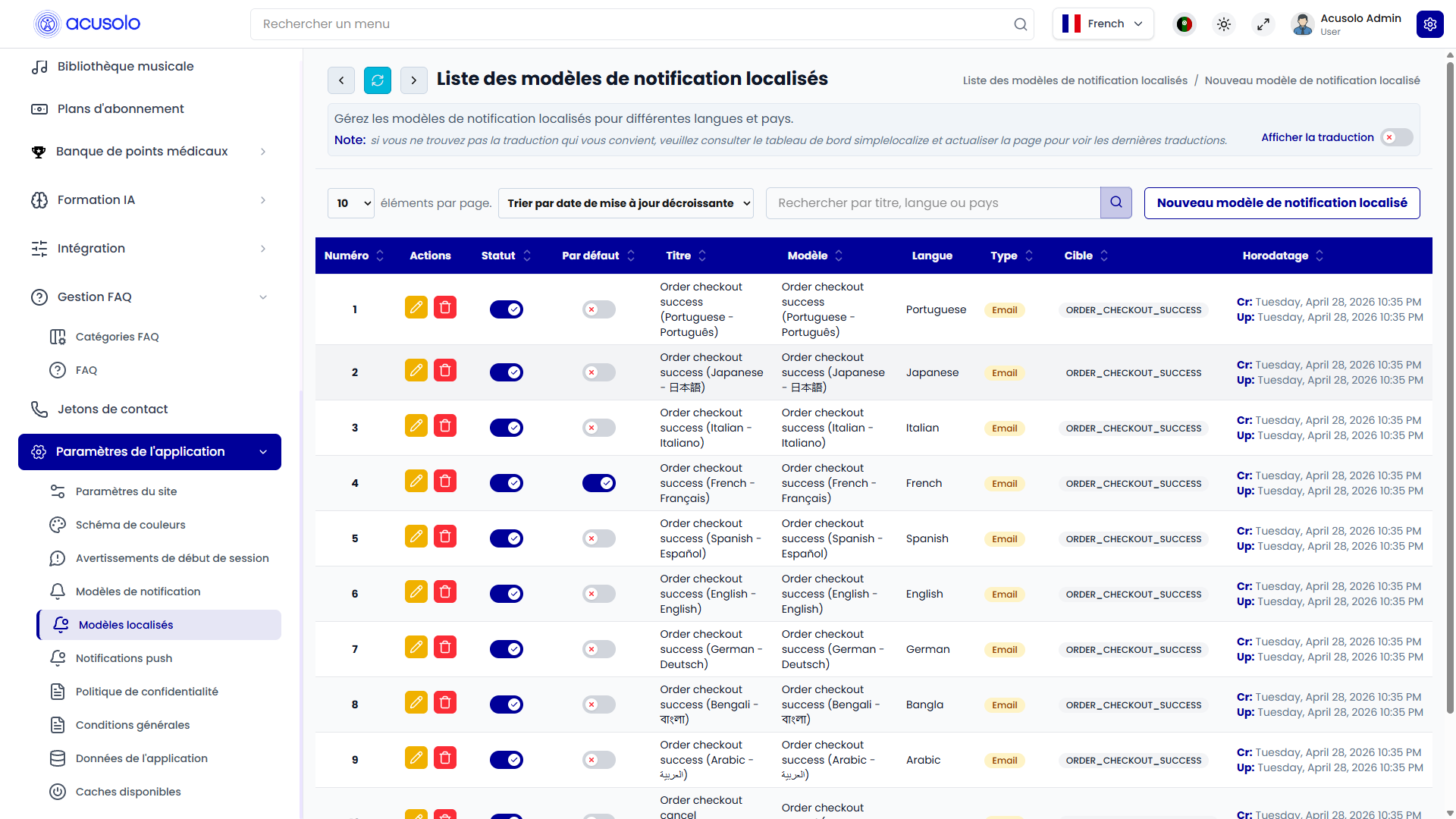
This allows Acusolo to use the same notification purpose while serving different language versions for users.
Admins can:
- View localized template records.
- Create a localized template.
- Edit a localized template.
- Delete a localized template.
- Enable or disable a localized template.
- Mark one localized version as default for a matching template/type/target.
Localized table columns
| Column | Meaning |
|---|---|
| No. | Row number. |
| Actions | Edit or delete the localized template. |
| Status | Shows whether this localized version is active. |
| Default | Marks the default localized version for the matching purpose. |
| Title | Admin-facing localized template title. |
| Template | The base notification template connected to this localized record. |
| Language | The language assigned to this localized version. |
| Type | Delivery type, such as Email, SMS, Push, In App, Web, or Other. |
| Target | The event or purpose this localized template is used for. |
| Timestamp | Created and updated time. |
Create localized notification template
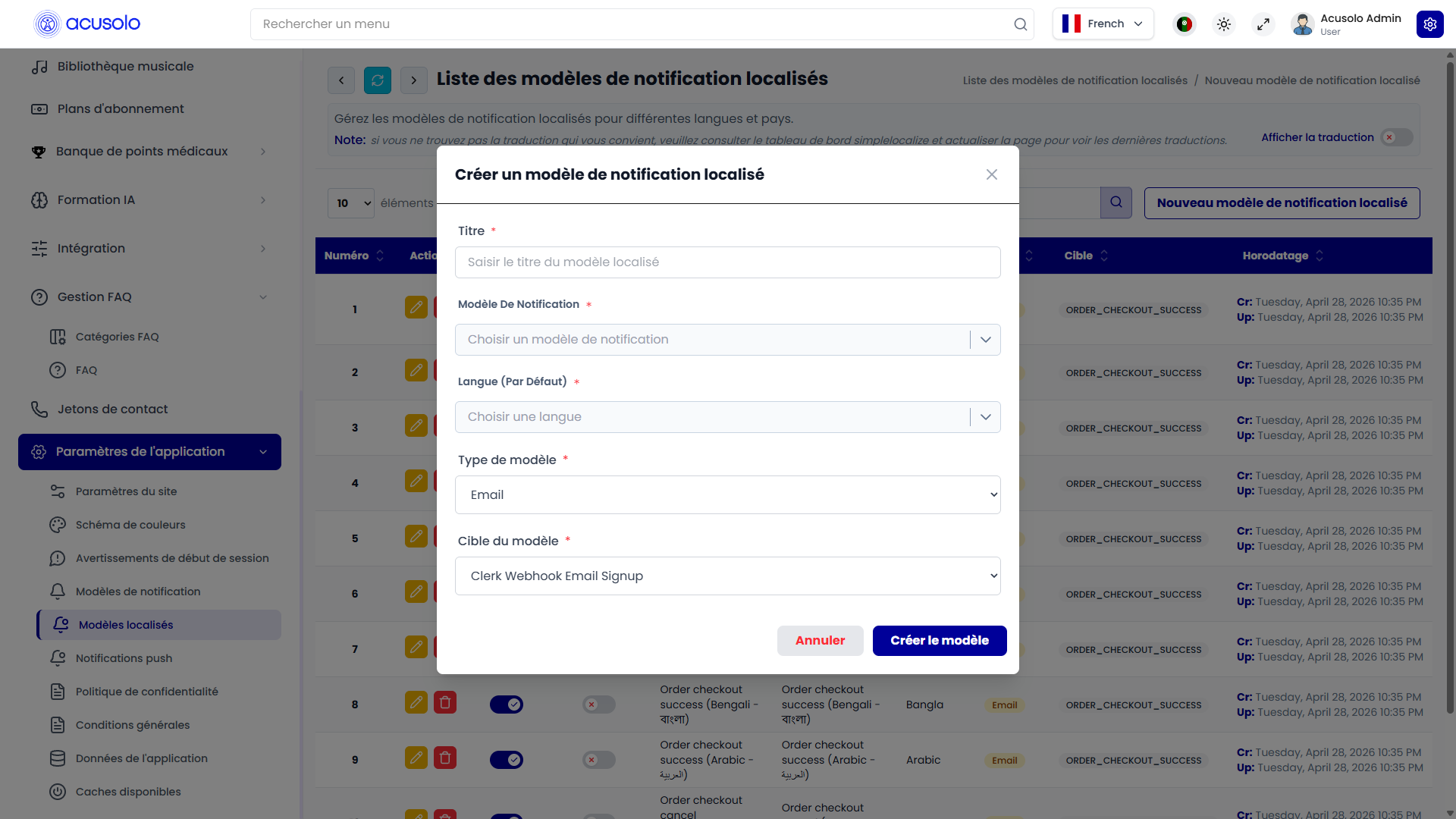
Click New Localized Notification Template to open the create modal.
Localized template fields
| Field | Meaning |
|---|---|
| Title | Required. Admin-facing title for this localized version. |
| Notification Template | Required. Selects the base template this localized version belongs to. |
| Language | Required. Selects the language for this localized version. |
| Template Type | Required. Selects the delivery channel. Options include Email, SMS, Push, In App, Web, and Other. |
| Template Target | Required. Selects the event or purpose for the template. |
Common targets include:
- Signup and login messages.
- Forgot password and reset password messages.
- Email, phone, and OTP verification messages.
- New-device sign-in alerts.
- Subscription payment success, failure, cancellation, refund, and reminder messages.
- Device purchase success or failure messages.
- Accessory purchase success or failure messages.
- Order checkout and delivery status messages.
Edit localized notification template
Click the edit action from a localized template row to open the edit modal.
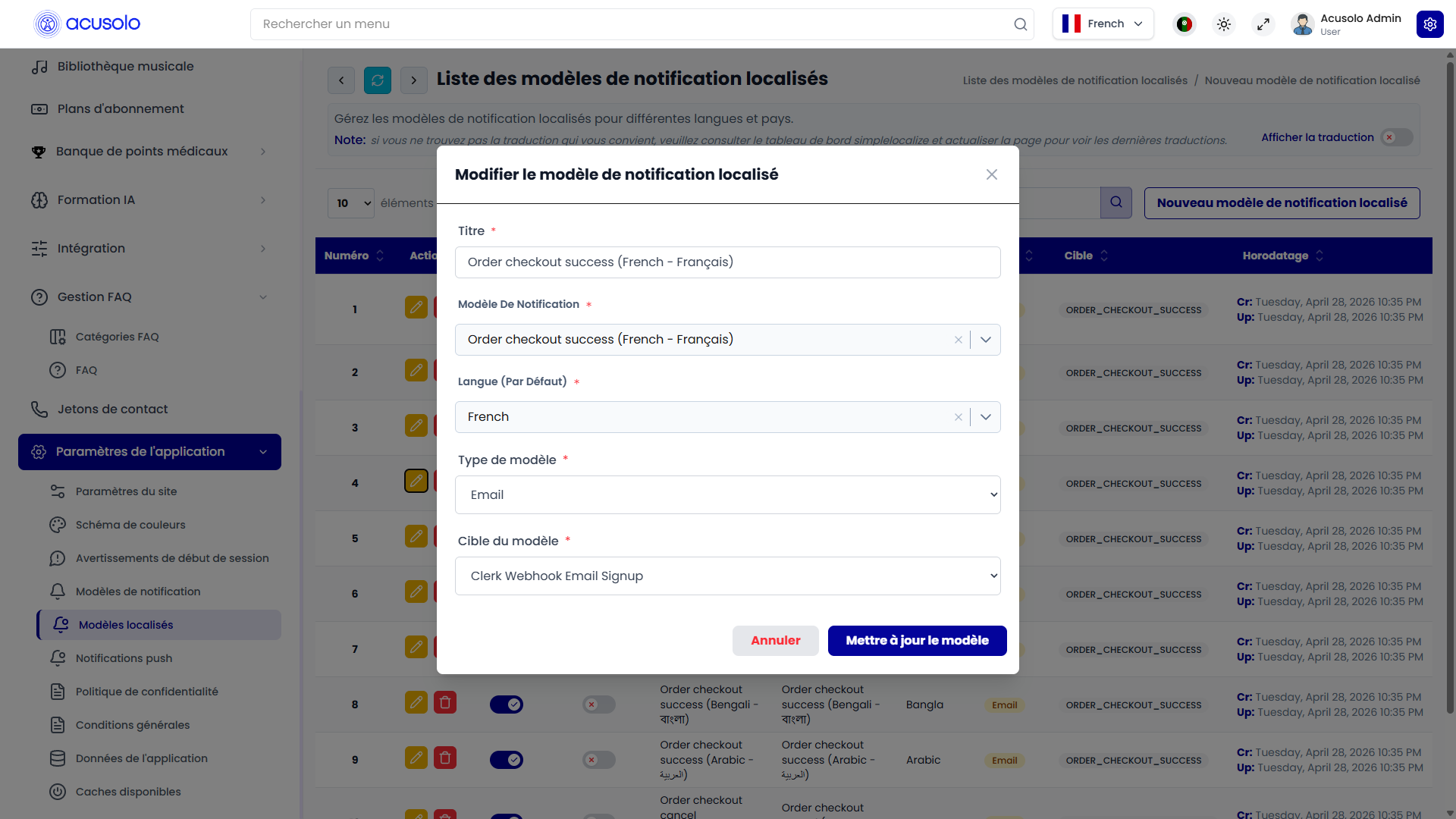
The edit modal is pre-filled with the selected localized template's existing data.
Admins can update:
- Title.
- Base notification template.
- Language.
- Template type.
- Template target.
Changing the language or target changes when and where this localized version is used. Admins should verify that the selected base template matches the intended target.
Default localized template behavior
The Default toggle identifies the fallback localized version for a matching base template, delivery type, and target.
If one localized version is set as default, other localized versions for the same matching group are unset as default. This prevents multiple defaults from conflicting.
A default localized template should stay active. If a default template needs to be disabled, another active localized version should be selected as the default first.
Prepared template behavior
Some notification templates are prepared in advance so the system has ready-made transactional messages.
Prepared examples include:
- Payment success.
- Payment reminder.
- Order checkout success or cancellation.
- OTP verification.
- New-device sign-in.
- Password changed.
- Device purchase success or cancellation.
- Accessory purchase success or cancellation.
These prepared templates help the system start with complete notification content instead of requiring admins to manually create every transactional message from scratch.
Important rules
- Template name is required.
- Template title or subject is required.
- Template body is required.
- Localized templates require a base template and language.
- Variables should be kept consistent with the related notification flow.
- Visual email layouts should be tested before use.
- Inactive templates should not be used for new notifications.
- Do not delete a base template if localized versions or automated flows still depend on it.
- Only one localized template should be default for the same template, type, and target combination.
Common error cases
Admins may face these issues:
- Required template fields are missing.
- Variables are written incorrectly.
- Extra structured data has an invalid format.
- A localized template is created without selecting a language.
- A localized template is linked to the wrong base template.
- Multiple localized versions are created for the same purpose without choosing a clear default.
- A template is inactive, so the related notification flow cannot use it.
- A visual email template loses its layout because the required structure was changed incorrectly.
Overall flow
- Admin creates or reviews a base notification template.
- Admin defines the title, body, variables, category, priority, and status.
- Admin creates localized versions for required languages and targets.
- Admin marks the correct localized version as default where needed.
- Automated notification flows use the matching template when sending messages.
- Users receive the notification in the appropriate channel and language where available.