Terms and Conditions
The Terms and Conditions settings page allows admins to manage the legal terms shown to users in the web app. This content is important because users can open it from the web app settings area, public terms page, and consent links during sign-in or sign-up flows.
- Admin terms page:
https://admin.acusolo.net/admin/app-settings/terms-and-conditions - Web app settings preview:
https://web.acusolo.net/settings/terms-and-conditions - Public web page:
https://web.acusolo.net/terms-and-conditions
Manage terms and conditions
Admins can update the terms content from the application settings area.
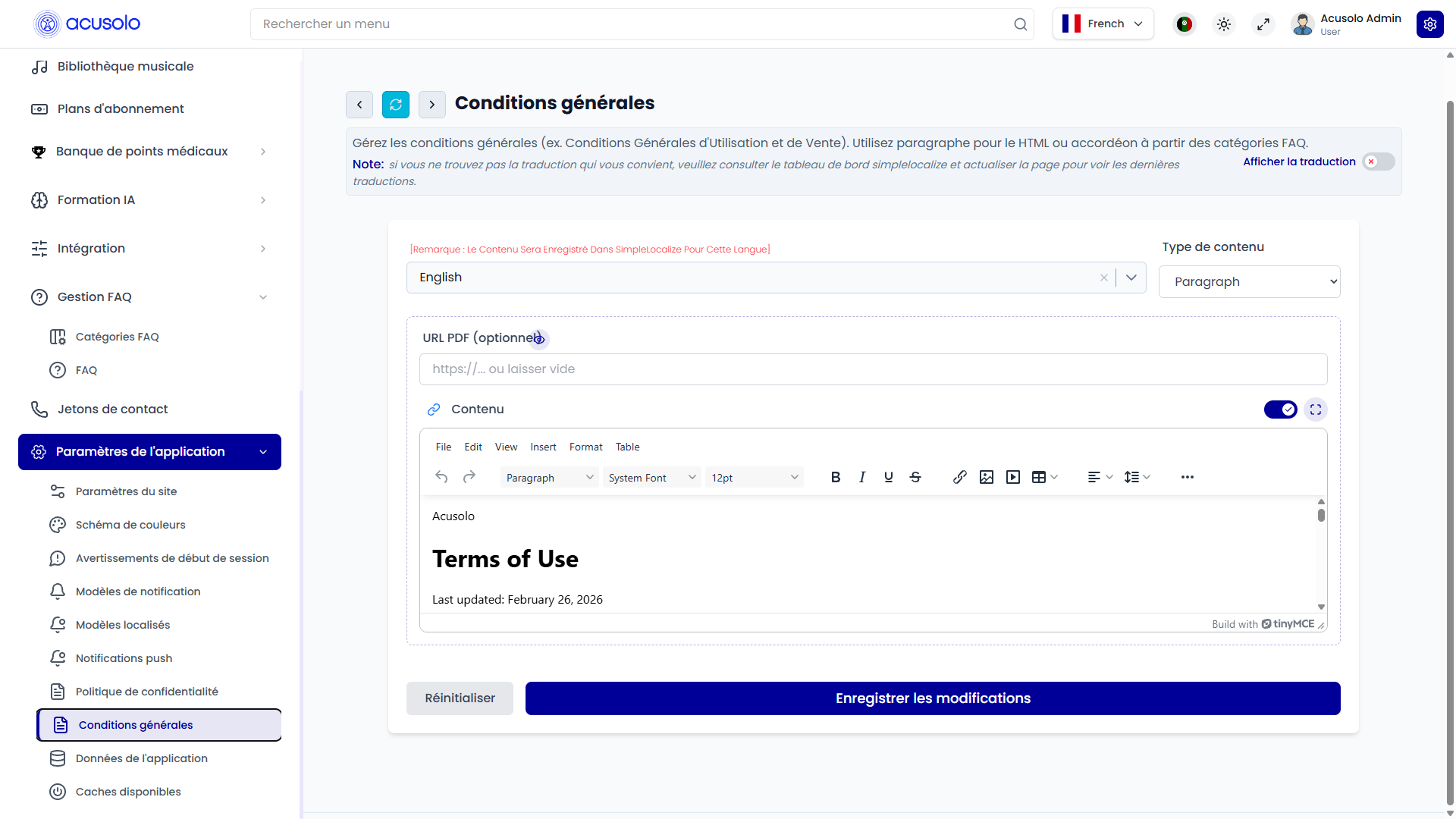
The page includes:
- Language selection.
- Content type selection.
- Optional PDF URL.
- Terms and conditions content.
- FAQ category selection for accordion-style content.
- Reset and save actions.
Language selection
The language selector controls which language version is being edited.
When the admin changes the language, the page loads the saved terms content for that language if available. If the selected language does not already have translated terms, the admin can create or update that language version from this page.
The note on the page reminds admins that the content is saved for the selected language. Admins should confirm the language before saving because users may see different terms based on their selected language.
Content type
The Content Type field controls how the terms are built and displayed.
| Content type | Meaning |
|---|---|
| PARAGRAPH | The admin writes the full terms and conditions as one rich content block. This is useful for a traditional long legal document. |
| ACCORDION | The admin selects FAQ categories. The selected categories become expandable terms sections in the web app. |
Paragraph content
When PARAGRAPH is selected, the page shows a content editor and an optional PDF URL field.
Admins can write the full terms text, add headings, use lists, and structure the document in a readable way. The saved content becomes the main terms and conditions body shown to users.
This mode is best when the terms should be managed as one complete document.
PDF URL
The PDF URL field is optional.
Admins can use it when there is a separate PDF version of the terms and conditions. If no PDF version is needed, the field can be left empty.
Use a valid URL if this field is filled in, so users can open the correct document when the link is shown.
Accordion content
When ACCORDION is selected, the page lets admins select FAQ categories for the terms and conditions.
Selected categories become expandable sections on the web app terms page. The category order follows the category serial/order value already configured in FAQ Management.
This mode is best when the terms should be split into sections such as account usage, subscriptions, payments, refunds, restrictions, user responsibilities, or similar legal topics.
Before using this mode, admins should prepare the required FAQ categories and FAQ items in FAQ Management.
Web app preview
Users can view the saved terms and conditions from the web app.

The terms can be opened from:
- The web app settings page.
- The public terms and conditions page.
- Sign-in and sign-up consent links.
- Other payment or account flows where users need to review legal terms.
On the web app:
- Paragraph content appears as the full terms body.
- Accordion content appears as expandable sections.
- Accordion sections are ordered by their configured serial/order value.
- The first accordion section can open by default.
- If no terms content is available, users see an unavailable or empty-content message.
Reset and save behavior
| Action | Meaning |
|---|---|
| Reset | Restores the form to the last loaded values. It does not permanently change anything by itself. |
| Save Changes | Saves the selected language, content type, optional PDF URL, content, and selected FAQ categories. |
After saving, users may need to refresh or revisit the terms page before seeing the latest updates.
Important rules
- Select the correct language before editing.
- Choose PARAGRAPH when the terms should be one complete document.
- Choose ACCORDION when the terms should be built from FAQ categories.
- For accordion content, only active and properly prepared FAQ categories should be selected.
- Category serial/order values affect the order users see on the web app.
- Keep the PDF URL empty unless a valid PDF document is available.
- Review the public terms page after saving important legal changes.
- Avoid deleting FAQ categories that are currently used by the terms and conditions page.
Common error cases
Admins may face these issues:
- The wrong language was selected before saving.
- The terms page appears empty because no content was saved for the selected language.
- Accordion mode appears empty because no FAQ categories were selected.
- A selected FAQ category has no active content.
- The PDF URL is invalid or points to the wrong document.
- The web app still shows old content until the page is refreshed.
- Category order looks incorrect because serial/order values were not planned.
Overall flow
- Admin opens the Terms and Conditions settings page.
- Admin selects the language to edit.
- Admin chooses Paragraph or Accordion content.
- Admin optionally adds a PDF URL.
- Admin writes the terms content or selects FAQ categories.
- Admin saves the changes.
- Users can view the updated terms from settings, public terms page, sign-in, sign-up, and other relevant flows.