Available Caches
The Available Caches page allows admins to inspect server-side cache entries and clear selected cache keys when fresh data is needed. This page is mainly used for maintenance, troubleshooting, and refreshing stale data after important updates.
- Admin cache page:
https://admin.acusolo.net/admin/app-settings/caches
Cache management page
Admins can view available cache keys from the application settings area.
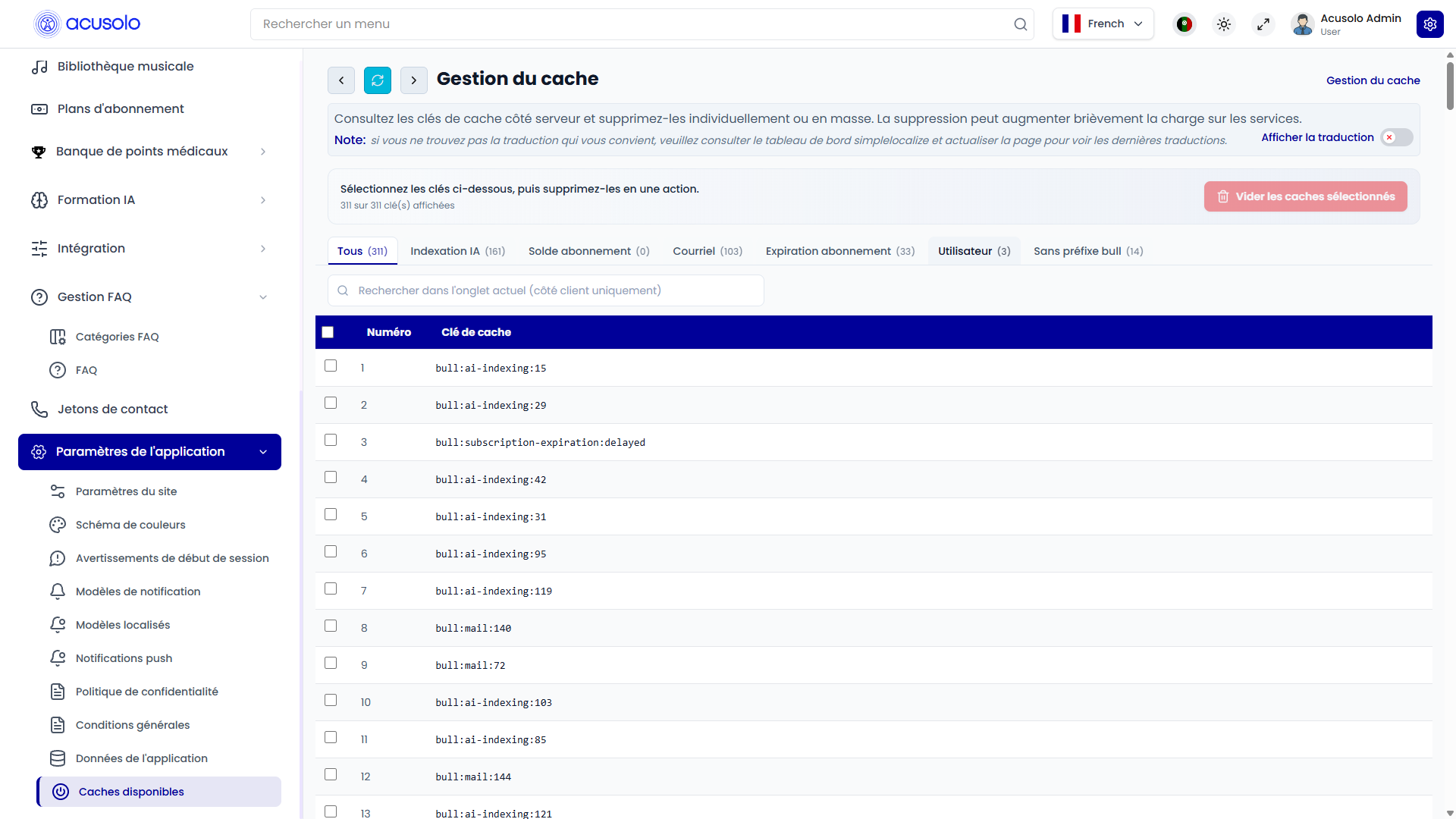
The page includes:
- Cache category tabs.
- Search within the current tab.
- Cache key table.
- Select-all checkbox for visible keys.
- Individual row selection.
- Clear selected caches action.
- Refresh list action.
What cache keys mean
A cache key represents saved temporary data used by the system to respond faster. Clearing a cache key removes that saved temporary entry, so the system can rebuild fresh data the next time it is needed.
Clearing cache does not delete normal business records such as users, orders, plans, rewards, or settings. It only removes temporary cached entries.
Cache category tabs
The page groups cache keys into tabs so admins can find related entries more easily.
| Tab | Meaning |
|---|---|
| All | Shows every available cache key. |
| AI indexing | Shows cache keys related to AI indexing jobs. |
| Subscription balance | Shows cache keys related to subscription balance deduction jobs. |
| Shows cache keys related to mail jobs. | |
| Subscription expiration | Shows cache keys related to subscription expiration jobs. |
| User | Shows cache keys related to user data. |
| Non-bull | Shows cache keys that are not part of background job groups. |
Each tab displays a count so admins can quickly understand how many keys are in that category.
Search and refresh
The search field filters cache keys inside the currently selected tab. It helps admins find a specific key without browsing the full list.
The Refresh list action reloads the latest available cache keys. Use this after clearing caches or when the list may have changed.
Selecting cache keys
Admins can select cache keys in two ways:
- Use the checkbox beside a single row to select one cache key.
- Use the checkbox in the table header to select all visible cache keys in the current filtered list.
The toolbar shows how many keys are currently visible and how many are selected.
Clear selected caches
After selecting one or more cache keys, admins can click Clear selected caches.
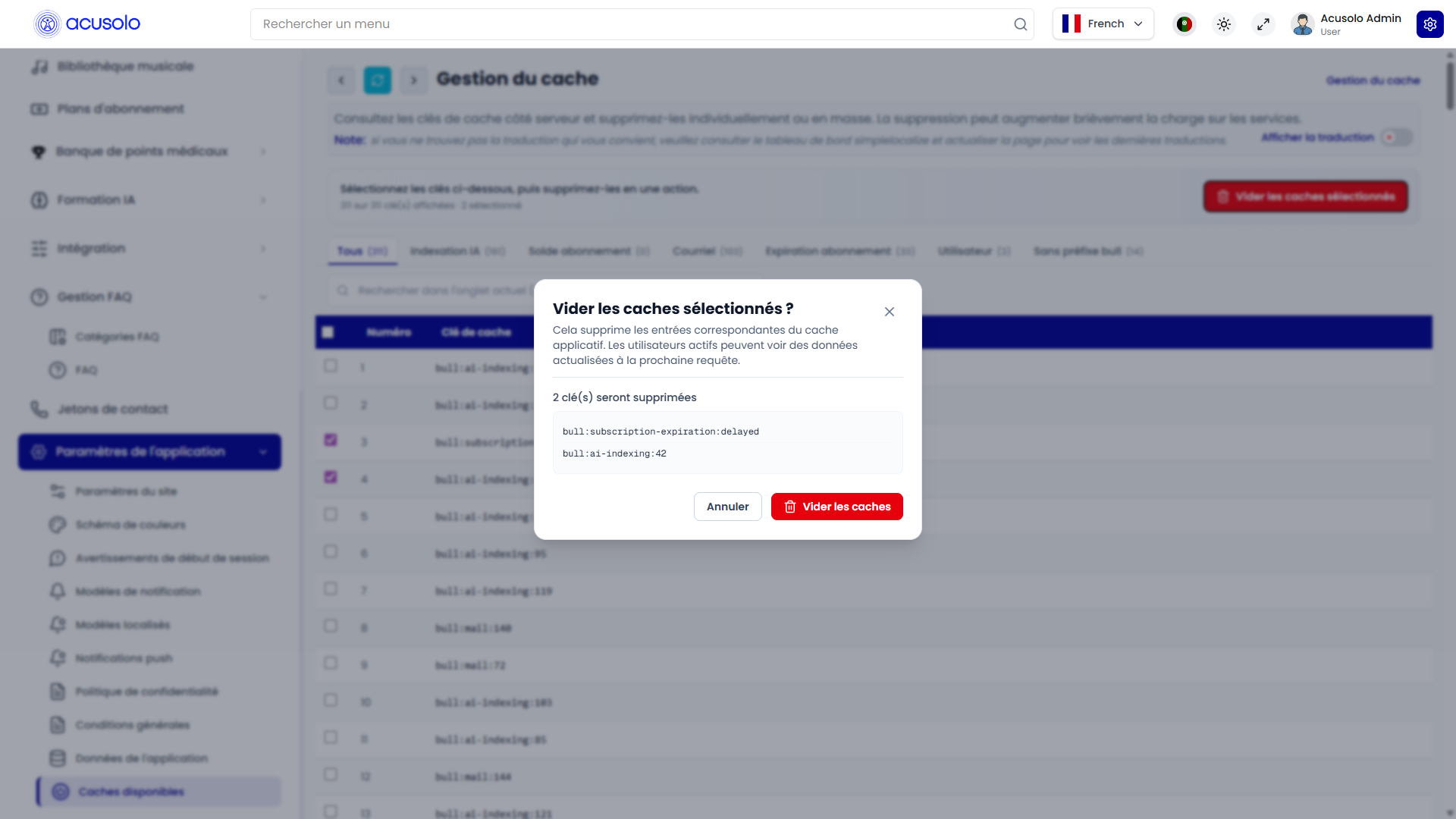
A confirmation modal appears before clearing. The modal shows:
- How many keys will be cleared.
- The exact selected cache keys.
- A cancel action.
- A final clear action.
After confirmation, the selected cache entries are removed. Active users may receive refreshed data on their next request.
When to clear cache
Admins may clear cache when:
- A page or list appears to show stale data.
- A setting was updated but the web app still shows older behavior.
- Background job information needs to be refreshed.
- A support or operations team member asks for a specific cache key to be cleared.
- The system should rebuild temporary data after an important change.
Important rules
- Clear only the cache keys that are needed.
- Use search and tabs to avoid selecting unrelated keys.
- Review the confirmation modal before clearing.
- Avoid clearing a large number of caches during high-traffic periods unless necessary.
- Clearing caches can briefly increase load because the system may need to rebuild fresh data.
- If unsure, refresh the list first and confirm the selected keys.
Common error cases
Admins may face these issues:
- No cache keys are returned by the server.
- No keys match the selected tab.
- No keys match the search query.
- The clear action is disabled because no key is selected.
- A selected key disappears after refresh because it was already removed or expired.
- Data may not change immediately if the user still has a page open and needs to reload it.
- Clearing too many unrelated keys can cause temporary slower responses while data is rebuilt.
Overall flow
- Admin opens the Available Caches page.
- Admin selects a cache category tab.
- Admin searches for the needed cache key if required.
- Admin selects one or more cache keys.
- Admin clicks Clear selected caches.
- Admin reviews the confirmation modal.
- Admin confirms the clear action.
- The selected cache entries are removed and the system rebuilds fresh data when needed.