Program Category
Documentation for parent categories in the Program module. Sub-categories (child rows) are covered separately: Program Sub-category.
- Base URL (Admin):
https://admin.acusolo.net/ - Base URL (Web app):
https://web.acusolo.net/
Data model (parent category)
In the shared category table, a parent category is a row where parentId is null. Child rows are documented on the sub-category page.
Admin list: Categories
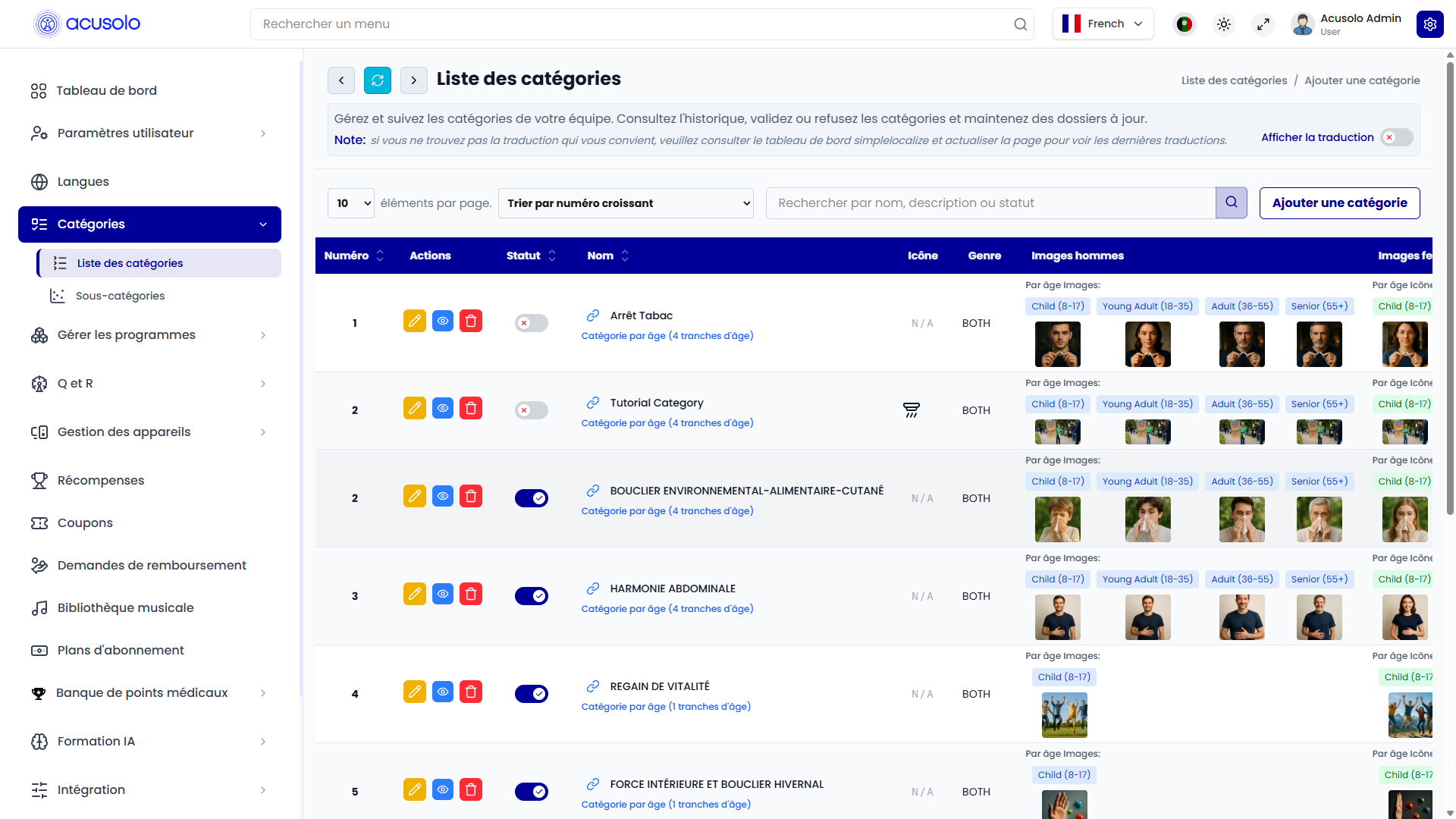
Columns
| Column | Definition |
|---|---|
| Serial | Display and sort order for categories in admin and in app UIs (cards/lists). Shown as Numéro in the table. Optional in the create form when you rely on default ordering. |
| Actions | Row actions, not a stored field: Edit (pen), View (eye), Delete (trash). See Actions and behavior below. |
| Status | Boolean visibility: when on, the category appears in mobile and web app; when off, it is hidden from end users. |
| Name | Human-readable label for the category. Required. Maximum 256 characters. |
| Icon | Optional. Inline HTML or SVG used for the category icon (for example icon markup from Lucide, Font Awesome, or similar). If empty, the UI may show N/A or omit the icon. |
| Gender | Targeting for imagery and display (for example Both, or a specific gender where configured). |
| Male Images | Preview of male image assets: default and/or age-group slots (Child, Young Adult, Adult, Senior) when Age-Based Images is enabled. Upload rules match the modal (for example image types and 5 MB max per file where shown). |
| Female Images | Same as male column, for female assets. |
| Description | Long-form copy (rich text in admin). Optional. Maximum size aligned with MySQL TEXT: 65,535 bytes. |
| Timestamp | Created and last updated datetimes for the record (created / updated, shown as Cr / Up or equivalent in the UI). |
Field rules (text fields)
- Name: required, maximum 256 characters.
- Description: optional, maximum MySQL
TEXTsize (65,535 bytes).
Actions and behavior
- Edit (pen): opens the edit modal with existing data.
- View (eye): opens the flow to manage sub-categories under this parent. See Program Sub-category.
- Delete (trash): opens confirmation and permanently removes the record after confirmation.
- Status toggle: controls visibility in mobile and web app UI.
Sort and display notes
- Category cards are rendered by serial ascending in app experiences.
- List table previews gender-specific and age-tagged images where configured.
Create category modal
Use Add category to create a top-level category: leave Parent category empty (or equivalent “no parent”) so parentId stays null.
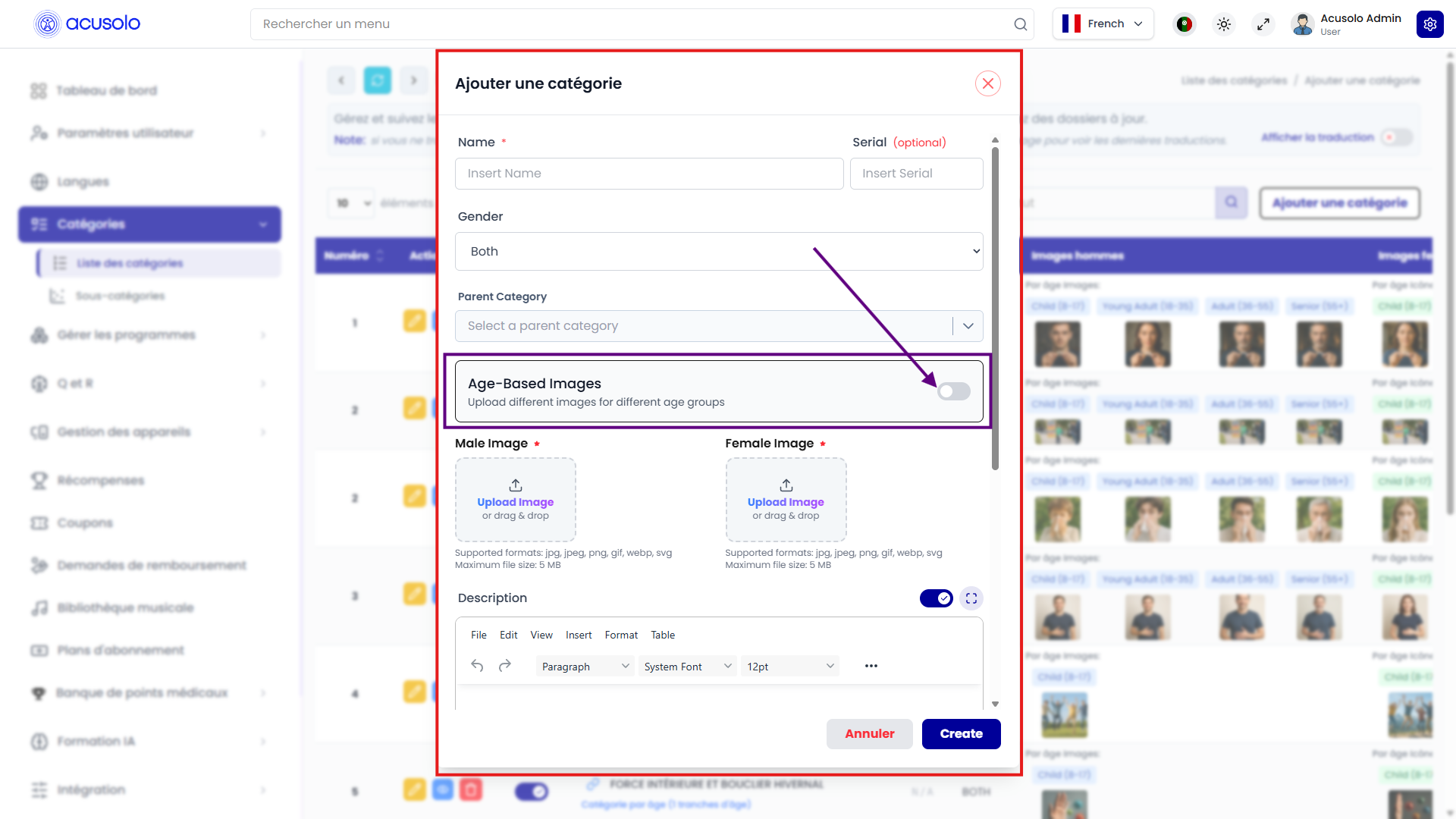
Main fields
- Name (required)
- Serial (optional)
- Gender (
Both, or specific target as configured) - Parent Category — leave unset for a parent category; required when creating a sub-category
- Male Image and Female Image
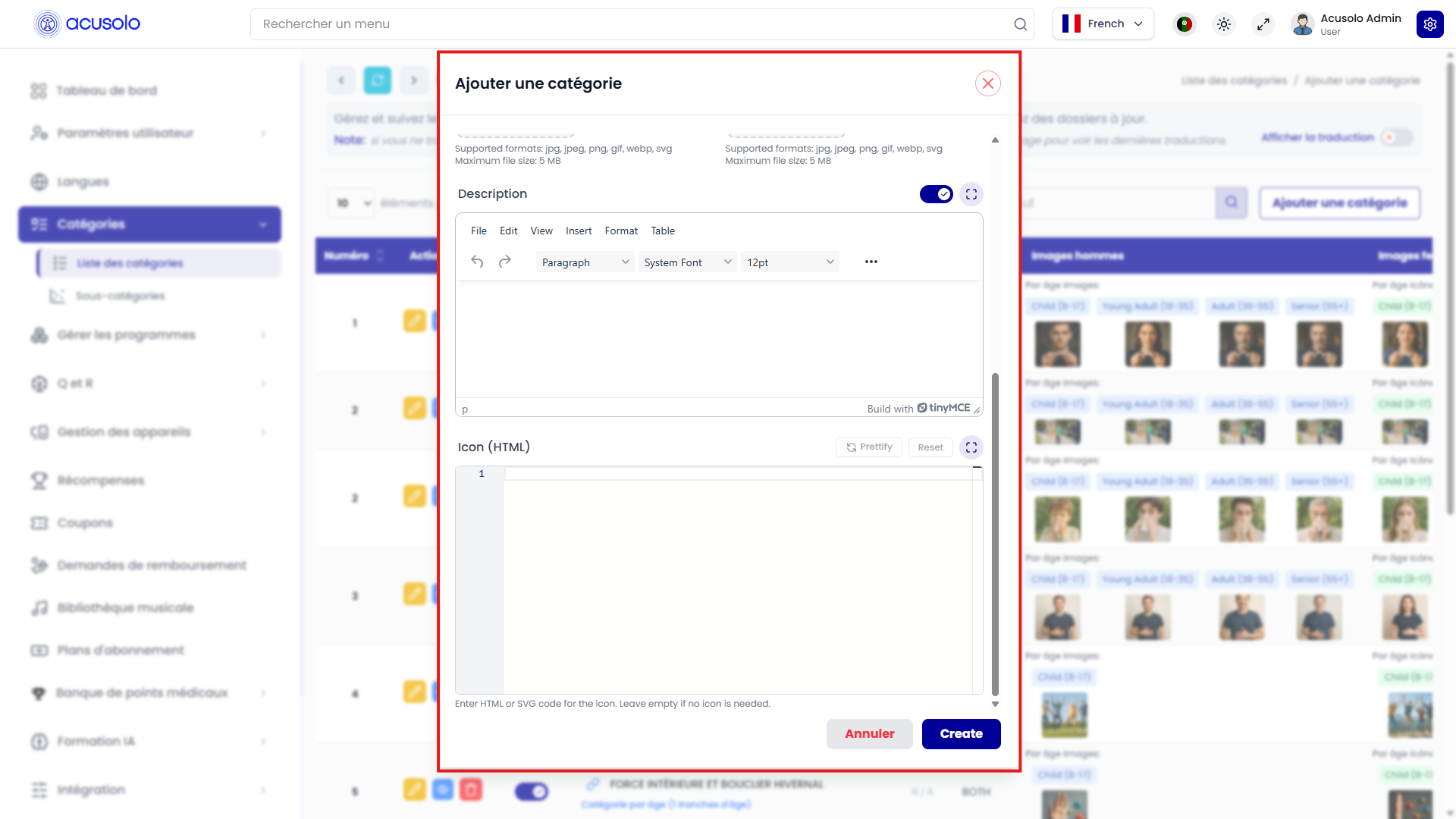
- Description (rich text editor)
- Icon (HTML) input for SVG/XML icon markup (for example Lucide or Font Awesome SVG code)
Description and icon notes
- Description uses a rich text editor and supports long content.
- Icon field accepts HTML/SVG code and is used by UI rendering layers where icon display is enabled.
Edit category modal
From the list, click the yellow pen to open Edit Category.
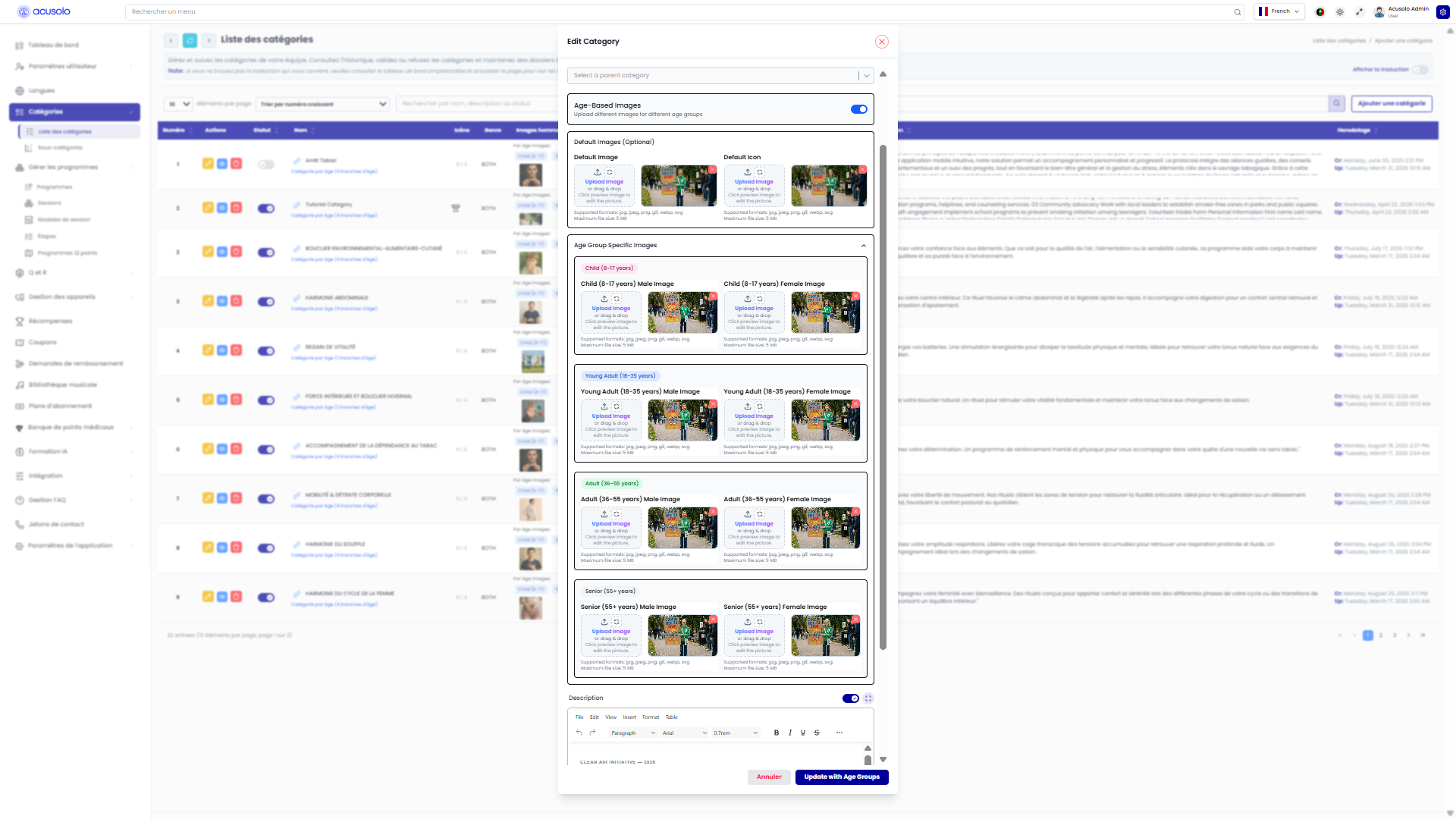
How edit differs from create
- All fields are pre-filled with the saved record (name, parent, images, description, age-based options, and so on).
- Primary save action is Update (for example Update with Age groups when age-based imagery is enabled), instead of Create / Create with Age Groups.
- Cancel closes the modal without persisting changes.
Fields visible in edit (aligned with create)
- Parent category — for a top-level row, this remains empty; changing it is how you move or attach rows (see sub-category).
- Age-Based images — when enabled, the same default and per-age-group uploaders appear; existing uploads show as previews so you can replace files or keep them.
- Default slots — optional fallbacks (for example default image / default icon) when the age-based set is in use, depending on configuration.
- Age group specific images — per group (Child, Young Adult, Adult, Senior), male and female slots; formats and size limits match the create flow (for example up to 5 MB and common image types).
- Description — rich text editor; long content and embedded media behave like on create.
Age-based images toggle
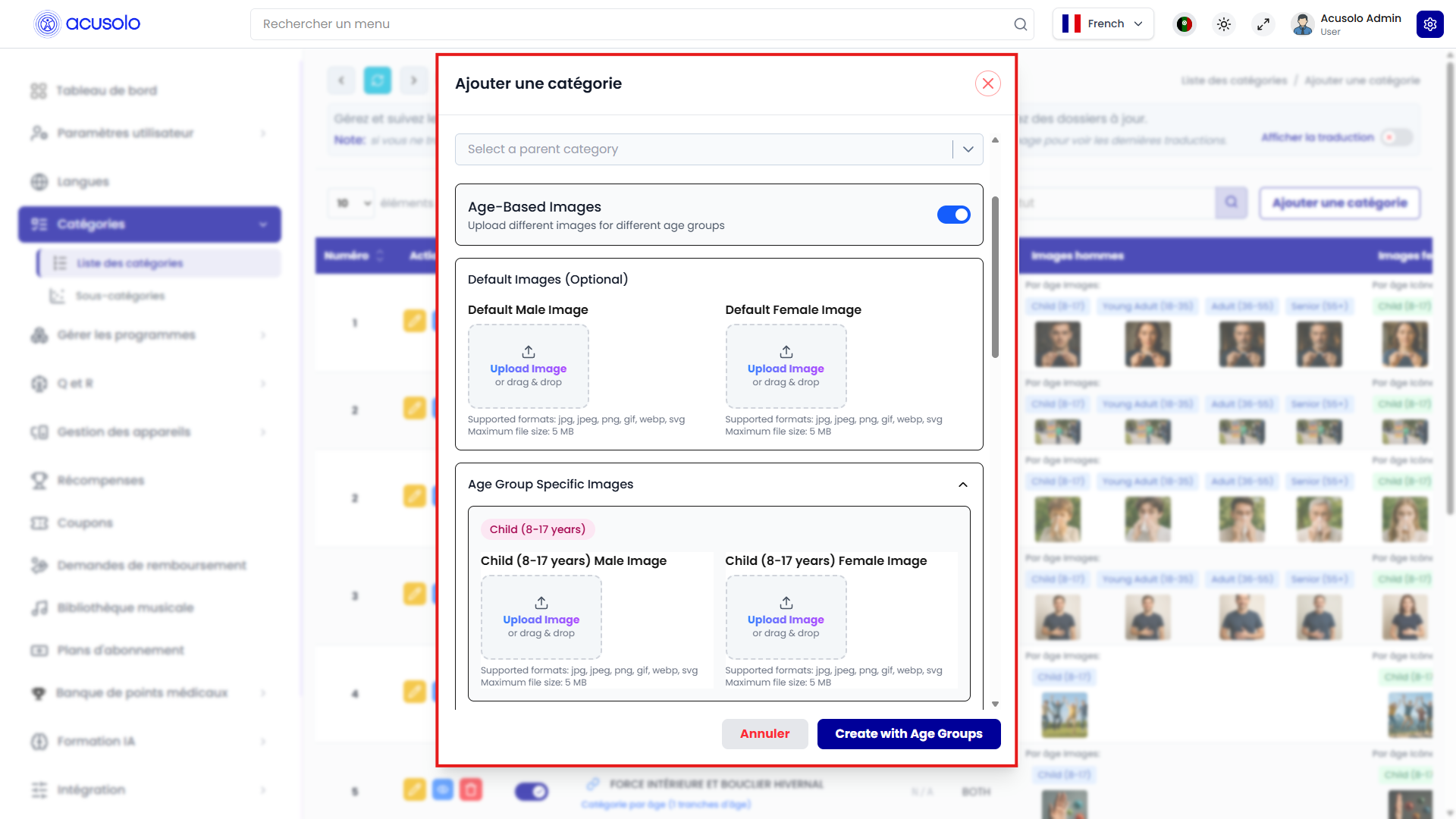

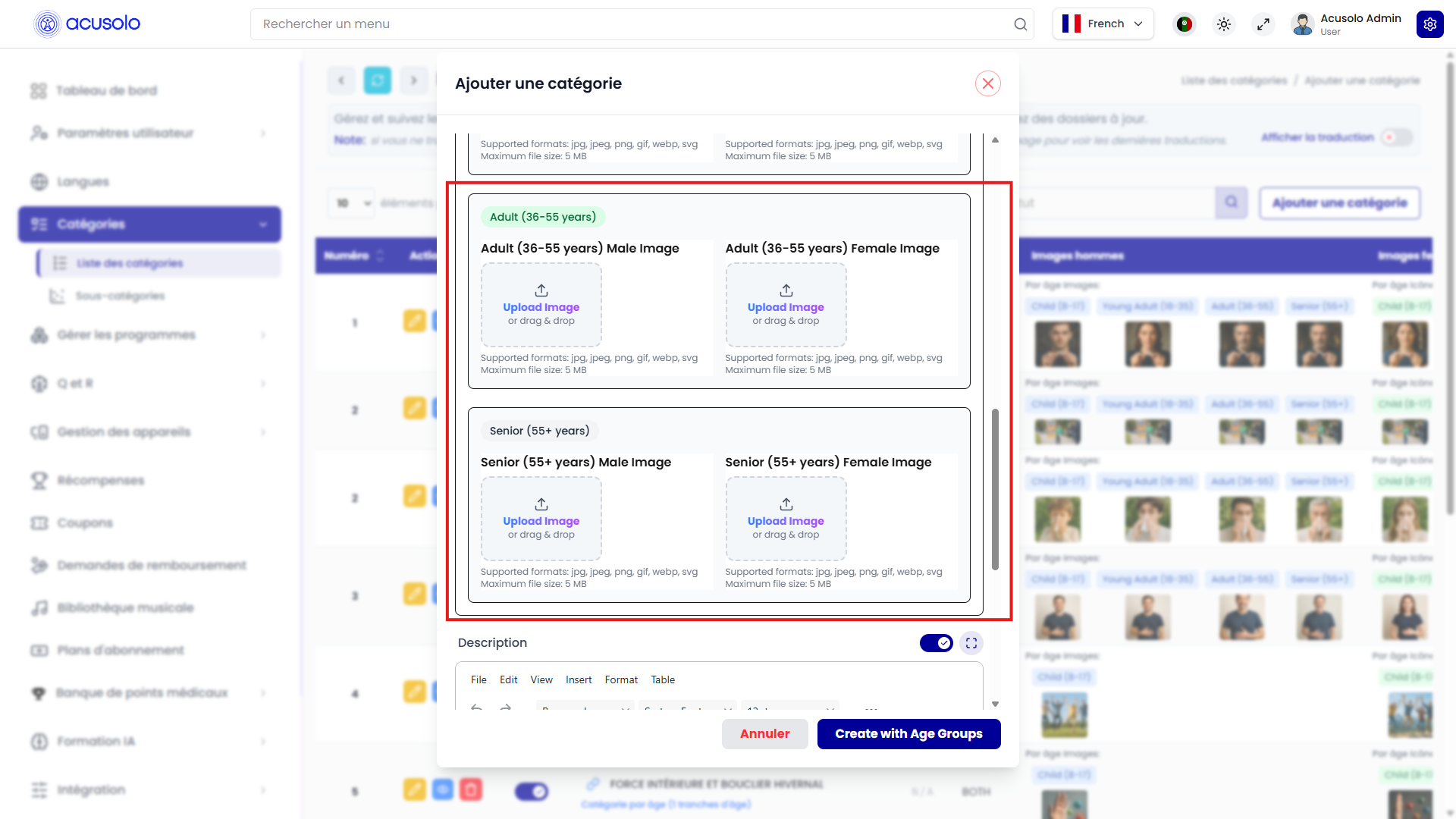
When Age-Based Images is enabled:
- Additional image sections appear.
- Modal action changes to Create with Age Groups.
- You can upload a default set plus age-specific sets.
Age groups
CHILD: Child (8-17 years)YOUNG_ADULT: Young Adult (18-35 years)ADULT: Adult (36-55 years)SENIOR: Senior (55+ years)
For each age group, upload:
- Male image
- Female image
Selection logic in web/mobile UI
Client apps calculate user age from birthday and combine it with gender:
- Match gender
- Match age group image (if available)
- Fallback to default male/female image
Age-based images are intended to be supplied from admin for accurate UI targeting.
Web UI: category cards and details
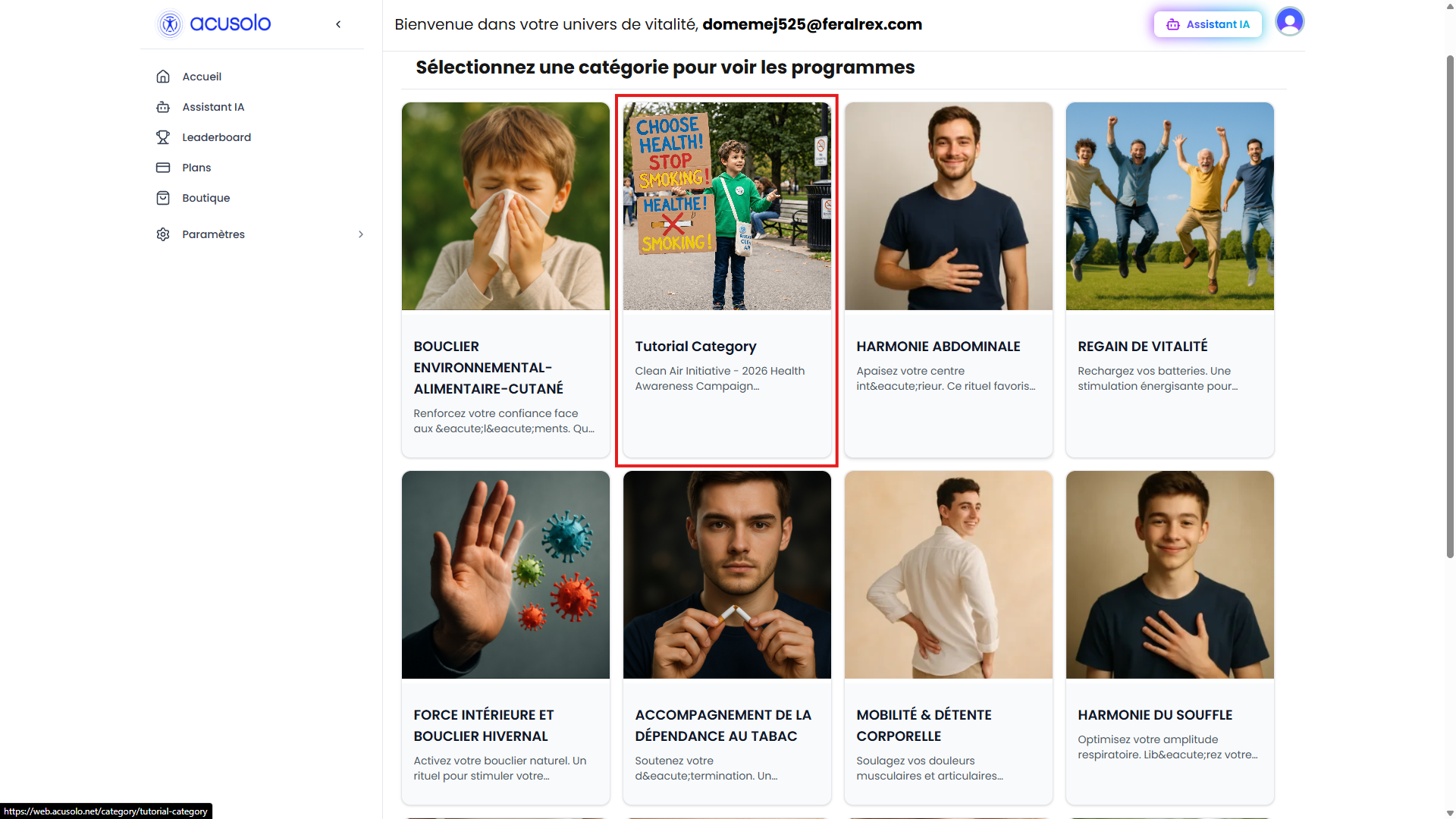
Category cards show image, title, and summary content; clicking opens detail flow.
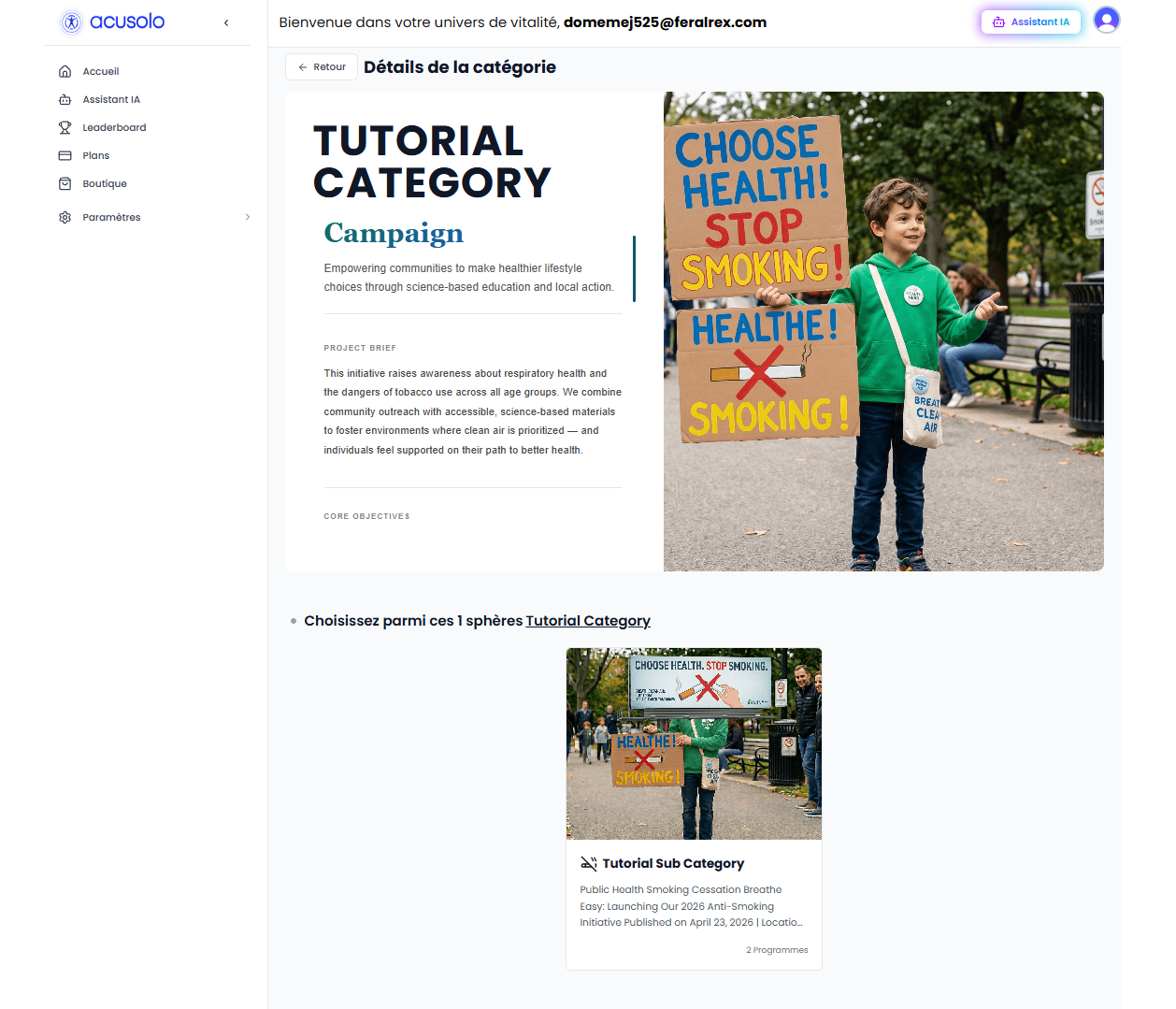
On category detail:
- Main content and hero image are shown side-by-side.
- Long description is displayed in a scrollable content area.
- Sub-category cards are shown below — see Program Sub-category.
URL binding (category)
Category detail routes can use ID or slug-based URLs, depending on product configuration. Example web host:
https://web.acusolo.net/...