Hardware Pricing
Use Hardware Pricing to define reusable purchase and rental price tiers (deposit + monthly rental). Each tier has a currency and currency symbol. Devices must select a tier when created. Accessories use their own Currency and Price fields in Accessory List, but you should still match currency across devices and accessories so carts and checkout stay consistent.
- Base URL:
https://admin.acusolo.net/ - Page path:
/admin/hardware-pricing
Keep one currency across the catalog
The admin UI lets you pick different currencies per tier, but you should manage hardware pricing in a single currency for your whole catalog.
When creating devices, you must select a hardware pricing row. Accessories do not use that selector, but if the cart mixes different currencies, flows such as Stripe checkout can still reject payment.
Stick to one currency for all hardware pricing rows so carts and checkout stay predictable and the user experience stays smooth.
Pricing list screen
Opening https://admin.acusolo.net/admin/hardware-pricing shows the Hardware Pricing list. The layout matches other admin list pages: toolbar, search, pagination, and a data table.
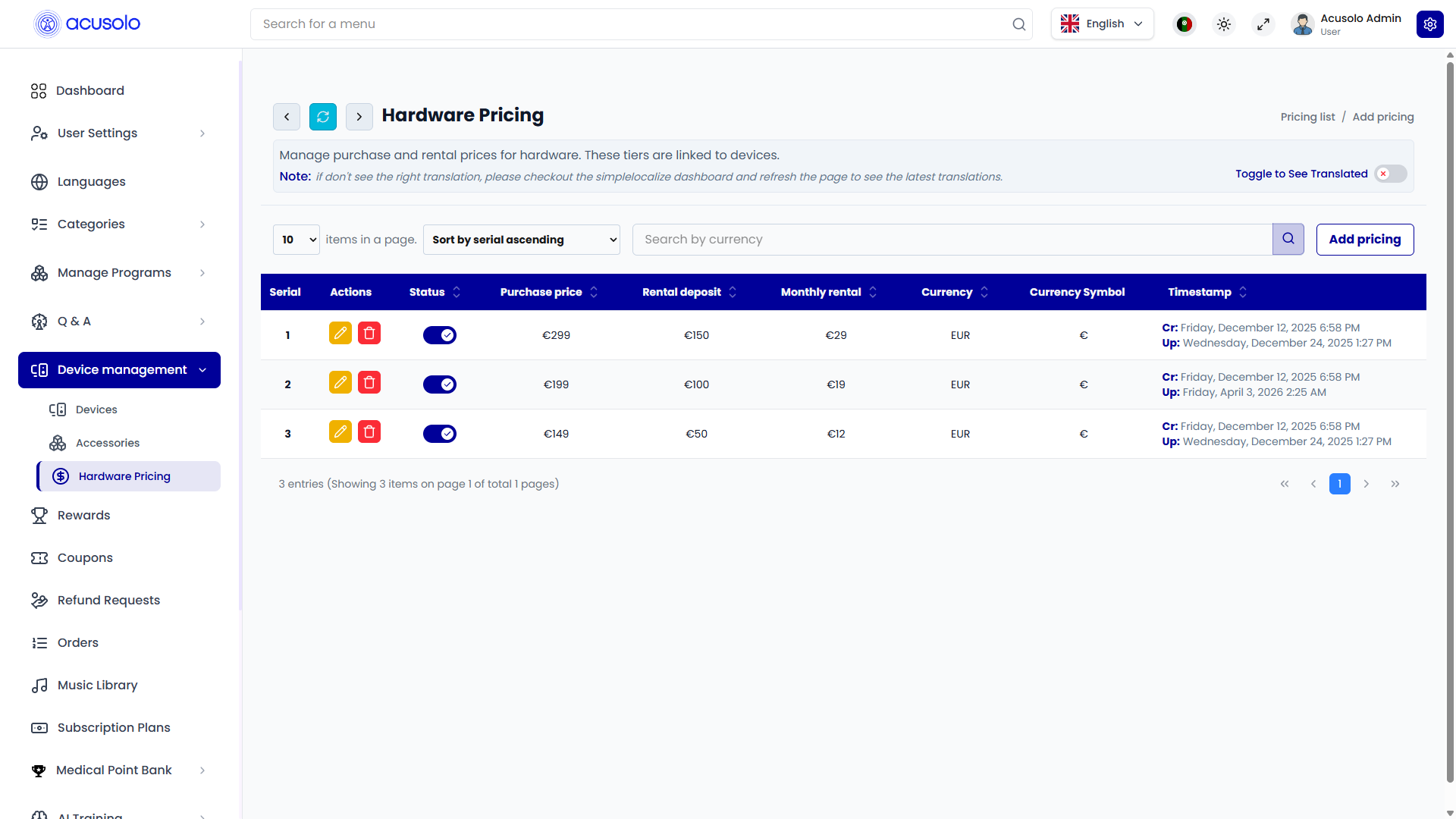
Toolbar and controls
- Title: Hardware Pricing (under Device management in the sidebar).
- Short description explaining that tiers manage purchase and rental prices and are linked to devices (and, in product flows, to other hardware products as applicable).
- Toggle to See Translated (or equivalent) when translations are shown in the UI.
- Items per page (for example
10). - Sort (for example “Sort by serial ascending”).
- Search — for example search by currency.
- Add pricing — opens the create modal.
Table columns (typical)
| Column | Purpose |
|---|---|
| Serial | Row identifier / ordering. |
| Actions | Edit (pencil) and Delete (trash). |
| Status | Toggle to temporarily enable or disable the tier without deleting it. |
| Purchase price | One-off purchase amount for this tier. |
| Rental deposit | Deposit amount for rental. |
| Monthly rental | Recurring monthly rental amount. |
| Currency | ISO currency code (for example EUR). |
| Currency Symbol | Display symbol (for example €). |
| Timestamp | Cr: created at, Up: last updated at. |
Row actions
- Edit: Opens the Edit hardware pricing modal with existing values pre-filled so you can adjust amounts or currency as needed.
- Delete: Opens a delete confirmation modal; confirming removes the tier permanently (ensure nothing critical still references it).
- Status toggle: Quickly activates or deactivates the tier from the list.
Add hardware pricing (create modal)
Click Add pricing to open Add hardware pricing. Fill in the required fields and submit with Create.
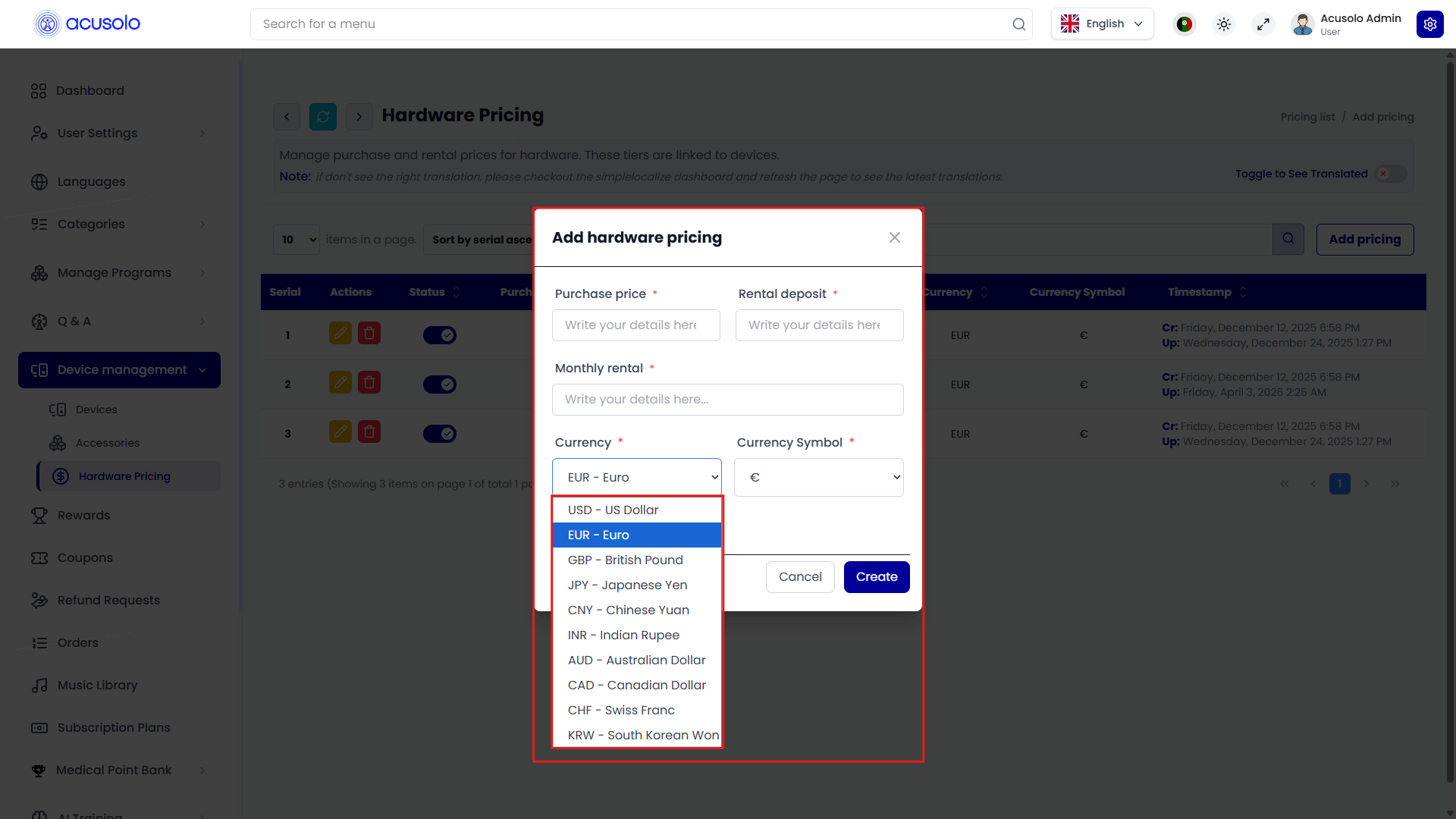
Typical fields
- Purchase price — required.
- Rental deposit — required.
- Monthly rental — required.
- Currency — required; dropdown (for example USD, EUR, GBP, …).
- Currency Symbol — required; aligns with the chosen currency (for example € for EUR).
Use Cancel to close without saving.
Edit hardware pricing (update modal)
Click Edit on a row to open Edit hardware pricing. The form is pre-filled with that row’s data; change values and save with Save changes.
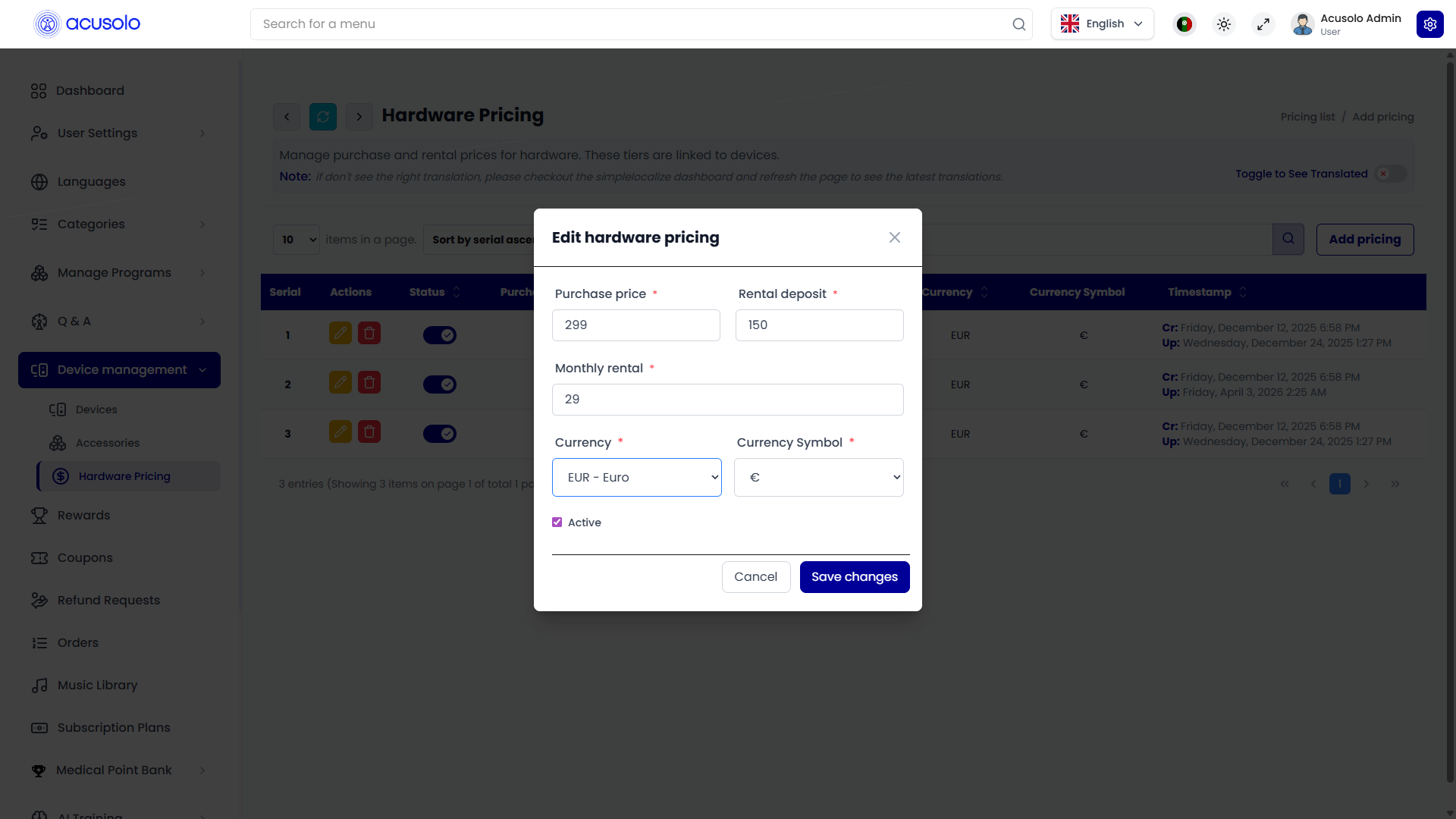
The edit flow usually includes an Active checkbox (or equivalent) together with list-level Status, so you can control visibility both from the modal and from the table toggle—follow what the live admin shows for your environment.
Delete flow
Choosing Delete opens a confirmation modal. Only confirm when you intend to remove the pricing tier permanently.
Relation to devices, accessories, and checkout
- Hardware pricing tiers are required when creating devices; accessories carry price and currency on their own forms.
For device-specific steps, see Device List. For accessory pricing fields and storefront behaviour, see Accessory List.
Stripe checkout and similar flows assume a single currency per cart. Mixed-currency carts lead to errors—another reason to standardize currency across hardware pricing rows and accessory prices.