Sessions
This page documents Sessions under Gérer les programmes → Sessions in the admin panel. Each session belongs to a Program and is ordered by day within that program’s schedule.
- Base URL (Admin):
https://admin.acusolo.net/
Related: Program, Steps, Session modals, Category, Sub-category.
How sessions fit in the product
Sessions are the scheduled units inside a Program: each program has a configured length in days, and each session is tied to a day index and a program. The web app uses this structure for “session N” progress, 24-hour unlock rules between sessions, and the calendar view on the program page.
Admin mental model:
- Category → Sub-category → Program (structure and marketing).
- Sessions → one row per program + day (or equivalent scheduling slot the UI calls “Day”).
- Steps → ordered instructions inside a single session.
- Session modals → post-completion welcome content after the user finishes a session in the app (separate from the program 12 Point final-session CTA).
Entry points (two ways to reach the list)
From the sidebar
Gérer les programmes → Sessions opens the global session list: all programs, with filters and pagination. Use this when you are auditing sessions across programs or fixing data without starting from one program row.
From the program list (scoped)
On Liste des programmes, the blue play action opens the session list filtered for that program (query parameters such as program id, title, and day count are passed in the URL). See Program — View sessions.
Why two entry points matter (UX):
- Scoped entry reduces mistakes when you only care about one program’s schedule.
- Global entry supports support teams and bulk review.
Session list
The Session List screen lists every session with filters and pagination. Use New Session to open the create modal.
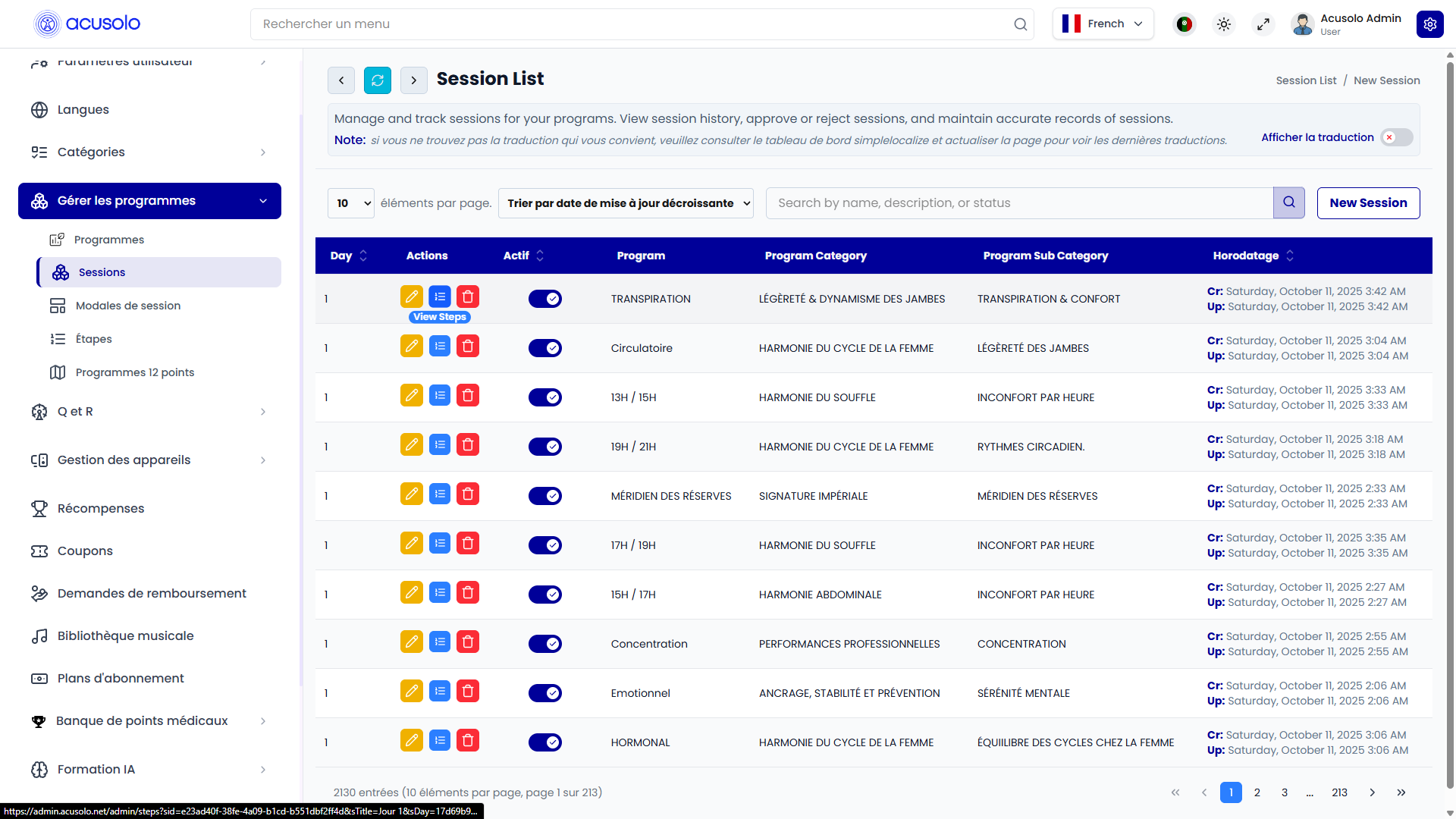
Toolbar
- Items per page (for example
10). - Sort — for example Trier par date de mise à jour décroissante (sort by last update, newest first).
- Search — filter by name, description, or status (placeholder may vary by locale).
- New Session — opens Create session modal.
Columns
| Column | Definition |
|---|---|
| Day | The day index of this session within its Program (for example Day 1, Day 2, …). Must align with the program’s configured length and ordering. |
| Actions | Edit (pen) — edit modal. List (list icon) — opens the steps list for this session (see Steps). Delete (trash) — confirmation, then permanent removal. |
| Active | Toggle: when on, the session is available where the product uses it; when off, it is treated as inactive / hidden from those flows. |
| Program | The program this session belongs to (name shown in the table). |
| Program Category | Parent category of that program (read from program hierarchy). |
| Program Sub Category | Sub-category when the program has one; may be empty depending on data. |
| Timestamp | Cr: created at, Up: last updated at. |
Pagination
The footer shows total entries, page size, and current page (for example thousands of sessions across many pages). Use the pager controls to move between pages.
Day column and program rules (practical)
- Day must be consistent with the parent program’s number of days (you cannot rely on a session for “Day 99” if the program is only 7 days long—align with product limits shown in the program form).
- Each program + day combination should normally have at most one active session row; if duplicates exist, clarify with your team which row the app resolves (avoid creating overlapping Day values for the same program without intent).
- When you change Program or Day on an existing session (see Edit session modal), the same steps remain attached to that session row until you edit steps separately—verify Steps after moving a session.
Active column vs program Status
- Program Status (on the program list) hides the whole program from end users when off.
- Session Active (on the session list) can hide or skip a single session inside an otherwise published program, depending on how the client app reads inactive sessions.
Treat Active as a surgical switch for one day’s session without unpublishing the entire program.
Create session modal
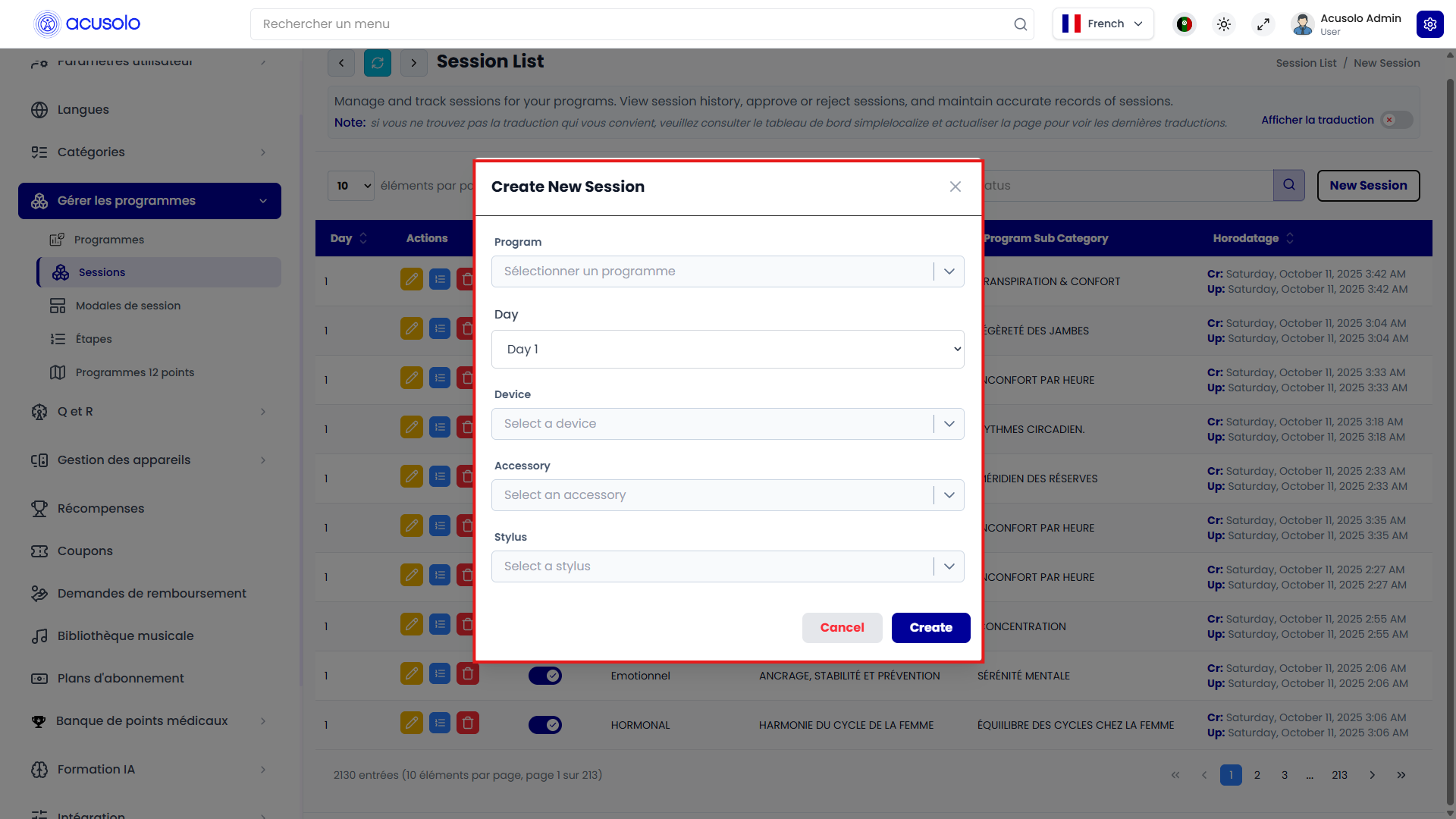
Open New Session to add a session. All main controls are dropdowns (searchable where the UI supports it).
Fields
| Field | Role |
|---|---|
| Program | Which program this session belongs to. Required context: pick from Sélectionner un programme (or equivalent). |
| Day | Which day of the selected program this session represents (for example Day 1, Day 2, …). Must match the program’s day model. |
| Device | Required hardware the user should use for this session — the recommended device to continue (for example the main TENS / therapy device). |
| Accessory | Accessory linked to that device (for example electrode patches). |
| Stylus | Stylus option linked to the same device family when applicable. |
Actions
- Cancel — closes without saving.
- Create — saves the new session and associates it with the chosen program and day.
Edit session modal
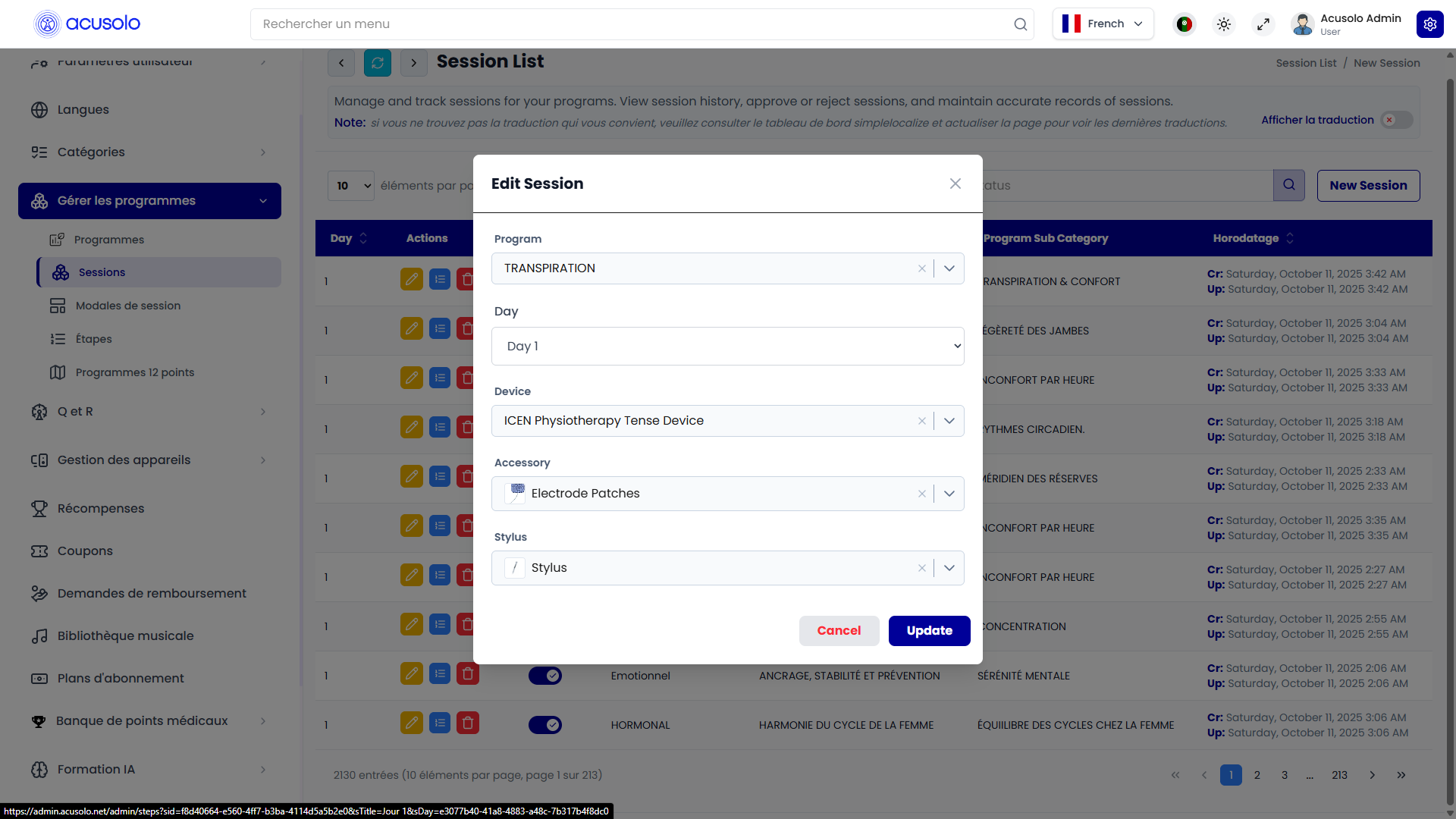
From the list, click Edit (pen) to open Edit Session with current values pre-filled so you can adjust program, day, device, accessory, or stylus.
Actions
- Cancel — discards unsaved changes.
- Update — persists modifications.
Notes
- Changing Program or Day affects where this session appears in the schedule and which steps list opens from the list action.
- Device, Accessory, and Stylus should stay consistent with what the program expects for that day (and with inventory / UX copy in the web app).
After you save: verification checklist
- Find the session in the list (search by program name or use the scoped URL from the program row).
- Confirm Day matches the program day you intended.
- Click the list (steps) action and confirm Steps exist and are ordered for that session.
- In the web app, open the program and use Voir le calendrier (see Program — Session calendar modal) to confirm the session appears on the expected day with the expected state (started / locked / planned).
Relationship to other modules
- Programs define length, accessories at program level, and navigation from the program list’s play action can land on the sessions list scoped to a program — see Program — View sessions.
- Steps (Étapes) are managed per session via the list action in the Actions column.
- Session modals define the post-session welcome content in the web app after a session is completed (not the same as the program 12 Point final flow).
Common issues (troubleshooting)
| Symptom | What to check |
|---|---|
| Session does not appear in the app calendar | Active toggle, program Status, correct Program link, and Day within program length. |
| Wrong device text in the app | Device / Accessory / Stylus fields on this session vs copy on Program accessories card. |
| Steps action opens empty list | Create Steps for that session, or confirm you opened steps for the same session id after a program/day change. |
| Duplicate “Day 2” rows for one program | Edit or delete duplicates; keep one canonical row per intended day. |