Theme Color Scheme
The Theme Color Scheme page allows admins to manage the color palette used across the web app. These settings help keep the user experience visually consistent while allowing different color sets for different user profile groups.
- Admin color scheme page:
https://admin.acusolo.net/admin/app-settings/color-scheme
Manage theme colors
Admins can update theme colors from the color scheme settings page.
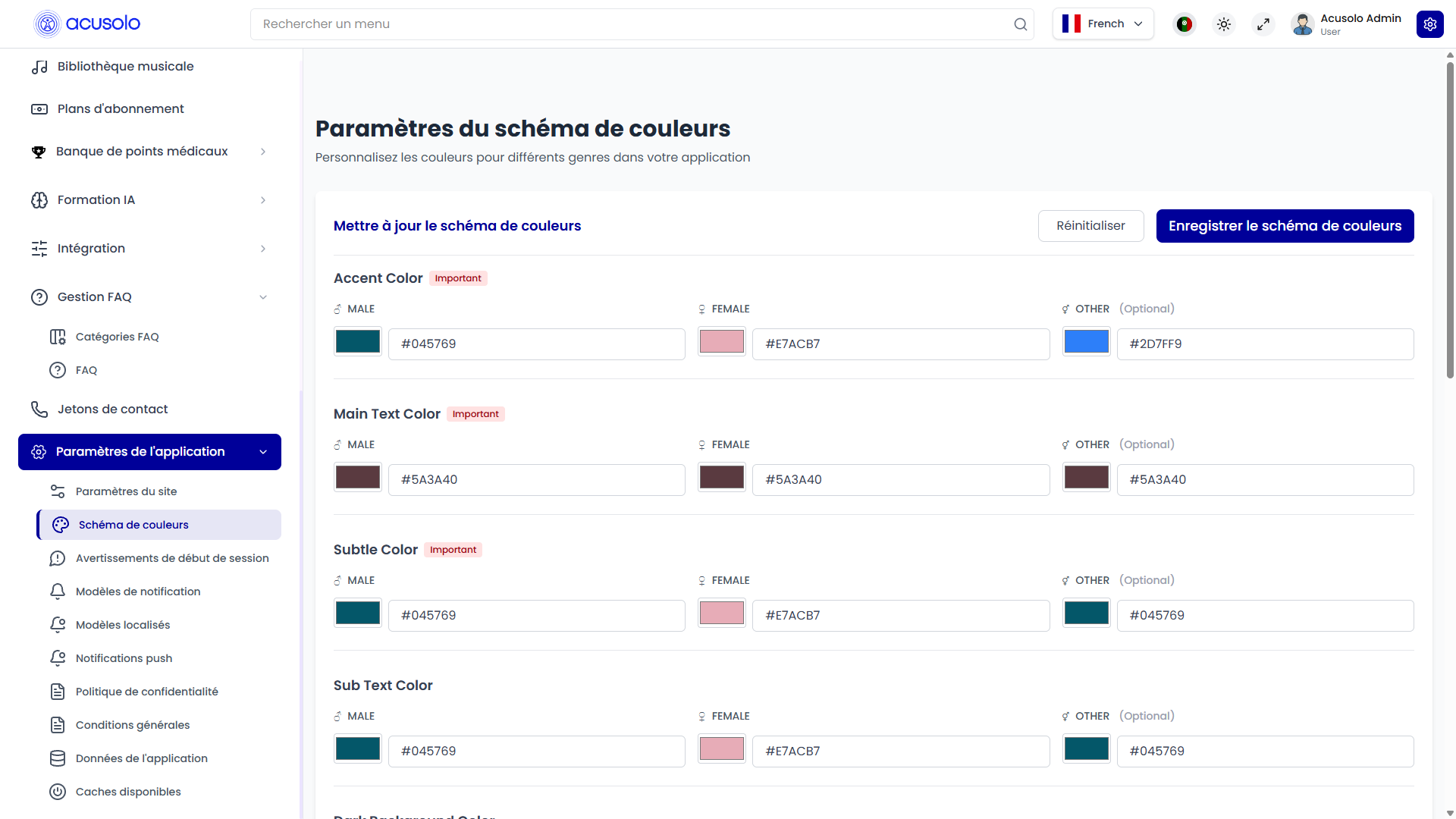
The page is organized by color field. Each color field has separate values for:
- Male
- Female
- Other
The Other value is optional. It can be used as a fallback or neutral color group where needed.
Color input behavior
Each color value can be updated using:
- A visual color picker.
- A color text input.
Admins can use the Reset button to return the form to the currently saved values, or Save Color Scheme to apply the new values.
Empty color groups are ignored when saving. This helps avoid saving incomplete color rows by mistake.
Color fields
| Field | Meaning |
|---|---|
| Accent Color | Important. The main highlight color used for selected states, progress accents, active UI elements, and other noticeable brand accents. |
| Main Text Color | Important. The main readable text color used in themed areas. |
| Subtle Color | Important. A softer supporting color used for lighter accents or secondary visual emphasis. |
| Sub Text Color | Supporting text color for less prominent text. |
| Dark Background Color | Background color used in darker themed areas. |
| Light Background Color | Background color used in lighter themed areas. |
| Border Color | Main border color for themed UI sections. |
| Light Border Color | Softer border color for lighter surfaces. |
| Button Color | Button background color. |
| Button Text Color | Text color used inside themed buttons. |
| Button Border Color | Border color used around themed buttons. |
Fields marked Important should be reviewed carefully because they are more likely to affect visible areas of the web app.
Web app accent color example
The web app can use the saved accent color to style visible elements.
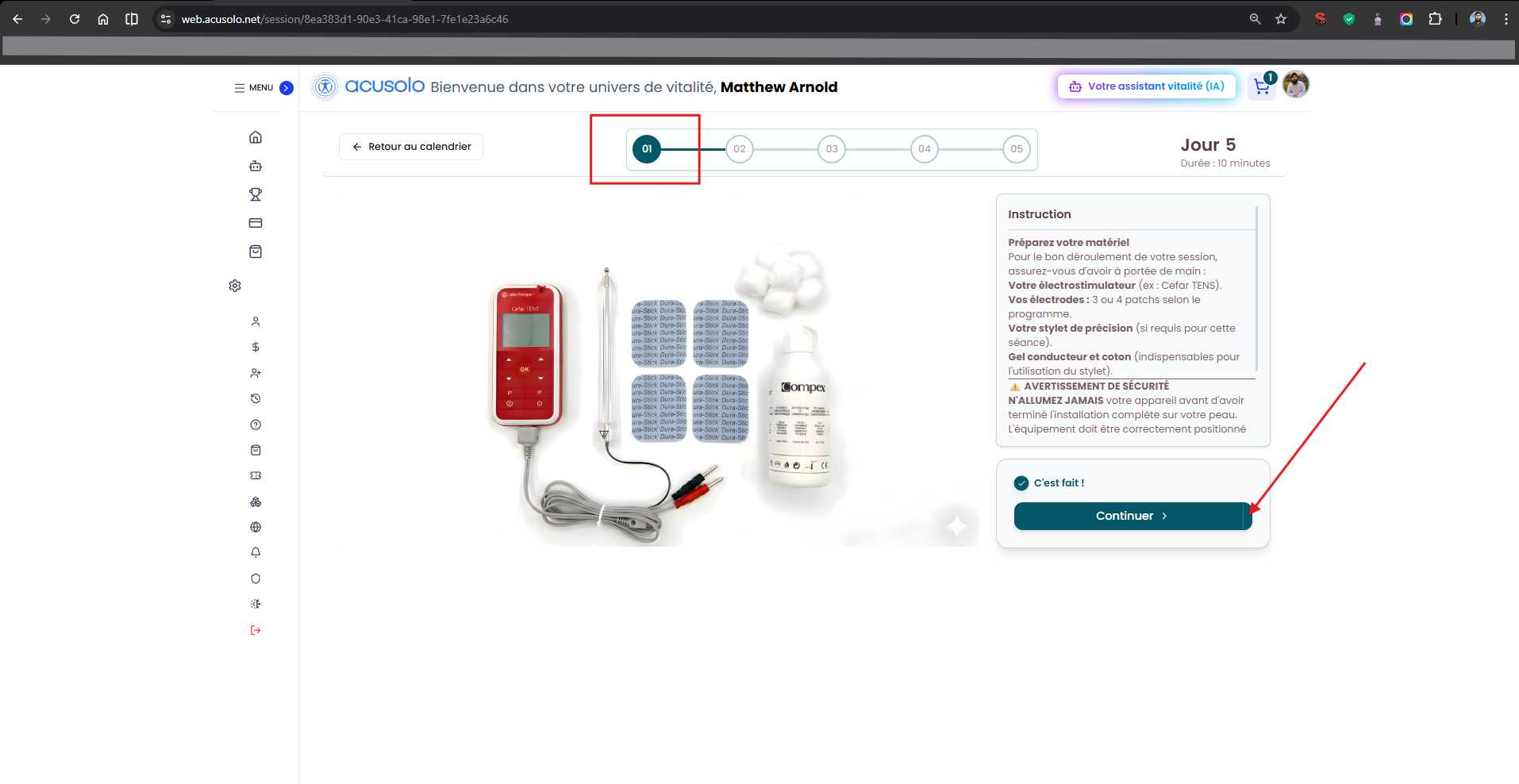
In the example, the accent color is used for highlighted controls and progress-style UI. When the admin changes the accent color, matching web app areas can visually change for users who receive that color group.
Gender-based color behavior
The color scheme is saved separately for Male, Female, and Other groups.
When a user has a profile gender, the web app can apply the matching color group:
- A male user receives the Male color values.
- A female user receives the Female color values.
- Other or fallback cases can use the Other values where supported.
If a user does not have a matching color value, the web app continues using its default colors.
Reset and save behavior
| Action | Meaning |
|---|---|
| Reset | Restores the form to the last saved color values. It does not permanently change anything by itself. |
| Save Color Scheme | Saves the updated color scheme so the web app can use the new colors. |
After saving, users may need to reload or revisit affected pages before they see the latest colors.
Important rules
- Use valid color values.
- Keep enough contrast between text colors and background colors.
- Review important fields before saving.
- Avoid using very light button text on light button backgrounds.
- Avoid using very dark text on dark backgrounds.
- Use the accent color carefully because it can affect noticeable UI highlights.
- Test Male and Female color sets separately, because users may see different colors based on their profile.
- Keep the Other group neutral if it is used as a fallback.
Common error cases
Admins may face these issues:
- A color value is empty or invalid.
- Text becomes difficult to read because contrast is too low.
- A button becomes hard to see because button and text colors are too similar.
- A user does not see the expected colors because their profile group does not match the edited group.
- The page still shows the old color until the user reloads or the latest settings are applied.
Overall flow
- Admin opens the color scheme settings page.
- Admin updates color values for Male, Female, and optionally Other.
- Admin reviews important fields such as Accent Color, Main Text Color, and Subtle Color.
- Admin saves the color scheme.
- The web app applies the matching color group for users where supported.
- Users see updated accent and theme colors in affected web app areas.