Orders
This page covers admin order management at https://admin.acusolo.net/admin/orders and the related web app flow: cart, coupons, Stripe checkout, success or cancel screens, order history, and a sample invoice PDF after purchase.
Video: product, cart, coupons, and payment (user guide)
The following tutorial walks through Acusolo product and cart management, applying a coupon for a discount, completing payment, purchasing devices, and obtaining an invoice (PDF) with cart line items and payment or shipping details.
Sample invoice (PDF) — example document matching the end-of-checkout documentation bundle:
Admin: Orders list
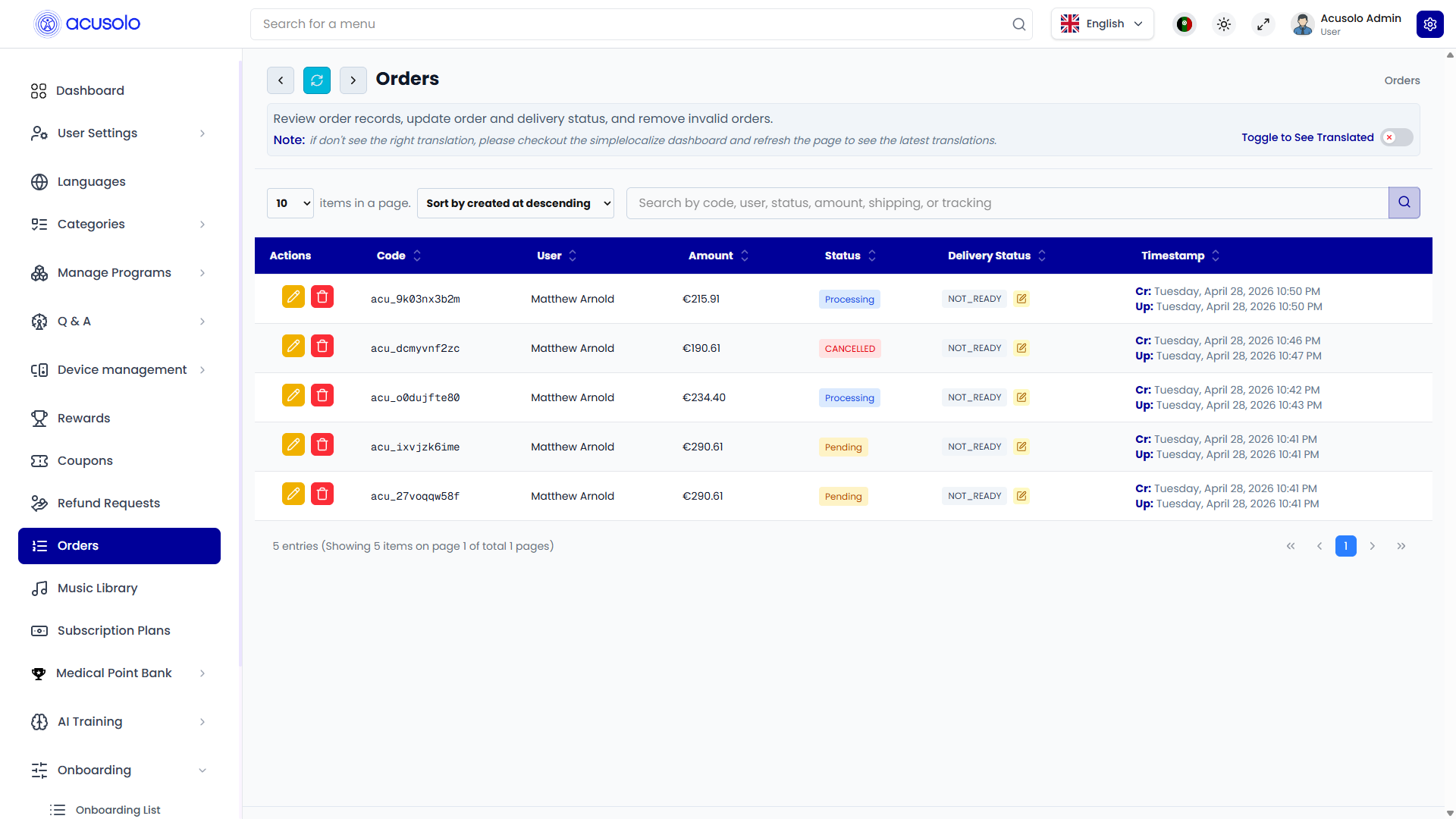
Open https://admin.acusolo.net/admin/orders to see the Orders table: review records, search, sort, and open actions for each row.
Toolbar (typical)
- Short note: review orders, update order and delivery status, remove invalid orders where allowed.
- Toggle to See Translated when the UI offers it.
- Items per page, Sort (for example “Sort by created at descending”).
- Search — by order code, user, status, amount, shipping, or tracking (placeholder may vary).
Row actions
- Edit (yellow pencil): opens Update Order Status (same modal whether you start from the row’s main edit control or from the delivery status edit control when shown).
- Delete (red trash): opens a confirmation modal; confirming removes the order record when the product allows it.
Table columns (typical)
| Column | Purpose |
|---|---|
| Actions | Edit and Delete. |
| Code | Order reference (for example acu_…). |
| User | Customer display name. |
| Amount | Total in the order currency. |
| Status | Order lifecycle badge (for example Processing, Pending, Cancelled). |
| Delivery Status | Logistics state (for example NOT_READY); may include a small edit affordance. |
| Timestamp | Cr: created, Up: last updated. |
Update Order Status modal
Use the modal to change order status and delivery status together, and optionally record a reason for refunds, cancellations, or returns.
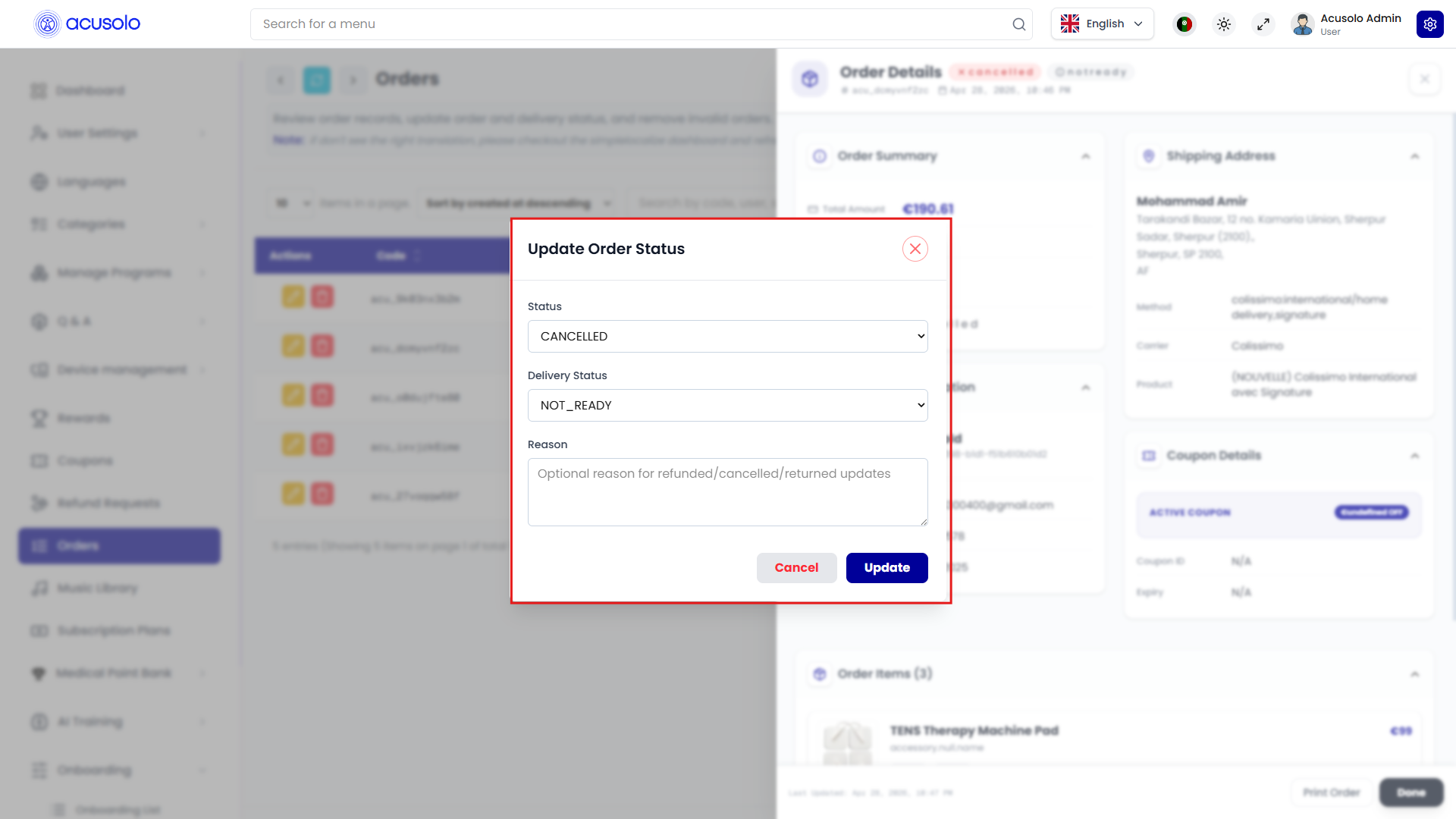
- Status — overall payment / order lifecycle (see options below).
- Delivery Status — shipment progress (see options below).
- Reason — optional textarea (for example refunded / cancelled / returned explanations).
- Cancel / Update — discard or save.
Supported order statuses
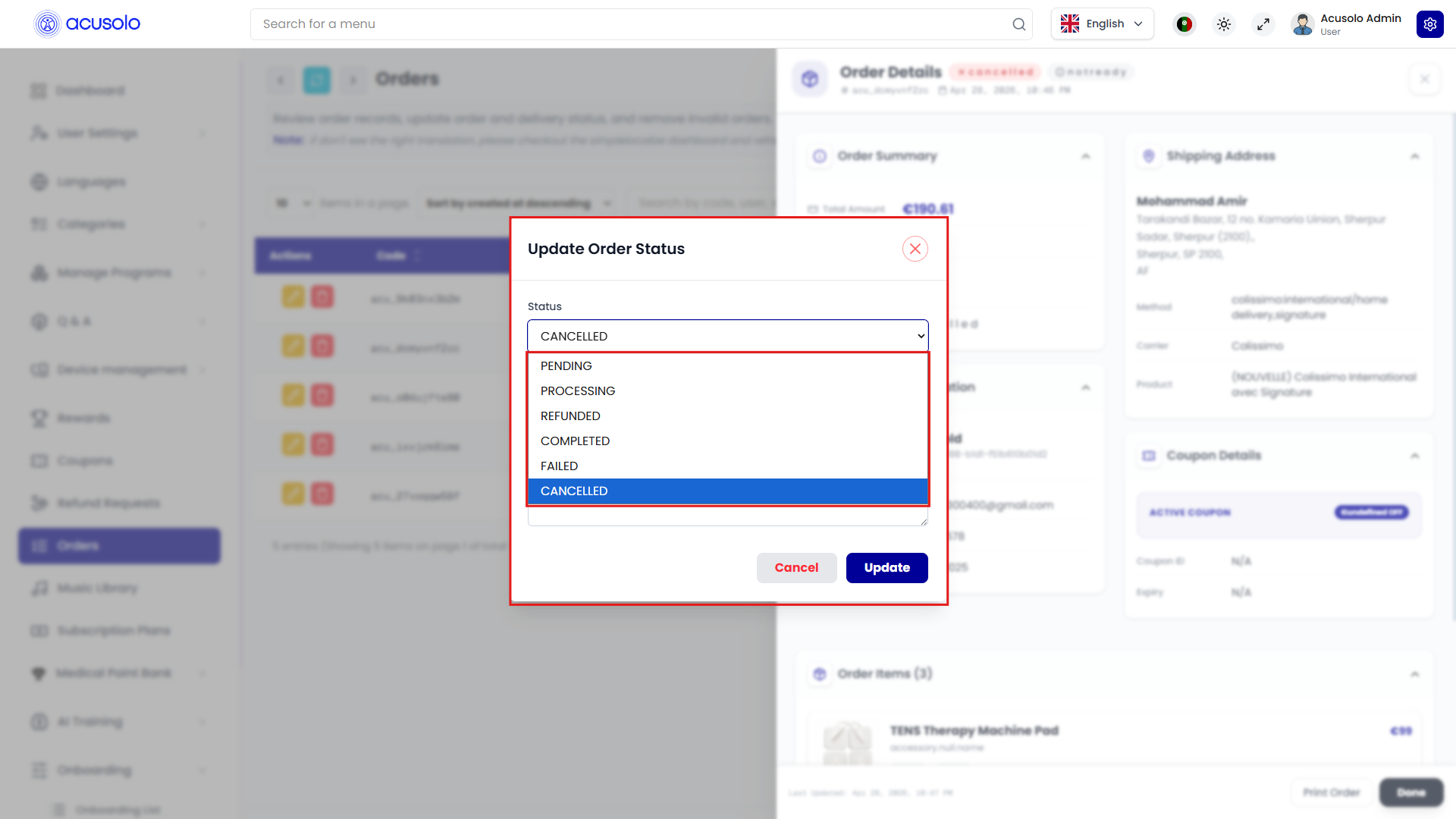
Values shown in the admin selector (follow the live list if your deployment adds more):
| Value | Typical meaning |
|---|---|
| PENDING | Awaiting payment or confirmation. |
| PROCESSING | Paid or captured; being prepared. |
| REFUNDED | Money returned to the customer. |
| COMPLETED | Order fulfilled successfully. |
| FAILED | Payment or checkout failed. |
| CANCELLED | Order cancelled and not completed. |
Supported delivery statuses
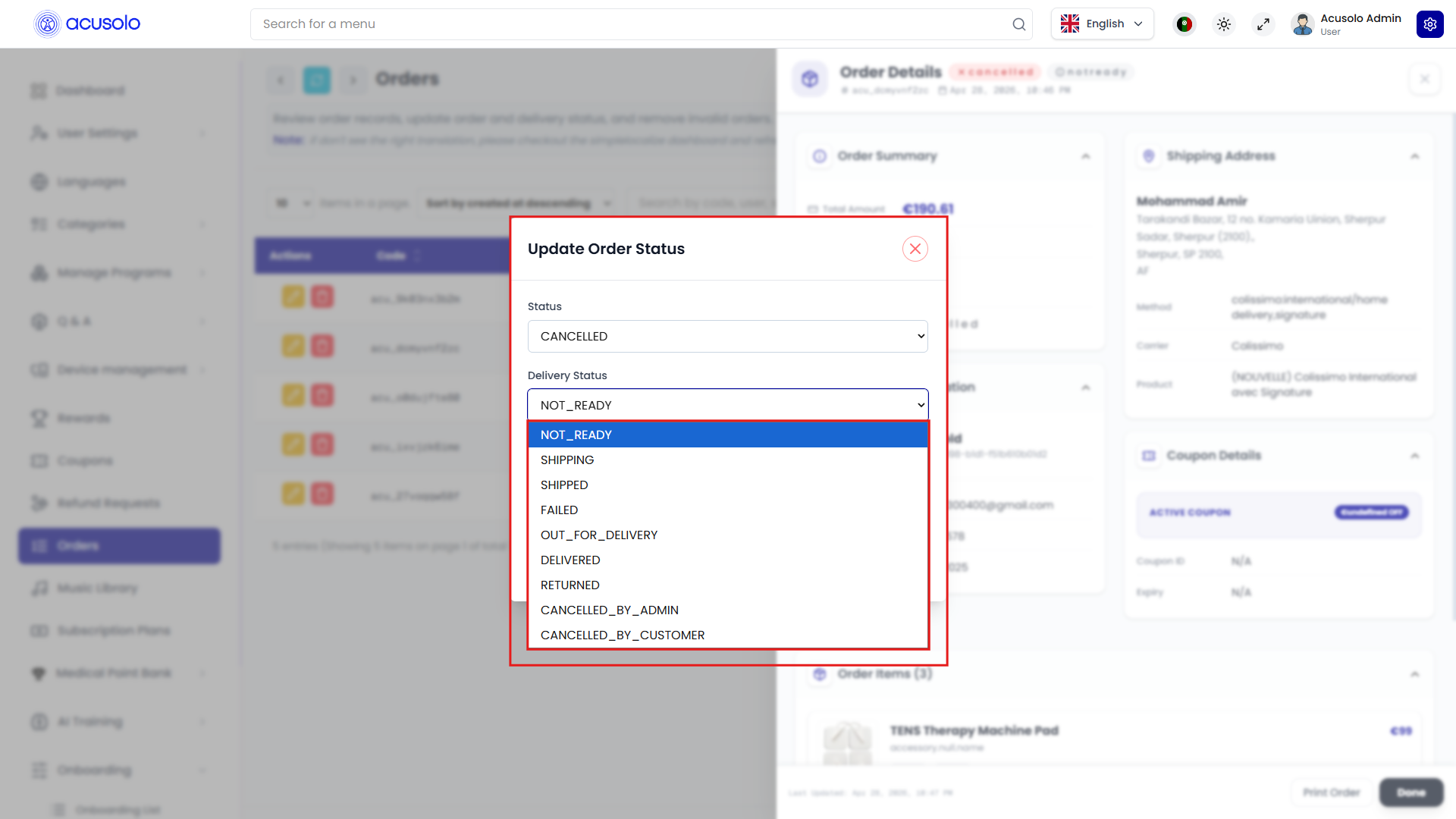
| Value | Typical meaning |
|---|---|
| NOT_READY | Not yet handed to carrier / not shipped. |
| SHIPPING | In transit with carrier. |
| SHIPPED | Dispatched from warehouse perspective. |
| FAILED | Delivery attempt or logistics failure. |
| OUT_FOR_DELIVERY | With driver for final delivery. |
| DELIVERED | Received by customer. |
| RETURNED | Goods returned. |
| CANCELLED_BY_ADMIN | Stopped from admin side. |
| CANCELLED_BY_CUSTOMER | Stopped from customer side. |
Order details drawer
Click an order row (the record itself, not only the action icons) to open a right-hand drawer with full context: totals, customer, shipping address and method, coupons, line items, payment metadata (for example Stripe session identifiers and success/cancel URLs), and optional raw JSON for support.
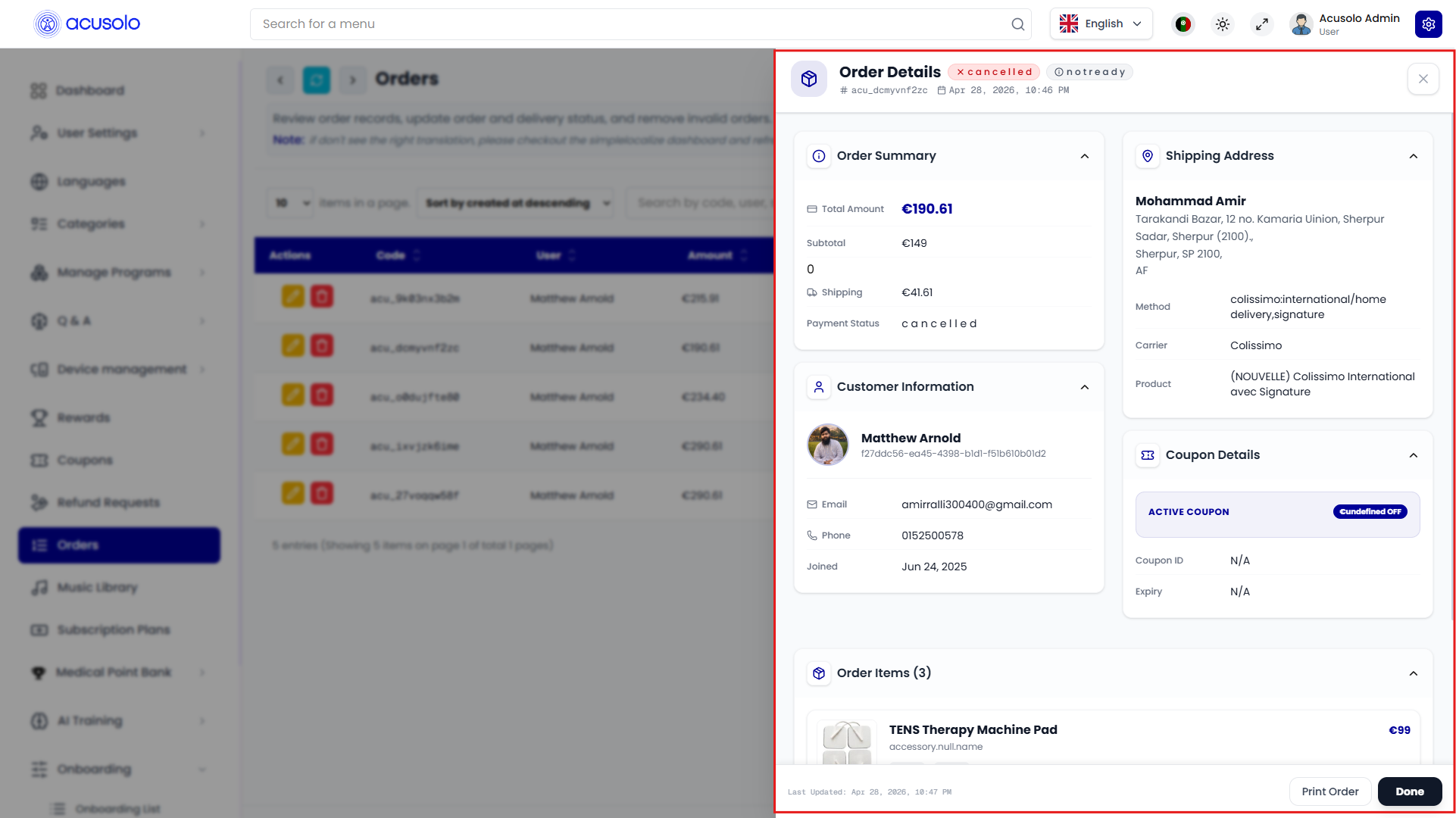
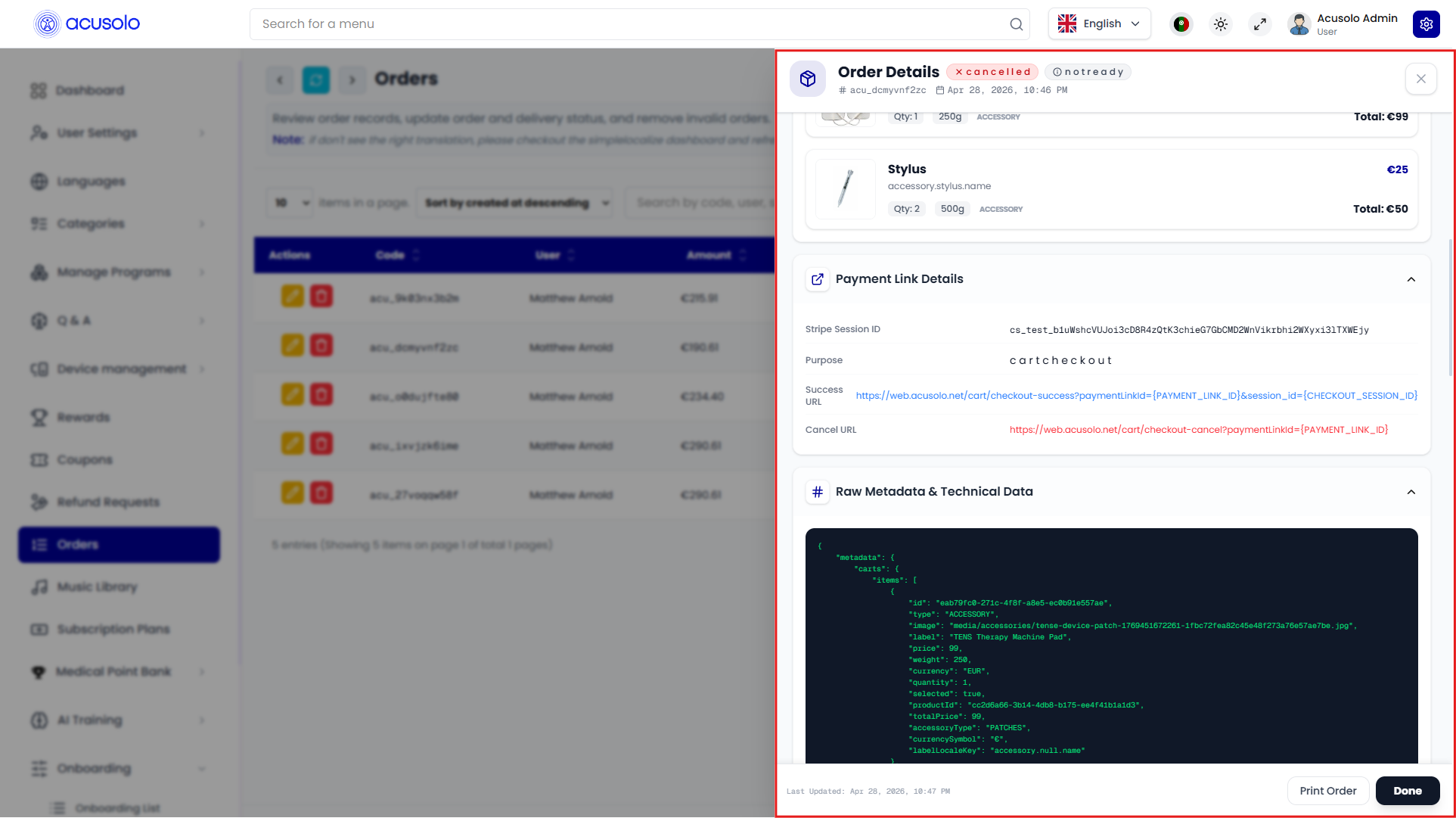
Drawer footer actions commonly include Print Order and Done (close).
Web app: cart → Stripe → success or cancel
Shopping cart
The cart page (path such as https://web.acusolo.net/cart) lists selected products with quantities, line subtotals, and an order summary. Users can enter a coupon code and click Apply for discounts, then continue to shipping and checkout.
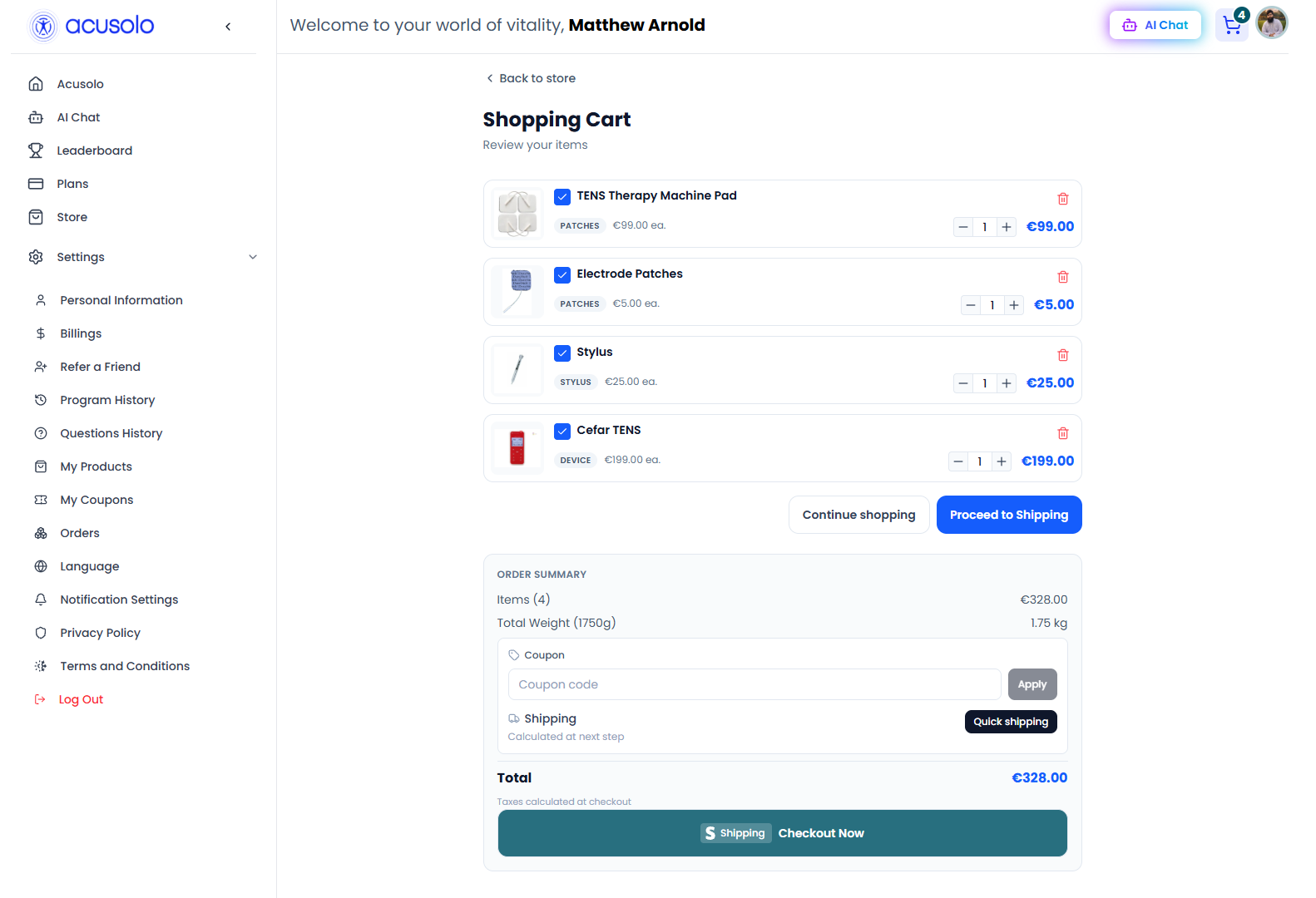
Proceed to Shipping / Checkout Now (with Stripe branding) sends the user into Stripe Checkout for payment. Keep cart items in one currency so checkout succeeds; see Hardware Pricing and Accessory List.
After checkout
- Success — confirmation page with order code, payment status, totals, shipping, and line items; actions may include Print invoice, continue shopping, or return to cart depending on build.

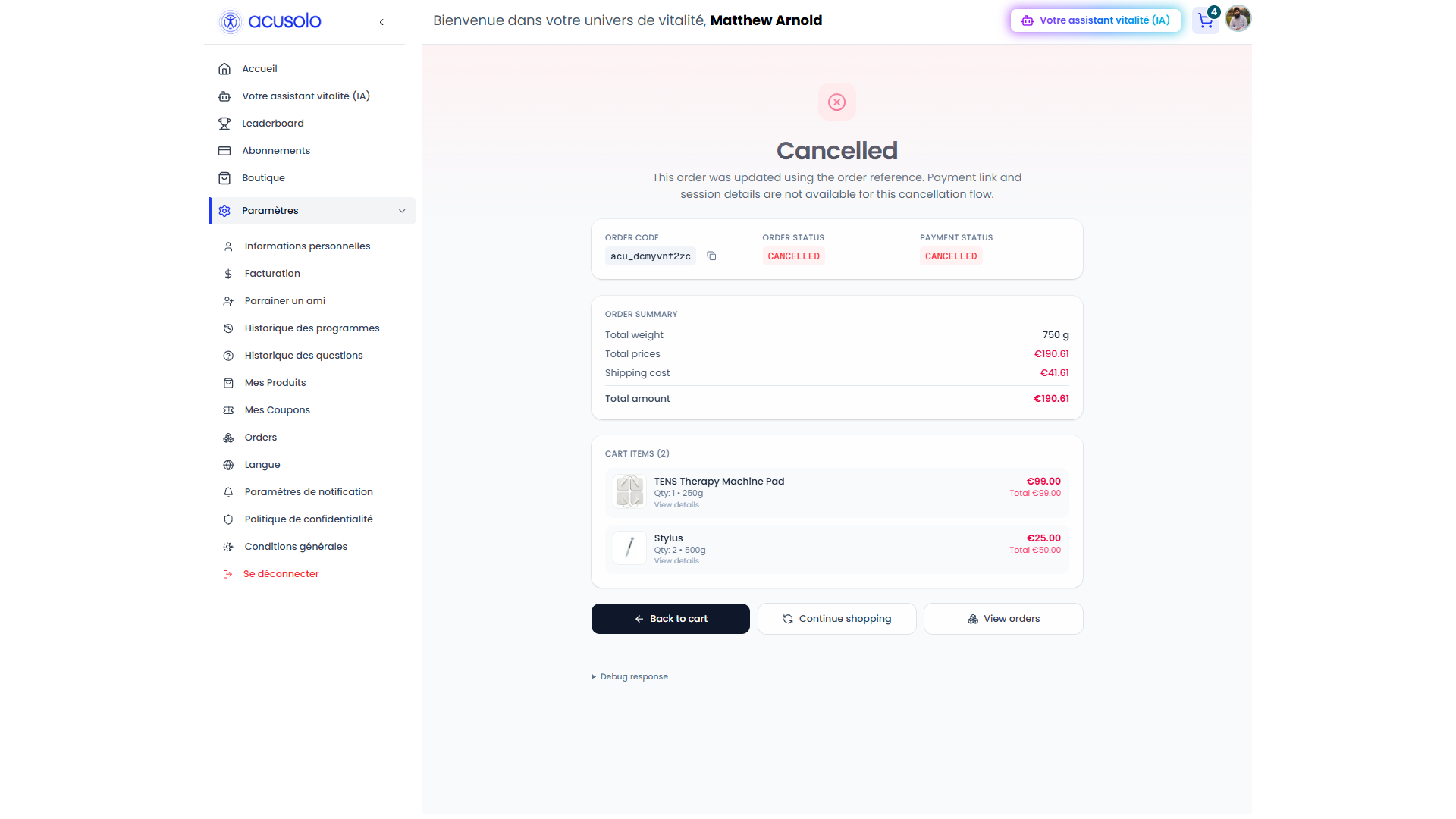
- Cancel — if the user abandons Stripe or the session is cancelled, a Cancelled summary can appear with order code, amounts, and cart items for that attempt.
Order history
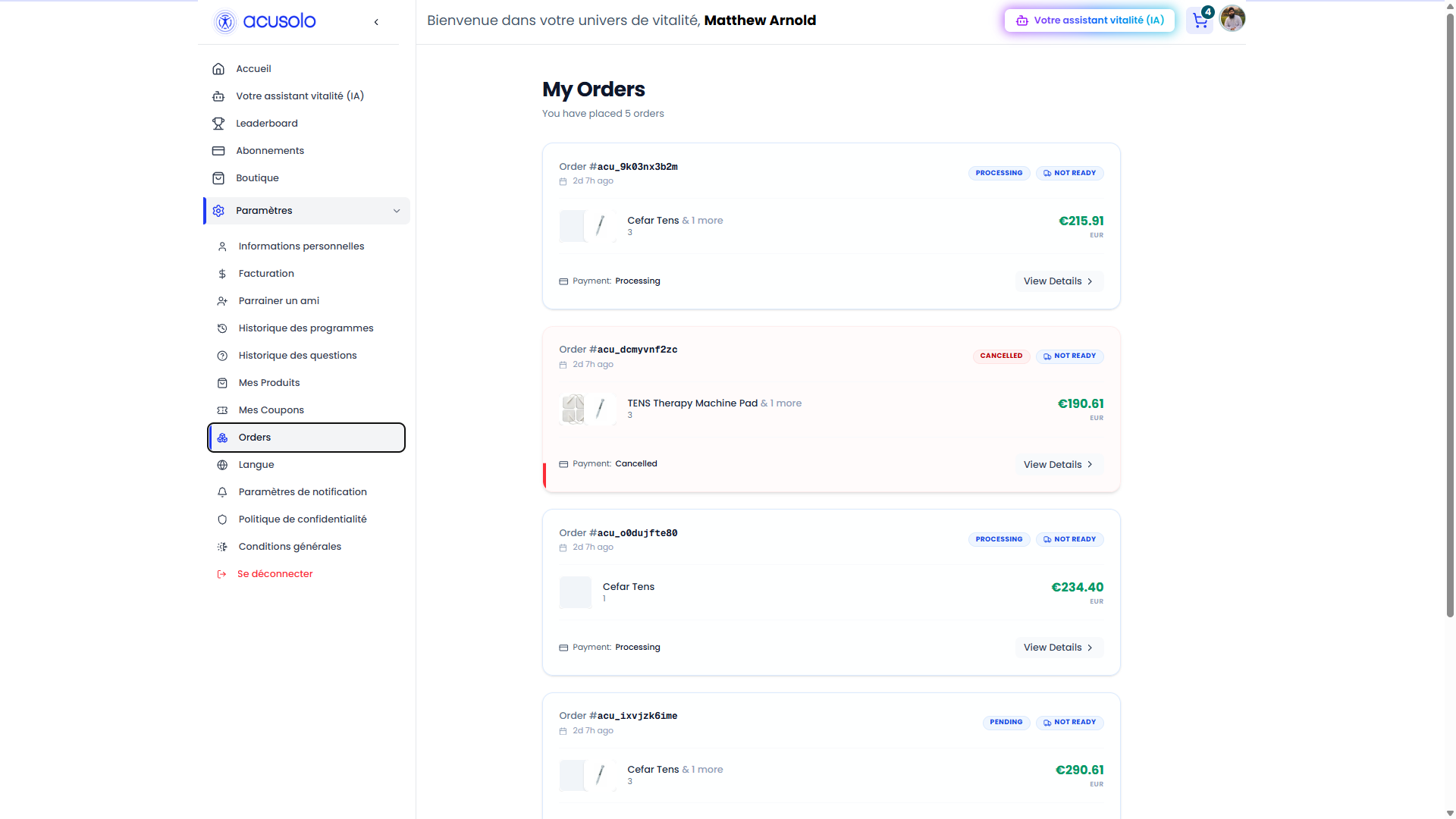
Users can review past orders under Settings → Orders at https://web.acusolo.net/settings/orders: list of cards with order code, relative time, order and delivery badges, product thumbnails, totals, payment state, and View details.