Medical Point Items
This section explains how to manage Medical Point records under Medical Point Bank in the admin panel.
- Base URL:
https://admin.acusolo.net/ - Page path:
/admin/medical-point-bank/medical-points(sidebar: Banque de points médicaux → Point médical)
Sessions: video walkthrough (create, assign, preview, delete, status)
The following video walks through creating a medical point, assigning it in a session step, using preview, deleting, and updating status (toggle).
What this covers (follow along in the admin UI)
- Create — add a medical point using Nouveau point médical and the form rules below.
- Assign in a session step — attach the point to the relevant session step where the product expects it (see on-screen navigation in the video).
- Preview — verify how the point appears in the preview flow shown in the video.
- Update status — use the Statut toggle on the list row to enable or disable the point.
- Delete — use the red delete action and confirm; removal is permanent.
Medical Point List Screen
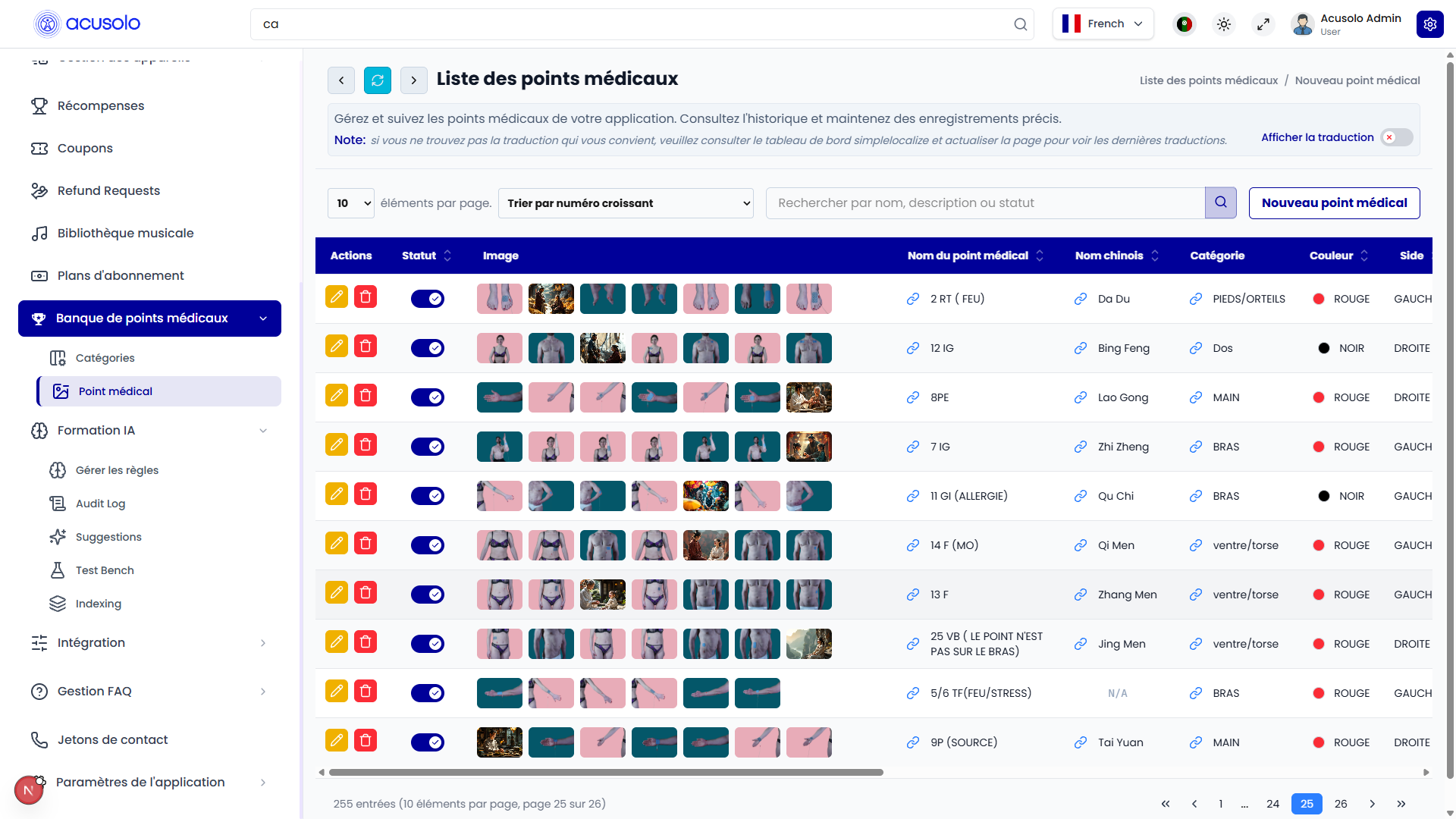
Use this screen to browse, search, paginate, and open create or edit flows for medical points.
Toolbar and controls
- Title: Liste des points médicaux (with back / refresh / forward where shown).
- Description and Afficher la traduction toggle.
- Items per page (for example
10). - Sort (for example “Trier par numéro croissant”).
- Search — placeholder along the lines of Rechercher par nom, description ou statut (search by name, description, or status).
- Nouveau point médical — opens the create modal.
Table scrolling
The list table is scrollable horizontally and vertically. Many columns exist; use the horizontal scrollbar at the bottom of the table to see fields that are not visible in the first viewport.
Columns shown in the table
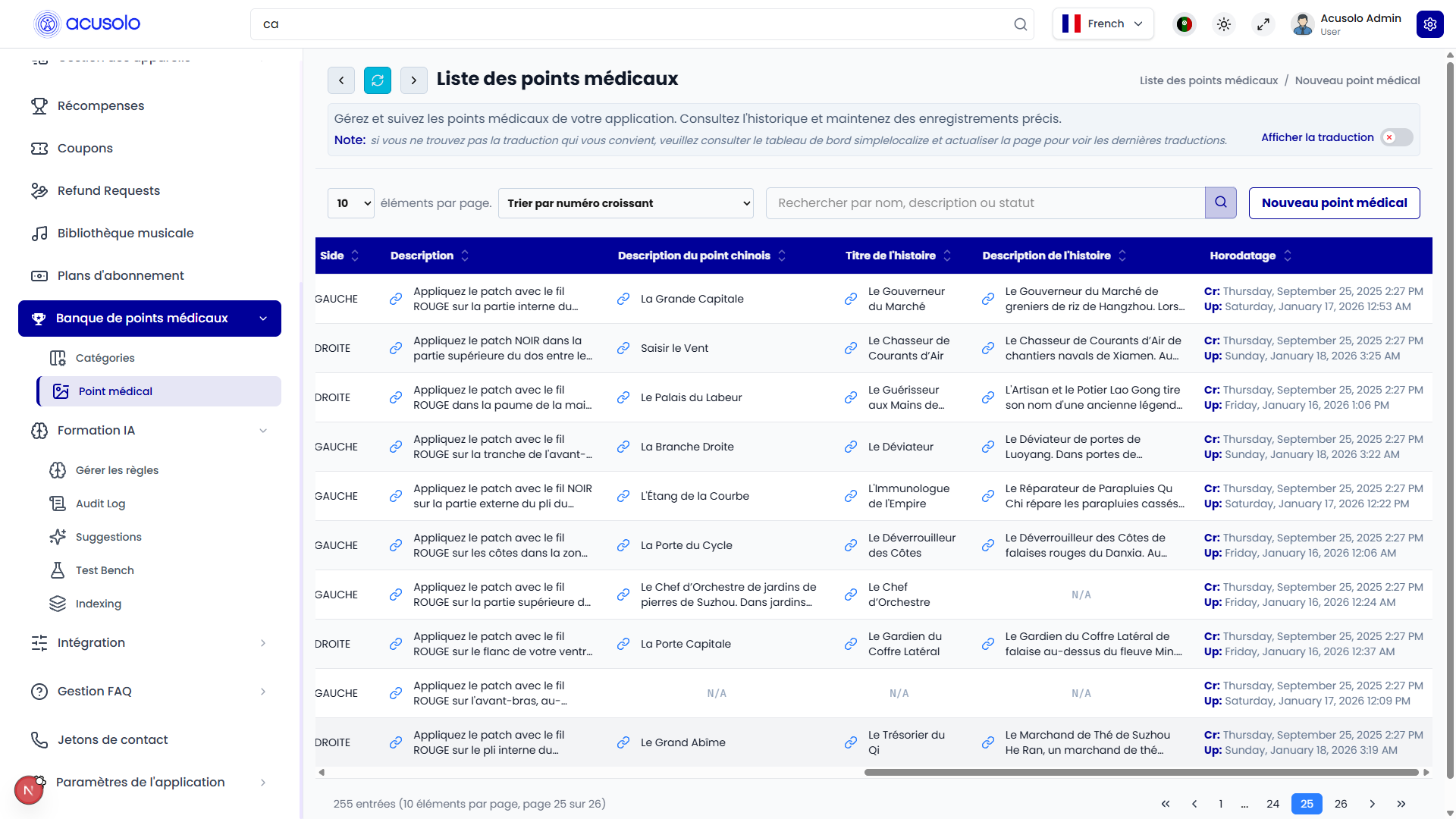
Depending on scroll position, you will see some or all of these columns:
| Column | What it shows |
|---|---|
| Actions | Yellow edit (pen) and red delete (trash) for each row. |
| Statut | Toggle to enable or disable the medical point. |
| Image | Thumbnail strip for point images (male/female and crops as configured). |
| Nom du point médical | Medical point name (often with a link icon). |
| Nom chinois | Chinese name, or N/A when empty. |
| Catégorie | Assigned category. |
| Couleur | Color indicator (for example dot + label). |
| Side | Body side (for example left / right). |
| Description | Snippet of the main details text. |
| Description du point chinois | Chinese point description. |
| Titre de l'histoire | Story title. |
| Description de l'histoire | Story description snippet, or N/A. |
| Horodatage | Cr: created at, Up: last updated at. |
Row actions
- Edit (yellow pen): opens the edit flow with existing values.
- Delete (red trash): opens delete confirmation; confirming removes the record permanently.
- Statut toggle: updates active/inactive state without opening the full form (where applicable).
Add Medical Point (create modal)
Open Nouveau point médical to add a record. The modal title is Ajouter un point médical (or Add Medical Point in English, depending on locale).
The form is long; use the modal’s vertical scroll to reach every section.
Top of the form — intro / presentation mode
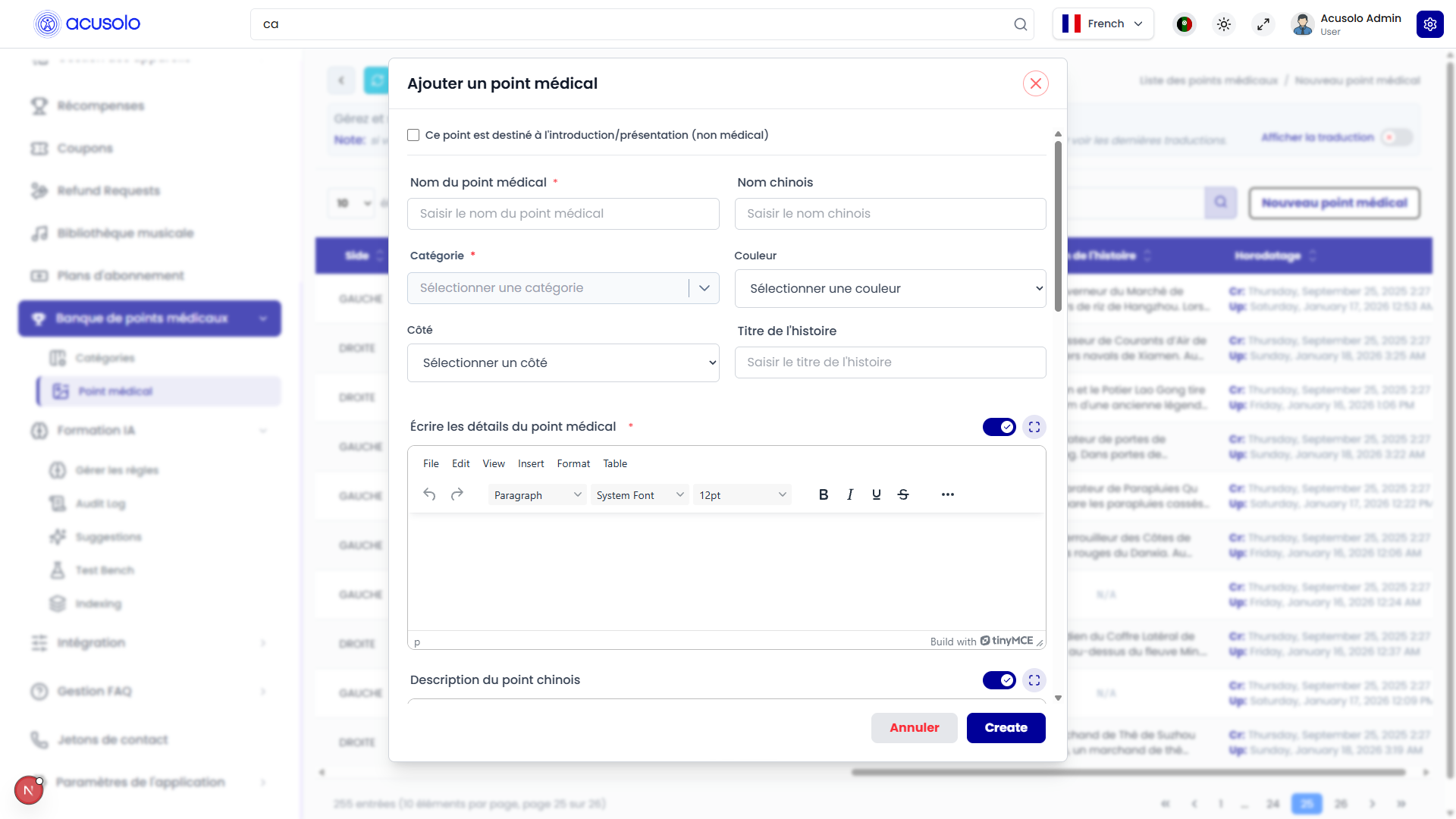
- This point is for intro/presentation (not medical) (FR: Ce point est destiné à l'introduction/présentation (non médical)): optional checkbox that changes which fields are shown (see Intro / presentation simplified form below).
Full form — text and rich text (typical flow)
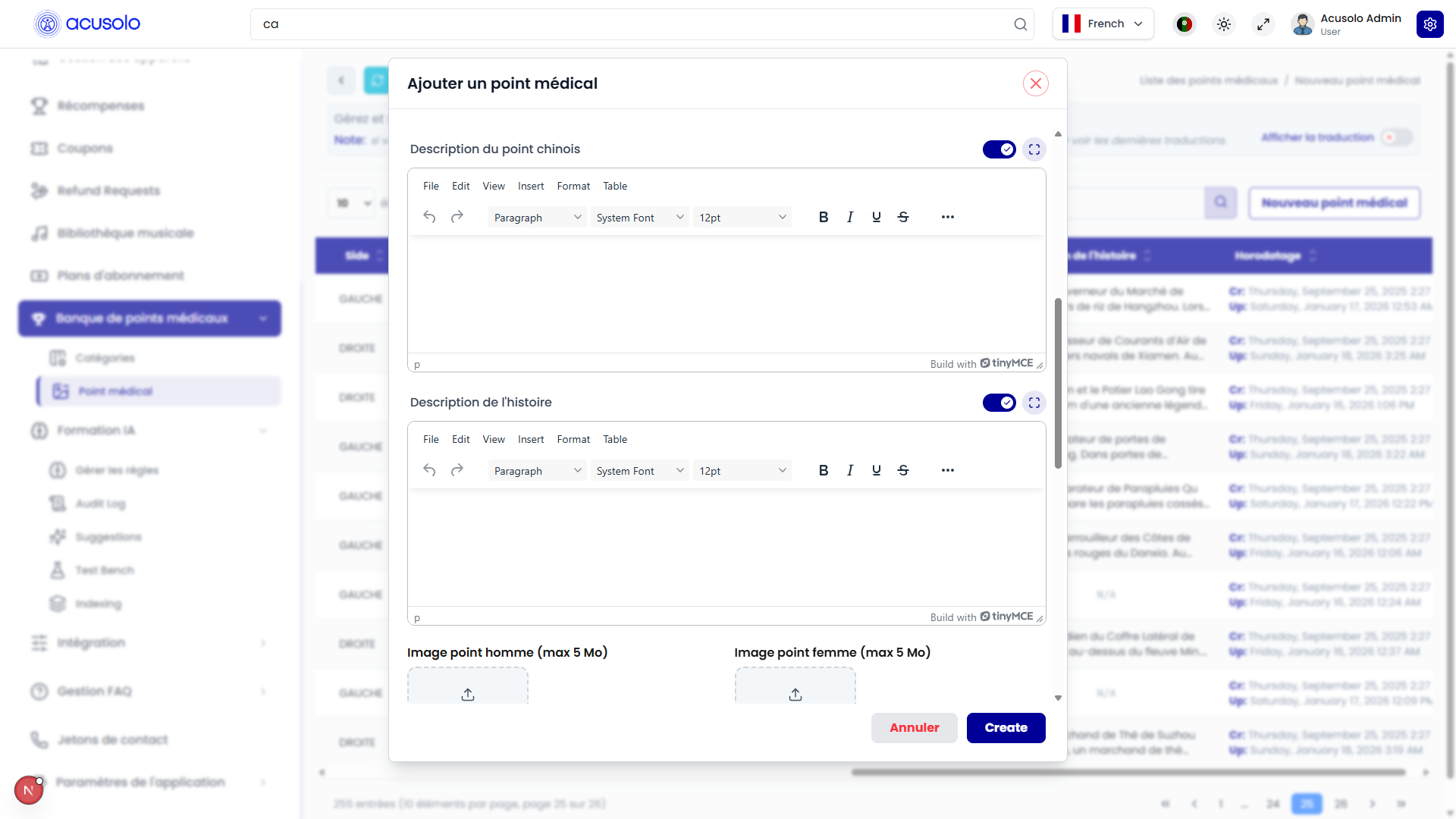
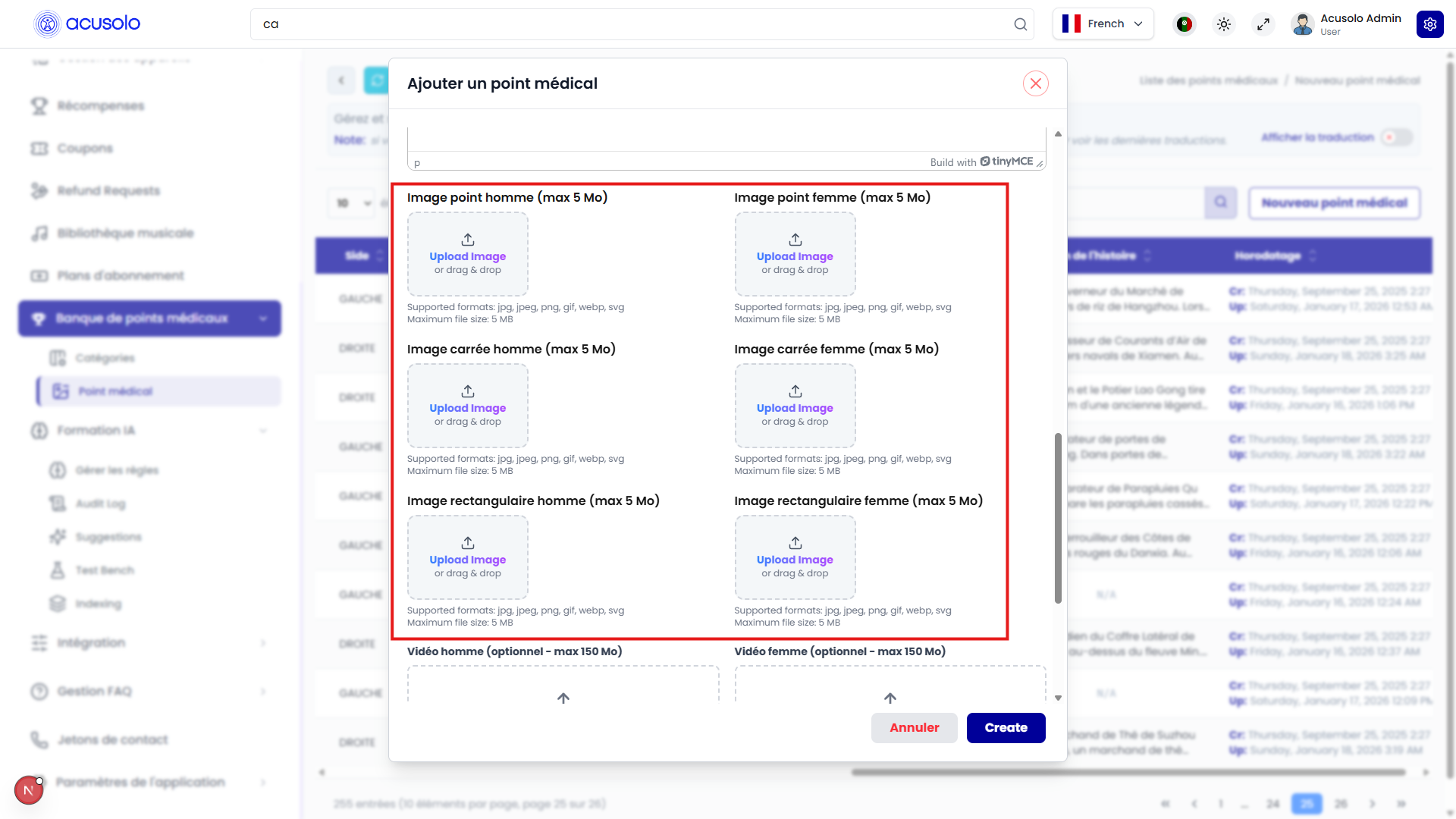
Field rules (full mode)
Required
- Medical Point Name —
*; maximum256characters. - Category —
*; choose from Medical point categories (same pool as Medical Point Categories). - Write details about the medical point —
*; rich text (TinyMCE). Stored as MySQLTEXT(up to65,535bytes).
Optional (hidden when intro/presentation mode is enabled)
- Chinese Name
- Color
- Side
- Story Title
- Chinese Point Description — rich text (
TEXTlimit as above). - Story Description — rich text (
TEXTlimit as above).
Optional media — images (5 MB max each)
Supported formats: jpg, jpeg, png, gif, webp, svg.
- Male Point Image / Female Point Image
- Male Square Image / Female Square Image
- Male Rectangular Image / Female Rectangular Image
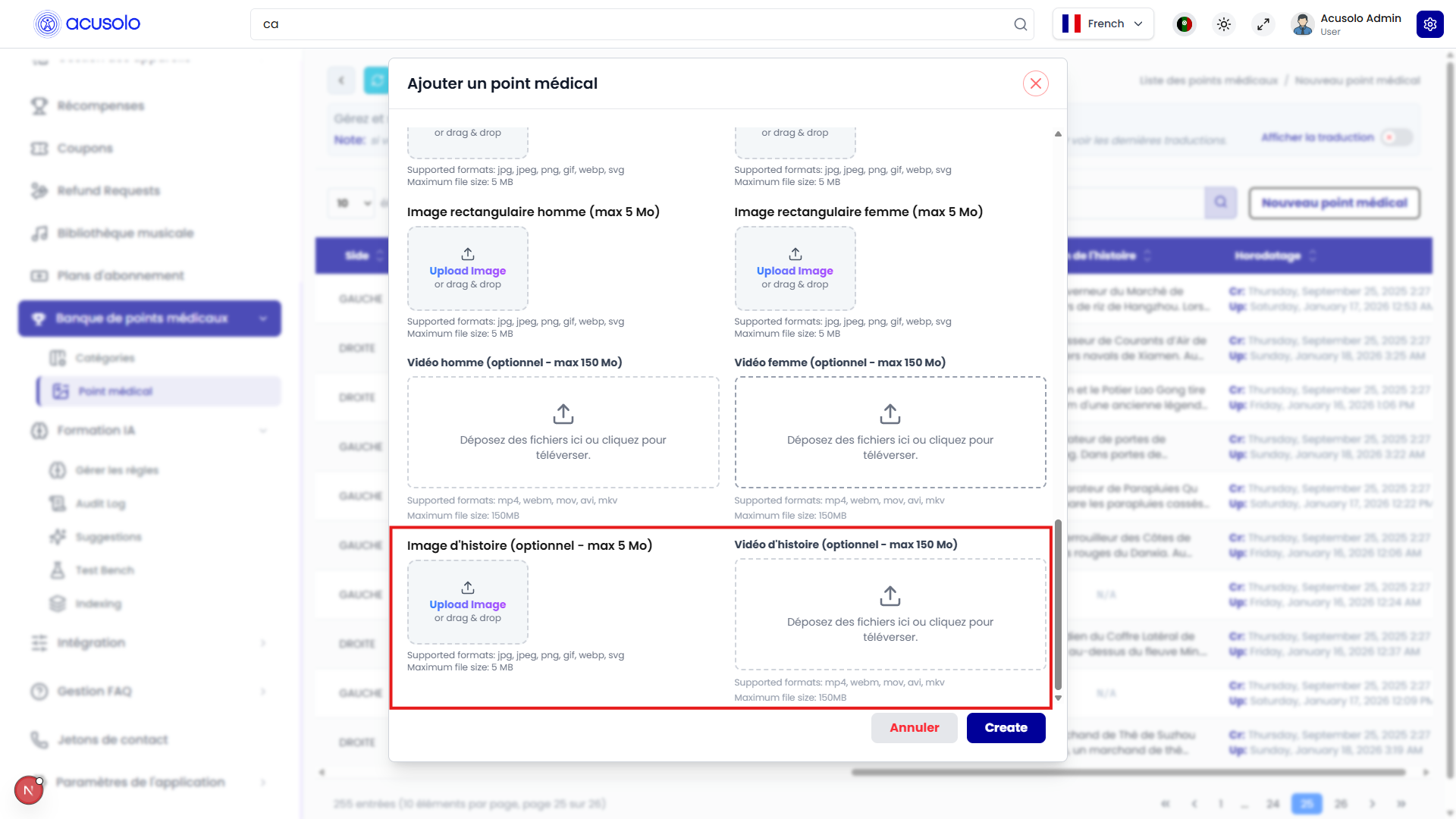
- Story Image
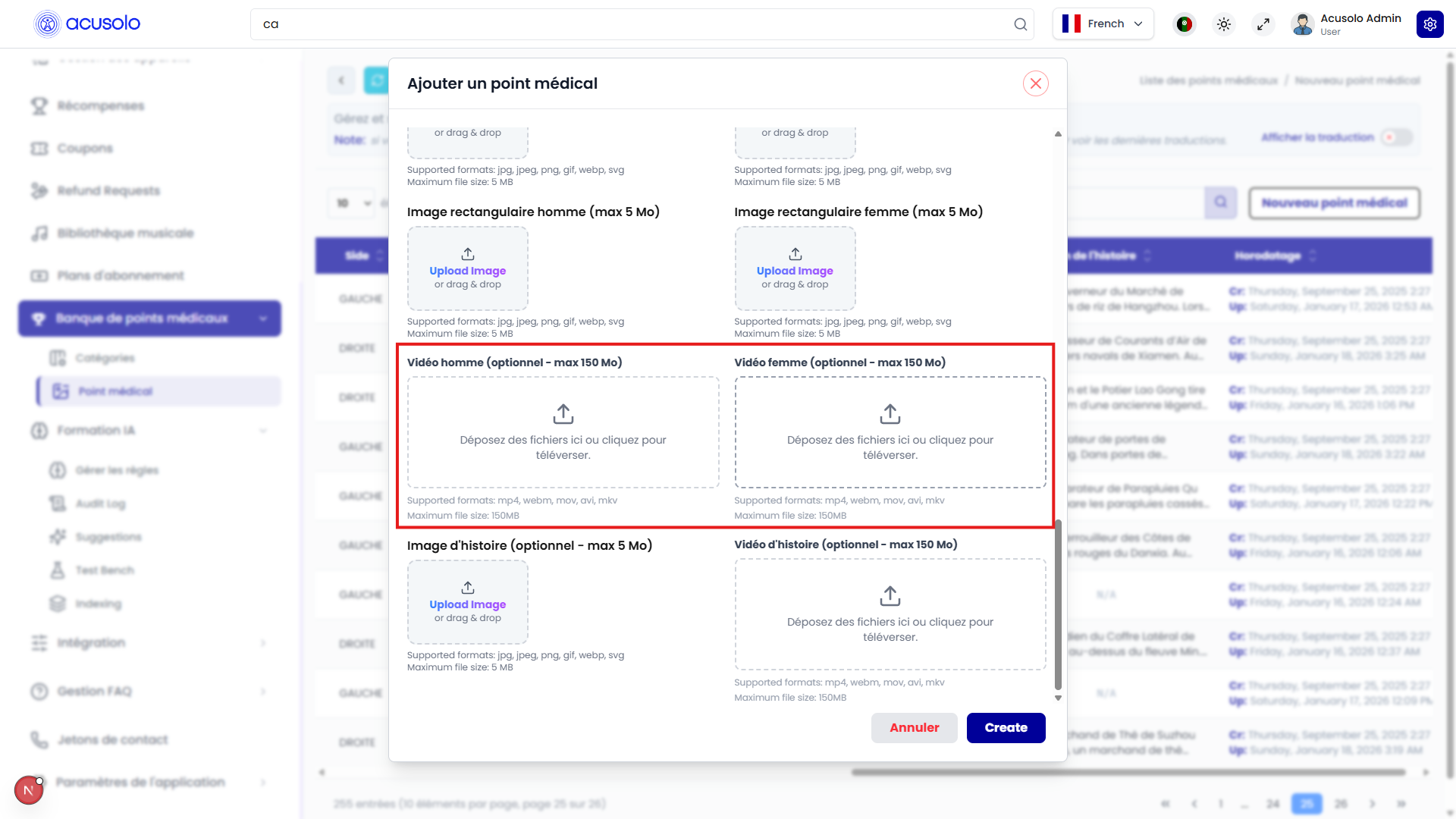
Optional media — video (150 MB max each)
Supported formats: mp4, webm, mov, avi, mkv.
- Male Video / Female Video
- Story Video
Footer actions
- Annuler / Cancel: closes the modal without saving.
- Create: submits and creates the record in the database.
Intro / presentation simplified form
When This point is for intro/presentation (not medical) is checked, the form hides the extra medical/story fields and keeps a shorter set of inputs.
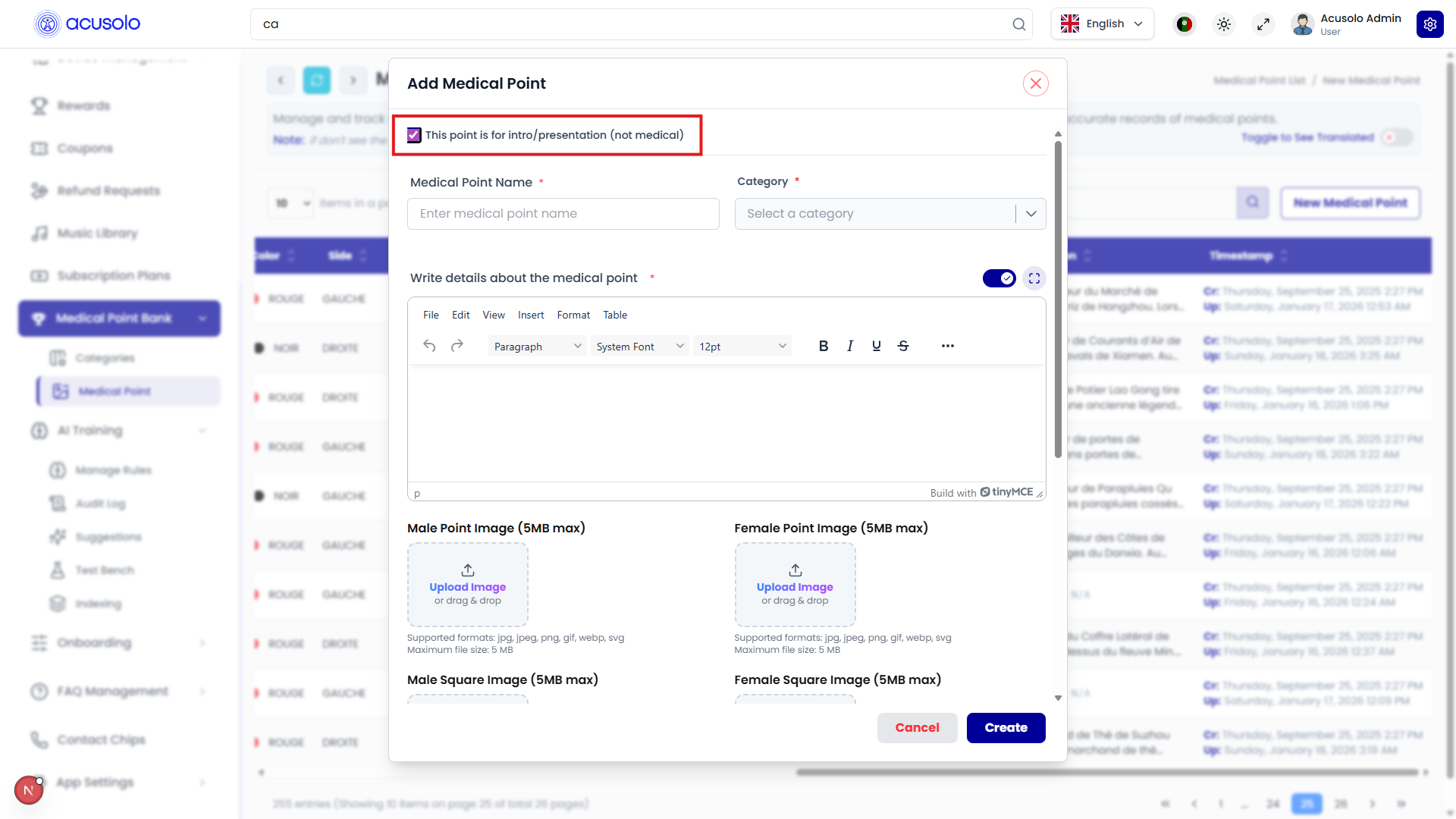
Fields shown in this mode
- Medical Point Name
- Category
- Write details about the medical point (rich text)
- Male Point Image, Female Point Image (5 MB max)
- Male Square Image, Female Square Image (5 MB max)
- Male Rectangular Image, Female Rectangular Image (5 MB max)
- Male Video, Female Video (optional, 150 MB max)
Category field (searchable list)
The Category field is not a plain dropdown: it opens a searchable, paginated list of medical point categories.
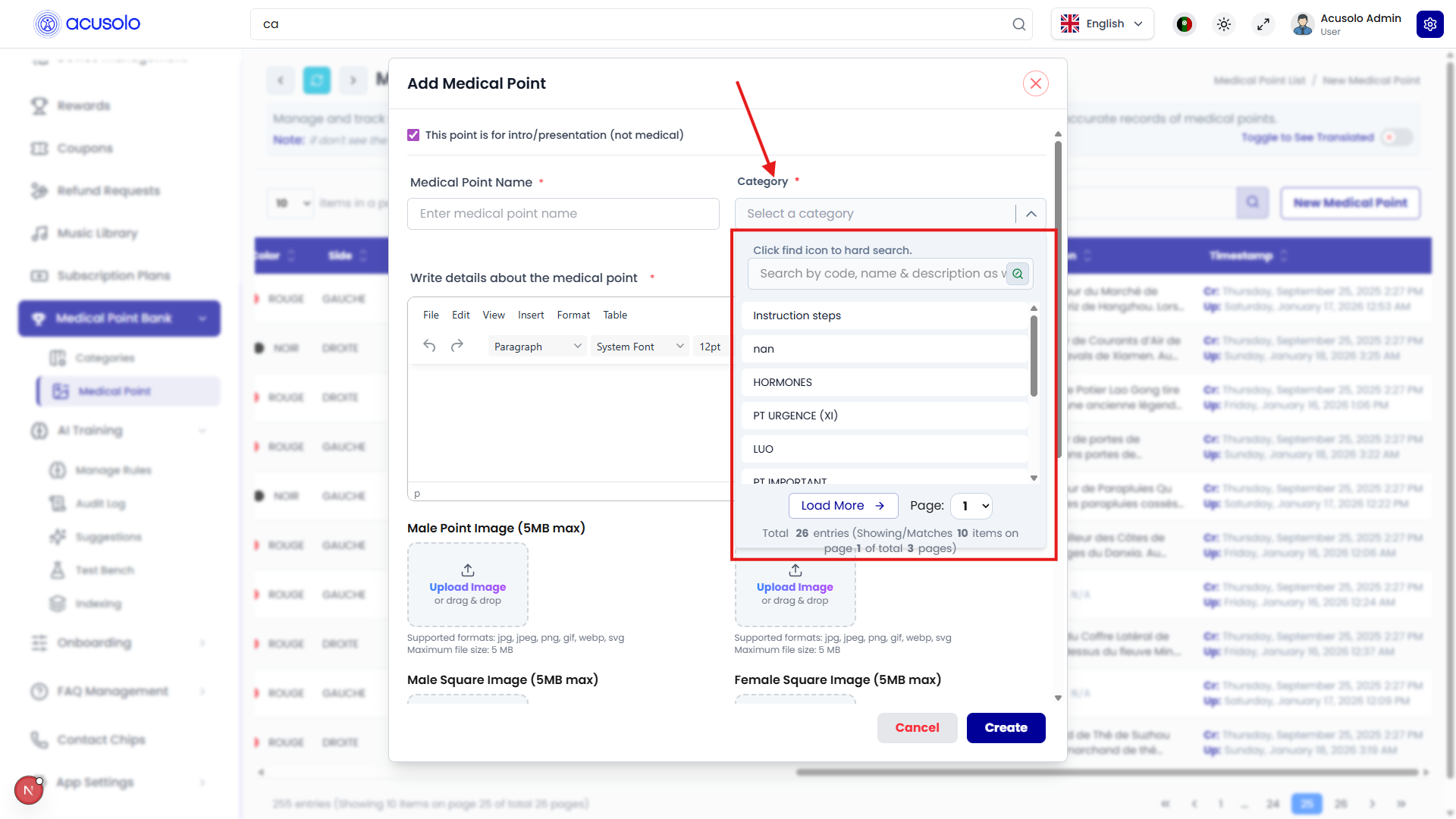
- Search by code, name, and description (placeholder text may vary slightly by locale).
- Use Load more or page controls when there are many categories.
- The footer can show totals (for example total entries and current page).
For category management (the list used inside Category), see Medical Point Categories.