Medical Point Categories
This section explains how to manage Medical Point Categories from the admin panel.
- Base URL:
https://admin.acusolo.net/ - Page path:
/admin/medical-point-bank/categories
Categories List Screen
Use this screen to view, search, and manage all categories.
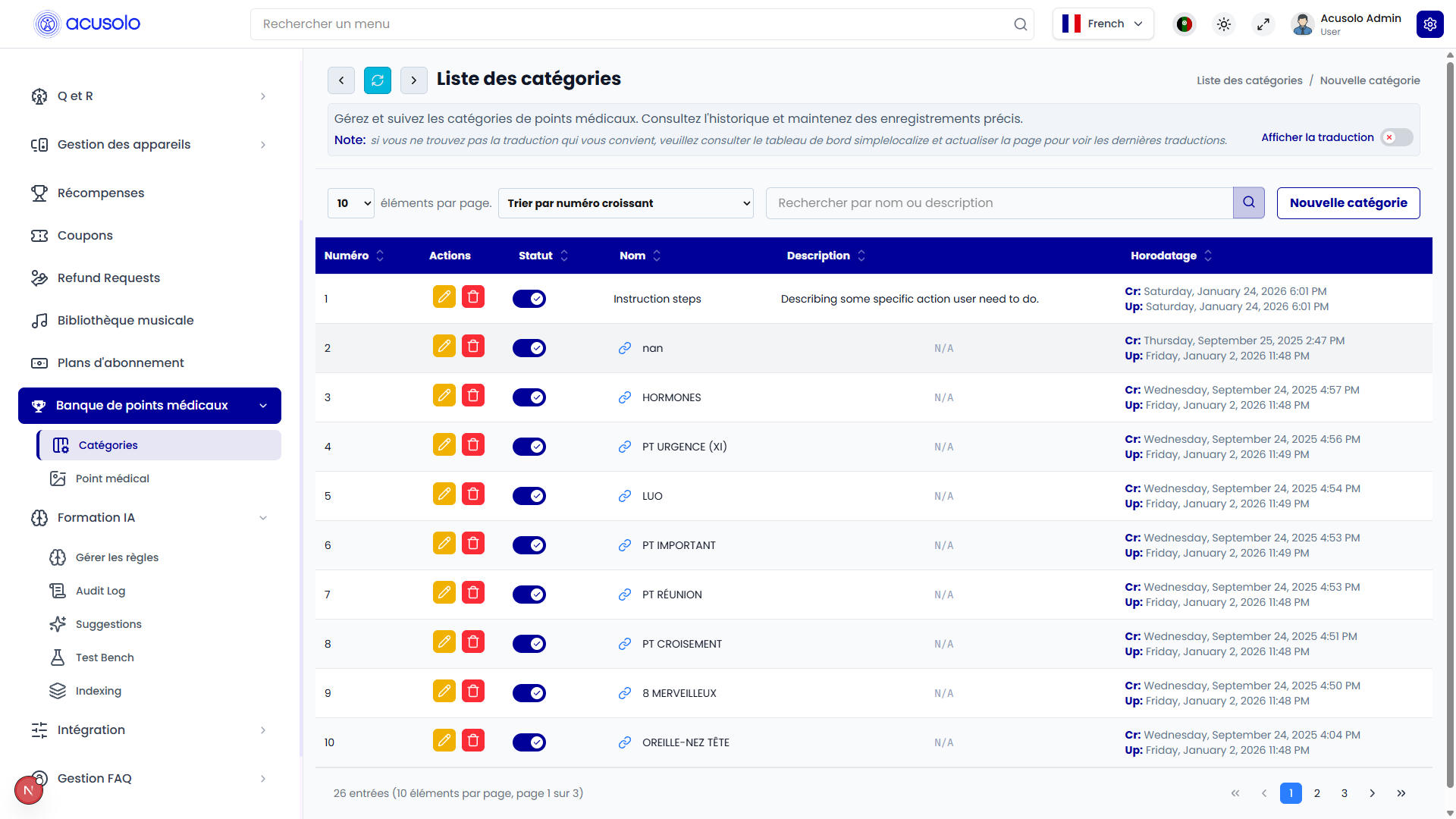
What you can do on this screen
- Create a new category using the Nouvelle categorie button.
- Edit a category using the yellow pen icon in each row.
- Delete a category using the red trash icon in each row.
- Toggle category status from the Statut switch.
- Review row details like name, description, and timestamps.
Create New Category
Click Nouvelle categorie to open the create modal.
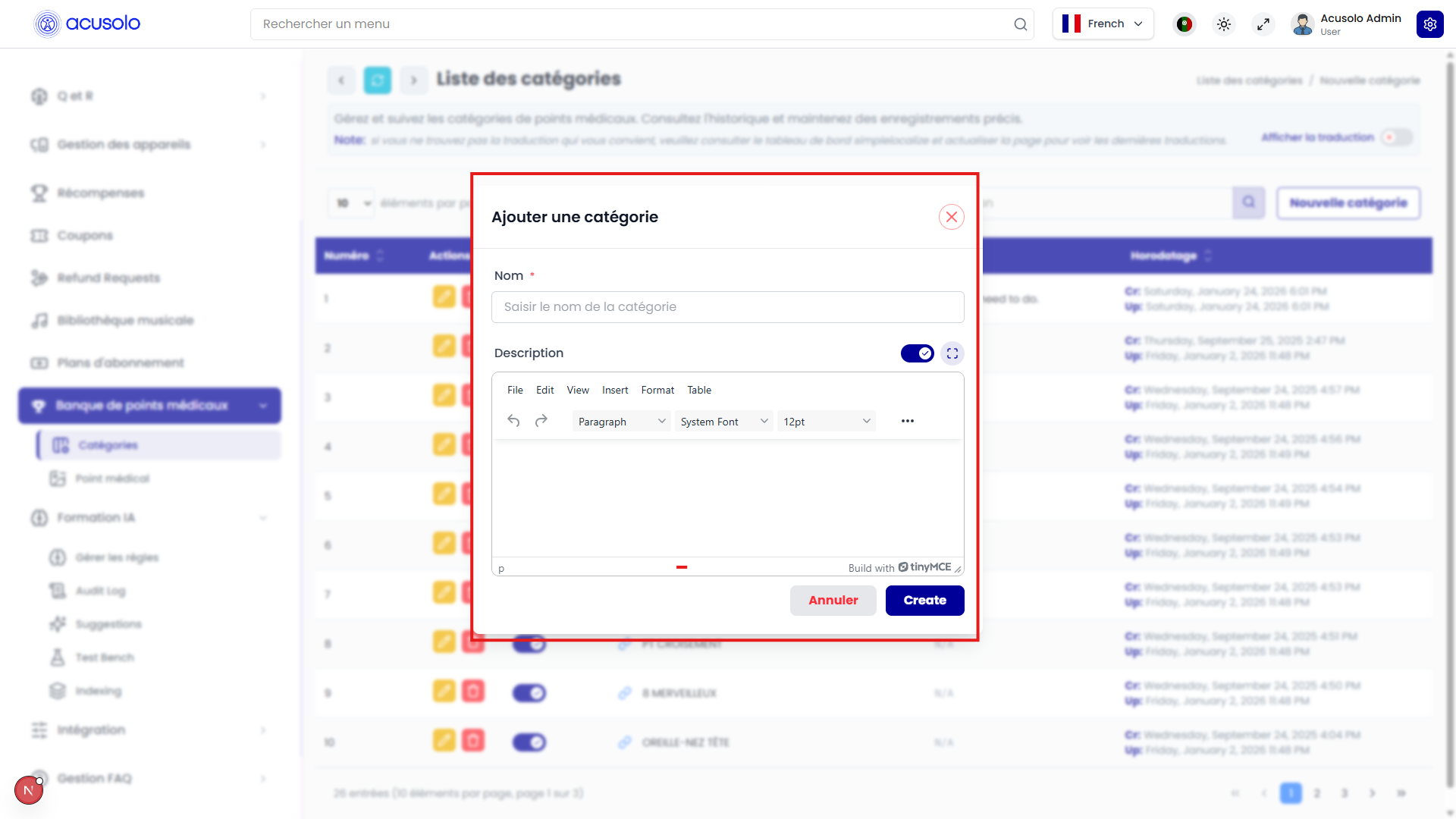
Field rules
- Name: required, maximum
256characters. - Description: optional, maximum MySQL
TEXTlimit (65,535bytes).
Actions
- Create: submits and saves the new category record in the database.
- Annuler: closes the modal without saving.
Category Row Actions
Each table row represents one category and has dedicated actions.
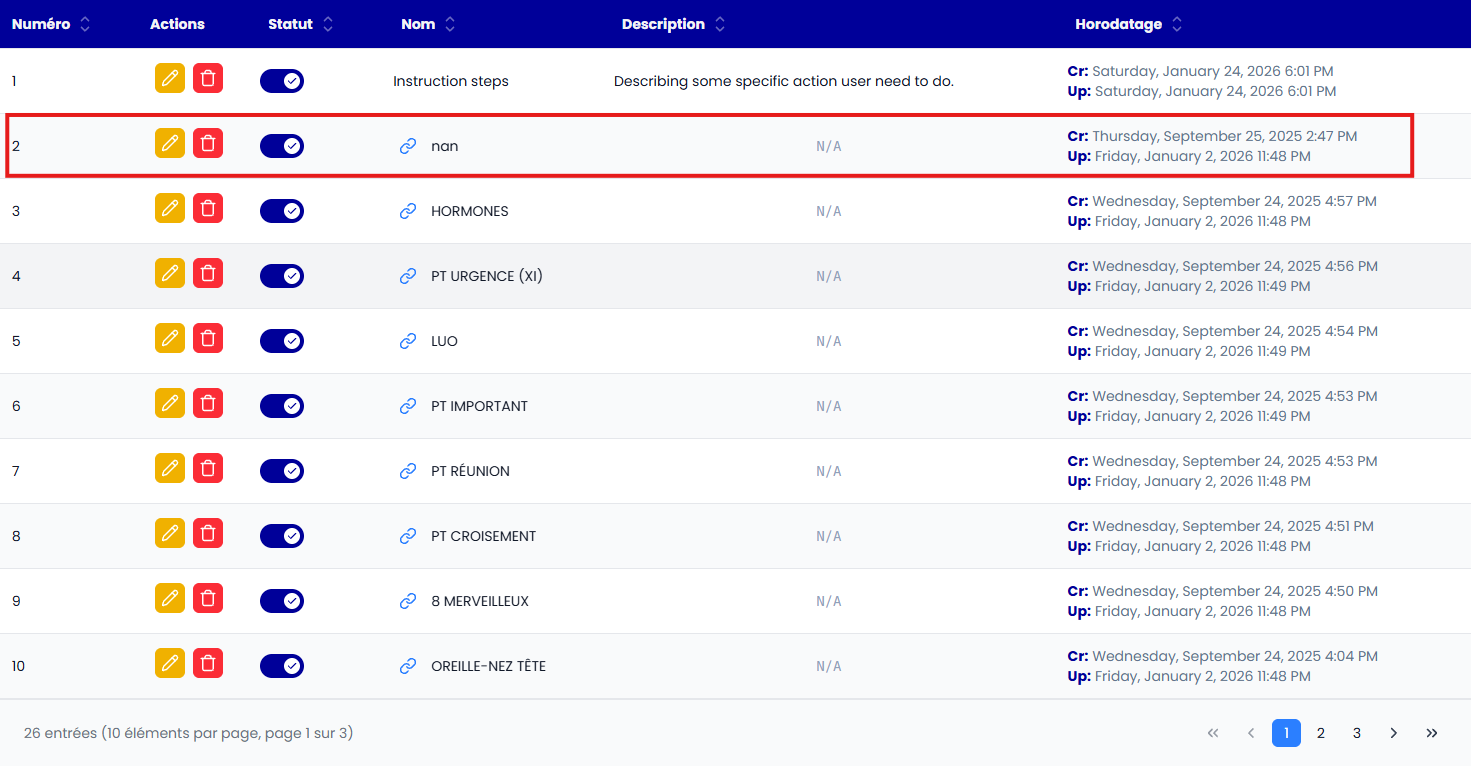
From each row:
- Click the yellow edit icon to modify the existing category.
- Click the red delete icon to remove the category.
- Use the status switch to update active/inactive state.
Edit Existing Category
Click the yellow edit icon to open the edit modal with pre-filled values.
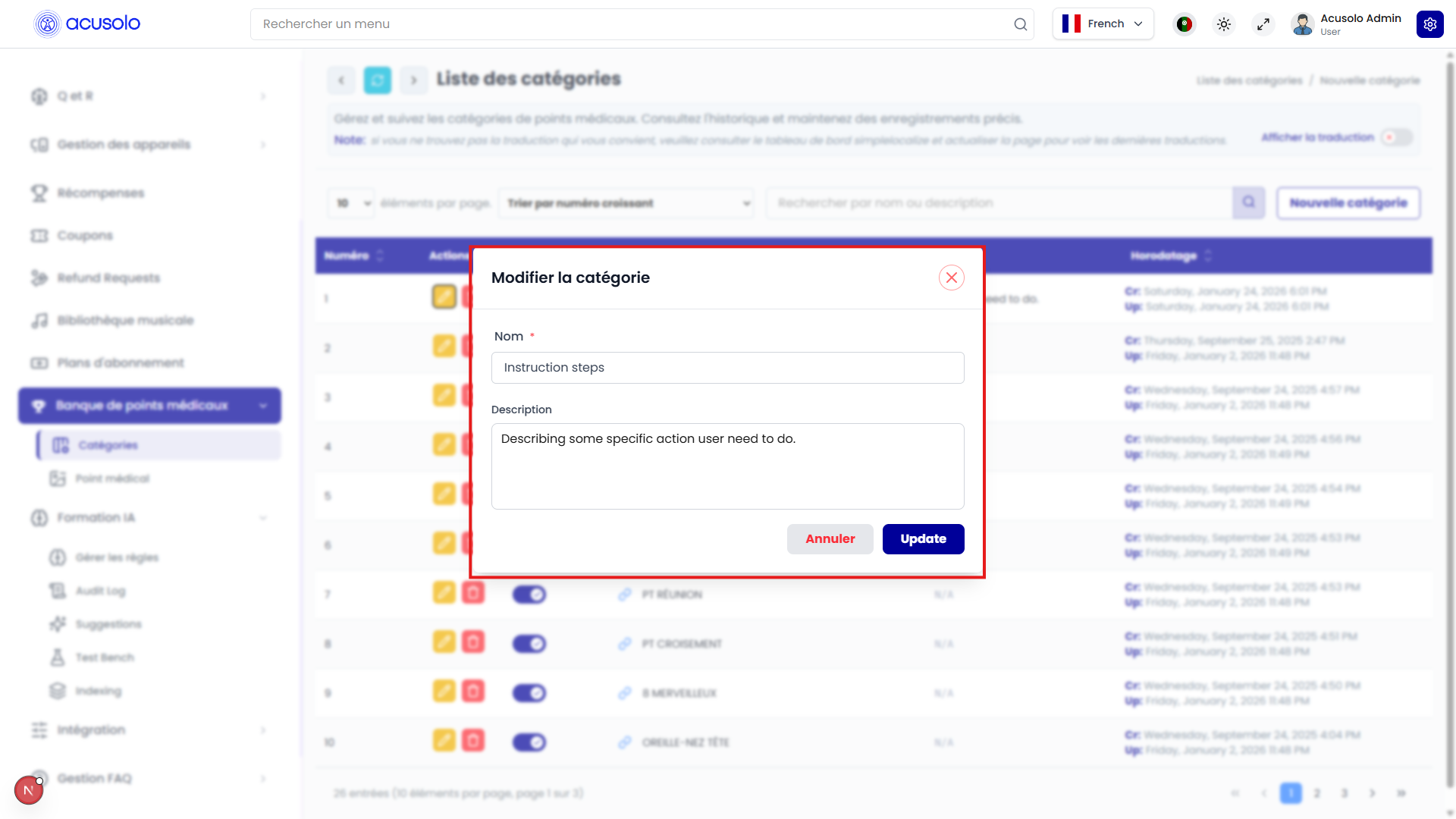
Edit behavior
- Existing values are loaded into input fields.
- Update fields as needed and click Update to persist changes.
- Click Annuler to close without saving updates.
Delete Category
Click the red delete icon to open the delete confirmation modal.
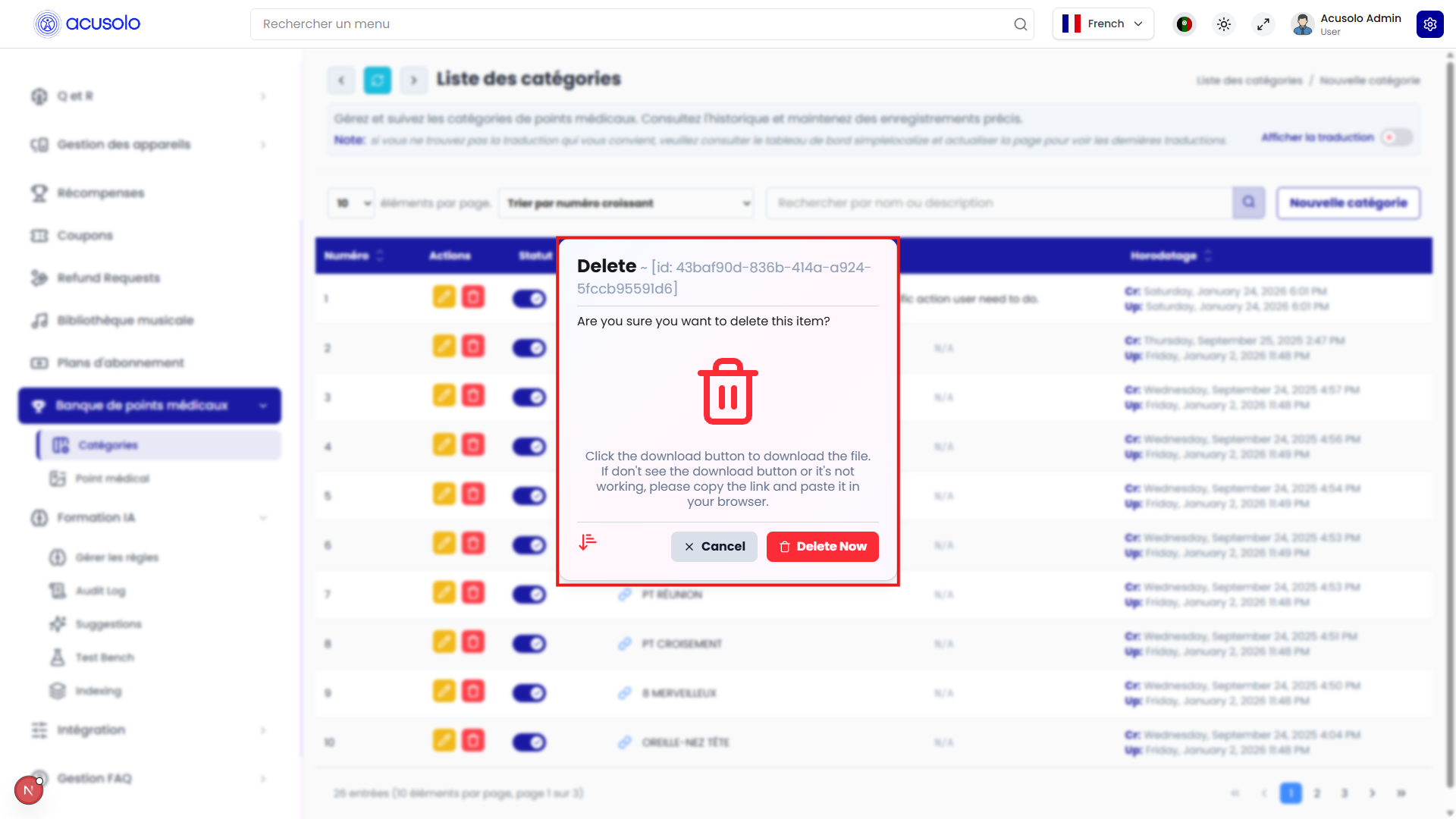
Delete behavior
- Confirmation action permanently removes the selected record from the database.
- Cancel action closes the modal and keeps the record unchanged.