User Management
This page explains how web app users are created through Clerk, synced into the backend, and managed from the admin panel.
- Clerk dashboard:
https://dashboard.clerk.com/apps/app_2xisVtcYiuvxzIWcMvWuIdzFHCs/instances/ins_2xxGfs6S4YTzz1CD2oZf6dFH95m - Clerk webhooks:
https://dashboard.clerk.com/apps/app_2xisVtcYiuvxzIWcMvWuIdzFHCs/instances/ins_2xxGfs6S4YTzz1CD2oZf6dFH95m/webhooks - Admin users page:
https://admin.acusolo.net/admin/users - Web sign in:
https://web.acusolo.net/auth/signin?redirectUrl=/home - Web sign up:
https://web.acusolo.net/auth/signup
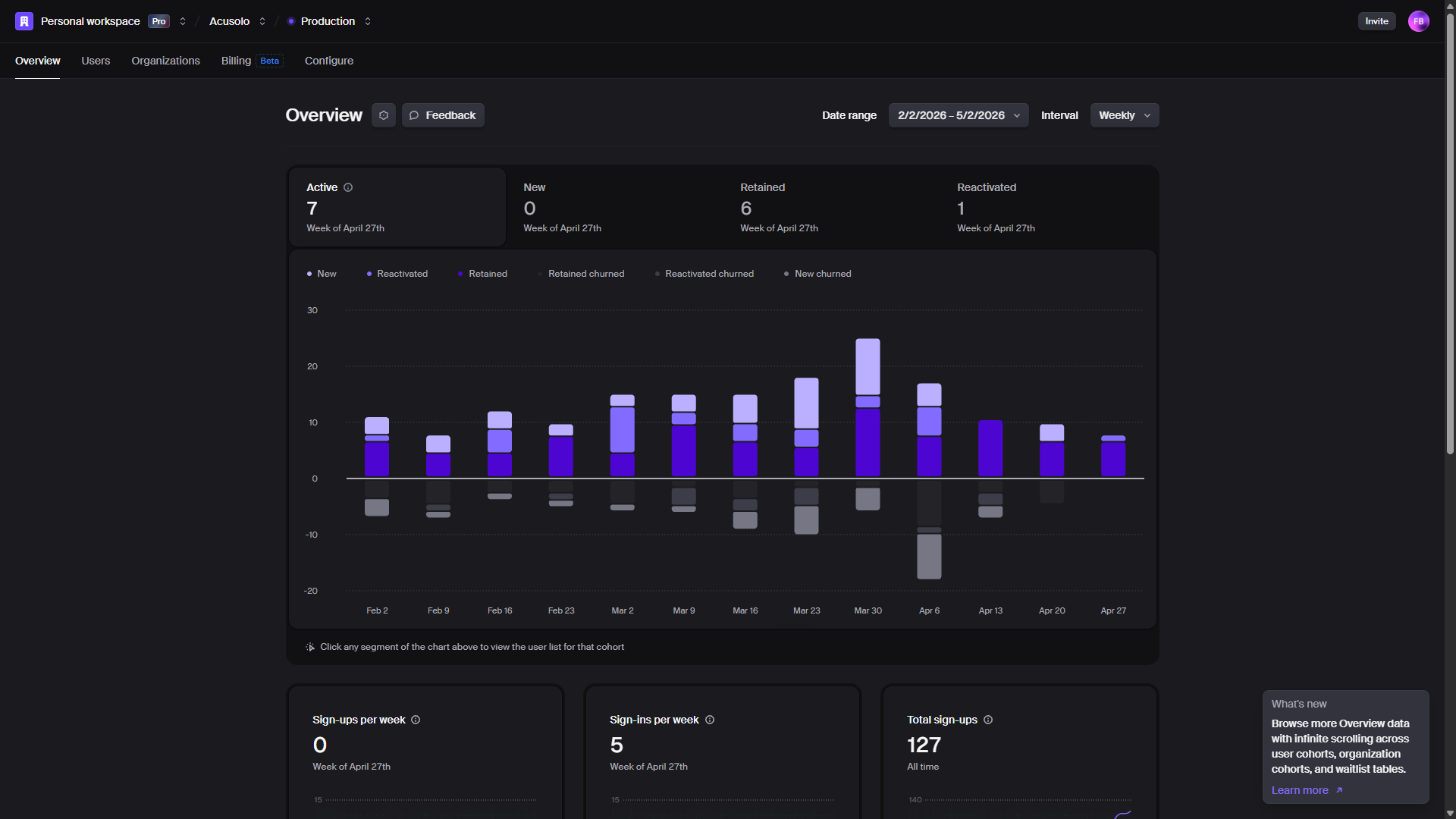
Clerk dashboard
The Clerk dashboard is the source for authentication users and auth-related configuration. Admin deletion in Acusolo should also remove the same user from this Clerk dashboard so the account cannot authenticate again.
Clerk webhook setup
Clerk webhooks connect authentication events to the Acusolo backend. Events such as user.created, user.updated, user.deleted, session.created, and auth email events are received by the backend and used to create, update, or audit user records.
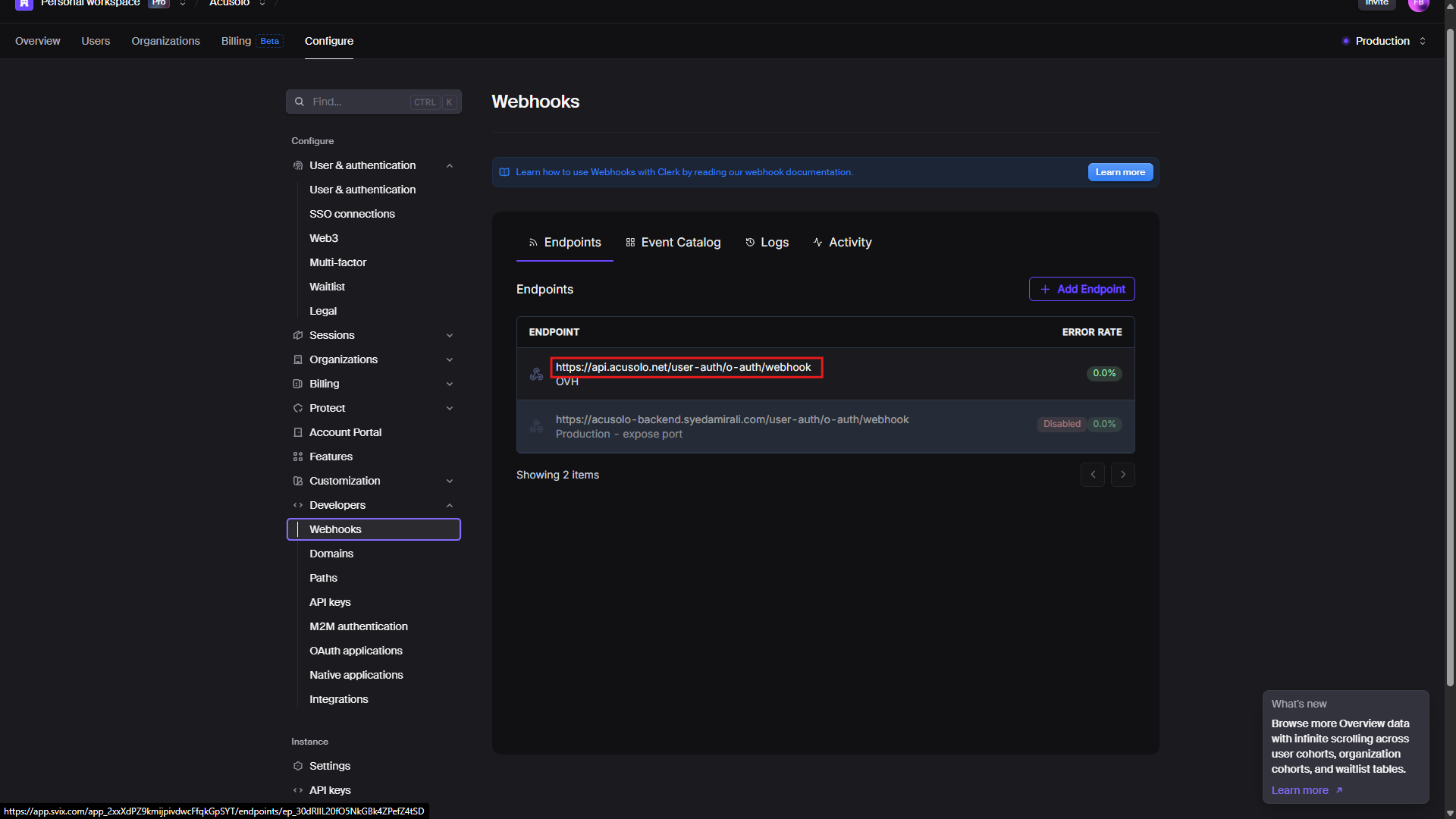
The backend endpoint is handled by the user auth module. Webhook payloads are verified before processing, then user records and audit logs are updated from the Clerk event data.
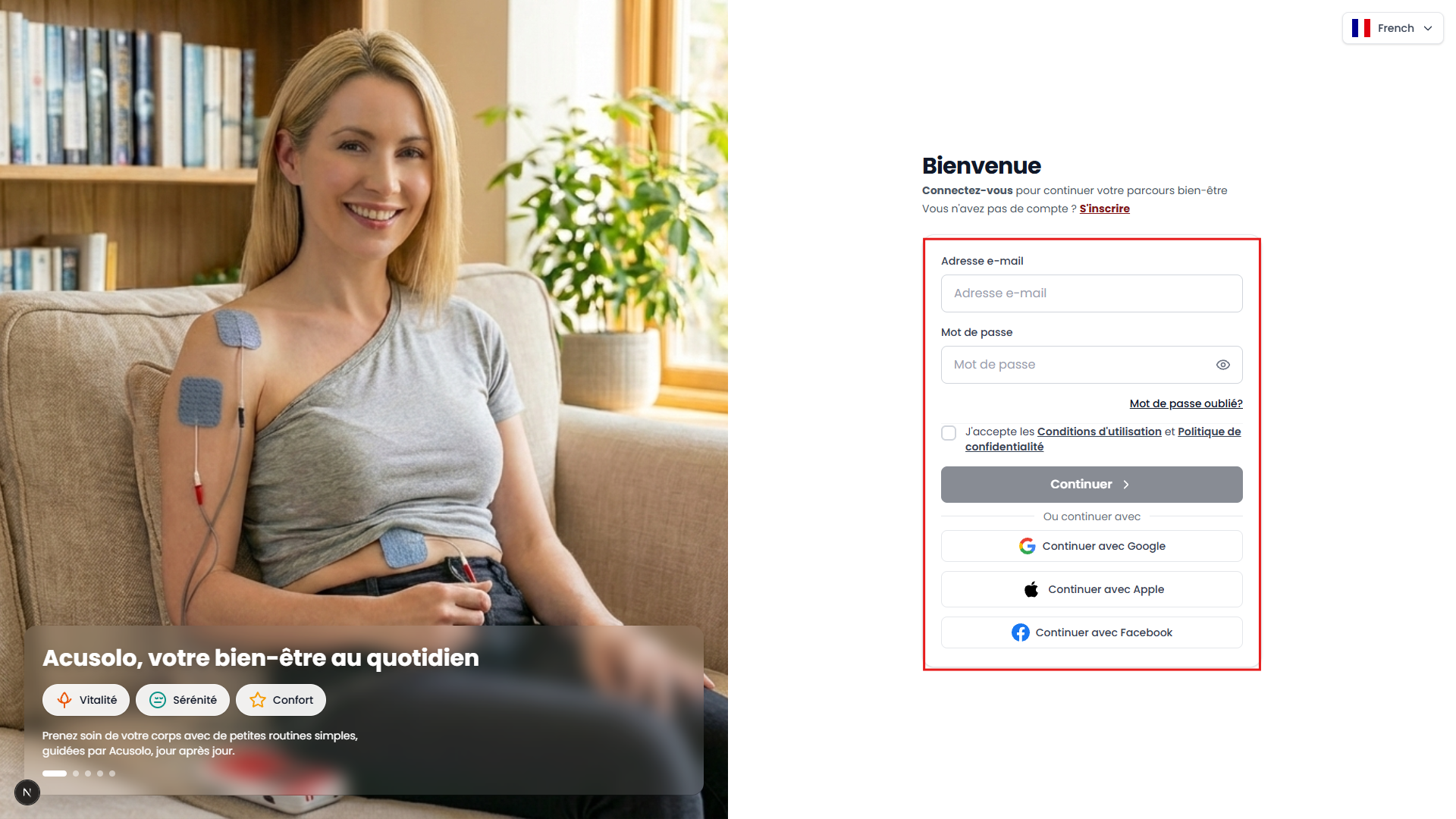
Web app sign in
Existing users sign in from the web app sign-in page. Clerk handles the authentication step, and the web app uses the authenticated user session to continue into the product.
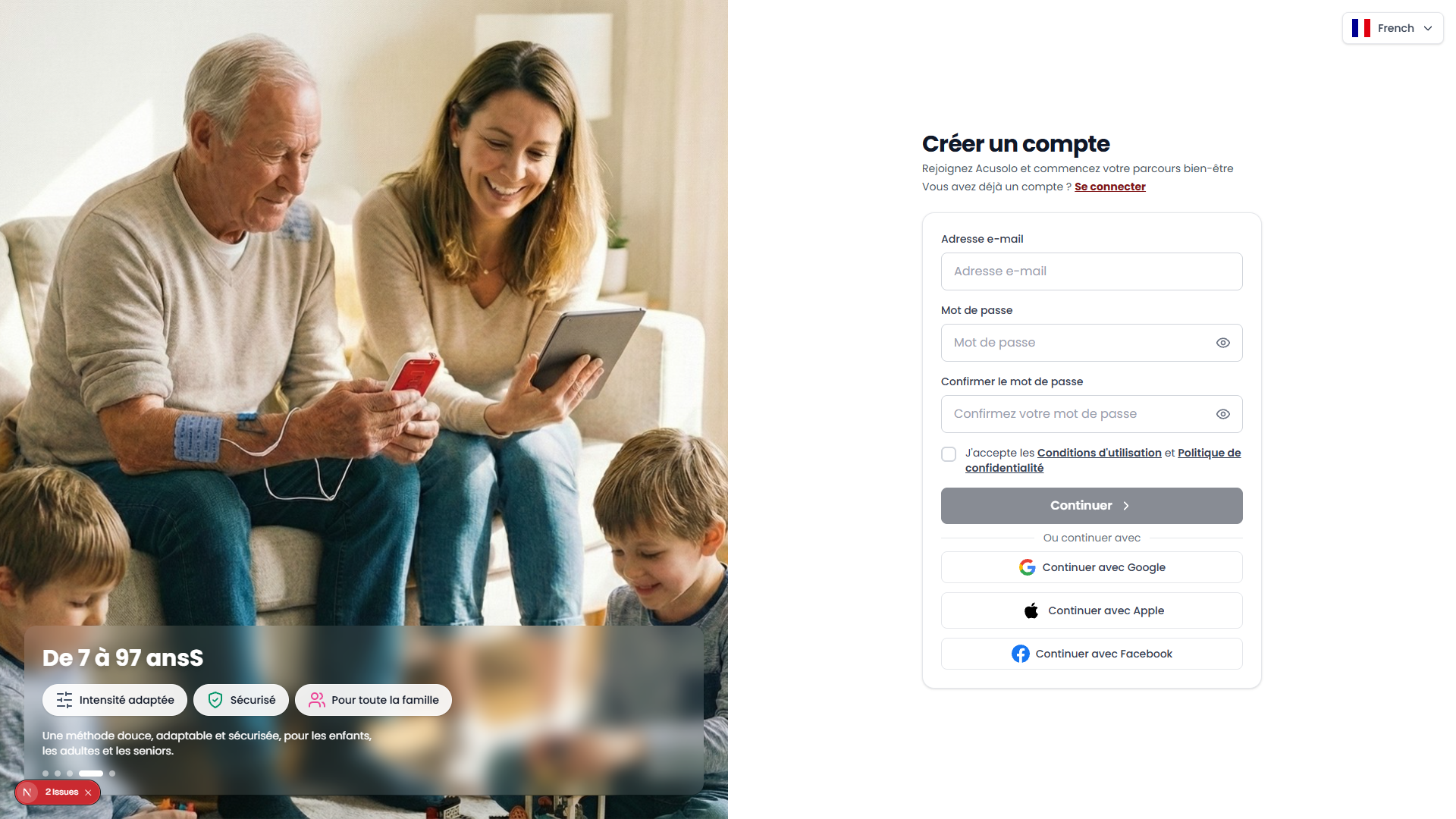
Web app sign up
New users create an account from the web app sign-up page. After successful sign-up, Clerk sends user information through the webhook flow and the user should appear in the admin users list.
Admin users list
Open https://admin.acusolo.net/admin/users to view users who signed up through the web application.
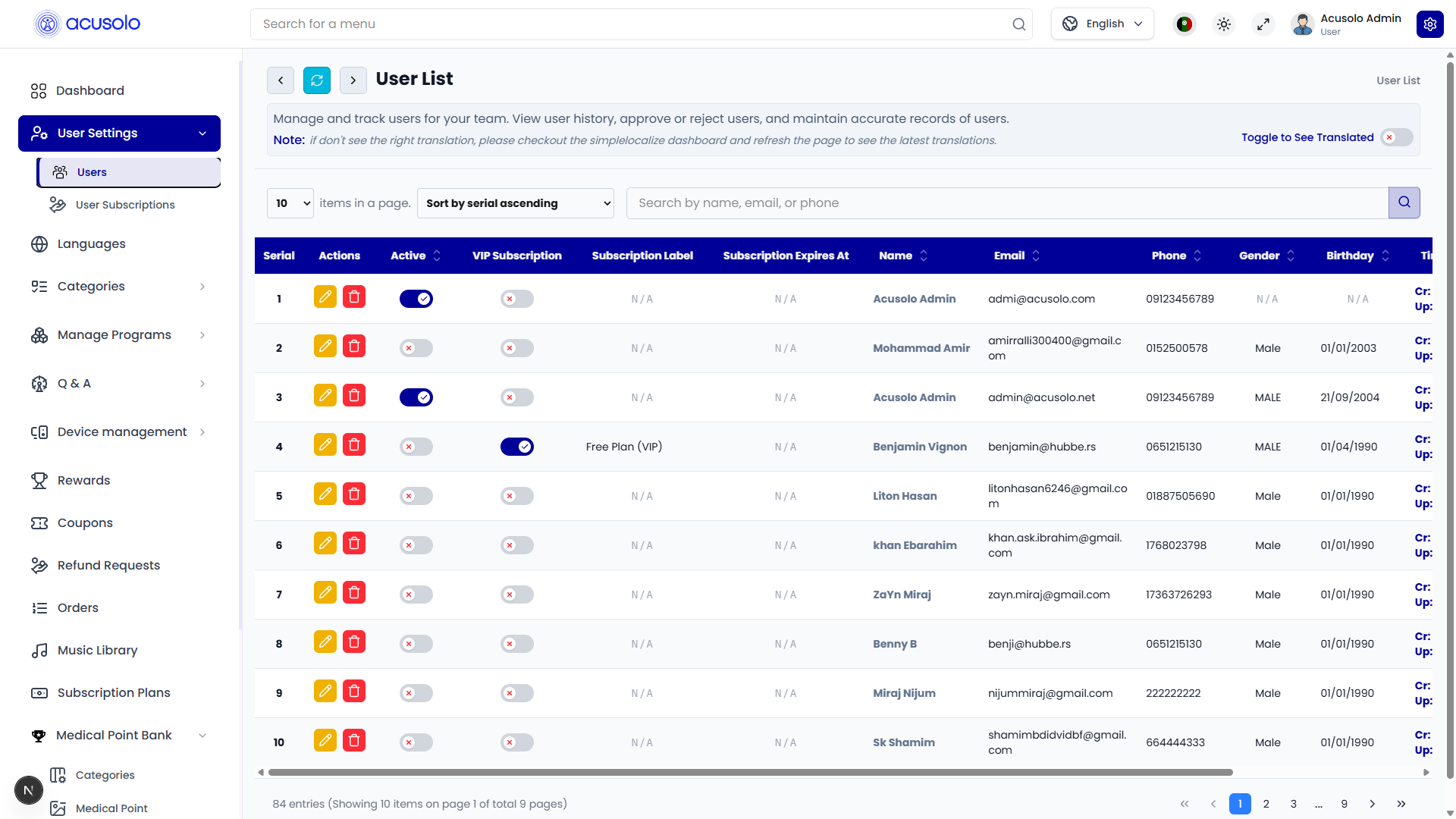
Table controls
- Search — find users by name, email, or phone.
- Sort — sort supported columns such as active status, name, email, phone, gender, birthday, or timestamp.
- Pagination — move through large user lists.
- Refresh — reload the list from the current route.
Table columns
| Column | Purpose |
|---|---|
| No. | Row serial and internal user reference. |
| Actions | Delete user from the row action menu. |
| Active | Lock or unlock the user account. |
| VIP Subscription | Manually grant or remove lifetime/VIP access when allowed. |
| Subscription Label | Current subscription plan label, if any. |
| Subscription Expires At | Paid-plan expiration date; empty for no paid plan or lifetime access. |
| Name / Email / Phone | User identity and contact details synced from Clerk and profile data. |
| Gender / Birthday | Profile attributes when available. |
| Timestamp | Created and updated timestamps. |
VIP subscription toggle
The VIP Subscription toggle lets an admin manually grant subscription access without payment. When enabled, the backend assigns the lifetime/free subscription plan and the user can use subscription-protected features while that access remains active.
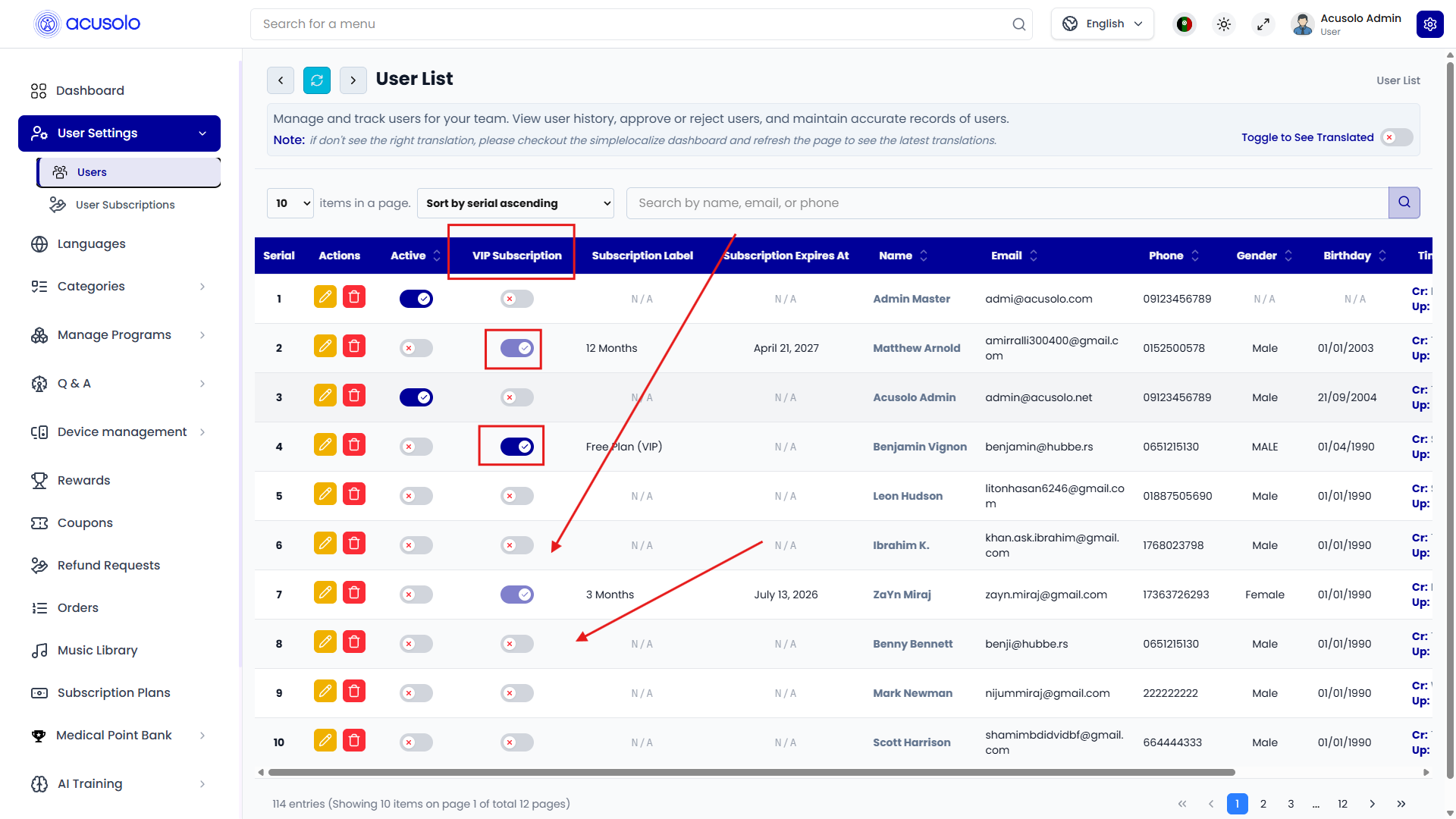
When the toggle is turned off, the manually granted VIP subscription is canceled. If the user already has an existing paid subscription plan, the VIP toggle is disabled so manual VIP access does not conflict with the paid subscription lifecycle.
Delete user flow
Use the row delete action to remove a user. The flow follows the same delete confirmation pattern used across other table-based admin pages.
After confirmation:
- The user is deleted from Clerk when a Clerk user identifier or matching Clerk email is available.
- Related backend records are removed from the system.
- A backup JSON of deleted user data is saved by the backend.
- A deletion audit entry and deleted-user registry entry are kept for tracking and record purposes.
This operation is permanent. Protected default/admin email accounts cannot be deleted.
Overall user flow
- A user signs up from
https://web.acusolo.net/auth/signup. - Clerk handles authentication and emits webhook events.
- The backend verifies the webhook and stores or updates the user.
- The user appears in
https://admin.acusolo.net/admin/users. - Admin can lock/unlock, grant allowed VIP access, or permanently delete the user.
- If deleted, the user is removed from Clerk and backend user data is removed, while audit history remains.
For subscription purchase records, see User Subscriptions.