Device List
Use Device List to manage hardware devices shown to end users (for example TENS units). Devices carry marketing content (name, image, description, weight) while purchase price, rental deposit, monthly rental fee, and currency come from the linked Hardware Pricing tier—not from manual currency fields on the device form.
- Admin base URL:
https://admin.acusolo.net/ - Admin page path:
/admin/devices
Prerequisites
Create Hardware Pricing rows before adding devices. Each device must select a hardware pricing tier; that selection defines purchase vs rental economics for that SKU.
Single currency across the catalog
Currency is inherited from Hardware Pricing. Keeping one currency for every pricing tier avoids mixed-currency carts and checkout failures (for example with Stripe). See Hardware Pricing for details.
Device List screen
Opening https://admin.acusolo.net/admin/devices shows the Device List. The layout matches other admin lists: toolbar, search, sort, pagination, and a wide scrollable table.
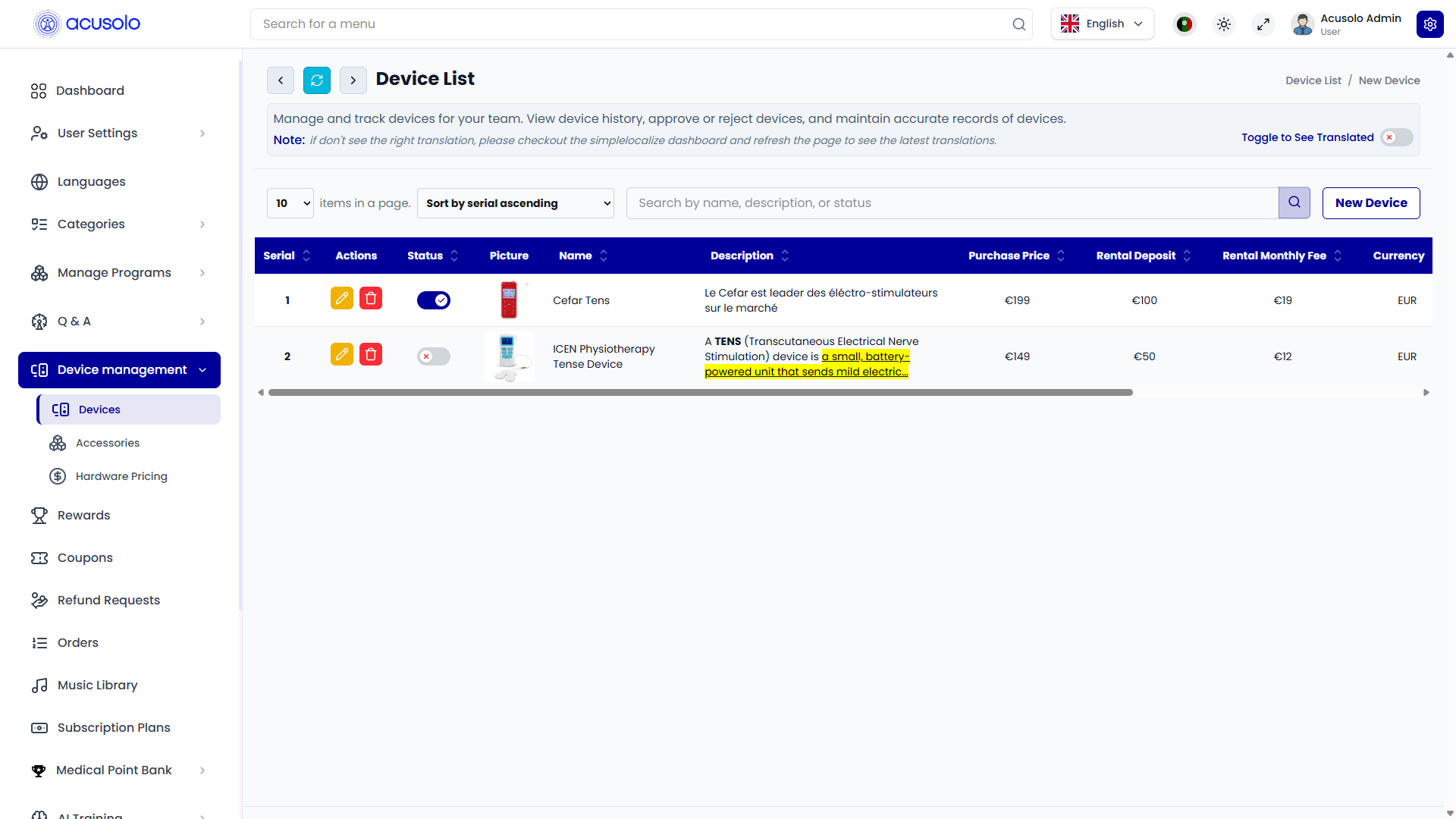
Toolbar and controls
- Title: Device List (breadcrumb-style hint such as
Device List / New Device). - Short description about managing devices for your team.
- Toggle to See Translated when the UI supports translated fields.
- Back / Refresh where shown.
- Items per page, Sort (for example “Sort by serial ascending”).
- Search — filter by name, description, or status (placeholder text may vary).
- New Device — opens the Add Device modal.
Table columns (typical)
The table may scroll horizontally; columns commonly include:
| Column | Purpose |
|---|---|
| Serial | Display order / row index. |
| Actions | Edit (pencil) and Delete (trash). |
| Status | Toggle to enable or disable the device without deleting it. |
| Picture | Device thumbnail. |
| Name | Device title. |
| Description | Short snippet from the rich-text description. |
| Purchase Price | From linked hardware pricing. |
| Rental Deposit | From linked hardware pricing. |
| Rental Monthly Fee | From linked hardware pricing. |
| Currency | From linked hardware pricing (for example EUR). |
Row actions
- Edit: Opens Update Device with pre-filled values.
- Delete: Opens delete confirmation; confirming removes the device permanently if allowed by business rules.
- Status toggle: Temporarily activates or deactivates the device from the list.
Add Device (create modal)
Click New Device to open Add Device.
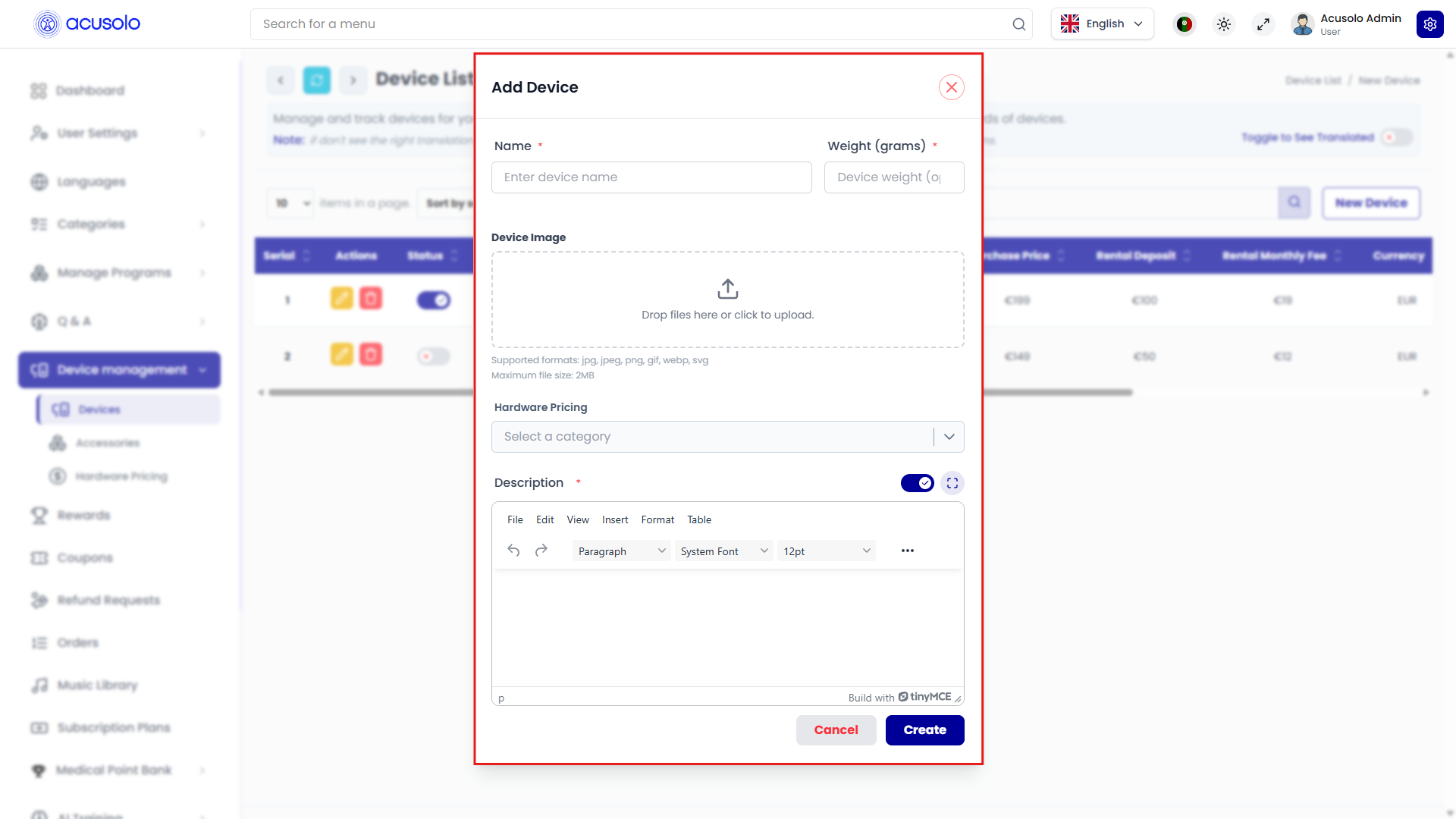
Fields
- Name — required; short label for the device.
- Weight (grams) — required.
- Device Image — upload (drag-and-drop or click). Typical constraints: formats such as
jpg,jpeg,png,gif,webp,svg; maximum size 2 MB on create (edit modal may allow 3 MB—follow on-screen limits). - Hardware Pricing — required. Searchable dropdown listing tiers defined under Hardware Pricing. Each option summarizes purchase price, rental deposit, monthly rental fee, and currency.

Selecting a tier binds the device to those amounts and currency for storefront and checkout flows.
- Description — required; rich text (TinyMCE) with standard formatting toolbar.
Cancel closes without saving; Create submits the new device.
Update Device (edit modal)
Click Edit on a row to open the update modal with existing values pre-filled: name, weight, current image (with option to replace via upload), Hardware Pricing summary, and description.
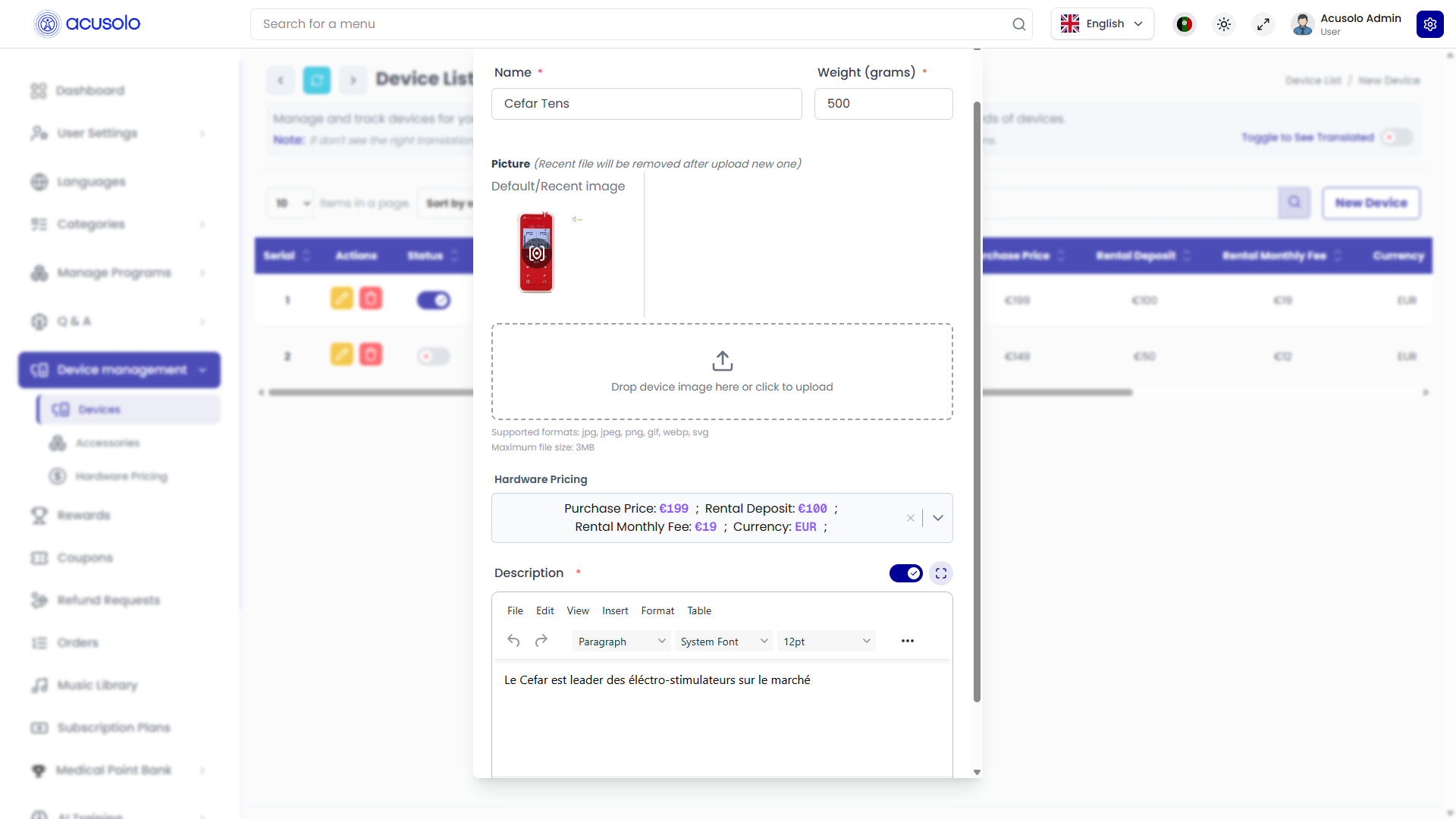
Save changes persists edits; Cancel discards.
There is no separate “currency” dropdown on the device form—currency always follows the selected Hardware Pricing row.
Delete flow
Delete opens a confirmation modal; confirm only when removal is intended.
Web app: store and choosing an active device
End users interact with catalog devices outside the admin panel.
Boutique / store (/accessories)
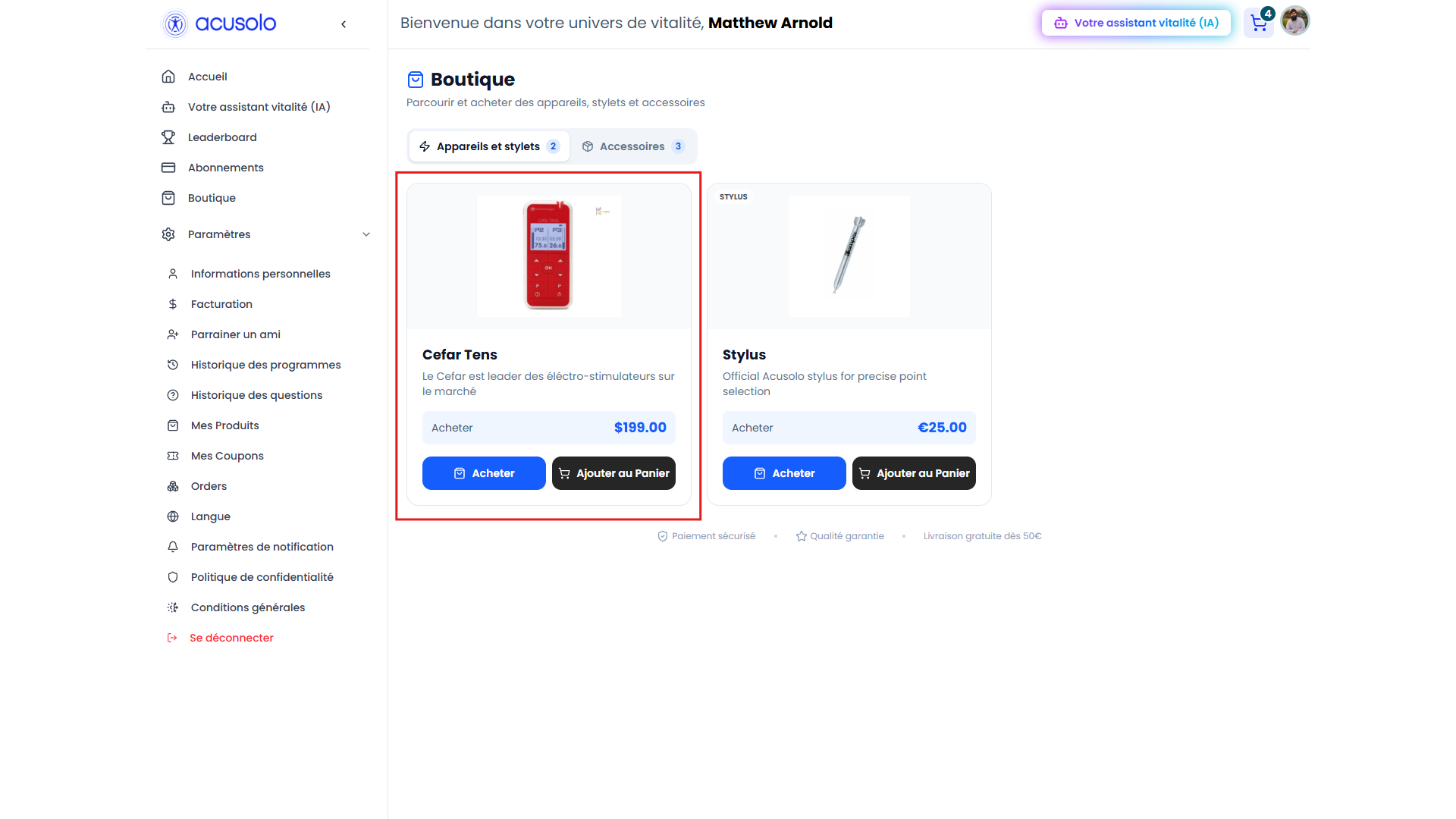
The URL https://web.acusolo.net/accessories opens the web app store experience (sidebar label may appear as Boutique). Users browse devices / styluses and accessories tabs and can buy or add to cart from product cards. Accessory catalogue details are documented under Accessory List. Cart, payment, and post-purchase order handling are covered under Orders.
My Products — active device (/settings/tens-device)
Under Settings → My Products (path such as https://web.acusolo.net/settings/tens-device), users see their devices and accessories. They can review owned / rented units and choose which hardware is active for their account (for example via Actif / active controls on device rows). The Active device summary at the top reflects the current selection.
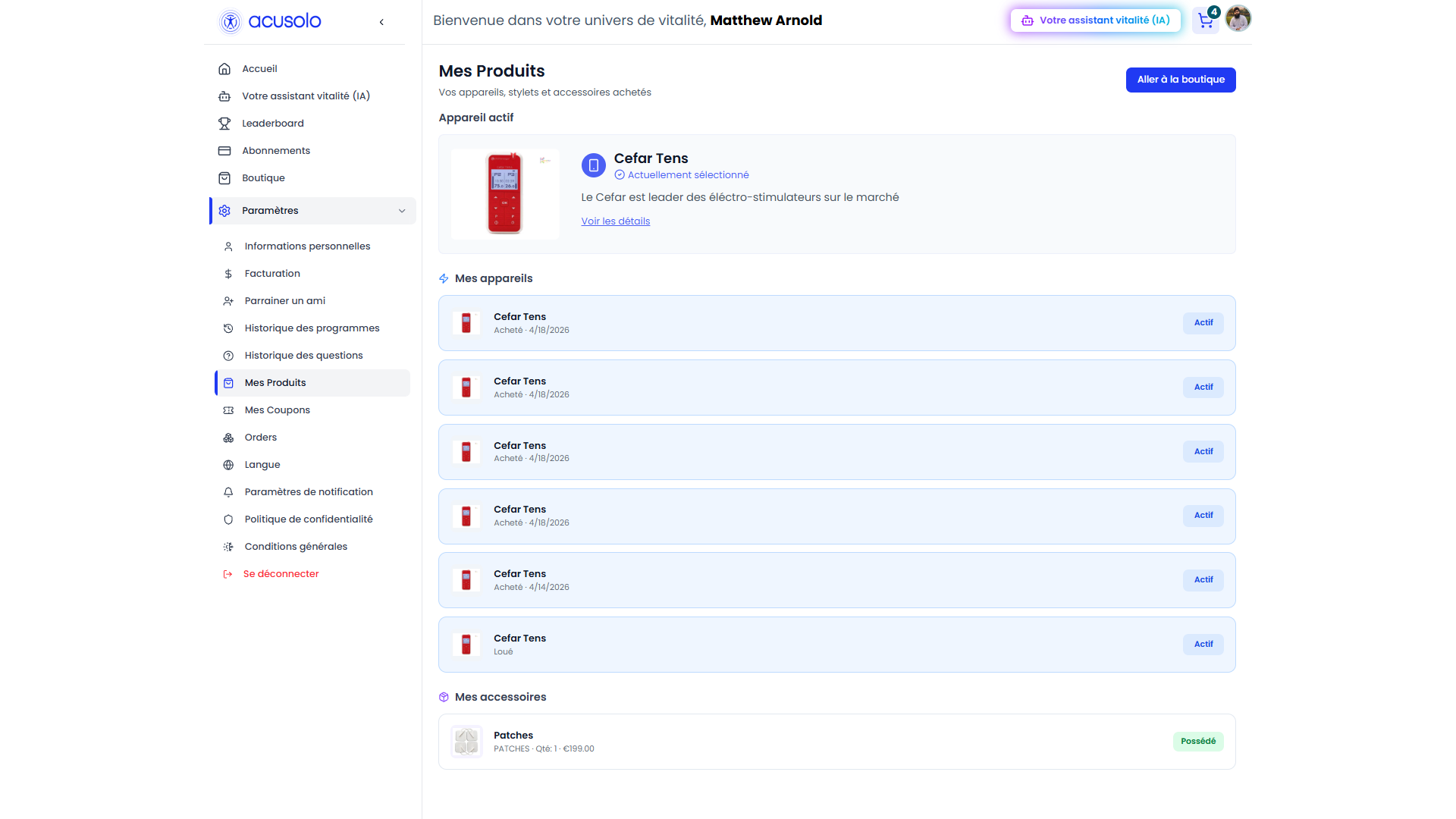
Admin-side device records, images, descriptions, and hardware pricing drive what appears in these screens.