Program
This page documents Programs under Gérer les programmes → Programmes in the admin panel, and how they appear in the web app after configuration.
- Base URL (Admin):
https://admin.acusolo.net/ - Base URL (Web app):
https://web.acusolo.net/
Related docs: Category, Sub-category.
Video tutorial (how to manage programs)
Walkthrough for managing programs in the admin panel (same content as the embed https://www.youtube.com/embed/3JOsXSAKzq4).
Admin: program list
The Liste des programmes screen is a data table of all programs with search, sort, items-per-page, pagination, and Nouveau programme to open the create modal.
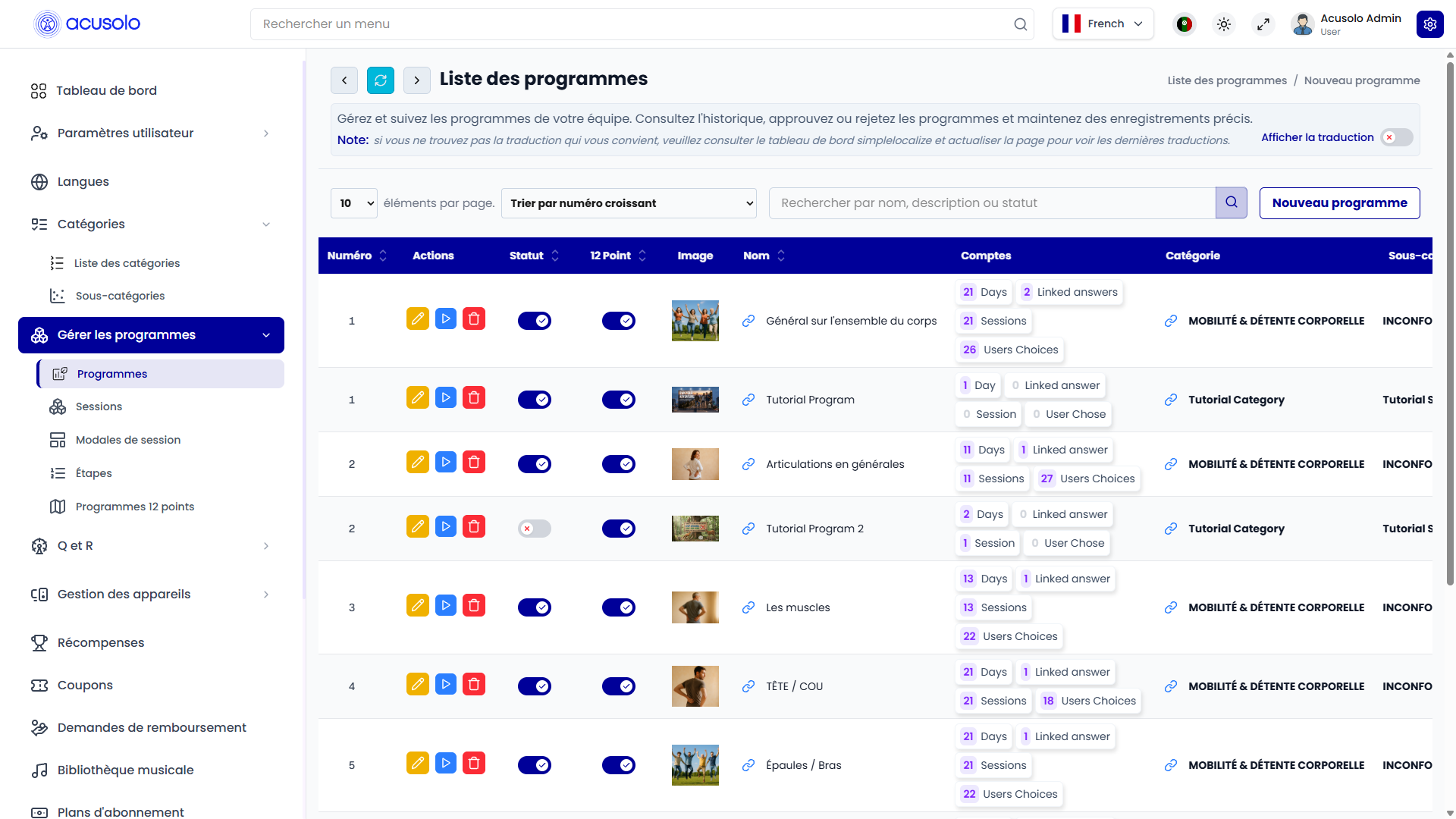
Columns
| Column | Definition |
|---|---|
No. (Numéro) | Row serial / display order for the program in lists. |
| Actions | Edit (yellow pen), View sessions (blue play — opens the sessions list for this program), Delete (red trash — confirmation then permanent removal). |
| Status | Toggle: when on, the program is available in mobile and web app; when off, it is hidden from end users. |
| 12 Point | Toggle that controls the final-session welcome modal CTA (see 12 Point toggle and welcome modal). |
| Picture | Program thumbnail from Program image upload. |
| Name | Program title (often shown as a link in the table). |
Counts (Comptes) | Aggregated metrics as badges (see Counts column). |
| Category | Parent category name. |
| Sub Category | Sub-category name when assigned; may be empty depending on data. |
| Days | Assigned program length in days (how many calendar days the program spans in the product logic). |
| Accessories | Summary of required accessories (for example device, patches, stylus counts from the program form). |
| Rehearsals | Number of répétitions (rehearsals) configured for the program. |
| Description | Short or truncated view of the rich-text description. |
| Timestamp | Created and updated timestamps for the record. |
The table can be wide; use the horizontal scrollbar to reach Days, Accessories, Rehearsals, Description, and Timestamp when they are off-screen.
Counts column
The Comptes cell groups four metrics (numbered here as in the annotated list screenshot):
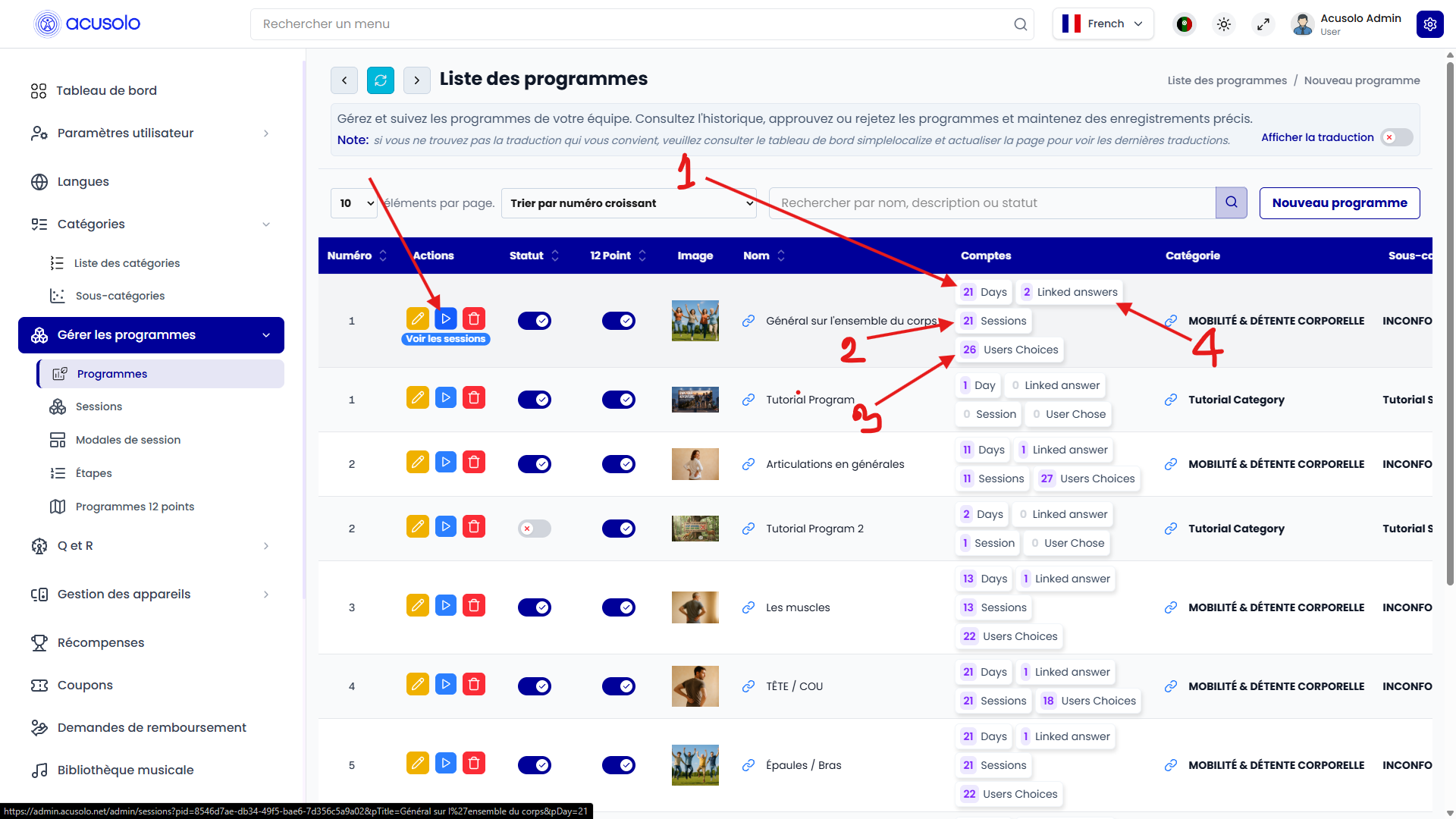
| # | Meaning |
|---|---|
| 1 | Program days — how many days the user can continue or run this program (aligned with the program’s day configuration). |
| 2 | Sessions — how many sessions exist under this program (admin-configured session count). |
| 3 | AI suggestions — how many times the AI chat has suggested this program to users. |
| 4 | Linked answers — how many questionnaire answers are linked to this program. |
Badge labels in the UI may appear as localized strings (for example “Days”, “Sessions”, “Users Choices”, “Linked answers”).
View sessions (play action)
The blue play action opens the sessions administration view for that program. See Sessions for the session list UI and columns. The URL typically passes program context (for example program id, title, and day count) as query parameters so the sessions list is scoped correctly (for example .../admin/sessions?... with pid, pTitle, pDay).
Search, sort, pagination
- Search: filter programs by name, description, or status (placeholder along the lines of Rechercher par nom, description ou statut).
- Sort: for example Trier par numéro croissant (by serial ascending).
- Pagination: standard page controls and “X entries per page” footer.
12 Point toggle and welcome modal
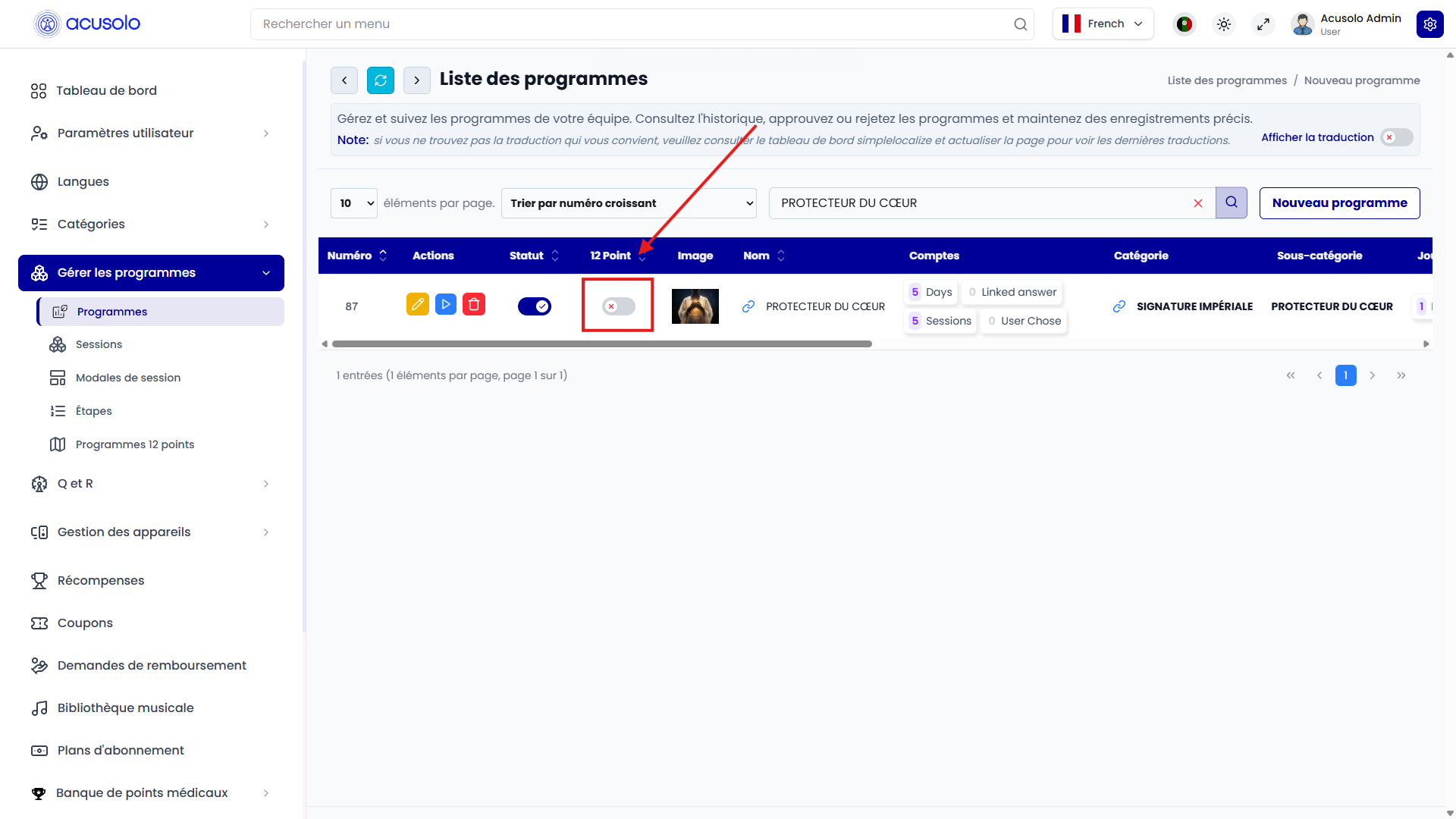
The 12 Point column is a per-program toggle. It does not replace Status; it only changes what the user sees after finishing the last session of the program.
12 Point disabled
Admin (toggle off):
Web app — after the final session, the welcome modal shows a button back to program details:
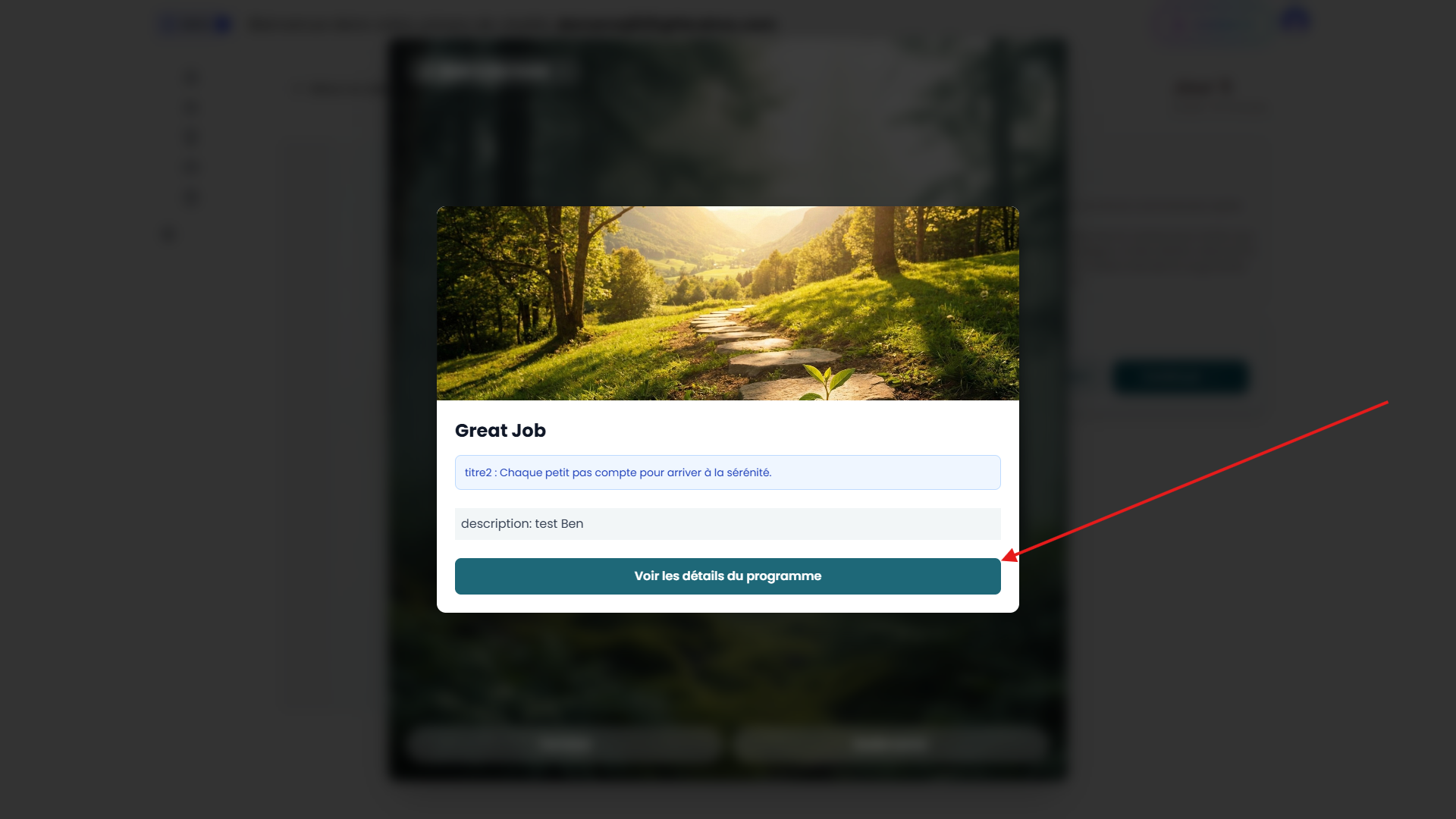
- Primary CTA example: Voir les détails du programme (see program details).
12 Point enabled
Admin (toggle on):
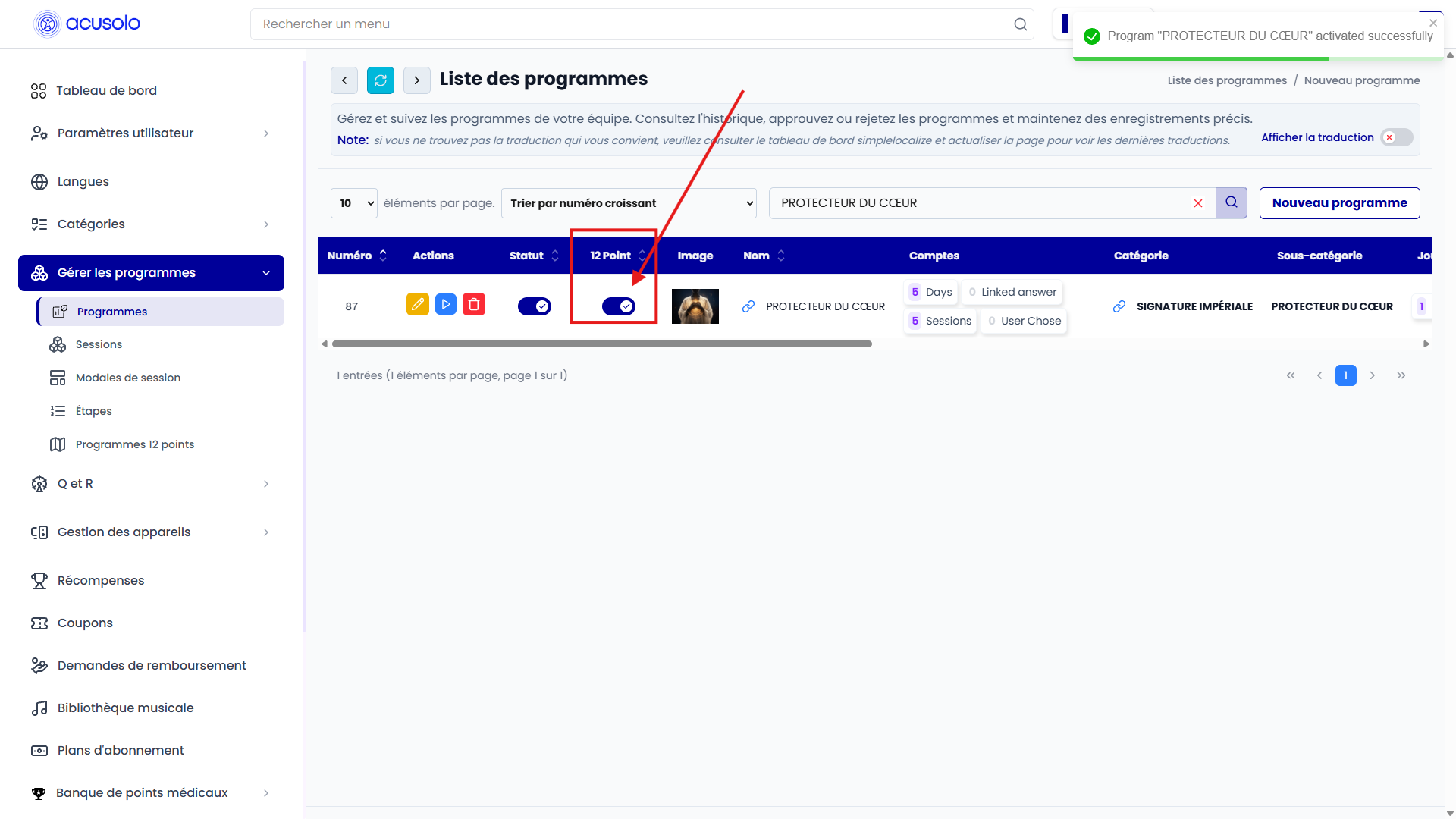
Web app — first welcome step after the final session:
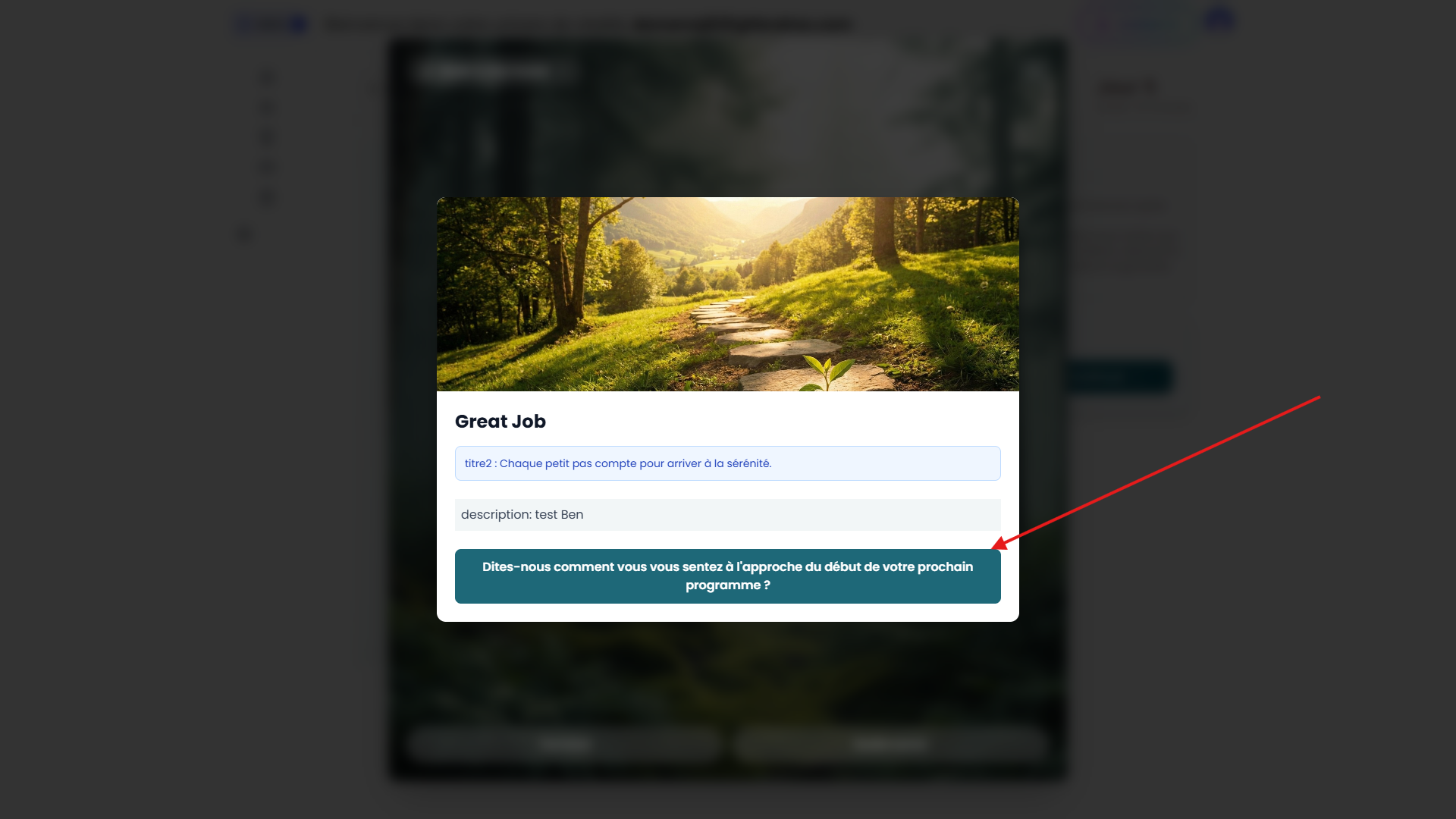
- Primary CTA example: prompt about feelings before the next program (12 Point journey).
Tapping that CTA opens a follow-up modal (feedback / experience selection):
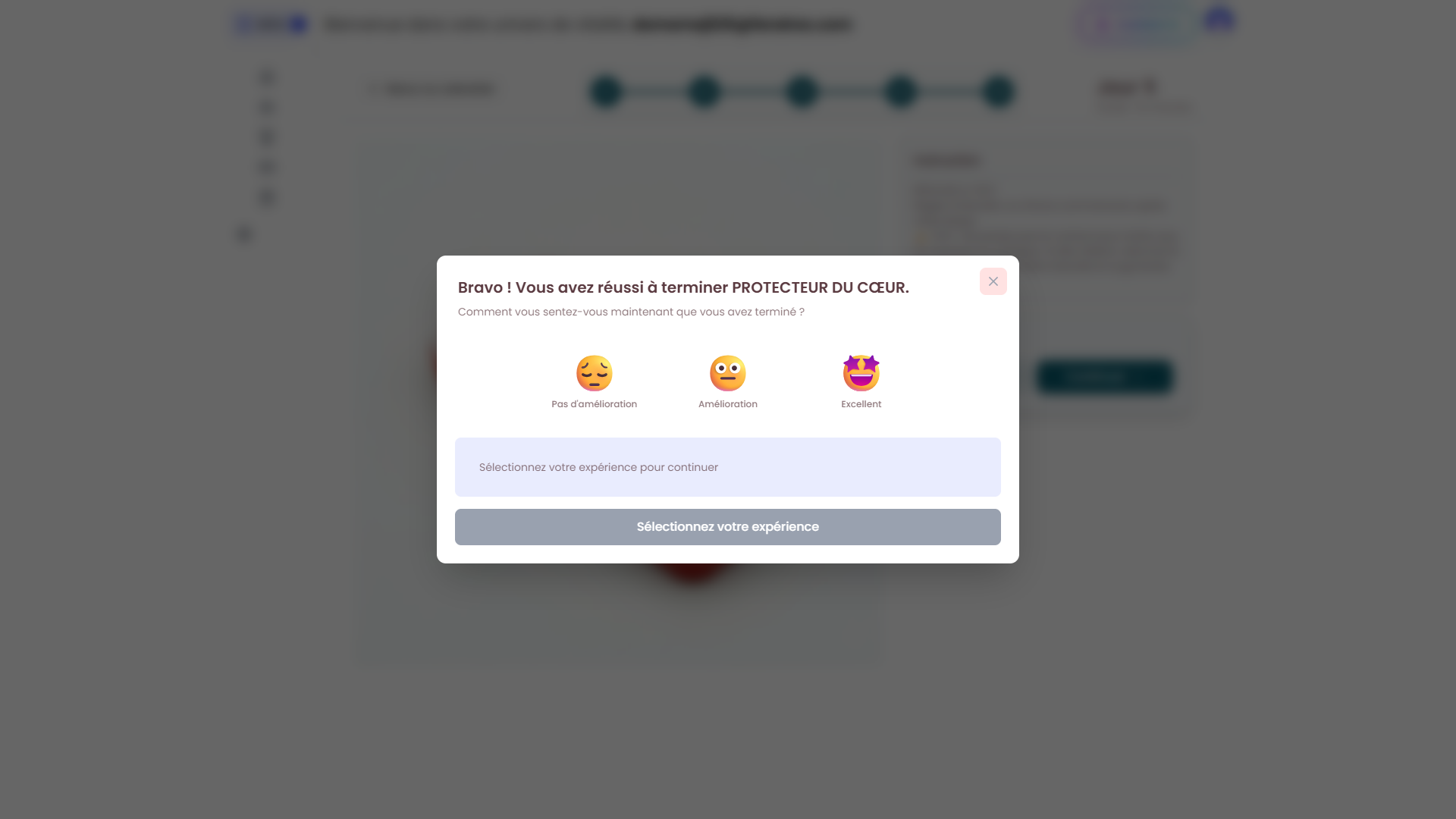
- Example: emoji choices (Pas d'amélioration, Amélioration, Excellent) and a continue action once an option is selected.
Create program modal
Open Nouveau programme to create a record.
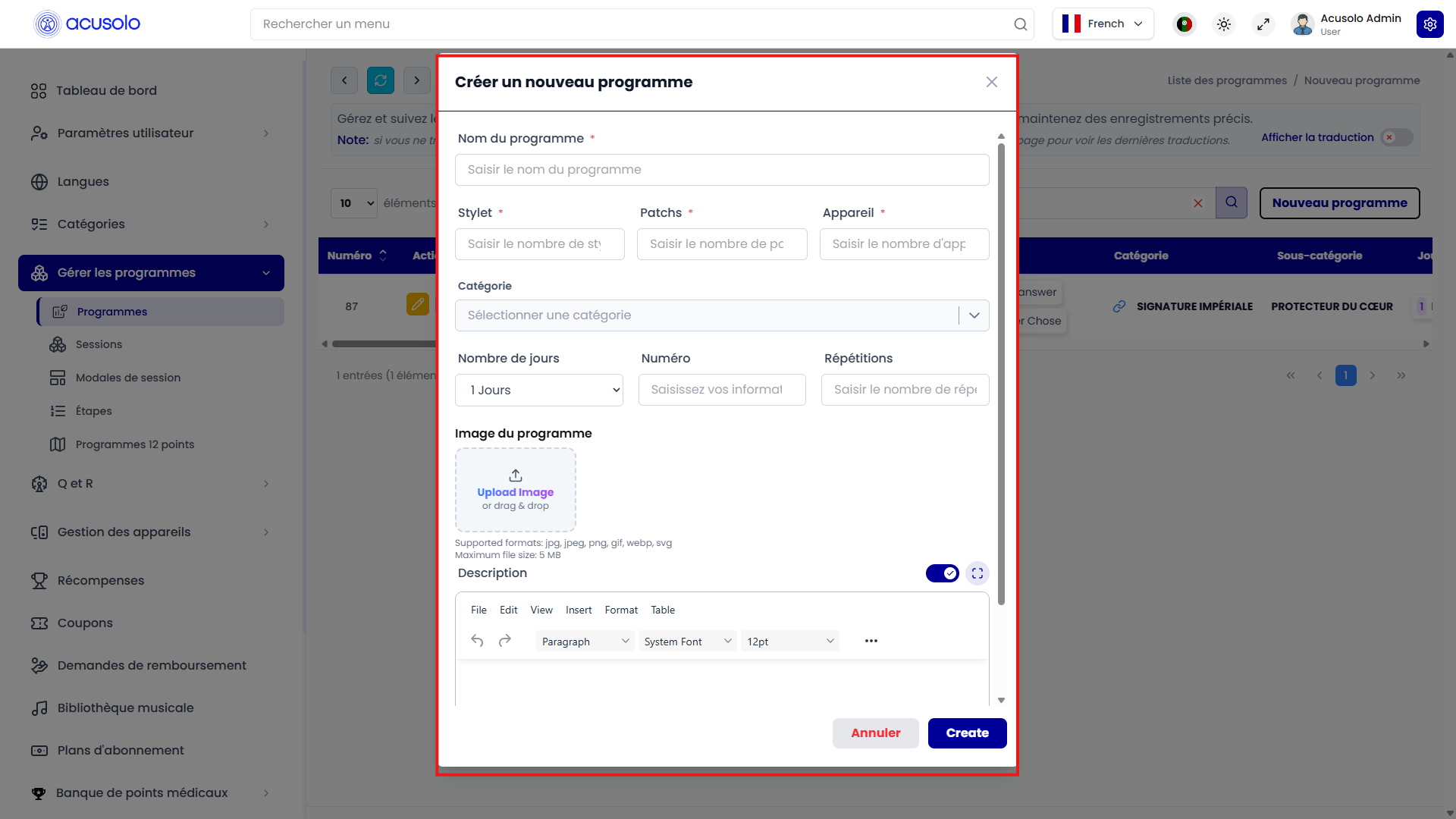
Fields (from the UI)
- Program name (
Nom du programme) — required (*). - Accessories — three numeric fields (required in the form): Stylus (
Stylet), Patches (Patchs), Device (Appareil). - Category — required dropdown; links to program categories.
- Number of days (
Nombre de jours) — dropdown (for example1 Jours,5 Jours, …). - Serial (
Numéro) — optional ordering / reference field. - Rehearsals (
Répétitions) — numeric input. - Program image — upload or drag-and-drop; common image types; 5 MB max where shown.
- Description — rich text (TinyMCE-style) with toolbar, optional toggle, and fullscreen control.
Actions
- Annuler — closes without saving.
- Create — submits and persists the program.
Edit program modal
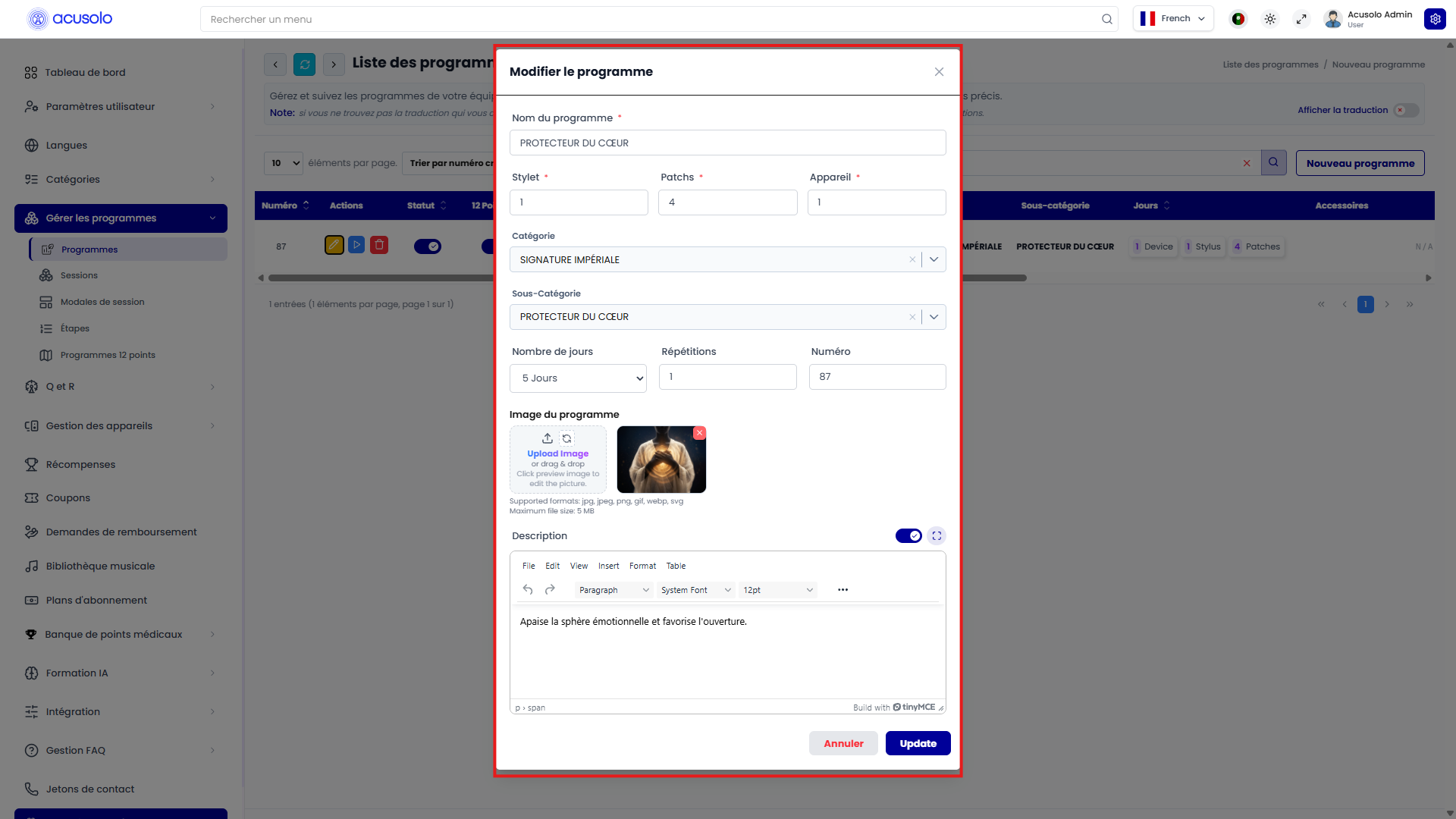
From the list, use Edit (pen) to open Modifier le programme with all values pre-filled.
Differences from create
- Sub-category (
Sous-catégorie) — searchable dropdown when the program is tied to a sub-category. - All accessory counts, days, rehearsals, category, image preview, and description are editable.
- Update saves changes; Annuler discards.
Delete
Delete (trash) follows the same confirmation pattern as other admin modules: confirm to permanently remove the program.
Web app: program details (before start)
After admin configuration, the program appears on the web app program details page.
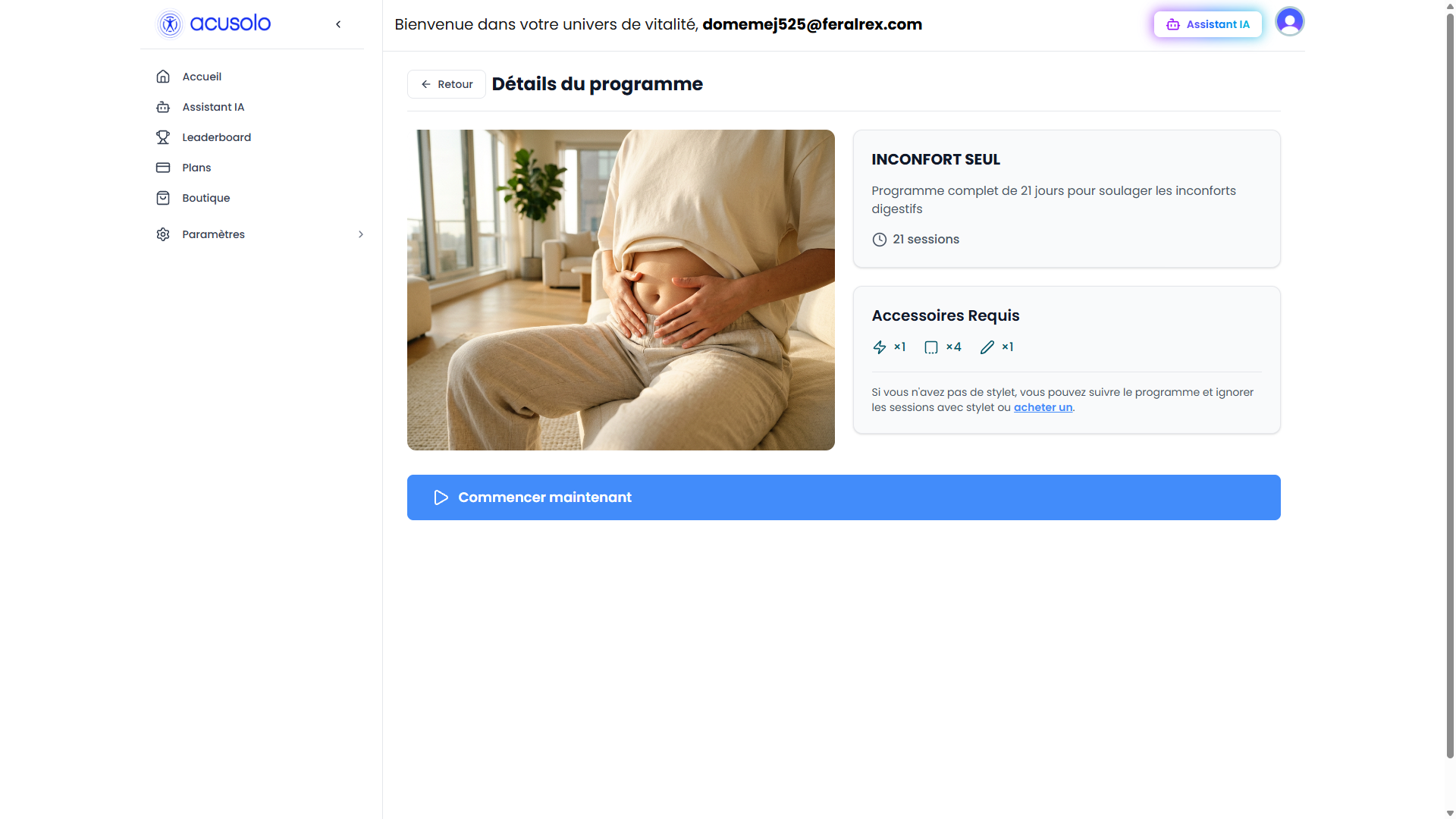
Typical layout:
- Back (
Retour) and title Détails du programme. - Hero image and program name, description, and session count (for example “21 sessions”).
- Accessoires requis card with icon quantities (device, patches, stylus) matching admin values, plus helper text (for example link to purchase a stylus).
- Primary Commencer maintenant (Start now) with play icon — starts the program flow.
Web app: security warning on start
Pressing Commencer maintenant opens a safety / contraindications modal before the first session opens.
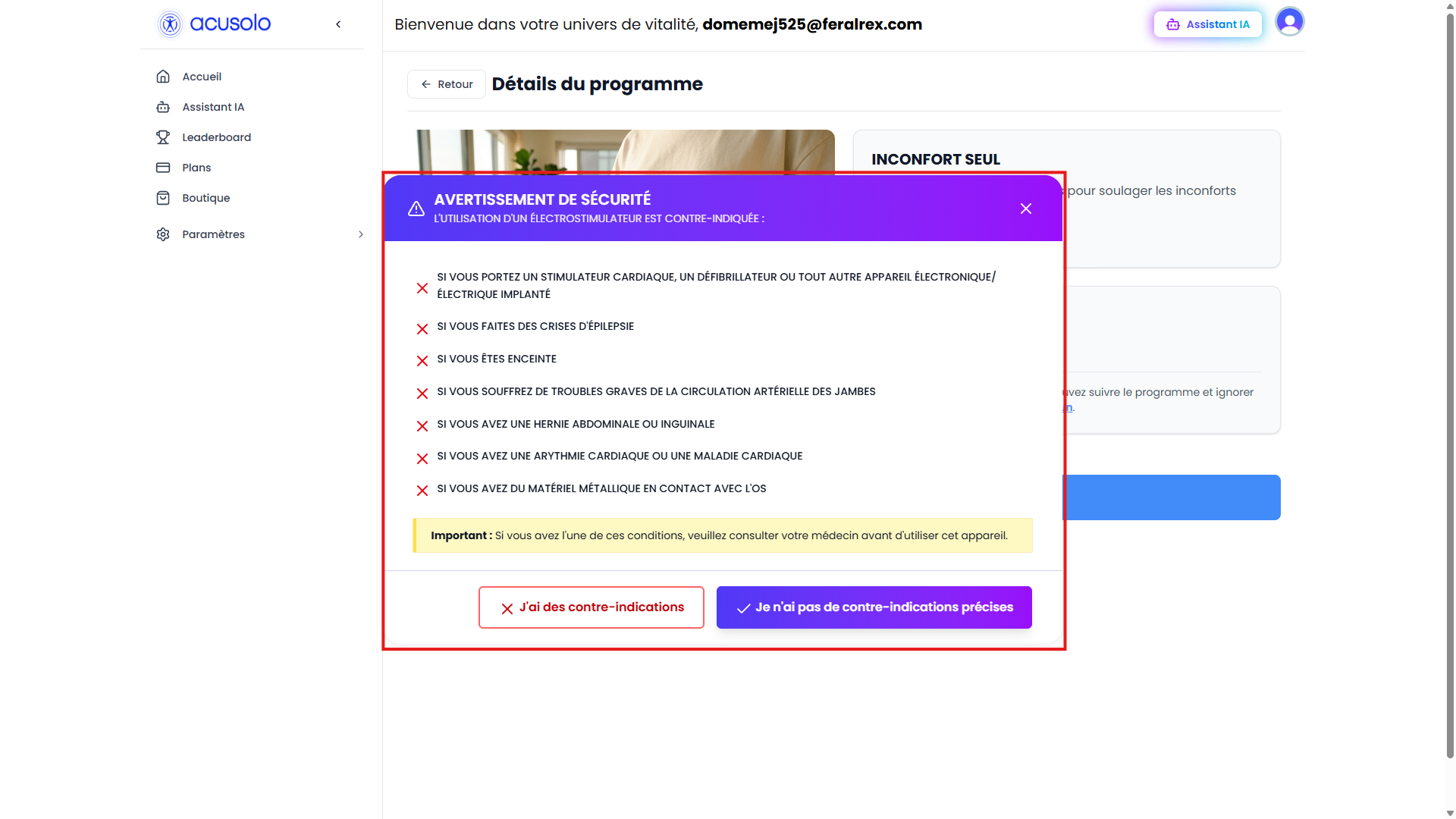
- Lists medical contraindications for electrostimulator use.
- I have contraindications — user should not proceed; modal closes / program does not start.
- I do not have specific contraindications — user confirms and can continue to session 1 (first session details).
Web app: program details after start
Once the program is in progress, the same page gains a Programme en cours section.
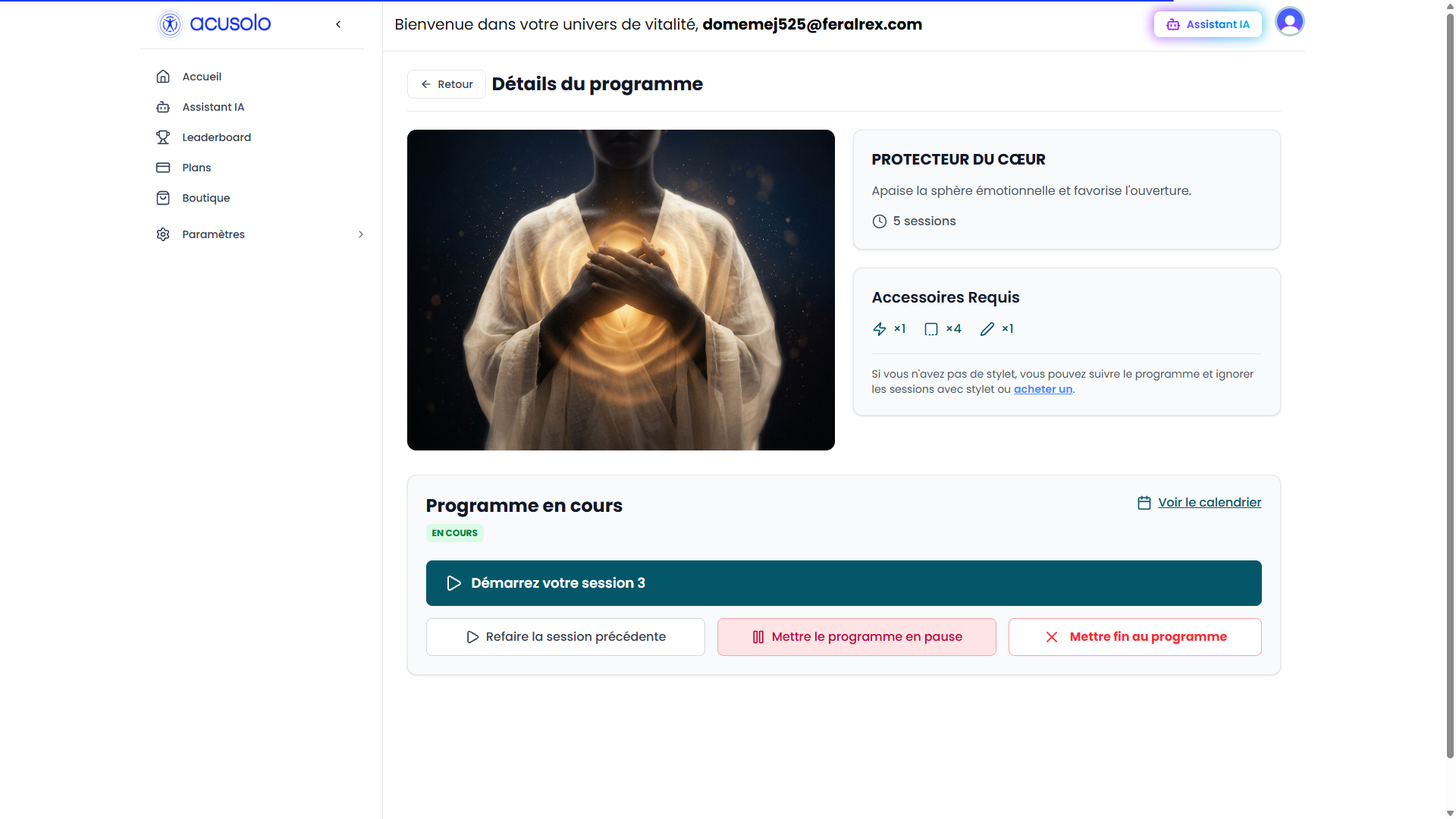
Notable elements:
- EN COURS (or similar) status badge.
- Voir le calendrier — opens the session calendar modal.
- Primary CTA: Démarrez votre session N — go to the current session (session number depends on progress).
- Secondary actions (examples from UI):
- Refaire la session précédente — redo flow for the previous session.
- Mettre le programme en pause — pause the active program.
- Mettre fin au programme — end / abandon the program.
Exact labels may vary slightly by locale or build.
Session calendar modal
From Voir le calendrier on the in-progress program page:
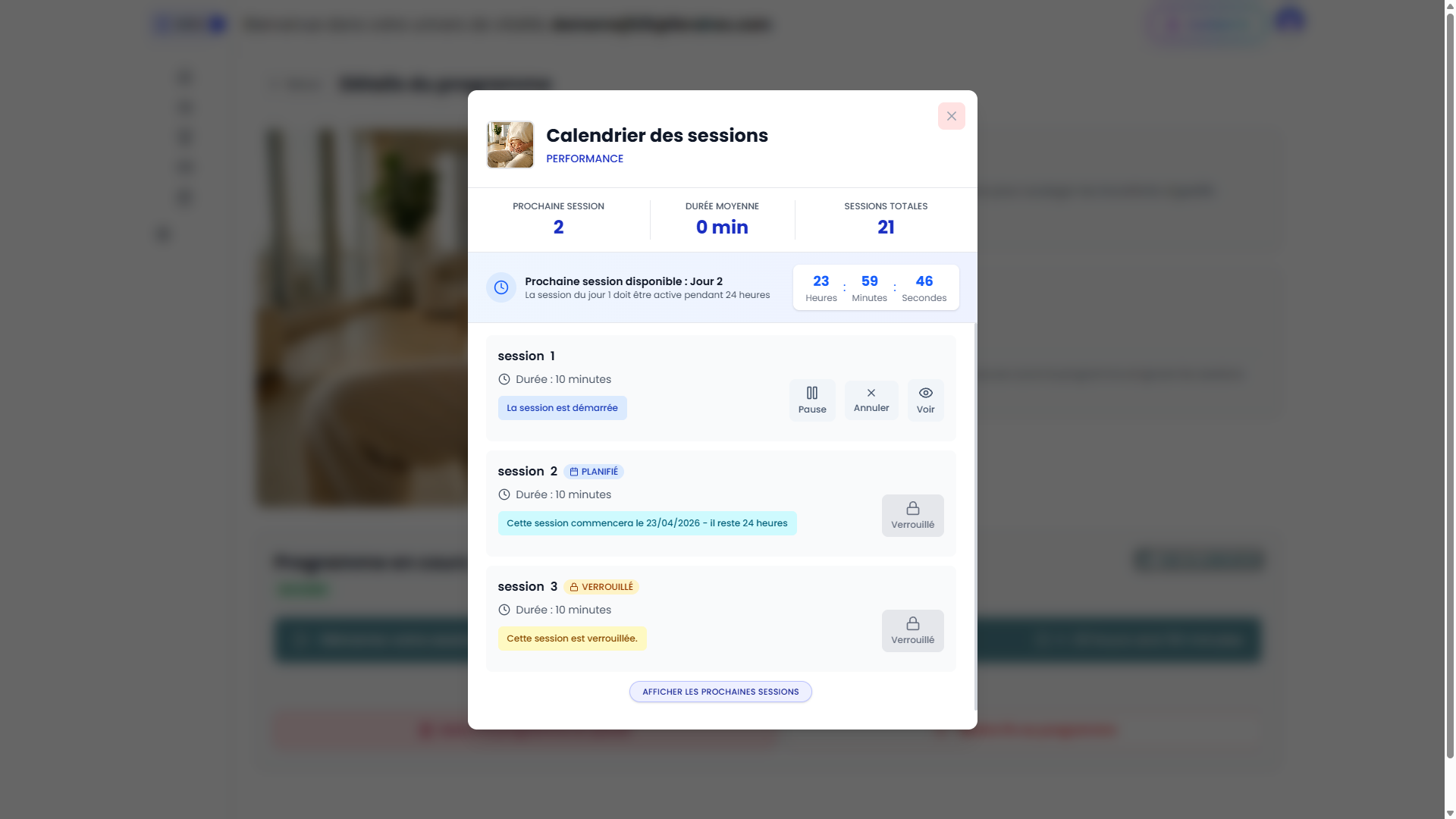
The Calendrier des sessions modal shows:
- Program thumbnail and title; category label when shown (for example PERFORMANCE).
- Summary: next session index, average duration, total sessions.
- Banner explaining next session availability (for example next session on Day 2 after Day 1 has been active 24 hours), with a countdown timer.
- A list of sessions with states such as started, planned / locked by time, and locked for future days.
- Per-row actions where applicable (for example pause, cancel, view on an active session).
- AFFICHER LES PROCHAINES SESSIONS (or similar) to load more rows when the program has many sessions.
24-hour rule and “force next” / redo
Each session is intended to run one day; the next session becomes available after roughly 24 hours from the product rules shown in the calendar and on the main progress bar.
Opening the early-start modal
When the next session is not yet available by time, the page can still show a Commencez dès maintenant (start right now) text action (highlighted in the reference screenshot):
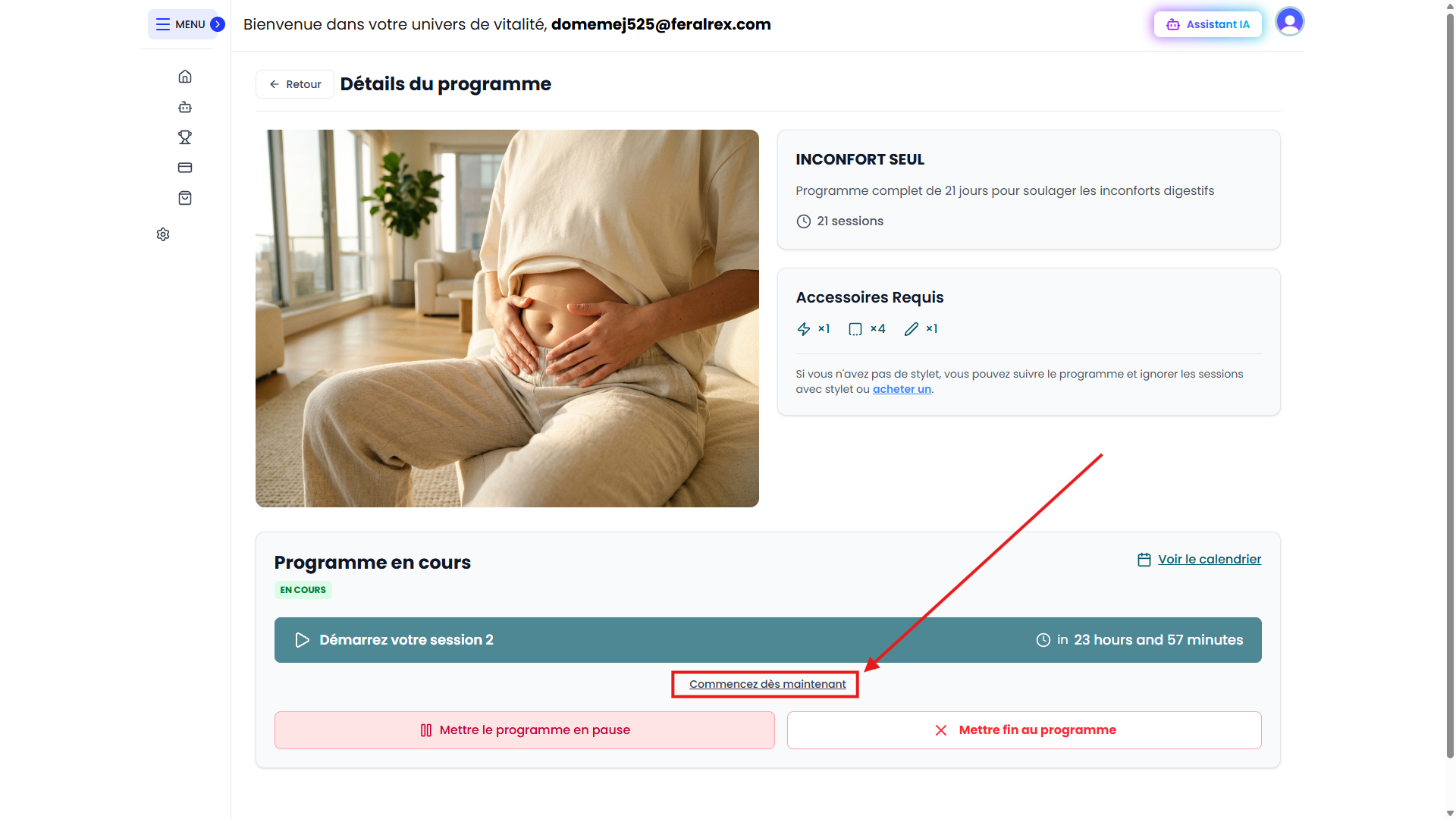
Choosing it opens a confirmation modal.
Confirmation modal — variants
Single primary path (example: start session 2 now):
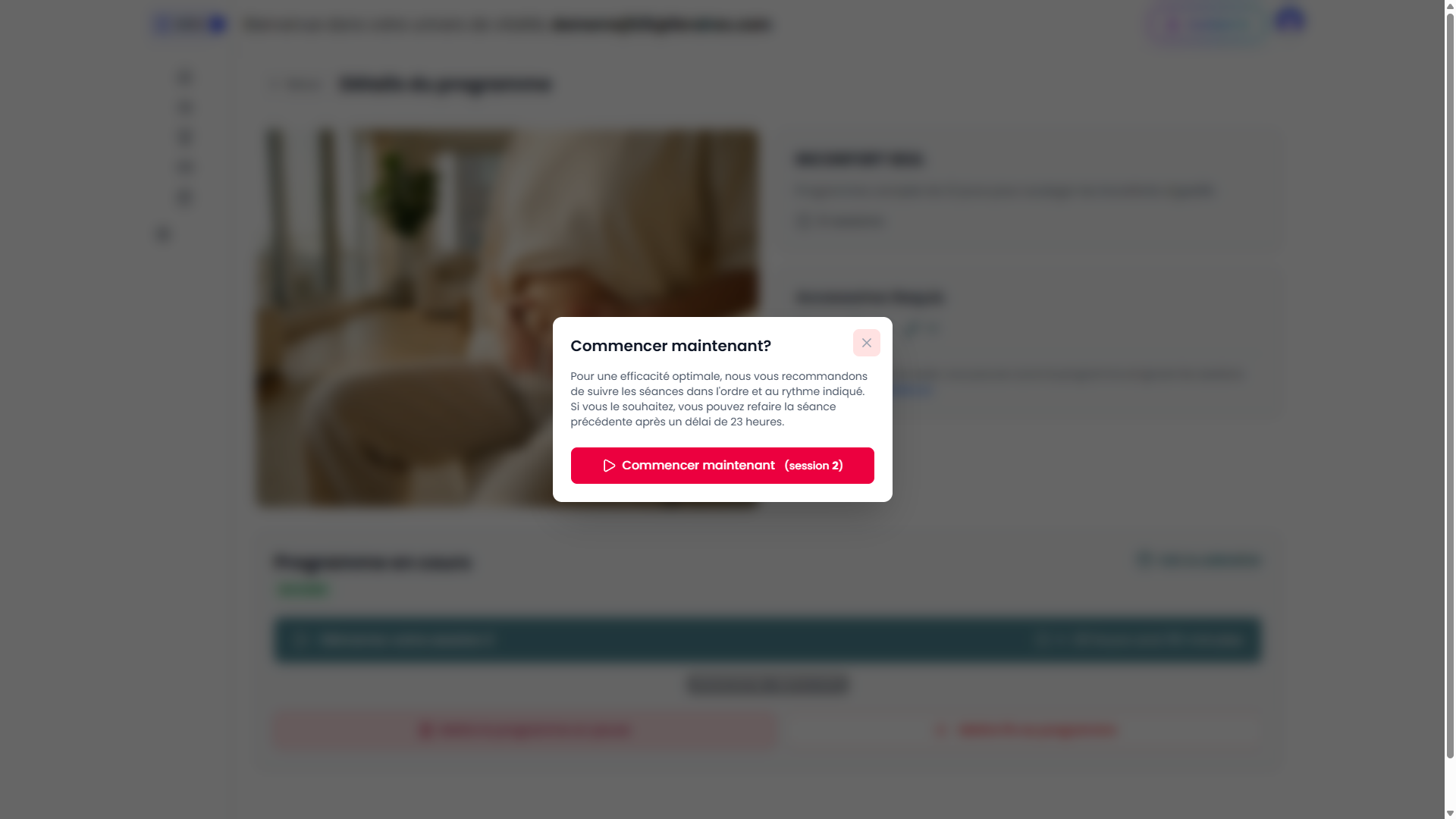
- Explains following sessions in order and the ~23 hour redo delay for the previous session.
- Commencer maintenant (session N) — proceed with the indicated session.
When both redo and force next are offered:
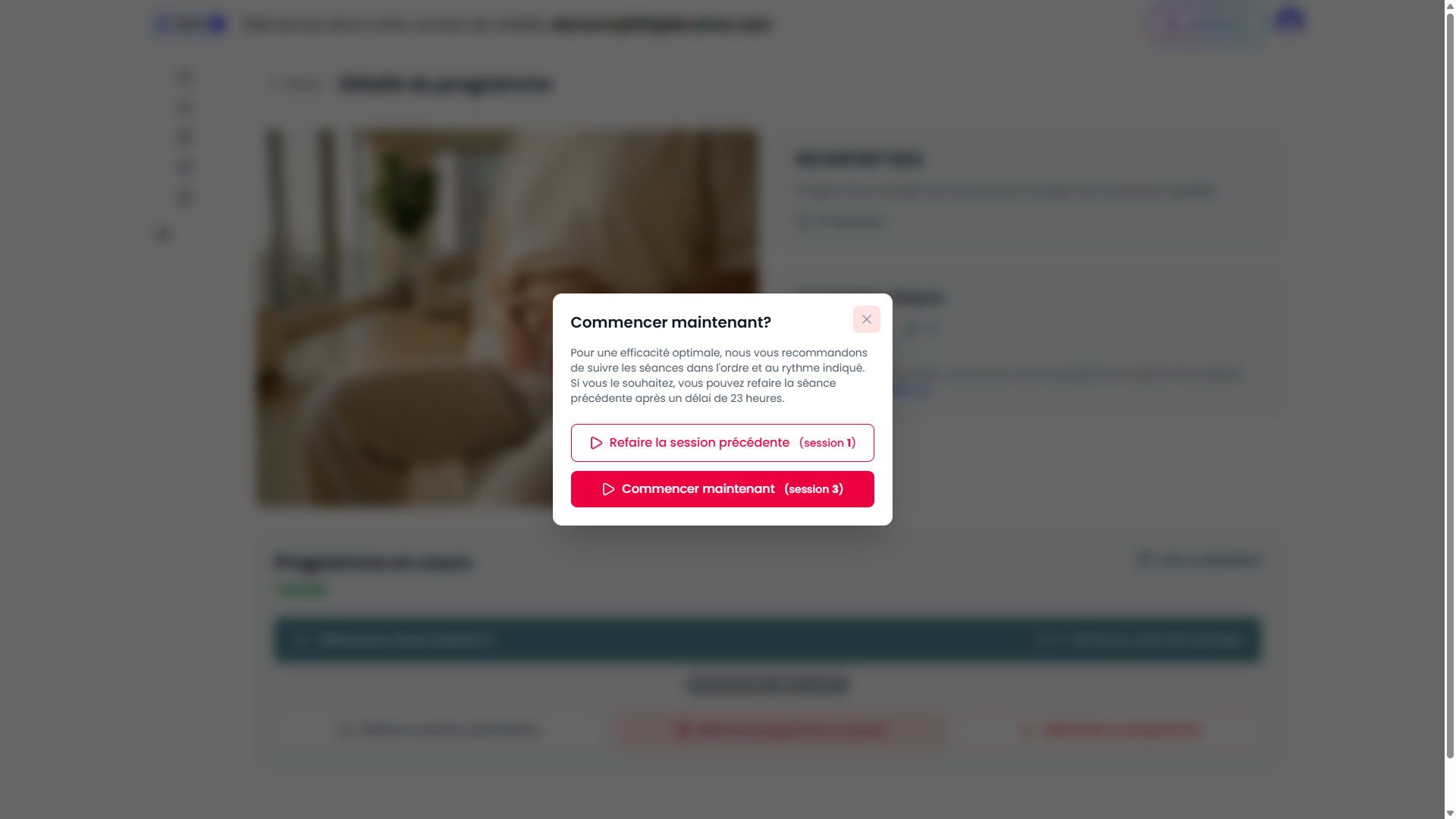
- Refaire la session précédente (session X) — redo the previous session.
- Commencer maintenant (session Y) — advance to the next session before the natural 24-hour unlock (admin/product “force next” behavior).
Users can still use Retour / normal navigation to return to program details when allowed by the app.