App Data
The App Data page allows admins to manage global web app settings from one place. These settings can affect tracking tools, the cookie consent message shown to users, and extra app-level configuration.
- Admin app data page:
https://admin.acusolo.net/admin/app-settings/app-data
Manage app data
Admins can update app-level data from the application settings area.
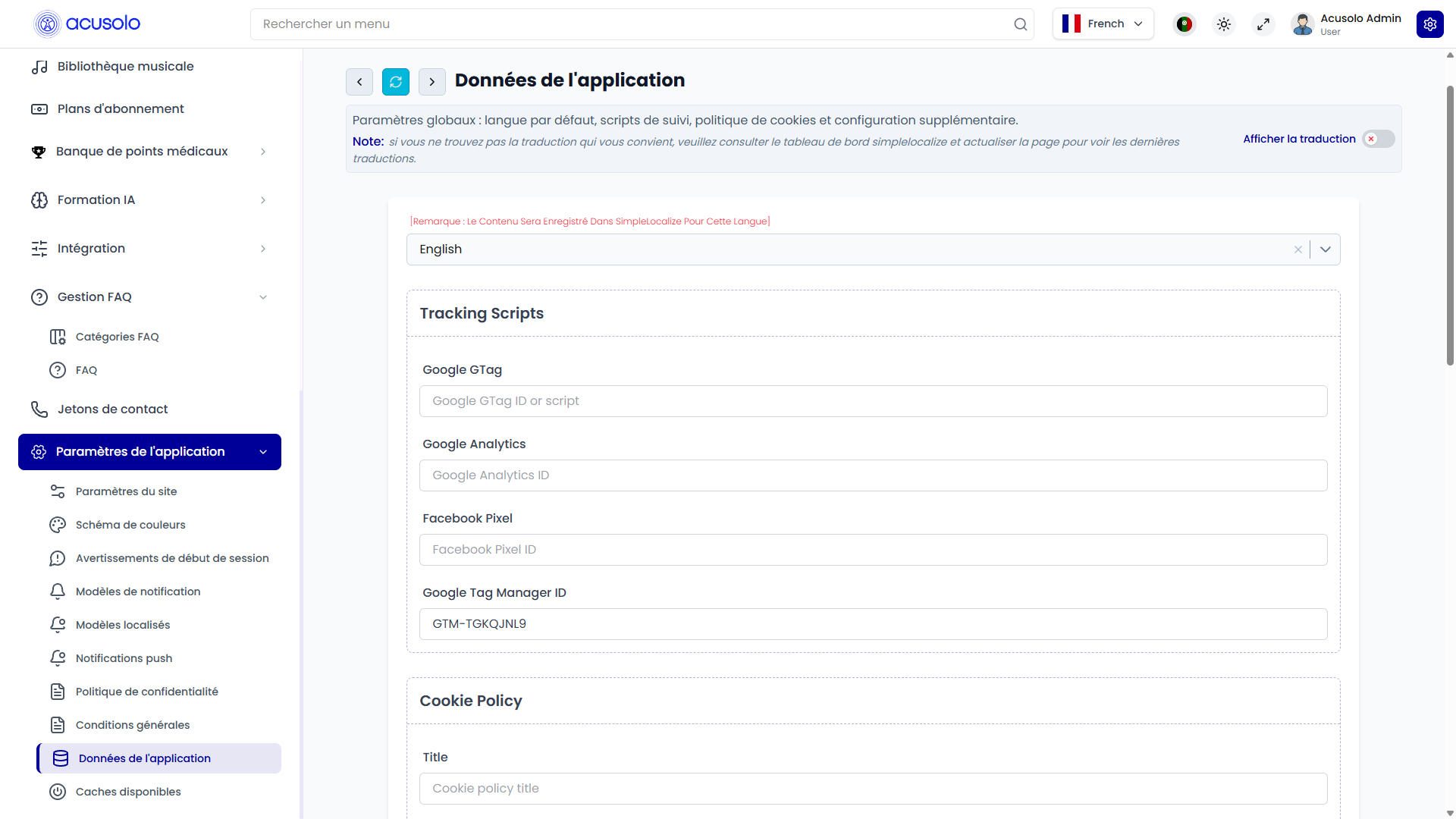
The page includes:
- Language selection.
- Tracking script fields.
- Cookie policy content.
- Accept and reject button settings.
- Extra configuration.
- Reset and save actions.
Language selection
The language selector controls which language version of the app data is being edited.
This is especially important for cookie policy text and button labels, because users may see the cookie consent message in their selected language.
Admins should confirm the selected language before saving changes.
Tracking scripts
The Tracking Scripts section stores tracking and analytics identifiers used by the web app.
| Field | Meaning |
|---|---|
| Google GTag | Stores a Google tag value or related tracking setup value. |
| Google Analytics | Stores the Google Analytics tracking value. |
| Facebook Pixel | Stores the Facebook Pixel tracking value. |
| Google Tag Manager ID | Stores the Google Tag Manager ID, such as a value beginning with GTM-. |
These fields should only be filled with approved tracking values. Incorrect values can stop tracking from working correctly or connect the web app to the wrong analytics account.
Cookie policy
The Cookie Policy section controls the cookie consent message shown to users.
When a user visits the web app and has not already made a cookie choice, the cookie policy message can appear as a modal. After the user accepts or rejects, the web app remembers that choice and does not show the same message again unless the saved choice is cleared.
Cookie policy fields
| Field | Meaning |
|---|---|
| Title | The heading shown at the top of the cookie consent message. |
| Description | The main cookie policy explanation shown to the user. This can include formatted content. |
Cookie policy buttons
The page includes separate settings for the Accept Button and Reject Button.
| Field | Meaning |
|---|---|
| Title | Text shown on the button. |
| URL | Optional link opened after the button is clicked. |
| Target | Controls where the URL opens. |
| Type | Controls the visual style of the button. |
Target options
| Option | Meaning |
|---|---|
| Same window | Opens the link in the current browser window. |
| New tab | Opens the link in a new browser tab. |
| Parent | Opens the link in the parent browsing area where supported. |
| Top | Opens the link in the top-level browsing area where supported. |
For normal admin usage, Same window or New tab is usually enough.
Button type options
| Option | Meaning |
|---|---|
| Normal | Standard neutral button style. |
| Primary | Main highlighted button style. Useful for the preferred action. |
| Secondary | Supporting button style. |
| Tertiary | Alternative emphasis style, often used for a more cautious or less preferred action. |
Extra configuration
The Extra Configuration section is for advanced app-level settings that do not have a dedicated field yet.
Admins should only change this area when they know exactly what value is expected. If the format is invalid, the page will not save and will show an invalid format warning.
For normal content management, this section can usually be left unchanged.
Reset and save behavior
| Action | Meaning |
|---|---|
| Reset | Restores the form to the last loaded values. It does not permanently change anything by itself. |
| Save Changes | Saves the selected language, tracking values, cookie policy content, button settings, and extra configuration. |
After saving, users may need to refresh or revisit the web app before seeing the latest cookie policy or tracking behavior.
Important rules
- Select the correct language before editing cookie policy text.
- Use only approved tracking IDs or tracking values.
- Keep cookie policy text clear and user-friendly.
- Make the accept and reject button labels easy to understand.
- Use New tab when a button should open an external policy page without moving the user away from the current page.
- Do not change extra configuration unless the expected format and purpose are known.
- Test the web app after updating cookie consent or tracking settings.
Common error cases
Admins may face these issues:
- The wrong language was selected before saving.
- A tracking value is missing, invalid, or connected to the wrong account.
- The cookie message does not appear because the user already made a cookie choice earlier.
- A button opens the wrong URL.
- A button opens in the wrong browser location because the target option is incorrect.
- The page does not save because the extra configuration format is invalid.
- The web app still shows old behavior until the page is refreshed.
Overall flow
- Admin opens the App Data settings page.
- Admin selects the language to edit.
- Admin updates tracking values if needed.
- Admin updates cookie policy title, description, and buttons.
- Admin changes extra configuration only if required.
- Admin saves the changes.
- The web app uses the updated app data for tracking setup and cookie consent behavior.