Accessory List
Use Accessory List to manage add-on products (for example electrode pads, patches, styluses). Unlike Devices—which pull purchase and rental amounts from Hardware Pricing—accessories are priced directly on the accessory form using Currency, Currency Symbol, and Price. You can still link programs and, when the accessory type calls for it, associate a device.
- Admin base URL:
https://admin.acusolo.net/ - Admin page path:
/admin/accessories
Keep checkout predictable
Mixed currencies in one cart often break flows such as Stripe checkout. Prefer one currency for accessories and devices across your storefront. See also Hardware Pricing for device-side tiers.
Accessory List screen
Opening https://admin.acusolo.net/admin/accessories shows Accessory List. Layout matches other admin lists: toolbar, search, sort, pagination, and a wide table.
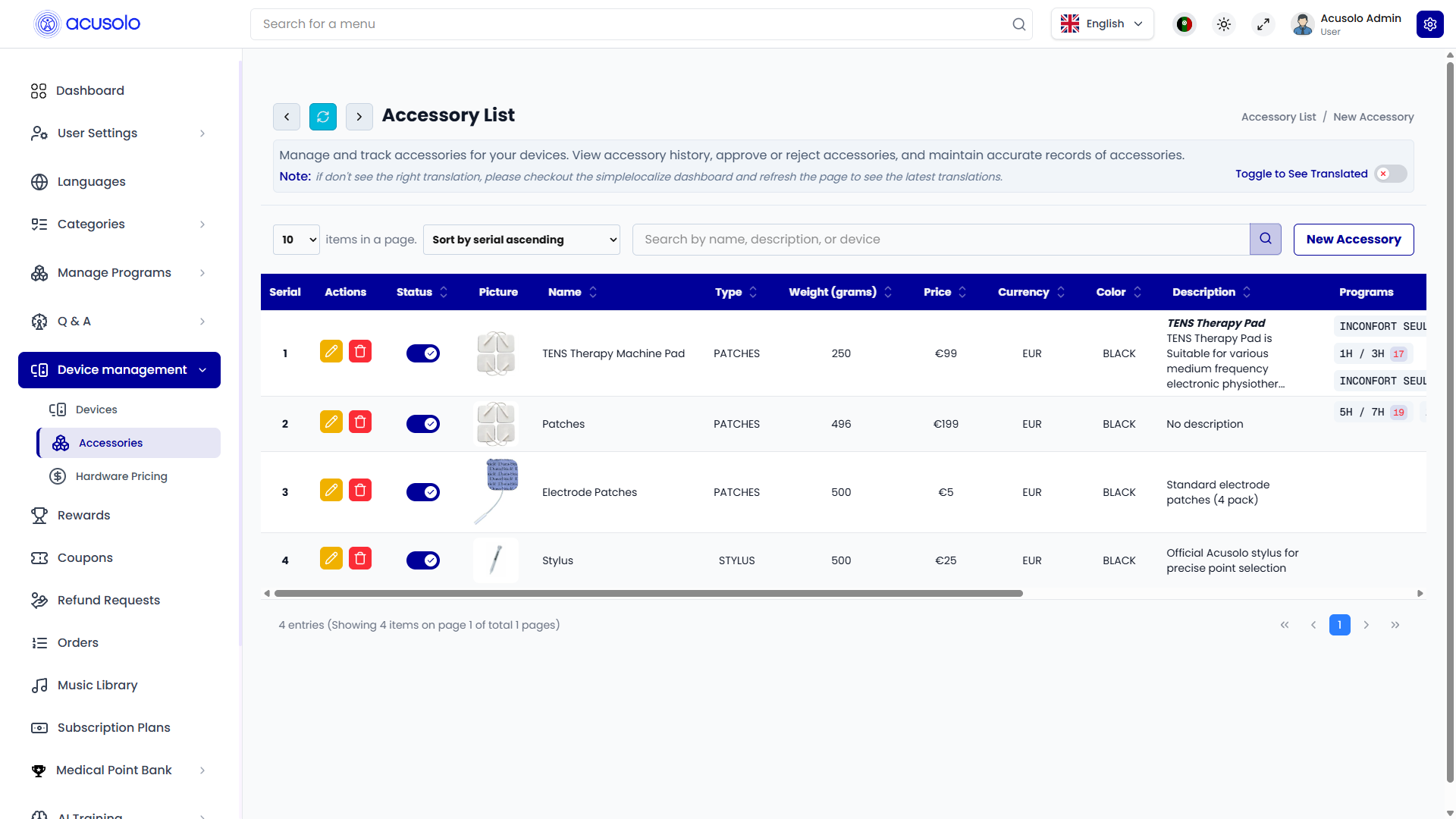
Toolbar and controls
- Title: Accessory List (breadcrumb-style hint such as
Accessory List / New Accessory). - Short description about managing accessories.
- Toggle to See Translated when available.
- Items per page, Sort (for example “Sort by serial ascending”).
- Search — placeholder along the lines of Search by name, description, or device.
- New Accessory — opens Create New Accessory.
Table columns (typical)
| Column | Purpose |
|---|---|
| Serial | Display order / index. |
| Actions | Edit (pencil) and Delete (trash). |
| Status | Toggle to enable or disable the accessory. |
| Picture | Thumbnail. |
| Name | Product title. |
| Type | Category such as PATCHES, STYLUS, etc. |
| Weight (grams) | Shipping / logistics weight. |
| Price | Sell price in the row’s currency. |
| Currency | ISO-style code (for example EUR). |
| Color | Display color label. |
| Description | Snippet from details. |
| Programs | Linked therapy programs (names / serials). |
| Device | Linked hardware device when configured (column visible when relevant). |
Row actions
- Edit: Opens Edit Accessory with pre-filled data (not the device edit modal—that path is
/admin/devices; accessories use Edit Accessory). - Delete: Opens delete confirmation before permanent removal.
- Status toggle: Temporarily enables or disables the row.
Create New Accessory
Click New Accessory to open Create New Accessory.
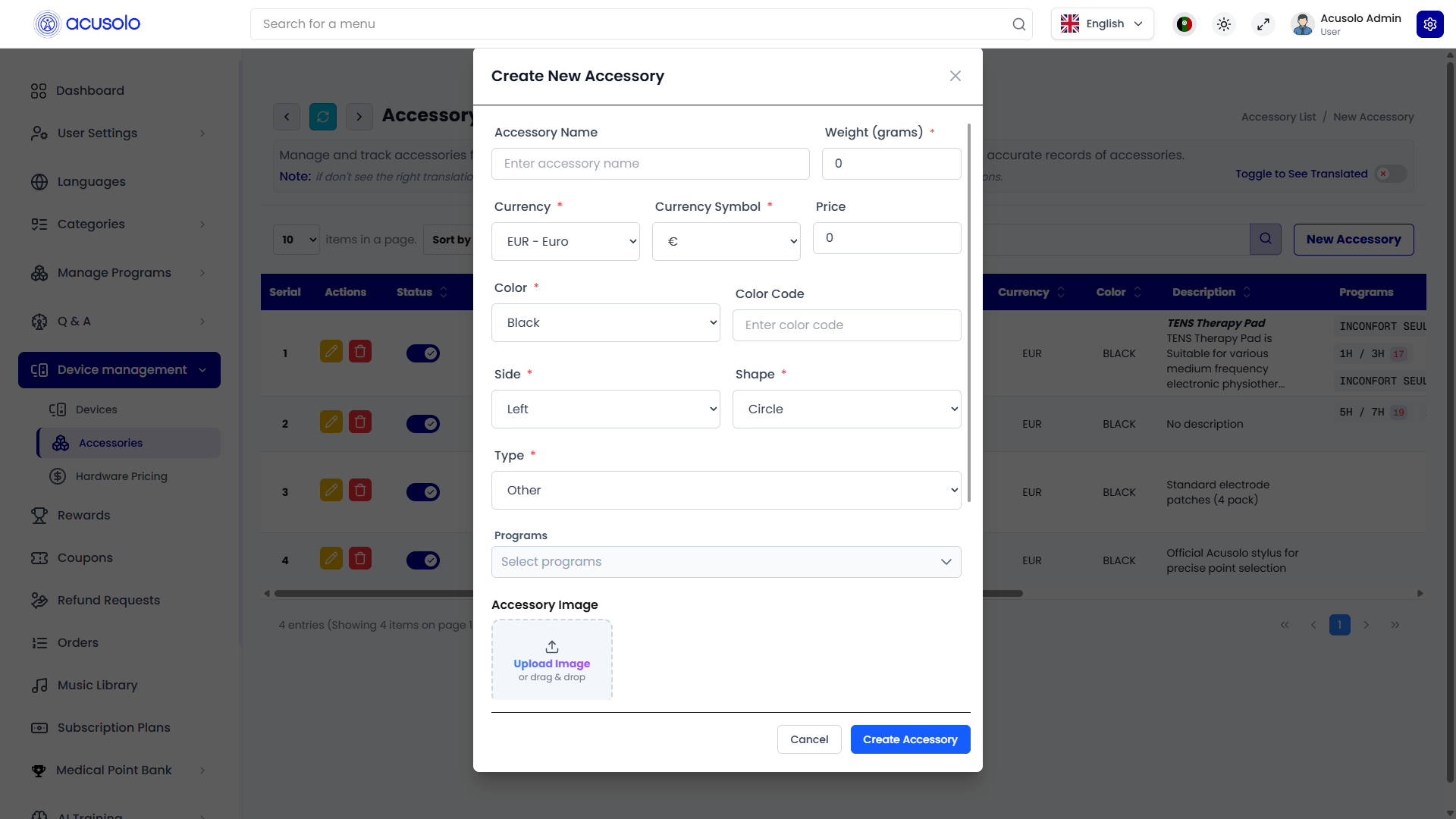
Fields (typical)
- Accessory Name — product title.
- Weight (grams) — required (
*). - Currency — required; dropdown (for example EUR - Euro).
- Currency Symbol — required; aligns with currency (for example €).
- Price — required; numeric sell price.
- Color — required; dropdown (for example Black).
- Color Code — optional text (for example hex
#000). - Side — required (for example Left / Right / Both—follow UI options).
- Shape — required (for example Circle—follow UI options).
- Type — required; drives catalog semantics (for example Patches, Stylus, Other). When Type implies linkage to hardware, the UI shows a device selector—see below.
- Programs — multi-select to attach therapy programs.
- Accessory Image — upload (drag-and-drop or click); formats shown in UI.
Cancel closes without saving; Create Accessory submits.
Device selector (when Type links to a device)
When the accessory type is set so that a device association applies, the modal exposes a searchable device list (search by code, name, description). Pick the device this accessory belongs with.
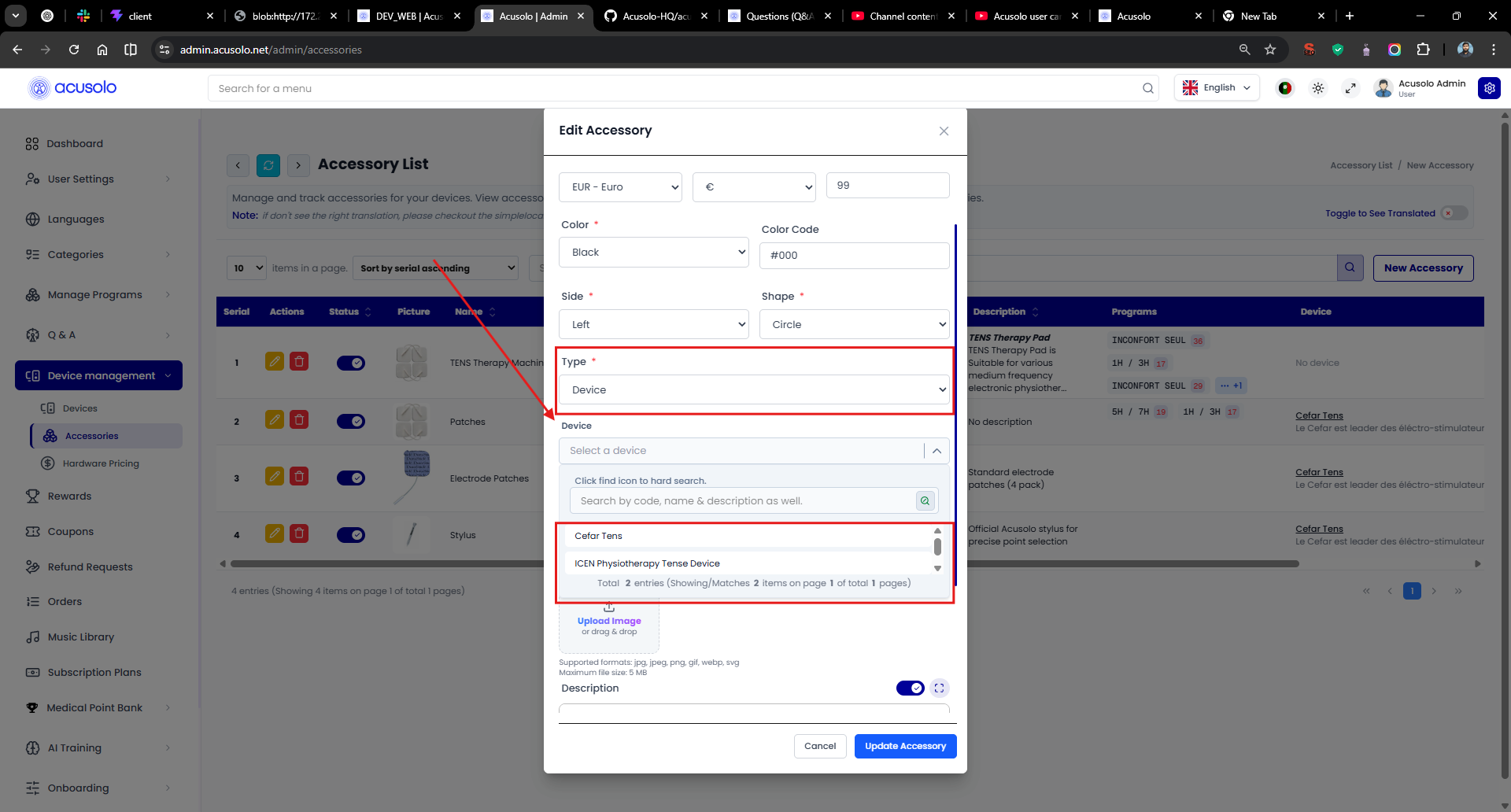
Programs remain selectable independently so accessories can be scoped to programs as well as devices.
Edit Accessory
Click Edit on a row to open Edit Accessory. Values are pre-filled: name, weight, currency, symbol, price, color attributes, Programs (often shown as removable tags), image replacement zone, and rich-text Description.
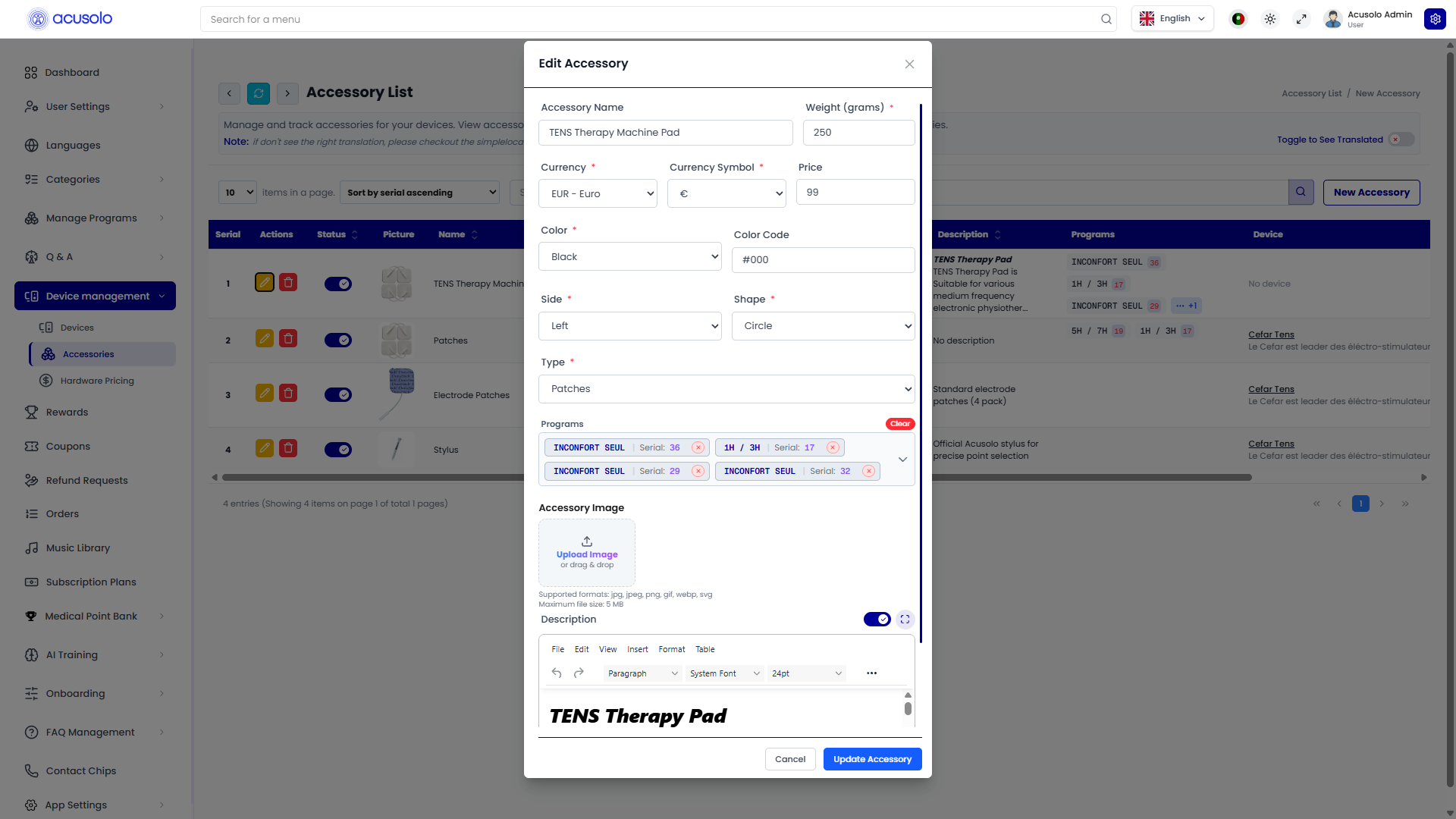
The screenshot illustrates Programs as tagged selections with optional Clear. Follow live validation rules if the UI marks fields required only in certain combinations.
Cancel discards; Update Accessory saves.
Delete flow
Delete opens a confirmation modal before removing the accessory.
Web app: purchasing accessories
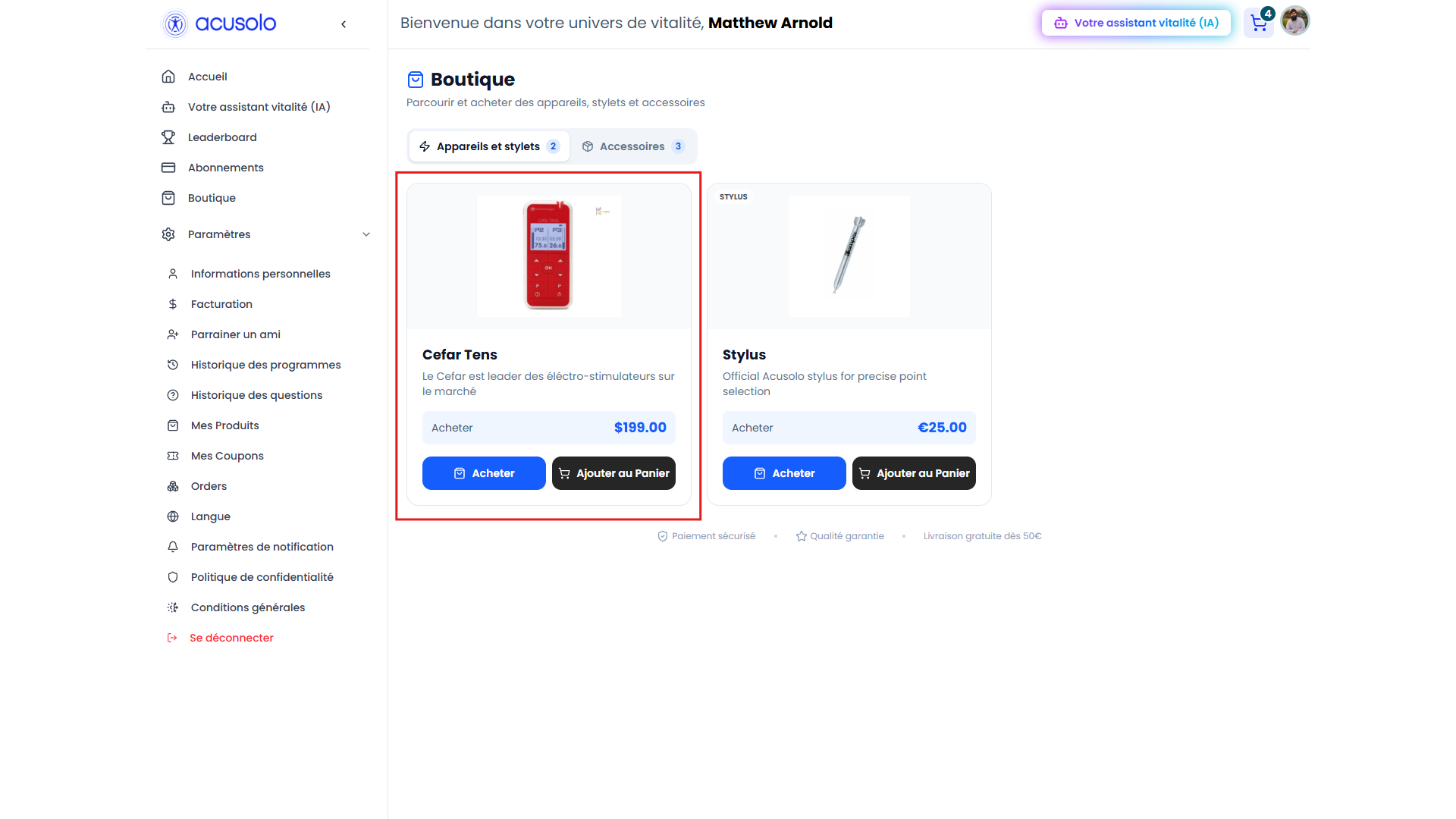
The storefront URL https://web.acusolo.net/accessories opens Boutique with tabs such as Devices / styluses and Accessories. Users switch to the Accessories tab to browse cards built from admin accessory records and use Buy / Add to cart.
Overview with both tabs (devices and accessories):
Accessories tab focused on patch-style products:
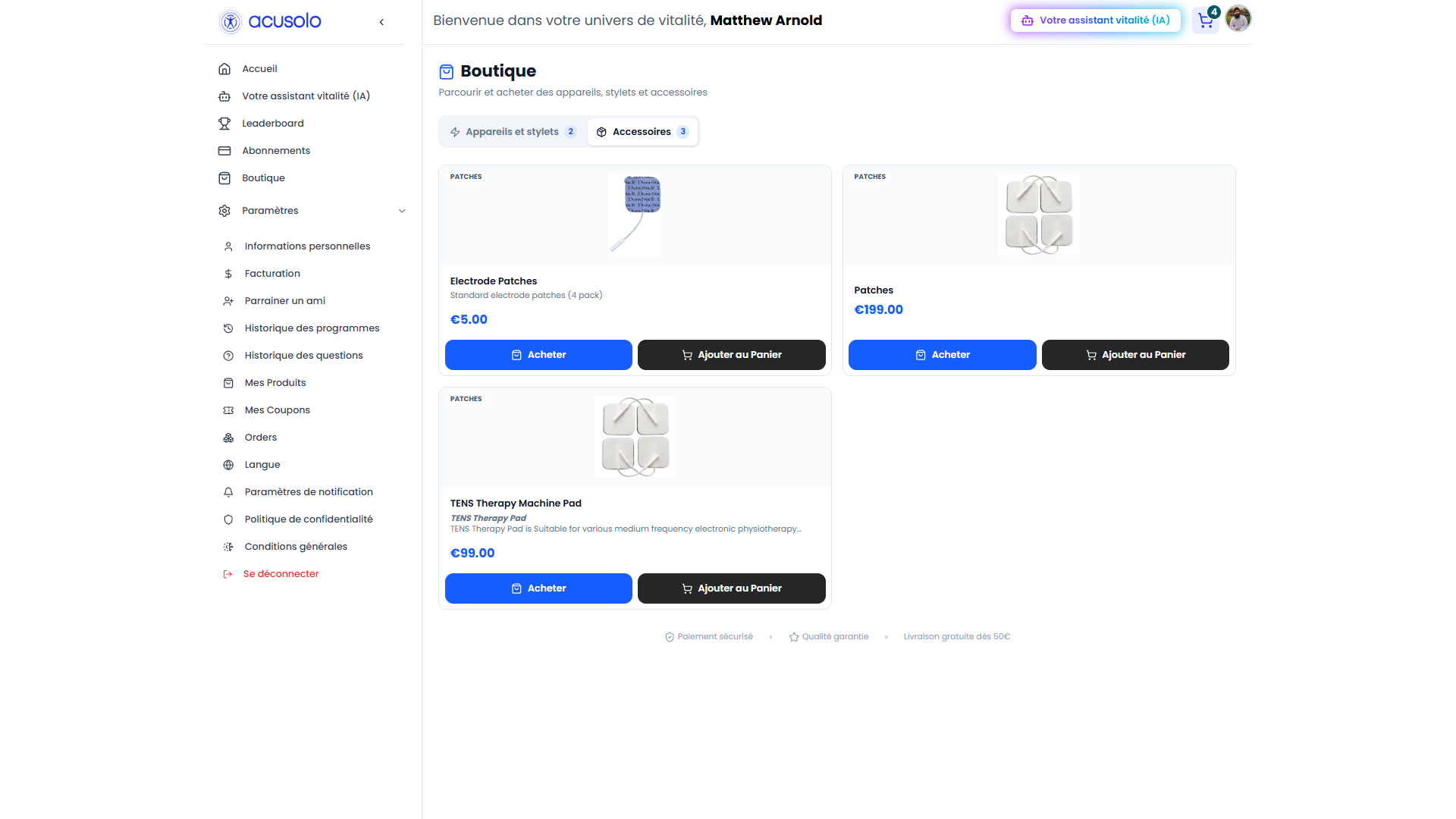
Admin Accessory List fields (names, descriptions, prices, currencies, images, programs, device linkage) feed these storefront cards where applicable. After checkout, staff and users work with orders under Orders.