Push Notifications
Push notifications allow admins to send messages to mobile app users, while users can control which types of notifications they want to receive from their own settings page.
- Admin push notifications page:
https://admin.acusolo.net/admin/push-notifications - Web app notification settings:
https://web.acusolo.net/settings/notifications-settings
User notification settings
Users can manage their notification preferences from the web app settings page.
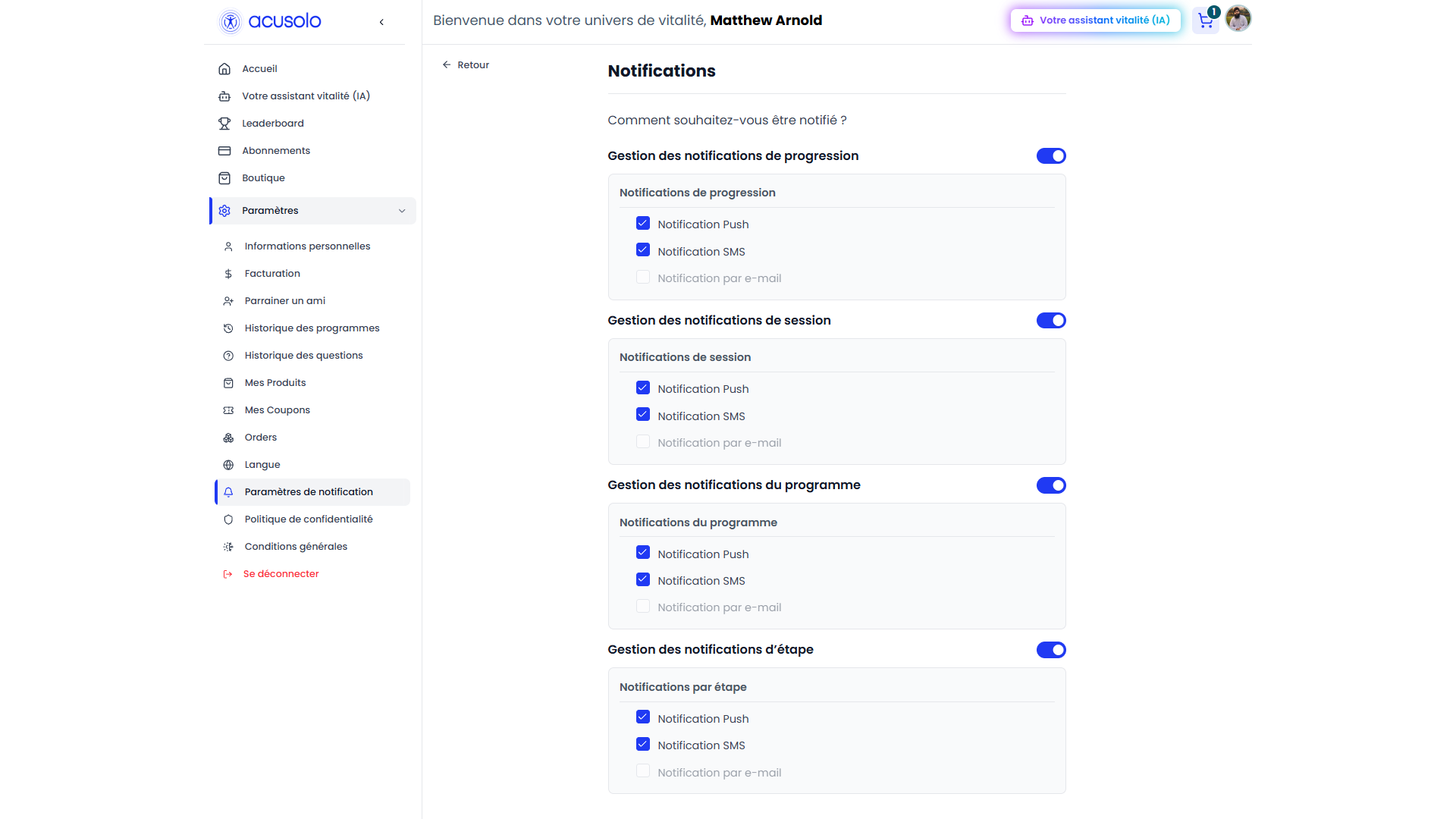
This page lets each user decide how they want to be notified for different notification areas.
Current notification areas include:
- Progress notification management
- Session notification management
- Program notification management
- Step notification management
Each area can show available delivery options:
| Option | Meaning |
|---|---|
| Push Notification | Allows mobile push notifications for that area. |
| SMS Notification | Allows SMS notifications for that area. |
| Email Notification | Shown as a preference option, but currently disabled in the UI. |
When a user changes a checkbox, the preference is saved for that notification area. If the save fails, the page returns the checkbox to its previous value and shows an error message.
The main toggle beside each notification area is shown for future control of the full area. In the current UI, changing that main area toggle shows a "coming soon" message, while the individual push/SMS options are the active controls.
Admin push notification list
Admins can manage outgoing push notifications from the admin panel.

The list page helps admins:
- View existing push notification records.
- Search notification records.
- Create and send a new push notification.
- Edit an existing notification record.
- Delete a notification record.
- Review notification status and delivery numbers.
The page also shows quick audience buttons for:
- All Users
- Registered Users
- Unregistered Users
These buttons represent the main audience groups the push notification system is designed to support.
List table columns
| Column | Meaning |
|---|---|
| No. | Row number or ordering value. |
| Actions | Edit or delete the notification. |
| Status | Current notification state, such as draft, sent, delivered, failed, or scheduled. |
| Title | Notification title shown to the recipient. |
| Body | Main notification message. |
| Type | Notification channel, such as push, in-app, email, or SMS. |
| Category | Business category, such as general, program reminder, payment, support, security alert, or promotional. |
| Priority | Priority level, such as low, normal, high, or urgent. |
| Target Type | Audience type for the notification. |
| Sent Count | Number of send attempts or sent notifications. |
| Delivered Count | Number of successfully delivered notifications. |
| Timestamp | Created and updated time. |
Create push notification
Click New Push Notification to open the create modal.
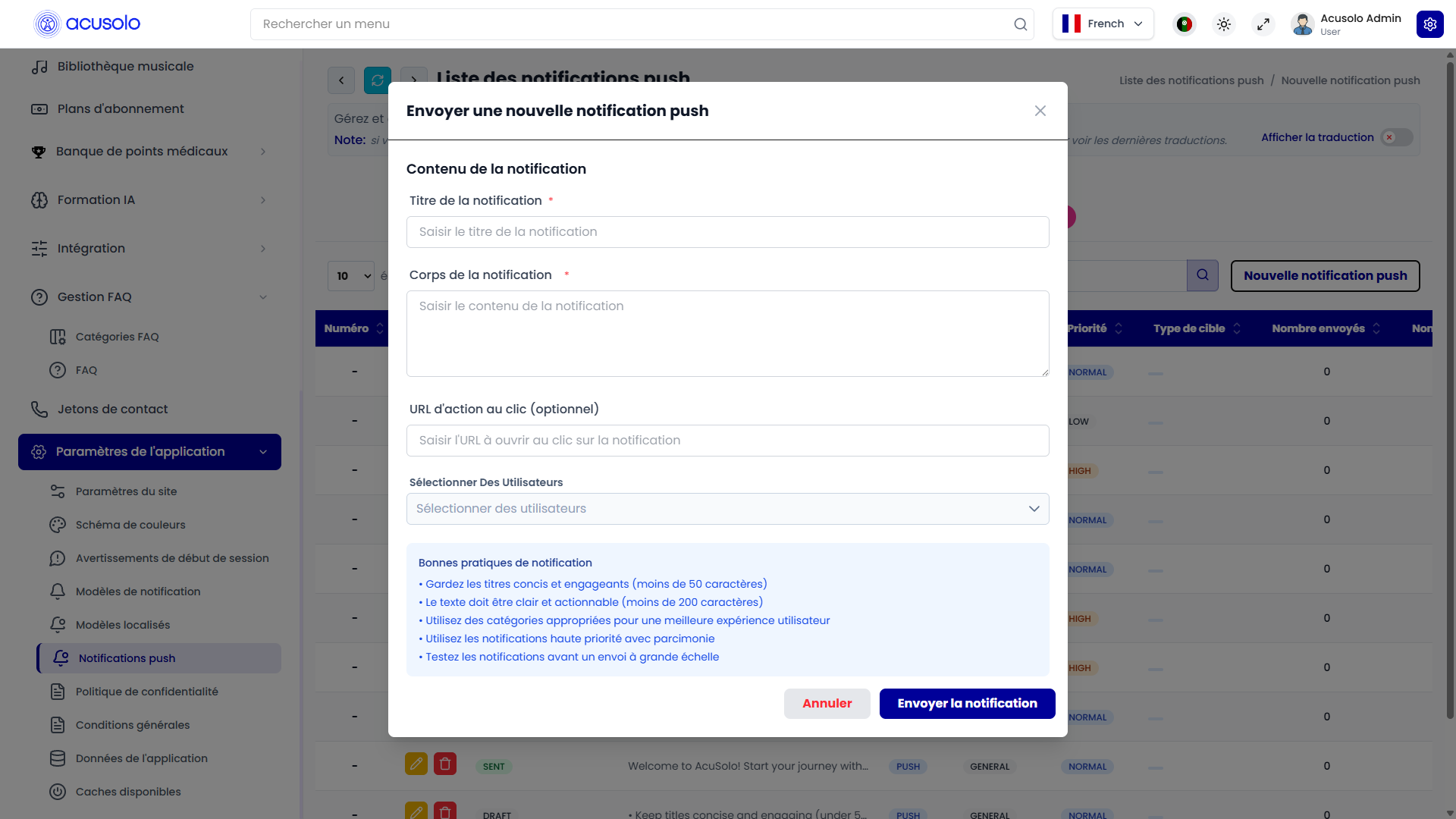
Create fields
| Field | Meaning |
|---|---|
| Notification Title | Required. Short title shown in the notification. It should be concise and attention-friendly. |
| Notification Body | Required. Main notification text. It should be clear, useful, and action-oriented. |
| Click Action URL | Optional. A link or action destination that opens when the user taps the notification. |
| Select Users | Selects specific users who should receive the notification. |
After submitting, the notification is sent to the selected users who have active mobile push devices available.
Writing guidelines
The create modal includes writing guidance:
- Keep titles concise and engaging.
- Keep body text clear and actionable.
- Use push notifications carefully to avoid overwhelming users.
- Test important messages before sending them to a large audience.
Edit push notification
Click the edit action from a notification row to open the edit modal.
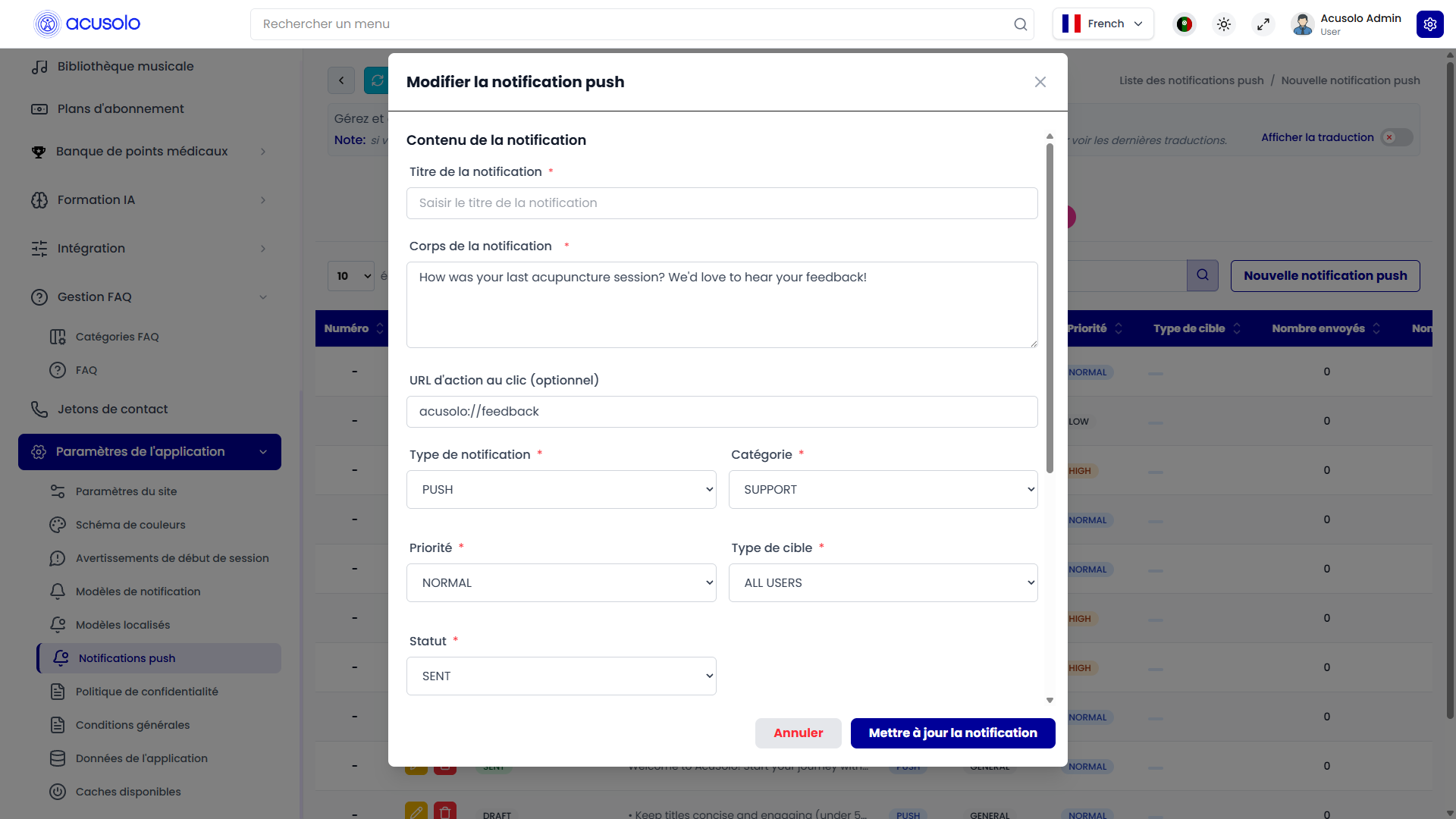
The edit modal opens with the selected notification's existing information.
Admins can review or update:
- Notification Title
- Notification Body
- Click Action URL
- Notification Type
- Category
- Priority
- Target Type
- Status
- Schedule Date
- Expiration Date
The edit modal also shows delivery analytics:
- Sent
- Delivered
- Opened
- Failed
Changes to notifications that were already delivered do not change the message already received on a user's device. Scheduled or pending notifications should be edited carefully before they are sent.
Delete behavior
Deleting a push notification uses the standard delete confirmation pattern. After confirmation, the notification record is removed from the admin list.
Deleting a record does not take back notifications that were already delivered to user devices.
Audience behavior
Push notifications depend on active mobile device registration. A user must have a registered active device before they can receive a mobile push notification.
Supported audience concepts include:
- Selected users: Admin chooses specific users.
- Registered users: Users who have accounts and active devices.
- Unregistered users: Devices that exist without a signed-in user account.
- All users/devices: All active devices known to the system.
If no active device is available for the selected audience, the notification cannot be delivered to that audience.
User preference behavior
User notification settings affect which notification channels are allowed for each area. For example, a user may keep push notifications enabled for sessions but turn off SMS for program notifications.
The settings page is designed so each user can control their own notification experience without needing admin support.
Important rules
- Notification title and body are required.
- A selected-user notification needs at least one selected recipient.
- Users need active mobile devices to receive push notifications.
- Optional click actions should point to a useful destination.
- High or urgent priority should be used carefully.
- Delivered notifications cannot be edited retroactively on user devices.
- User notification preferences should be respected when sending notifications.
Common error cases
Admins or users may face these issues:
- Title is missing.
- Body is missing.
- No user is selected for a selected-user notification.
- The selected audience has no active mobile devices.
- A notification preference update fails and returns to the previous value.
- A user has no notification settings available yet.
- A user disables a notification channel and stops receiving that channel for the related area.
Overall flow
- A user manages notification preferences from the web app settings page.
- The user's active mobile device is stored for push notification delivery.
- Admin creates a push notification from the admin panel.
- Admin writes the title, body, optional click action, and selects the target audience.
- The system sends the notification to active devices in the selected audience.
- Delivery counts and status information appear in the admin list.
- Users receive notifications according to their device availability and notification preferences.