Session modals (Modales de session)
These records control the welcome / summary popup shown in the web app after a user finishes a session (after the final step’s completion flow). They are separate from the Program 12 Point toggle, which only affects the last program session CTA.
- Base URL (Admin):
https://admin.acusolo.net/
Web app: session completion flow
When the user completes all steps of a session, the last step can open a music / summary modal (countdown, track, Terminer).
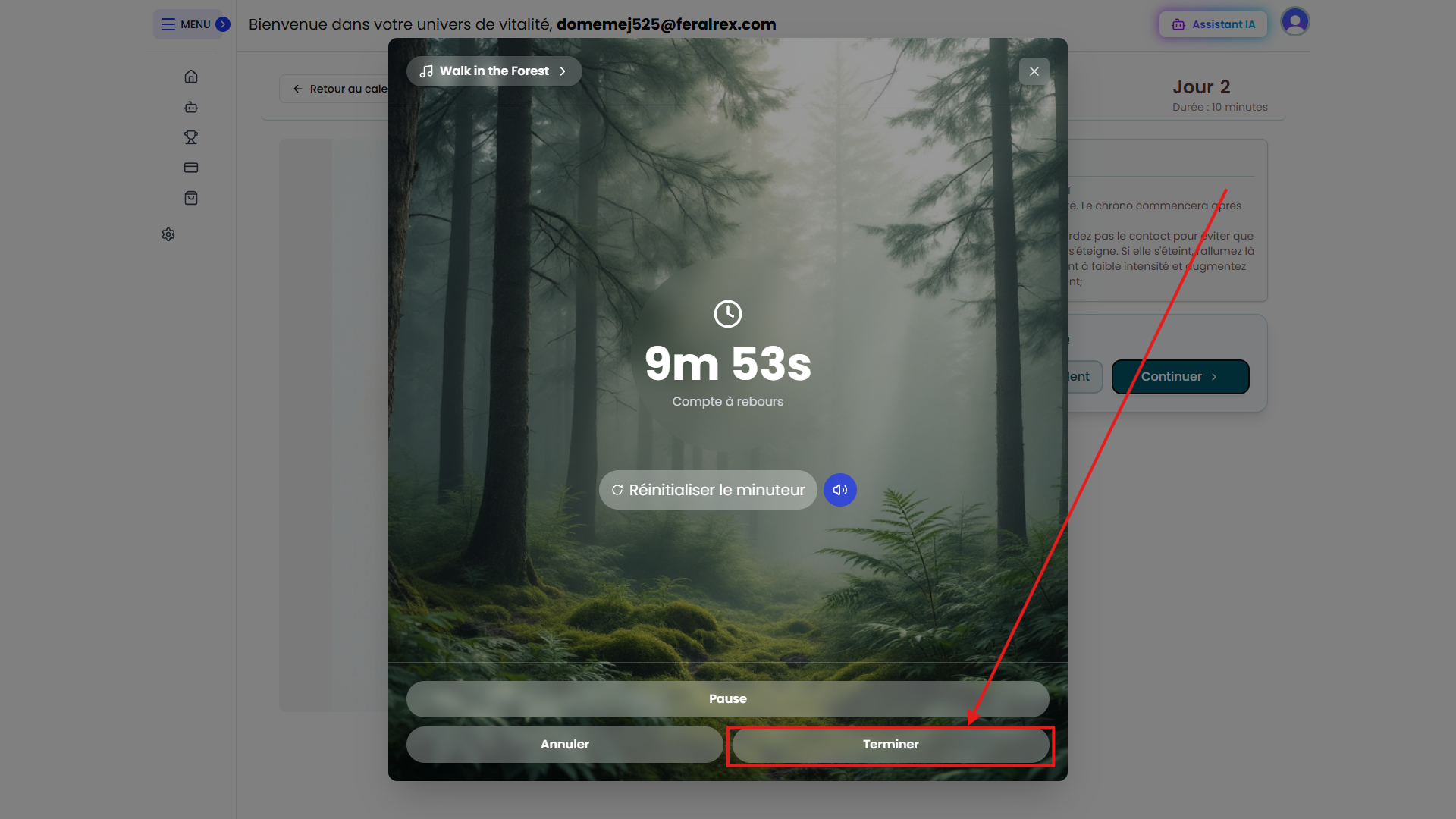
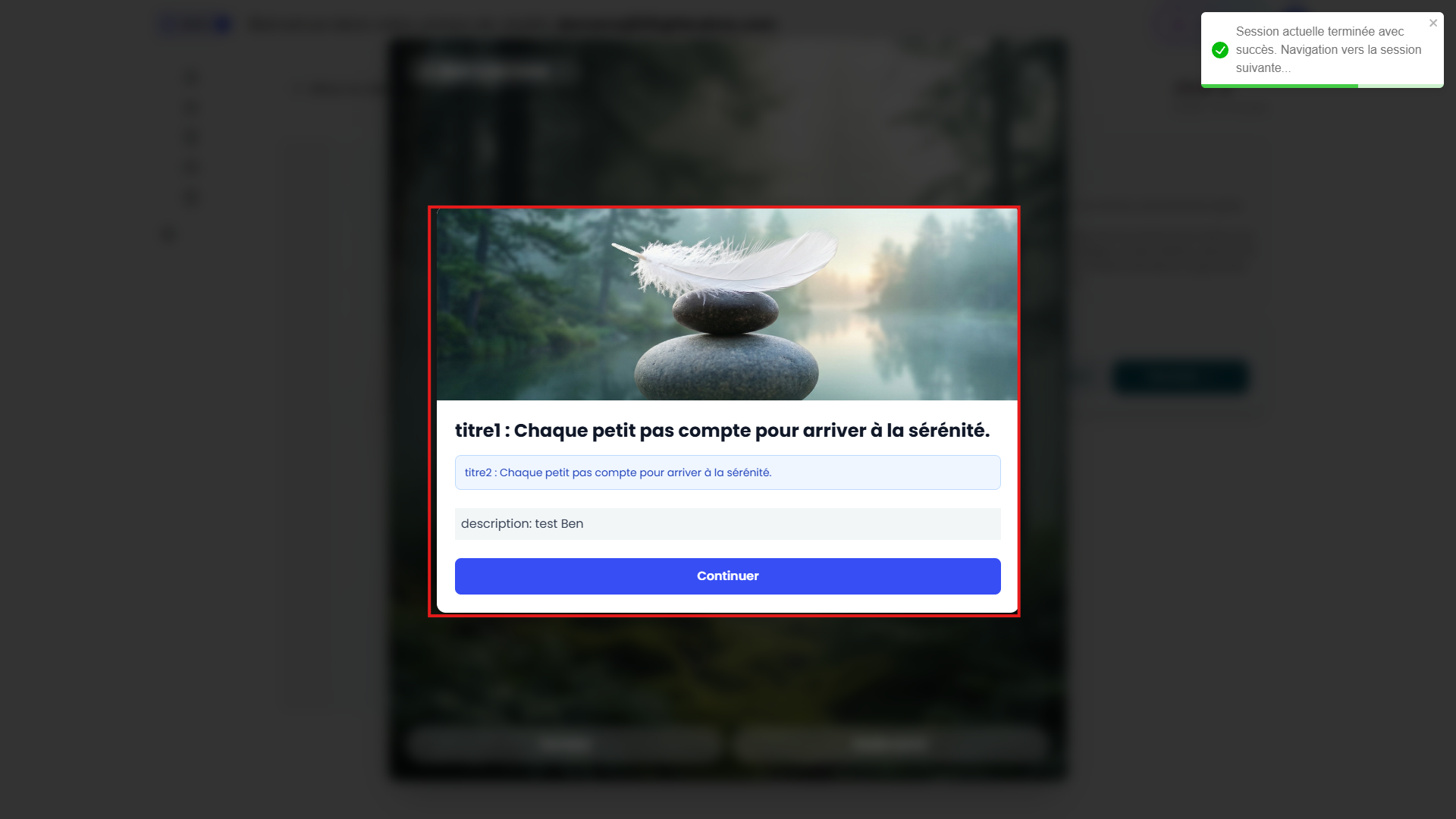
After the user clicks Terminer (Finish — highlighted in the reference UI), the welcome popup opens. Its image, titles, and description come from the session modal entry that matches the resolution rules below.
Admin: session modals list
Gérer les programmes → Modales de session. Create entries with Nouvelle modale de session.
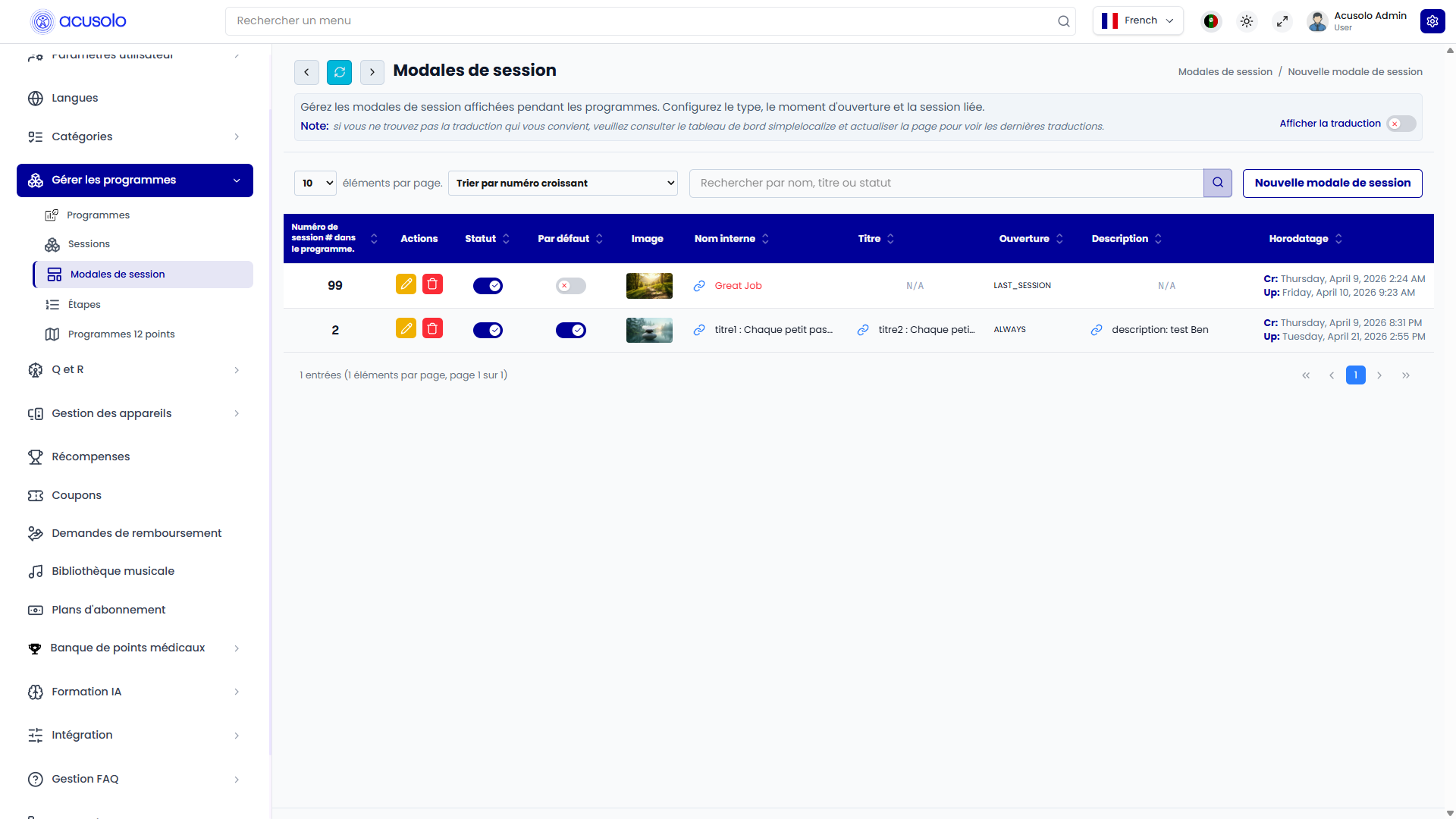
Columns (typical)
| Column | Definition |
|---|---|
| Session no. # in Program | Serial number of the program session this row targets (1 = first session of any program, 2 = second, …). This is the main matching key for ALWAYS rows. |
| Actions | Edit, Delete (with confirmation). |
| Statut | Enable / disable this modal record. |
| Default | At most one row should be default: used as fallback when no row matches the current session number (or when a session has no specific content). |
| Image | Hero image for the welcome popup. |
| Internal name | Admin-only label. |
| Title | User-facing title text (and related fields depending on your schema). |
Open on (Ouverture) | ALWAYS or LAST_SESSION — see Types. |
| Description | Body content (often rich text). |
| Timestamp | Created / updated. |
Toolbar usually includes search, sort, translation toggle, and pagination like other admin lists.
Types: ALWAYS vs LAST_SESSION
LAST_SESSION
- Exactly one such record should exist across the whole table (global singleton).
- Supplies the welcome content for the final session of every program (program-agnostic “last session” experience).
- The Session no. # in Program value on that row may be a placeholder in the UI (for example
99in a screenshot); the product treats the row by type, not by matching session index.
ALWAYS
- One row per session index you want to customize (for example “show this copy after session 2 of any program”).
- Matching rule: if the user just finished session N of a program, use the
ALWAYSrow whose Session no. # in Program equalsN.
Default fallback
- Mark one record as default.
- If there is no matching
ALWAYSrow for sessionN, and the finished session is not handled byLAST_SESSION, the app uses the default row’s content.
Resolution order (conceptual)
- If the completed session is the last session of the program → use the single
LAST_SESSIONrow (if active). - Else if an
ALWAYSrow exists for Session no. # = N → use it (if active). - Else → use the
Defaultrow (if active).
Session no. # in Program (important)
The value is the session serial inside the program, not the calendar day label.
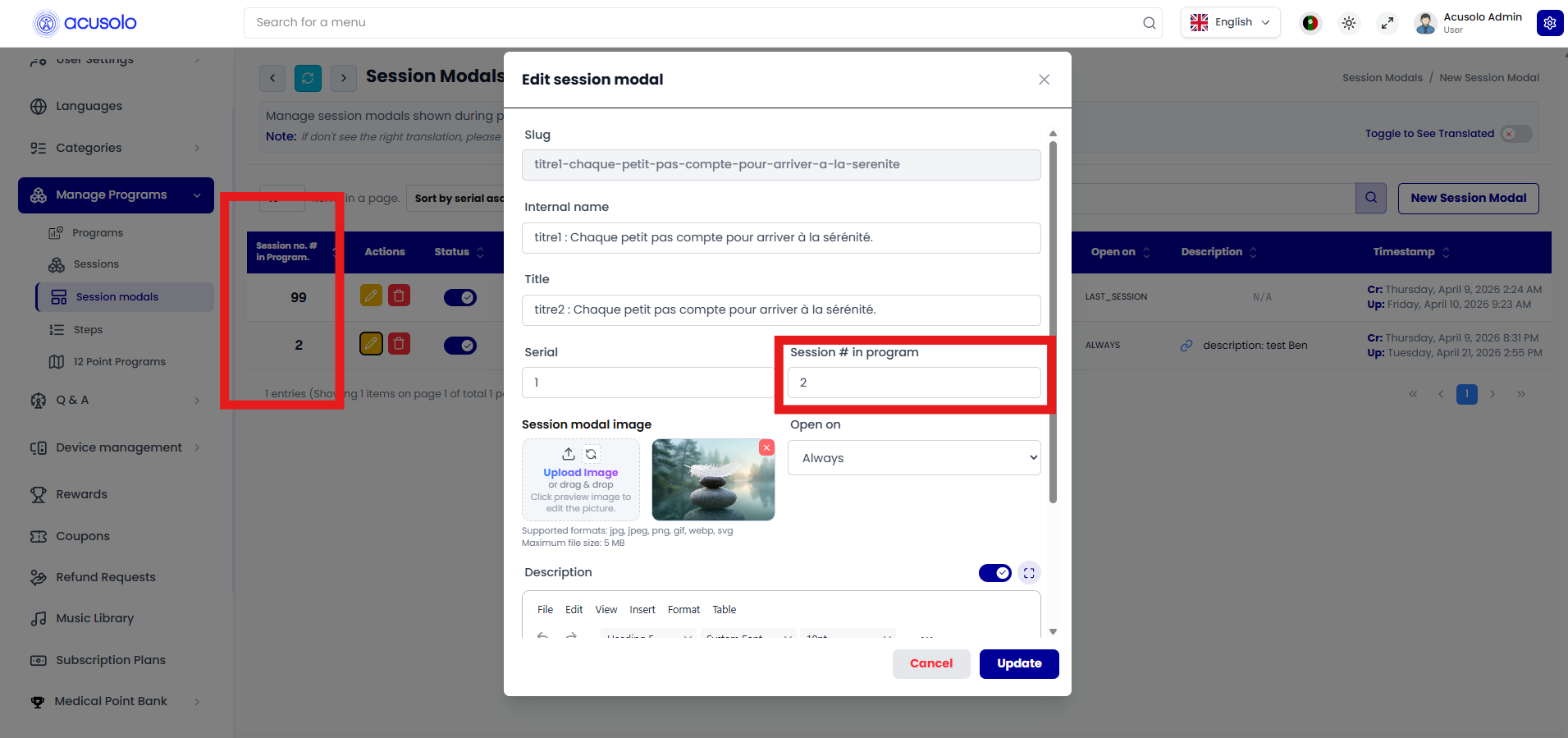
Example: After finishing session 1 of any program, the app loads the modal row where Session no. # in Program = 1. After session 2, it uses the row with 2, and so on.
Create session modal

Typical fields:
- Internal name, Title, Serial (display / sort order in admin lists).
- Session no. # in Program — numeric key for
ALWAYSmatching (for example3for “after session 3”). - Session modal image — upload (common image types, 5 MB max where shown).
- Open on —
Alwaysor Last session of the program (one item) (wording may vary by locale). - Description — rich text.
Annuler / Create.
Edit session modal
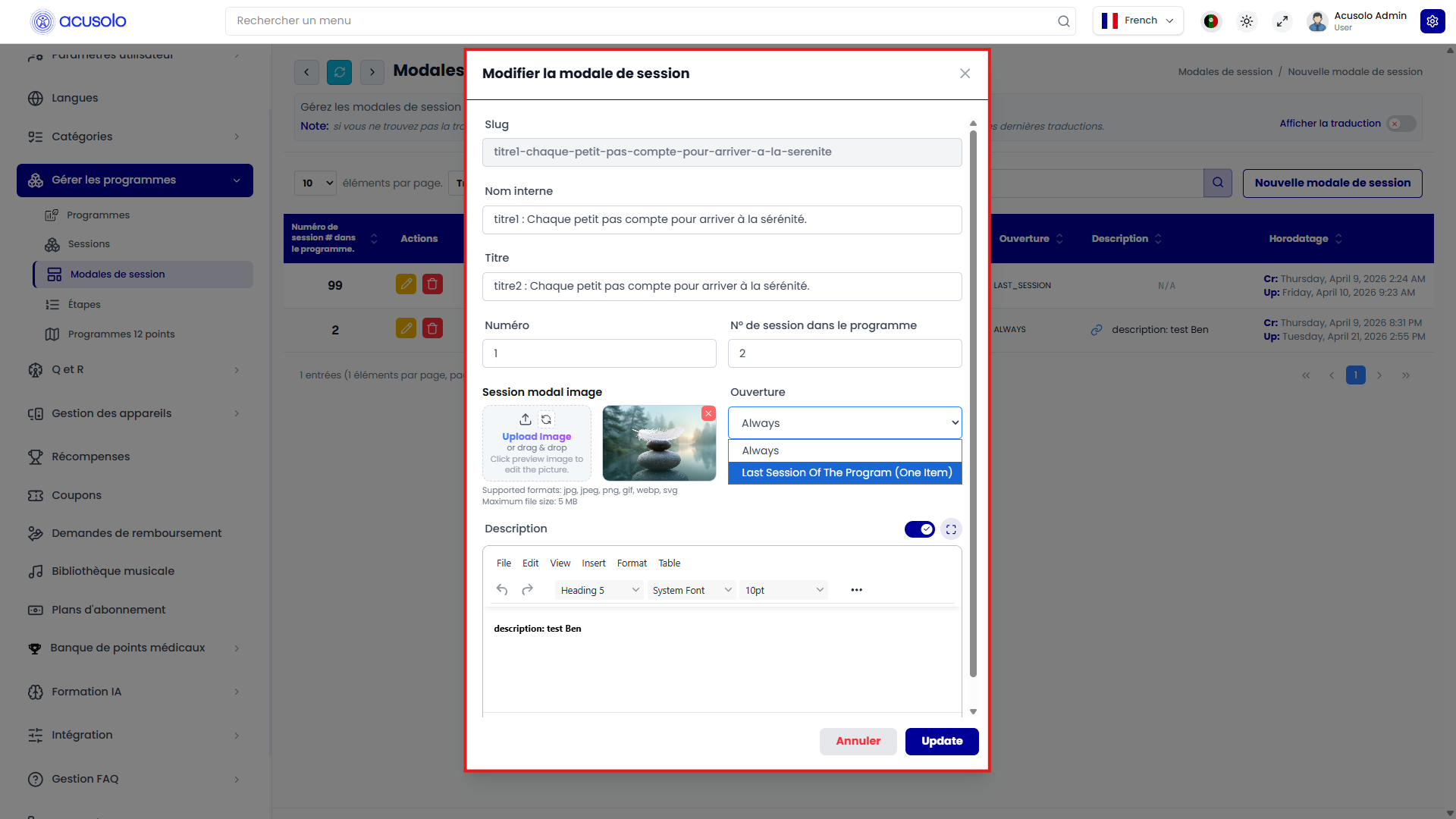
Same fields as create, pre-filled: Slug, internal name, title, serial, Session no. # in program, image, Ouverture dropdown (Always vs last-session option), description. Annuler / Update.